
1. Įvadas
The Huawei OptiXstar K251a-21 is a sub-FTTR (Fiber to the Room) unit designed to extend the high-speed network provided by the Huawei FTTR OptiXstar F50 Plus main unit. This device supports ultra-Gigabit high-speed access via upstream fiber optic lines and delivers Ultra Gigabit dual-band Wi-Fi and ultra-Gigabit network ports to users. It integrates next-generation Wi-Fi 7 technology for higher speeds and lower latency, ensuring a superior home network experience.
2. Saugos informacija
Please read and understand all safety instructions before using this device. Failure to follow these instructions may result in injury, damage to the device, or property damage.
- Naudokite tik su prietaisu pateiktą maitinimo adapterį.
- Saugokite įrenginį nuo vandens, drėgmės ar ekstremalių temperatūrų.
- Nestatykite prietaiso šalia šilumos šaltinių arba tiesioginiuose saulės spinduliuose.
- Užtikrinkite tinkamą vėdinimą, kad išvengtumėte perkaitimo.
- Nebandykite patys atidaryti ar taisyti įrenginio. Pagalbos kreipkitės į kvalifikuotus techninės priežiūros darbuotojus.
- Prietaisą laikykite atokiau nuo vaikų ir naminių gyvūnėlių.
3. Pakuotės turinys
Patikrinkite, ar pakuotėje yra visi reikalingi daiktai:
- Huawei OptiXstar K251a-21 Sub FTTR Device
- Maitinimo kabelis
- Greito paleidimo vadovas (jei pridėtas)
4. Produktas baigtasview
Susipažinkite su įrenginio komponentais ir indikatoriais.
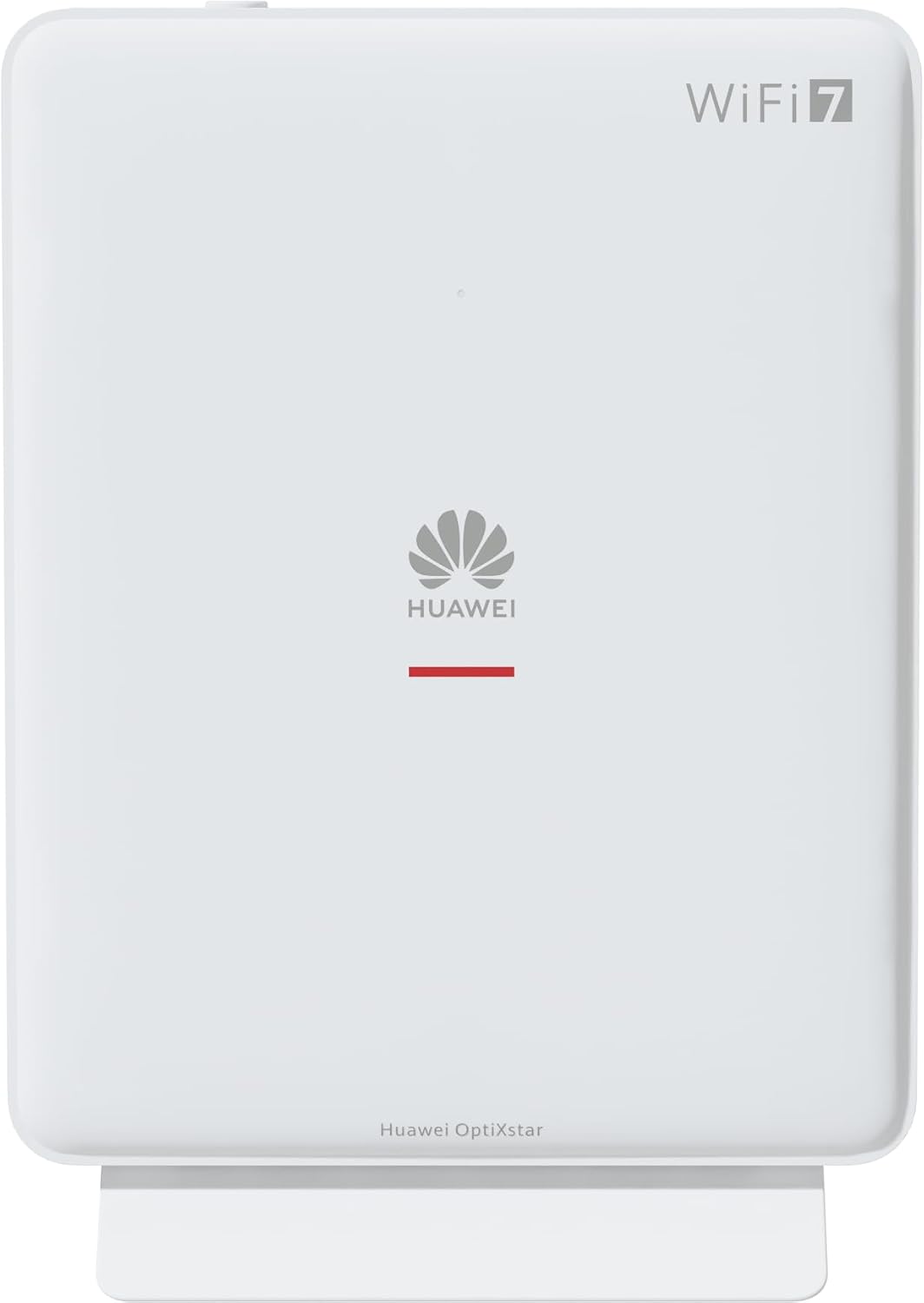
1 pav.: priekis view of the Huawei OptiXstar K251a-21 Sub FTTR device, showing the Huawei logo and "WiFi 7" branding.

2 pav.: Kampuota priekinė pusė view of the Huawei OptiXstar K251a-21 Sub FTTR, highlighting its sleek design and ventilation.

3 pav.: galinis view of the Huawei OptiXstar K251a-21 Sub FTTR, displaying the ports (Reset, 2-GE, 1-2.5GE, Power, FTTR) and mounting options.

4 pav.: Šoninis profilisfile of the Huawei OptiXstar K251a-21 Sub FTTR, showing its slim form factor and ventilation grilles.

5 pav.: Pasvirusi galinė dalis view of the Huawei OptiXstar K251a-21 Sub FTTR, providing a clear look at the port labels and layout.

6 paveikslas: viršuje view of the Huawei OptiXstar K251a-21 Sub FTTR, featuring the WPS/LED button.
Prievadai ir mygtukai:
- FTTR Port: Connects to the main FTTR unit via a fiber optic cable.
- 1-2.5GE Port: Gigabit Ethernet port for high-speed wired connections.
- 2-GE Port: Gigabito Ethernet prievadas laidiniam ryšiui.
- Maitinimo prievadas: Jungiamas prie maitinimo adapterio.
- Atkūrimo mygtukas: Used to restore factory settings (press and hold for 5-10 seconds).
- WPS/LED Button: Initiates Wi-Fi Protected Setup (WPS) for easy device connection and controls LED indicators.
5. Sąranka
Follow these steps to set up your Huawei OptiXstar K251a-21 Sub FTTR device:
- Vieta: Choose a central location in your home for optimal Wi-Fi coverage. The device is suitable for various installation scenarios, including vertical placement on a desk, wall-mounting, plugging into a power strip, or mounting in an 86mm junction box with a bracket.
- Prijunkite šviesolaidinį kabelį: Connect one end of the fiber optic cable to the FTTR port on the Sub FTTR unit and the other end to the corresponding FTTR port on your Huawei FTTR OptiXstar F50 Plus main unit or wall outlet. Ensure the connection is secure.
- Prijunkite maitinimą: Plug the power adapter into the Power port on the Sub FTTR unit, then plug the other end into a power outlet.
- Maitinimas: The device will automatically power on. Wait for the indicator lights to stabilize, typically indicating a successful connection to the main FTTR unit and active Wi-Fi.
- Wired Connections (Optional): For wired devices, connect an Ethernet cable from the 1-2.5GE or 2-GE ports on the Sub FTTR to your computer, gaming console, or other network devices.
6. Operacinis
Once set up, your OptiXstar K251a-21 provides seamless Wi-Fi 7 connectivity.
- „Wi-Fi“ ryšys: Ieškokite the Wi-Fi network name (SSID) broadcast by your FTTR system on your devices (smartphones, laptops, etc.). Enter the Wi-Fi password. The system's unique SRCN (Seamless Roaming Coordinate Network) technology ensures seamless roaming throughout your home.
- C-WAN Architecture: The C-WAN architecture centrally controls and coordinates network-wide Wi-Fi resources via the Main FTTR, providing an ultra-Gigabit high-speed experience.
- IoT Casing: The device features an IoT casing designed to protect home network security and privacy.
- WPS funkcija: Press the WPS/LED button briefly to use Wi-Fi Protected Setup (WPS) for quick connection of compatible devices without entering the password.
- LED indikatoriai: The LED indicators provide status information. Refer to the main FTTR unit's manual or the device's specific documentation for detailed LED status meanings.
7. Priežiūra
Regular maintenance helps ensure optimal performance and longevity of your device.
- Valymas: Švelniai nuvalykite įrenginį minkštu, sausu skudurėliu. Nenaudokite skystų valiklių ar abrazyvinių medžiagų.
- Firmware atnaujinimai: Huawei periodically releases firmware updates to improve performance and security. These updates are typically managed through the main FTTR unit or a dedicated mobile application. Ensure your system is always running the latest firmware.
- Vėdinimas: Įsitikinkite, kad ventiliacijos angos nėra užblokuotos, kad išvengtumėte perkaitimo.
- Kabelių valdymas: Keep fiber optic and power cables neatly organized and free from kinks or excessive bending.
8. Problemų sprendimas
Jei kyla problemų, pabandykite atlikti šiuos trikčių šalinimo veiksmus:
- Nėra galios: Check if the power cable is securely connected to both the device and the power outlet. Try a different outlet.
- Nėra interneto ryšio:
- Verify that the fiber optic cable is correctly connected to the FTTR port.
- Check the status indicators on both the Sub FTTR and the main FTTR unit.
- Restart both the Sub FTTR and the main FTTR unit by unplugging them from power for 30 seconds and then plugging them back in.
- Ensure your main FTTR unit has an active internet connection.
- Mažas „Wi-Fi“ greitis:
- Ensure the device is placed optimally, away from obstructions and interference sources.
- Check if too many devices are connected to the network.
- Update the firmware of your FTTR system.
- Consider using a wired connection for bandwidth-intensive tasks.
- Nepavyksta prisijungti prie „Wi-Fi“:
- Patikrinkite, ar įvedate teisingą „Wi-Fi“ slaptažodį.
- Try using the WPS button to connect.
- Restart your device and the Sub FTTR unit.
- Gamykliniai nustatymai: If issues persist, you may need to perform a factory reset. With the device powered on, use a pointed object (like a paperclip) to press and hold the Reset button for 5-10 seconds until the indicators change. Note that this will erase all custom settings.
9. Specifikacijos
| Funkcija | Specifikacija |
|---|---|
| Prekės ženklas | HUAWEI |
| Modelio numeris | K8M251a-21G02 |
| Matmenys (paketas) | 24.5 x 23.7 x 7.4 cm |
| Svoris (pakuotės) | 300 gramų |
| Ypatinga funkcija | Interneto sauga |
| Dažnių juostos klasė | Dvi juosta |
| Belaidžio ryšio standartas | 802.11ax (Wi-Fi 7 Generation) |
| Suderinami įrenginiai | Asmeninis kompiuteris |
| Rekomenduojami naudojimo būdai | Pradžia |
| Įtraukti komponentai | Maitinimo kabelis |
| Ryšio technologija | Ethernet, FTTR, Wi-Fi, Fiberglass |
| Spalva | Baltas |
| Prievadų skaičius | 4 (FTTR, 1-2.5GE, 2-GE, Power) |
| Duomenų perdavimo sparta | 1 gigabitų per sekundę |
| Išmaniųjų namų suderinamumas | Compatible with smart home systems |
| Interneto ryšys | Taip |
| Ryšio protokolas | Wi-Fi |
10. Garantija ir palaikymas
Dėl garantijos informacijos ir techninės pagalbos kreipkitės į oficialią „Huawei“ svetainę. website or contact your local Huawei customer service. Keep your purchase receipt for warranty claims.
Internetiniai ištekliai: Apsilankykite oficialioje „Huawei“ palaikymo svetainėje webDUK, atnaujintų vadovų ir programinės įrangos atsisiuntimų svetainė.
Klientų aptarnavimas: Contact details for customer support can typically be found on the Huawei website or in the documentation provided with your main FTTR unit.