
1. Įvadas
This manual provides detailed instructions for the installation, operation, and maintenance of your Surakey 9.7-inch Android Car Stereo Radio. Please read this manual thoroughly before installation and use to ensure proper functionality and to avoid damage.
2. Suderinamumas
This car stereo radio is designed for compatibility with Jeep Compass models from 2009 to 2017. Before proceeding with your order and installation, it is crucial to verify your vehicle's specific model year. If you are uncertain about compatibility, please provide a complete image of the plugs on the back of your vehicle's center console and the original main unit to the manufacturer for confirmation regarding wiring harnesses or adapters.
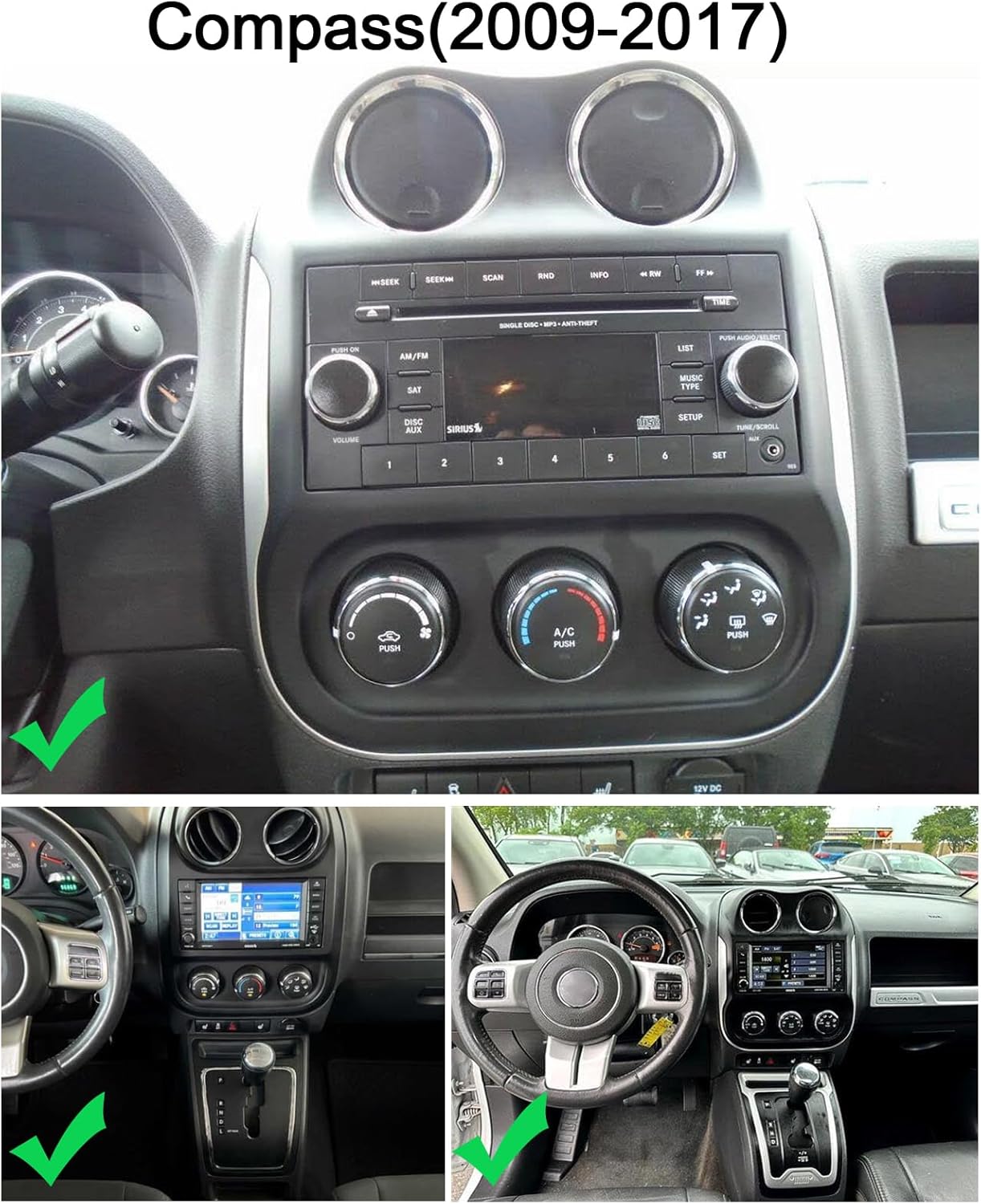
Figure 2.1: Dashboard compatibility for Jeep Compass (2009-2017).
3. Sąranka ir diegimas
3.1 Patikrinimas prieš montavimą
Always confirm the correct wiring diagram for your specific vehicle model. Depending on the vehicle, different power cords and protocols may be required. Ensure you have the appropriate components before beginning installation.
3.2 Gaminio laidai
Refer to the wiring diagram provided to correctly connect the car stereo to your vehicle's electrical system. This includes connections for power, speakers, and other accessories.

3.1 pav.: Gaminio laidų schema.
3.3 Atbulinės eigos kameros įrengimas
The unit supports OEM CVBS 720P backup cameras. 360-degree panoramic cameras are not supported. If your OEM camera is incompatible, use the included backup camera. The reversing input must be connected even if the camera is not used.
- Prijunkite kameros teigiamą laidą prie automobilio atbulinės eigos žibinto teigiamo poliaus.
- Prijunkite kameros neigiamą laidą prie automobilio atbulinės eigos žibinto neigiamo poliaus.
- Atbulinės eigos paleidiklį valdo stereo sistema ir jam nereikia atskiro prijungimo.
Svarbi pastaba: The white plug must be connected to the main device for Bluetooth and Wi-Fi signals to function correctly.

3.2 pav.: Atbulinės eigos kameros laidų schema.
3.4 Backup Camera Format and Resolution Setup
To configure the backup camera settings:
- Tap the settings icon to open the settings menu.
- Select "Factory Settings" and enter the password "8888".
- Navigate to "Protocol Parameter Settings".
- Select "Reverse video resolution settings".
- Choose the correct setting based on your camera type: NTSC/PAL for OEM cameras, or AHD/25 for the included camera.


Figure 3.3: Backup Camera Resolution Setup Steps.
Video 3.1: Demonstration of accessing reversing settings for the car stereo. This video shows how to navigate through the system menus to find and adjust settings related to the backup camera, including options for reverse track, radar, image, color, and video resolution.
4. Naudojimo instrukcijos
4.1 Belaidis „Apple CarPlay“ ir „Android Auto“
Connect your iOS or Android smartphone wirelessly via Bluetooth and Wi-Fi, or using a wired USB cable, to access CarPlay or Android Auto. This allows integration with your phone's address book, mail, notifications, map navigation, music, calls, and voice control features.

4.1 pav.: Belaidė „CarPlay“ ir „Android Auto“ sąsaja.
4.2 Veidrodinis ryšys
The unit supports screen mirroring from both iOS and Android smartphones via Wi-Fi, allowing you to display your phone's content directly on the car stereo screen.

4.2 pav.: Veidrodinio susiejimo funkcionalumas.
4.3 Padalinto ekrano rodinys
Utilize the split-screen feature to display two applications simultaneously, such as navigation and music playback. This enhances multitasking and provides a safer driving experience.

Figure 4.3: Split Screen Display.
4.4 GPS navigacija
The car stereo offers both offline and online navigation options. You can use offline navigation by connecting the included GPS module or download online navigation apps via Wi-Fi/WLAN connection.

4.4 pav.: GPS navigacijos sąsaja.
4.5 Vairo valdymas (SWC)
The steering wheel control function allows you to manage calls, change music tracks, and adjust volume directly from your steering wheel buttons, promoting safer driving.

Figure 4.5: Steering Wheel Control Function.
4.6 Integruotas DSP (skaitmeninis signalų procesorius)
The integrated DSP enhances audio quality by reducing noise, distortion, and interference, offering personalized audio settings and an optimized soundstage.

Figure 4.6: Built-in DSP Interface.
4.7 FM radijo funkcija
Enjoy comprehensive FM and RDS channel support for easy access to news, music, and real-time traffic updates, enriching your driving experience.

4.7 pav.: FM radijo sąsaja.
4.8 „Bluetooth“ ryšys
The unit features Bluetooth with A2DP for hands-free calls, phone book access, caller ID, voice calls, and Bluetooth music playback.

Figure 4.8: Bluetooth Interface.
4.9 „Wi-Fi“ ryšys
Connect to Wi-Fi for online maps, app downloads, streaming online content, and browsing the web. The built-in Bluetooth also allows for hands-free phone calls and music playback.

Figure 4.9: Wi-Fi Connectivity and Online Features.
5. Priežiūra
Norėdami užtikrinti automobilio garso sistemos ilgaamžiškumą ir optimalų veikimą, laikykitės šių bendrųjų priežiūros gairių:
- Valymas: Ekraną ir išorinius paviršius valykite minkšta, sausa šluoste. Venkite abrazyvinių valiklių ar tirpiklių, kurie gali pažeisti apdailą.
- Temperatūra: Venkite ilgą laiką laikyti įrenginį itin aukštoje temperatūroje – tiek karštyje, tiek šaltyje.
- Programinės įrangos atnaujinimai: Reguliariai tikrinkite, ar yra programinės įrangos atnaujinimų, ir įdiekite juos, kad sistema veiktų efektyviai ir saugiai.
- Kabelių jungtys: Įsitikinkite, kad visi laidai yra tvirtai prijungti ir nepažeisti. Atsilaisvinusios jungtys gali sukelti protarpiais kylančių problemų.
6. Problemų sprendimas
6.1 Backup Camera Issues
If your backup camera is not functioning correctly:
- Suderinamumas: Ensure your camera is an OEM CVBS 720P type. 360-degree panoramic cameras are not supported.
- Included Camera: If your OEM camera is incompatible, use the backup camera provided with the unit.
- Laidai: Double-check all camera wiring connections as per the installation diagram (Section 3.3). Ensure the reversing input is connected.
- Nustatymai: Verify the backup camera format and resolution settings in the system menu (Section 3.4).
- White Plug: Confirm the white plug is securely connected to the main device, as this affects signal reception.
6.2 Bendrieji klausimai
- Nėra galios: Patikrinkite visas maitinimo jungtis ir saugiklius. Įsitikinkite, kad transporto priemonės uždegimas įjungtas.
- Nėra garso: Patikrinkite garsiakalbių jungtis, garsumo lygius ir garso šaltinio pasirinkimą. Jei taikoma, patikrinkite DSP nustatymus.
- Jutiklinis ekranas nereaguoja: Pabandykite paleisti įrenginį iš naujo. Jei problema išlieka, gali tekti atkurti gamyklinius nustatymus (kreipkitės į palaikymo tarnybą).
- GPS signalo praradimas: Įsitikinkite, kad GPS antena tinkamai sumontuota ir turi laisvą view dangaus.
- Bluetooth/Wi-Fi Connectivity: Check that the white plug is connected to the main device. Ensure Bluetooth and Wi-Fi are enabled in settings.
7. Specifikacijos
| Funkcija | Detalė |
|---|---|
| Modelis | 9.7-inch Android Car Stereo Radio (2+32G) |
| Operacinė sistema | Android 15 |
| RAM | 2 GB |
| ROM | 32 GB |
| Ekrano dydis | 9.7 colių |
| Ekrano tipas | 2.5D HD Touch Screen |
| Ryšys | Wireless Apple CarPlay, Wireless Android Auto, Bluetooth, Wi-Fi, USB |
| Navigacija | GPS (Offline/Online) |
| Garso funkcijos | Built-in DSP, FM/RDS Radio |
| Papildomos funkcijos | Mirror Link, Split Screen, Steering Wheel Control, Rearview Camera Support (OEM CVBS 720P), External MIC, APP Download, MP3/AUX/USB |
| Pakuotės matmenys | 1.97 x 1.18 x 1.18 colio |
| Prekės svoris | 1.6 uncijos |
| Gamintojas | Surakey |
| ASIN | B0GV5PMVYS |
8. Palaikymas ir garantija
For any questions regarding product installation, wiring diagrams, or specific vehicle compatibility, please contact Surakey customer support. Our team is available to assist you with technical inquiries and troubleshooting.
8.1 Pagalba klientams
El. paštas: Fuyatongus@outlook.com
We offer 24-hour customer support to address your concerns.

Figure 8.1: Surakey Customer Support.
8.2 Informacija apie garantiją
Specific warranty details are typically provided with your purchase documentation. Please retain your proof of purchase for any warranty claims. For issues related to backup camera compatibility or other product malfunctions, please reach out to customer support for assistance.