
1. Įvadas
This manual provides essential information for setting up, operating, maintaining, and troubleshooting your Lenovo IdeaCentre AIO 27 All-in-One Desktop PC. Please read this manual thoroughly before using your device to ensure proper functionality and to maximize its lifespan.

Figure 1: Lenovo IdeaCentre AIO 27 All-in-One Desktop PC
2. Pakuotės turinys
Patikrinkite, ar jūsų prekės pakuotėje yra visi šie daiktai:
- Lenovo IdeaCentre AIO 27 Desktop PC
- Maitinimo adapteris (90 W)
- Keyboard (may be wired or wireless, depending on configuration)
- Mouse (may be wired or wireless, depending on configuration)
- Dokumentacija (greito paleidimo vadovas, garantijos informacija)
3. Produktas baigtasview
3.1 Pagrindiniai komponentai
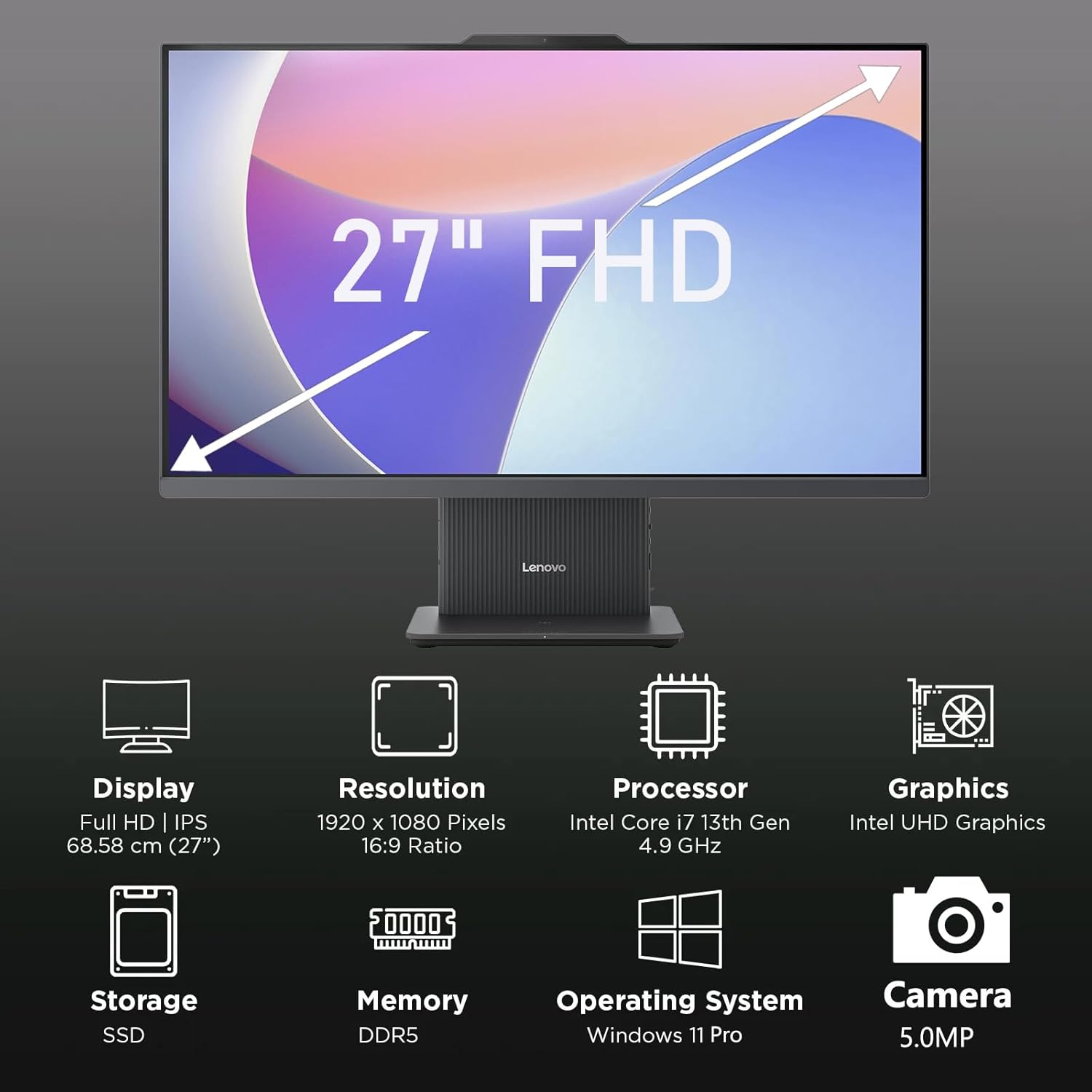
2 pav. Baigtaview of key features including Display, Resolution, Processor, Graphics, Storage, Memory, Operating System, and Camera.
- Ekranas: 27-inch Full HD (1920x1080) IPS, 300 nits, anti-glare.
- Webkumštelis: Integruotas 5.0MP webcam with dual microphones.
- Garsiakalbiai: Integrated 3W x2 HARMAN speakers.
- Procesorius: Intel Core i7-13620H.
- Atmintis: DDR5 RAM.
- Saugykla: PCIe NVMe SSD.
3.2 Prievadai ir jungtys

Figure 3: Detailed diagram of ports and connectors on the Lenovo IdeaCentre AIO 27.
- E-shutter (for webcam privacy)
- Maitinimo mygtukas
- HDMI įvestis 1.4
- Maitinimas DC-in
- USB-A 480Mbps (USB 2.0)
- Ethernet (RJ-45)
- USB-A 480Mbps (USB 2.0)
- USB-A 10Gbps (USB 3.2 Gen 2)
- HDMI išvestis 2.1 TMDS
- USB-C 10Gbps (data transfer only)
- Ausinių / mikrofono jungtis
4. Sąranka
4.1 Išpakavimas ir įdėjimas
- Atsargiai išimkite AIO kompiuterį ir visus priedus iš pakuotės.
- Place the AIO PC on a stable, flat surface with adequate ventilation around the device.
4.2 Maitinimo prijungimas
- Connect the power adapter cable to the DC-in port (4) on the rear of the AIO PC.
- Įjunkite maitinimo adapterį į įžemintą elektros lizdą.
4.3 Išorinių įrenginių prijungimas
- Connect your keyboard and mouse to the available USB-A ports (5, 7, 8) on the rear of the AIO PC.
- If using wired Ethernet, connect the cable to the RJ-45 port (6).
- For external displays, use the HDMI-out port (9). To use the AIO as a display for another device, use the HDMI-in port (3).
4.4 Pradinis paleidimas ir „Windows“ sąranka
- Press the power button (2) to turn on the PC.
- Vykdykite ekrane pateikiamus nurodymus, kad atliktumėte pradinę „Windows 11 Pro“ sąranką, įskaitant kalbos, regiono, tinklo ryšio ir vartotojo paskyros kūrimą.
4.5 Stovo reguliavimas

Figure 4: The AIO stand allows for ergonomic tilt adjustment.
The integrated stand allows for tilt adjustment from -5° to 15° to optimize your viewing angle and posture. Gently adjust the display to your preferred position.
5. Kompiuterio valdymas
5.1 Pagrindinės operacijos
- Maitinimo įjungimas/išjungimas: Press the power button (2) to turn on. To shut down, click Start > Power > Shut down in Windows.
- Miegojimo rezimas: Press the power button briefly or select Sleep from the Start menu.
5.2 Naudojant Webkamera ir garsas

Figure 5: The 5MP webcam and Harman audio enhance video conferencing.
- Webkumštelis: Integruota 5.0MP kamera webcam is ideal for video conferencing and online communication. Use the E-shutter (1) to physically block the camera for privacy.
- Mikrofonai: Dual microphones provide clear audio input.
- Garsiakalbiai: HARMAN speakers deliver high-quality audio output.
5.3 Ryšys
- „Wi-Fi 6“: Prisijunkite prie belaidžių tinklų, kad galėtumėte naudotis sparčiu internetu.
- "Bluetooth 5.2": Susiekite su „Bluetooth“ įrenginiais, tokiais kaip ausinės, garsiakalbiai arba mobilieji telefonai.
- USB prievadai: Utilize the various USB-A and USB-C ports for connecting external drives, printers, and other peripherals.
5.4 „Windows 11 Pro“ funkcijos
Your AIO PC comes pre-installed with Windows 11 Pro, offering advanced features for productivity and security:
- BitLocker: For advanced data encryption.
- Nuotolinis darbalaukis: Access your PC from another device.
- Domeno prisijungimas: Integrate into corporate networks.
- „Windows Hello“: Secure and fast login using facial recognition (if IR camera is present) or PIN.
6. Priežiūra
6.1 Cleaning Your PC
- Ekranas: Šiek tiek naudokite minkštą, be pūkelių šluostę dampnuplaukite vandeniu arba neabrazyviniu ekrano valikliu. Nepurkškite skysčio tiesiai ant ekrano.
- Kėbulo tipas: Wipe with a soft, dry cloth. Avoid harsh chemicals or abrasive materials.
- Vėdinimas: Įsitikinkite, kad ventiliacijos angos nėra dulkės ir neužsikimšusios, kad išvengtumėte perkaitimo.
6.2 Programinės įrangos naujiniai
Regularly check for and install Windows updates and driver updates to ensure optimal performance and security. Go to Settings > Windows Update to check for updates.
6.3 Duomenų atsarginė kopija
Periodiškai kurkite svarbių duomenų atsargines kopijas išoriniame diske arba debesies saugykloje, kad išvengtumėte duomenų praradimo.
7. Problemų sprendimas
This section addresses common issues you might encounter with your IdeaCentre AIO 27.
| Problema | Galimas sprendimas |
|---|---|
| Kompiuteris neįsijungia | Ensure the power adapter is securely connected to both the PC and a working electrical outlet. Test the outlet with another device. |
| Ekrane nėra ekrano | Check power connection. Ensure the PC is powered on. If using HDMI-in, verify the external device is on and correctly connected. |
| Nėra interneto ryšio („Wi-Fi“) | Check if Wi-Fi is enabled in Windows settings. Verify your router is working. Reconnect to the Wi-Fi network. |
| Nėra garso | Check volume levels in Windows. Ensure speakers are not muted. Verify audio drivers are up to date. |
| Webkamera neveikia | Ensure the E-shutter (1) is open. Check privacy settings in Windows. Verify webcam drivers are installed and up to date. |
8. Specifikacijos

Figure 6: Details of the Intel Core i7-13620H processor.

Figure 7: The 27-inch FHD display offers comfortable viewing.
| Funkcija | Specifikacija |
|---|---|
| Prekės ženklas | Lenovo |
| Modelio pavadinimas | „IdeaCentre AIO 27“ |
| Operacinė sistema | Windows 11 Pro |
| Procesorius | Intel Core i7-13620H (10 Cores, 16 Threads, up to 4.9GHz) |
| Grafika | Integruota Intel UHD grafika |
| Ekranas | 27-inch FHD (1920x1080) IPS, 300 nits, Anti-glare, 99% sRGB |
| Atmintis | 32GB DDR5 RAM (5200 MT/s) |
| Sandėliavimas | 1TB M.2 PCIe 4.0x4 NVMe SSD |
| Garsas | High Definition (HD) Audio, Realtek ALC233-CG codec, 3W x2 HARMAN speakers |
| Webkumštelis | 5.0MP with Dual Microphones |
| Belaidis ryšys | „Wi-Fi 6“ (802.11ax 2x2), „Bluetooth 5.2“ |
| Uostai (gale) | 1x USB-A 10Gbps, 2x USB-A 480Mbps, 1x HDMI-in 1.4, 1x HDMI-out 2.1 TMDS, 1x RJ-45, 1x Power Connector |
| Uostai (kairėje) | 1x USB-C 10Gbps (data transfer only), 1x 3.5mm combo audio jack |
| Apsaugos lustas | Programinė įranga TPM 2.0 |
| Maitinimo adapteris | 90W 89% adapter |
| Matmenys (P x G x A) | 611.72 x 192 x 473.16 mm (24.08 x 7.55 x 18.62 colio) |
| Svoris | Maždaug 7.1 kg (15.65 svaro) |
9. Informacija apie garantiją
Your Lenovo IdeaCentre AIO 27 PC comes with a standard manufacturer's warranty. The specific terms and duration of your warranty may vary by region and purchase agreement. Please refer to the warranty documentation included in your product packaging or visit the official Lenovo support websvetainėje, kur rasite išsamią informaciją.
Typically, the warranty covers defects in materials and workmanship under normal use. It does not cover damage caused by misuse, accidents, unauthorized modifications, or external factors.
10. Pagalba ir kontaktinė informacija
For technical support, service, or additional information, please contact Lenovo customer support through the following channels:
- „Lenovo“ palaikymas Websvetainė: Apsilankykite support.lenovo.com tvarkyklėms, vadovams ir trikčių šalinimo vadovams.
- Pagalba telefonu: Refer to your warranty card or the Lenovo support webregioninių kontaktinių numerių svetainė.
- Internetinis pokalbis: Available on the Lenovo support websvetainė, teikianti pagalbą realiuoju laiku.
Please have your product's serial number ready when contacting support. The serial number is typically located on a label on the back or bottom of your AIO PC.