Įvadas
This manual provides instructions for the setup, operation, and maintenance of your Microsoft Wireless Comfort Desktop 5000. This product combines a wireless keyboard and a wireless mouse designed for comfortable and efficient computer interaction.
The Microsoft Wireless Comfort Desktop 5000 features an ergonomically designed Comfort Curve keyboard and a mouse utilizing BlueTrack Technology for versatile surface tracking. It operates on a 2.4 GHz wireless connection, offering a reliable connection with a range of up to 30 feet.
Sąrankos vadovas
Kas yra dėžutėje
- Microsoft Wireless Comfort Desktop 5000 Keyboard
- Microsoft Wireless Comfort Desktop 5000 Mouse
- USB Mini-Transceiver
- 2 AA Alkaline Batteries (for keyboard)
- 1 AA Alkaline Battery (for mouse)
Sistemos reikalavimai
- Operacinė sistema: Windows 8, Windows 7, Windows Vista, Windows XP (excluding Windows XP 64-bit)
- Kietasis diskas: 100 MB free space
- Uostas: USB prievadas
Akumuliatoriaus montavimas
The keyboard requires two AA alkaline batteries, and the mouse requires one AA alkaline battery. Batteries are included with the product.
- Raskite baterijų skyrių klaviatūros ir pelės apačioje.
- Atidarykite akumuliatoriaus skyriaus dangtelį.
- Insert the AA batteries, ensuring correct polarity (+/-).
- Saugiai uždarykite akumuliatoriaus skyriaus dangtelį.
Connecting the Wireless Transceiver
The wireless desktop set connects to your computer via a USB mini-transceiver.
- Locate the USB mini-transceiver. It may be stored in the mouse's battery compartment for transport.
- Insert the USB mini-transceiver into an available USB port on your computer.
- Jūsų kompiuteris turėtų automatiškai aptikti ir įdiegti reikiamas tvarkykles. Šis procesas gali užtrukti kelias akimirkas.
- Įdiegus tvarkykles, klaviatūra ir pelė turėtų būti paruoštos naudoti.

Figure 1: The compact USB mini-transceiver for wireless connection.

Figure 2: The underside of the mouse showing the storage slot for the USB mini-transceiver.
Naudojimo instrukcijos
Klaviatūros ypatybės

3 pav.: Iš viršaus į apačią view of the Comfort Curve keyboard layout.
- Comfort Curve Design: The keyboard features an ergonomist-approved Comfort Curve design that encourages a natural wrist posture, reducing strain during extended use.
- Quiet Touch Keys: Experience comfortable typing with low-profile, quiet-touch keys.
- Delnų atrama: A soft-touch palm rest is integrated to provide additional comfort and support for your wrists.
- Removable Feet: Adjustable feet on the underside allow you to set the keyboard at a preferred angle for a more comfortable wrist posture.
- Taskbar Favorites for Windows 7: Easily access programs pinned to the Windows Taskbar using dedicated shortcut keys. The keys automatically adapt if you rearrange icons in the Taskbar.
- Media Center Controls: Control media playback directly from your keyboard using dedicated media keys (e.g., play/pause, volume up/down, mute).

4 pav.: Kampinis view highlighting the integrated palm rest and Comfort Curve design.
Pelės savybės

5 pav.: Kampinis view of the wireless mouse.
- BlueTrack technologija: The mouse utilizes Microsoft's BlueTrack Technology, combining the power of optical with the precision of laser for remarkable tracking on virtually any surface, including granite, carpet, and wood.
- Keturių krypčių slinkimas: The tilt wheel allows for four-way scrolling (up, down, left, and right), enhancing efficiency and comfort when navigating documents or web puslapių.
- Pritaikomi mygtukai: The mouse buttons can be customized for quick access to programs, files, media, and webpages you use most often. Refer to your operating system's mouse settings for customization options.
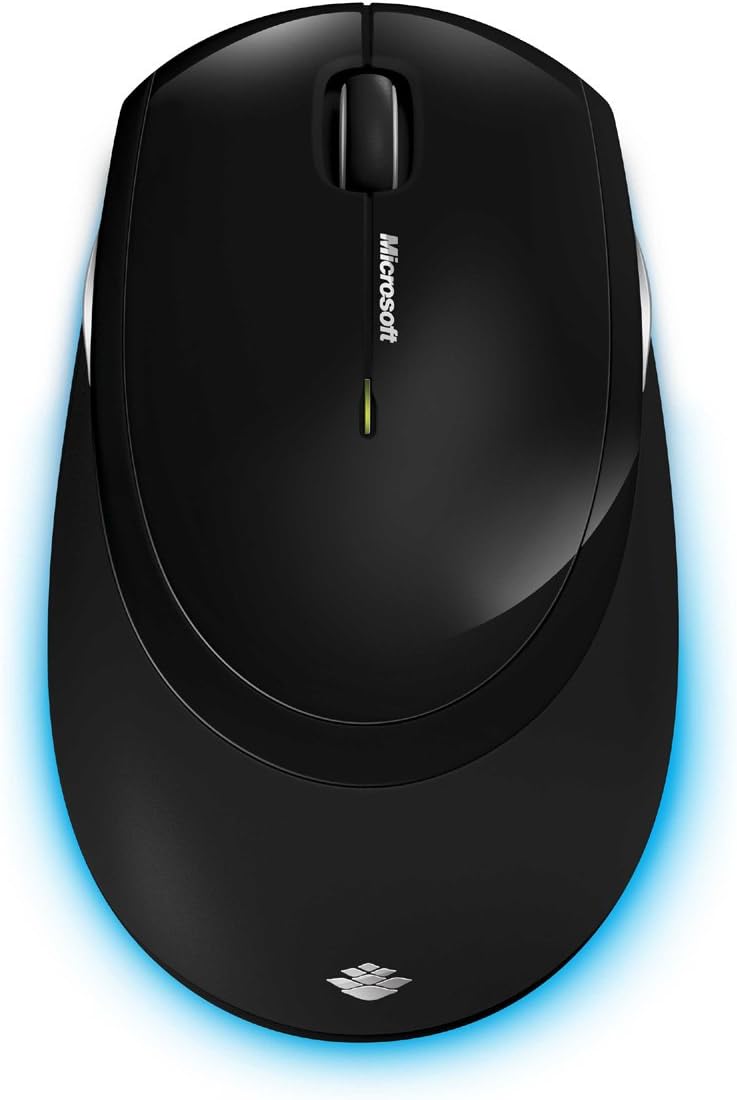
6 pav.: Iš viršaus į apačią view of the wireless mouse.
Priežiūra
Valymas
To maintain the performance and appearance of your Microsoft Wireless Comfort Desktop 5000, follow these cleaning guidelines:
- Disconnect the USB transceiver from your computer before cleaning.
- Šiek tiek naudokite minkštą, be pūkelių šluostę dampnuplauti vandeniu arba švelniu valymo tirpalu.
- Venkite naudoti stiprias chemines medžiagas, abrazyvinius valiklius ar tirpiklius, nes jie gali pažeisti paviršius.
- Klaviatūrai galite naudoti suslėgtą orą, kad pašalintumėte dulkes ir šiukšles tarp klavišų.
- For the mouse, gently wipe the optical sensor area on the bottom to ensure optimal tracking performance.
Baterijos keitimas
When the batteries are low, the indicator light on the keyboard or mouse may flash. Replace the batteries as described in the "Battery Installation" section under Setup Guide.
- Always use new, high-quality AA alkaline batteries.
- Išmeskite panaudotas baterijas laikydamiesi vietinių taisyklių.
Trikčių šalinimas
Ryšio problemos
- No response from keyboard/mouse:
- Ensure the USB mini-transceiver is securely plugged into a working USB port on your computer.
- Check if the batteries in the keyboard and mouse are correctly installed and have sufficient charge. Replace if necessary.
- Try plugging the transceiver into a different USB port.
- Iš naujo paleiskite kompiuterį.
- Trikdžiai:
- The 2.4 GHz wireless technology can be affected by other wireless devices. Move the transceiver closer to the keyboard and mouse, or move other wireless devices away.
- Avoid placing the transceiver near large metal objects, which can block the wireless signal.
Pelės sekimo problemos
- Erratic or no tracking:
- Ensure the BlueTrack sensor on the bottom of the mouse is clean and free of debris.
- Try using the mouse on a different surface. While BlueTrack is versatile, highly reflective or transparent surfaces (like clear glass) may still cause issues.
Specifikacijos
| Funkcija | Detalė |
|---|---|
| Prekės ženklas | Microsoft |
| Modelio numeris | CSD-00001 |
| Ryšio technologija | Wireless (USB Transceiver) |
| Belaidis tipas | 2.4 GHz radijo dažnis |
| Suderinami įrenginiai | Asmeninis kompiuteris |
| Operacinės sistemos suderinamumas | Windows 8, Windows 7, Windows Vista, Windows XP (excluding Windows XP 64-bit) |
| Spalva | Juoda |
| Prekės svoris | 2.9 svaro |
| Gaminio matmenys (IxPxH) | 8.7 x 2.9 x 18.54 colio |
| Maitinimo šaltinis | Maitinamas baterijomis |
| Reikalingos baterijos | 3 AA batteries (2 for keyboard, 1 for mouse) |
| Pirmoji laisva data | 29 m. liepos 2009 d |
Informacija apie garantiją
Specific warranty details for the Microsoft Wireless Comfort Desktop 5000 are not provided within this manual. For comprehensive warranty information, including terms, conditions, and duration, please refer to the official Microsoft websvetainėje arba garantijos kortelėje, pridėtoje prie jūsų gaminio pakuotės.
Palaikymas
For further assistance, technical support, or to download the latest drivers and software for your Microsoft Wireless Comfort Desktop 5000, please visit the official Microsoft support websvetainė:
You can also visit the Microsoft Store on Amazon for product information and related accessories:
Svarbi informacija
Teisinis atsisakymas
Please note that the "Legal Disclaimer" provided with the product pertains to sales terms and conditions, such as return policies and shipping details, and is separate from the operational instructions in this user manual. For specific product usage and safety guidelines, please refer to the relevant sections of this manual.


