1. Produktas baigtasview
The Logitech Wired Mouse M90 is a simple, reliable, and comfortable USB mouse designed for everyday use. It offers precise optical tracking and an ambidextrous design, making it suitable for both left and right-handed users. This manual provides essential information for setting up, operating, and maintaining your M90 mouse.
Pagrindinės funkcijos:
- Lengvas nustatymas: Plug-and-play functionality with no software installation required.
- Precise Optical Tracking: Enjoy smooth and accurate cursor control (1000 dpi).
- Full-Size Comfort: Designed for comfortable use, even after extended periods.
- Abipusis dizainas: Tinka tiek kairiarankiams, tiek dešiniarankiams.
- Durable Wired Connection: Reliable USB connection for consistent performance.
2. Sąrankos vadovas
Setting up your Logitech M90 mouse is quick and straightforward. No special software or drivers are needed.
- Išpakuokite pelę: Carefully remove the Logitech M90 mouse from its packaging.
- Raskite USB prievadą: Identify an available USB-A port on your computer (desktop, laptop, or compatible device).
- Prijunkite pelę: Insert the USB connector of the M90 mouse into the USB port. Ensure it is fully seated.
- Sistemos atpažinimas: Your operating system (Windows, macOS, Linux, Chrome OS) should automatically detect and install the necessary drivers for the mouse. This process usually takes a few seconds.
- Pradėkite naudoti: Once recognized, the mouse is ready for immediate use. You can adjust cursor speed and other settings through your operating system's mouse settings if desired.

2.1 pav.: Iš viršaus į apačią view of the Logitech M90 mouse, ready for connection.
3. Naudojimo instrukcijos
The Logitech M90 mouse provides intuitive control for your computer. It features a standard three-button design with a scroll wheel.
- Kairysis pelės mygtuko paspaudimas: Located on the left side of the mouse. Used for selecting items, opening files ir aktyvuojančios funkcijos.
- Dešiniojo pelės mygtuko paspaudimo mygtukas: Located on the right side of the mouse. Used for accessing context menus and additional options.
- Slinkties ratukas: Located between the left and right buttons.
- Scroll up or down to navigate through documents, web puslapius ir programas.
- Press the scroll wheel down (middle-click) to activate specific functions in some applications, such as opening links in a new tab.
- Judėjimas: Move the mouse across a flat surface to control the cursor on your screen. The optical sensor provides precise tracking on most surfaces, with or without a mouse pad.
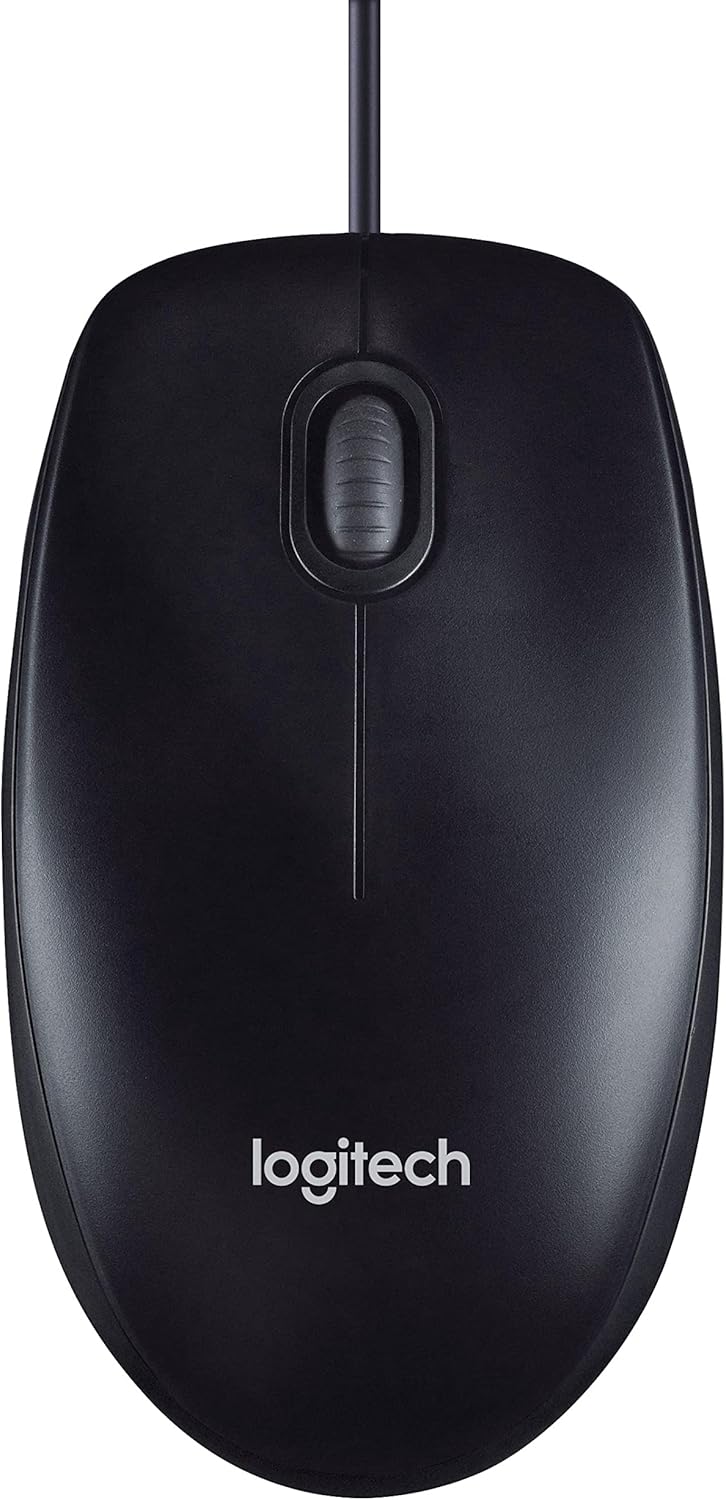
Figure 3.1: The Logitech M90 mouse in use, highlighting its simple design.
4. Priežiūra
To ensure the longevity and optimal performance of your Logitech M90 mouse, follow these simple maintenance guidelines:
- Valymas:
- Regularly wipe the surface of the mouse with a soft, lint-free cloth.
- Įsisenėjusiam purvui šiek tiek pamirkykiteampen the cloth with water or a mild, non-abrasive cleaning solution. Avoid harsh chemicals.
- Clean the optical sensor area on the bottom of the mouse periodically to prevent tracking issues. Use a dry cotton swab or compressed air.
- Kabelio priežiūra: Avoid sharp bends or kinks in the USB cable. Do not pull the mouse by its cable when disconnecting it from the computer; always grasp the USB connector.
- Saugykla: Kai nenaudojate, laikykite pelę švarioje, sausoje vietoje, toliau nuo ekstremalių temperatūrų.
- Paviršius: Use the mouse on a clean, flat, and non-reflective surface for best tracking performance.

Figure 4.1: The underside of the Logitech M90 mouse, showing the optical sensor that requires occasional cleaning.
5. Problemų sprendimas
If you encounter issues with your Logitech M90 mouse, try the following troubleshooting steps:
| Problema | Galimas sprendimas |
|---|---|
| Pelė nereaguoja / Žymeklis nejuda |
|
| Nereguliarus žymeklio judėjimas |
|
| Mygtukai arba slinkties ratukas neveikia |
|
If these steps do not resolve the issue, please refer to the warranty and support information section.
6. Specifikacijos
| Funkcija | Detalė |
|---|---|
| Prekės ženklas | Logitech |
| Modelio numeris | 910-001793 |
| Ryšio technologija | Laidinis, USB |
| Judesio aptikimo technologija | Optinis |
| DPI (taškai colyje) | 1000 dpi |
| Spalva | Juoda |
| Prekės svoris | 2.89 uncijos |
| Gaminio matmenys (IxPxH) | 5.91 x 4.72 x 0.04 colio |
| Aparatinės įrangos platforma | PC |
| Operacinės sistemos suderinamumas | Linux, Mac OS X 10.4 Tiger, Windows XP, Windows Vista, Windows 7 |
| Maitinimo šaltinis | Su laidu elektra |
| ttage | 1.5 voltų |
| Pirmoji laisva data | 19 m. rugsėjo 2011 d |

Figure 6.1: Dimensions of the Logitech M90 mouse.
7. Produkto vaizdai
Iš viršaus į apačią view of the Logitech M90 mouse.
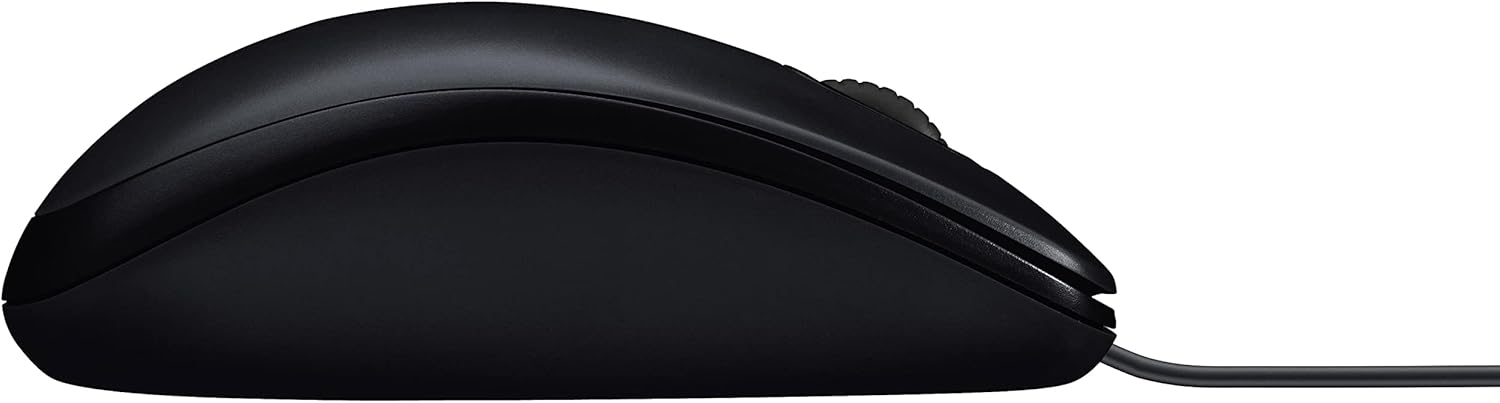
Šoninis profesionalasfile of the Logitech M90 mouse.
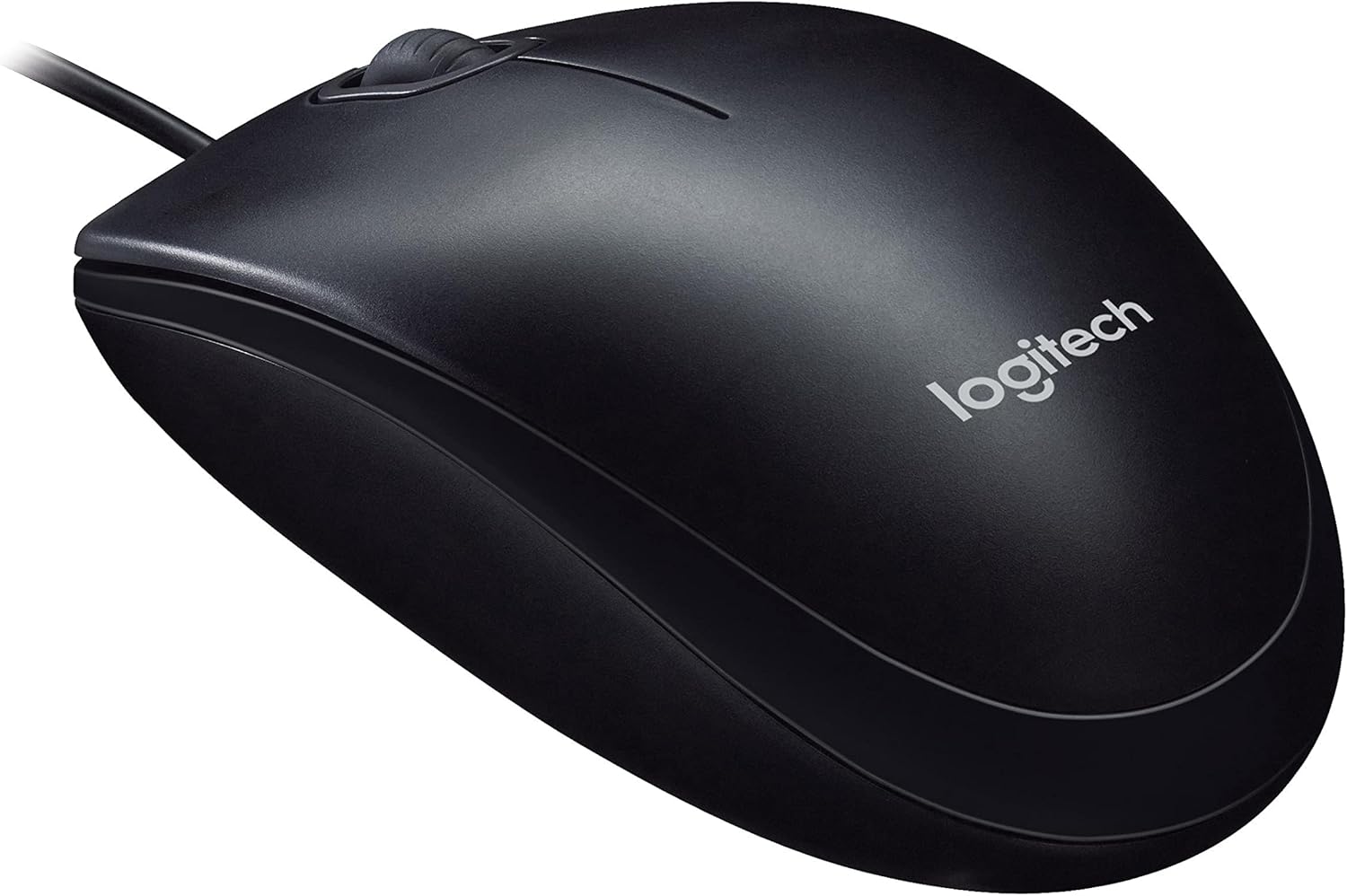
Kampuotas view of the Logitech M90 mouse, highlighting the brand logo.
Iš viršaus į apačią view of the Logitech M90 mouse, emphasizing the wired connection.
Logitech M90 mouse with key dimensions indicated.
8. Oficialūs produktų vaizdo įrašai
Šiuo metu nėra oficialių šio produkto vaizdo įrašų iš pardavėjo.
9. Garantija ir palaikymas
For detailed warranty information and technical support, please refer to the documentation included in your product packaging or visit the official Logitech support websvetainę.
„Logitech“ palaikymas Websvetainė: www.logitech.com/support
Please have your product model number (M90) and serial number (if applicable) ready when contacting support.


