1. Produktas baigtasview
The Verbatim Acclaim 1TB USB 2.0 Portable External Hard Drive (Model 97393) is a compact and high-capacity storage solution designed for convenient data backup and transfer. This device offers 1 terabyte of storage and connects via a standard USB 2.0 interface, ensuring broad compatibility with various computer systems.
Pagrindinės funkcijos:
- 1 TB storage capacity.
- USB 2.0 High-Speed connectivity (up to 480 Mb/s), backward compatible with USB 1.1.
- Kompaktiškas ir nešiojamas dizainas.
- Suderinamas su „Windows“ ir „Mac“ operacinėmis sistemomis.
- Includes Nero BackItUp & Burn Essentials software for backup and restore functions.
- Includes a bonus Norton Online Backup (5GB) offer.
- Backed by a 7-year limited warranty.

1.1 paveikslas: Į viršų view of the Verbatim Acclaim 1TB portable hard drive. This image displays the device's sleek piano black finish and the prominent Verbatim logo, highlighting its compact and minimalist design.
2. Sąranka ir diegimas
2.1. Kietojo disko prijungimas
- Locate an available USB port on your computer. The Verbatim Acclaim drive is compatible with both USB 2.0 and USB 1.1 ports. For optimal performance, use a USB 2.0 port.
- Connect the small end of the provided USB cable to the USB port on the Verbatim Acclaim hard drive.
- Didesnį USB laido galą prijunkite prie laisvo kompiuterio USB prievado.
- The drive will automatically power on and be detected by your operating system. For Windows, drivers will typically install automatically. For Mac, the drive should appear on your desktop or in Finder.

2.1 paveikslas: Šoninė view of the Verbatim Acclaim hard drive. This image highlights the USB port located on the side of the device, indicating where the USB cable should be connected for power and data transfer.
2.2. Pradinis formatavimas (neprivaloma)
The drive comes pre-formatted, typically in FAT32, which is compatible with both Windows and Mac. However, FAT32 has a limitation on individual file size (maximum 4GB). If you plan to store files larger than 4GB (e.g., high-definition video files), it is recommended to reformat the drive to NTFS (for Windows) or HFS+ (for Mac).
Įspėjimas: Reformatting the drive will erase all existing data. Ensure you back up any important files prieš tęsdami.
„Windows“:
- Open "Disk Management" (Right-click "My Computer" or "This PC" > "Manage" > "Disk Management").
- Locate the Verbatim Acclaim drive (it will be listed as a removable disk).
- Right-click on the drive's partition and select "Format".
- Choose "NTFS" as the file system and click "OK".
„Mac“:
- Atidarykite „Disk Utility“ (Programos > Priemonės > Disk Utility).
- Select the Verbatim Acclaim drive from the sidebar.
- Click the "Erase" tab.
- Choose "Mac OS Extended (Journaled)" (HFS+) as the format and click "Erase".
2.3. Programinės įrangos diegimas
The Verbatim Acclaim drive includes Nero BackItUp & Burn Essentials software and a bonus offer for Norton Online Backup. These software packages are typically located on the drive itself or can be downloaded from the Verbatim support websvetainę.
- Access the drive's contents via "My Computer" / "This PC" (Windows) or Finder (Mac).
- Locate the installer files for Nero BackItUp & Burn Essentials. Follow the on-screen instructions to complete the installation.
- Refer to the included documentation or the Verbatim website for details on activating the Norton Online Backup offer.
3. Kietojo disko valdymas
3.1. Perkėlimas Files
Once connected, the Verbatim Acclaim drive functions like any other external storage device.
- Vilkite ir numeskite: Tiesiog vilkite files or folders from your computer to the drive's icon or an open folder on the drive.
- Kopijuoti ir įklijuoti: Dešiniuoju pelės mygtuku spustelėkite files/folders on your computer, select "Copy," then navigate to the external drive, right-click in an empty area, and select "Paste."
- Atsarginių kopijų kūrimo programinė įranga: Utilize the included Nero BackItUp & Burn Essentials software for automated backups and system recovery.
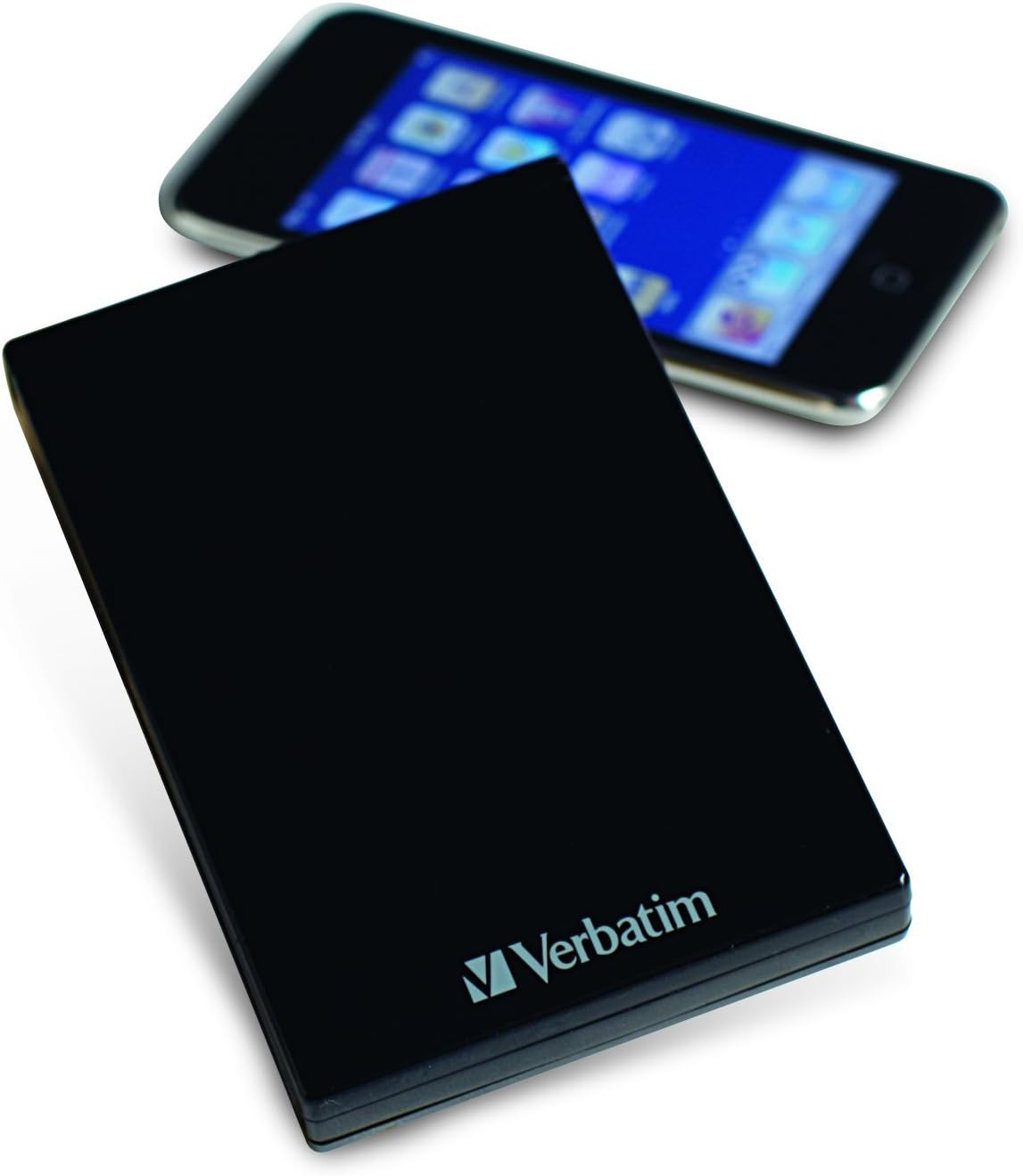
3.1 paveikslas: The Verbatim Acclaim hard drive shown next to a smartphone. This image provides a visual reference for the drive's compact and portable dimensions, making it easy to carry.
3.2. Saugus disko išėmimas
To prevent data corruption, always safely eject the hard drive before disconnecting it from your computer.
„Windows“:
- Click the "Safely Remove Hardware and Eject Media" icon in the system tray (bottom-right corner).
- Select the Verbatim Acclaim drive from the list.
- Wait for the "Safe to Remove Hardware" notification before disconnecting the USB cable.
„Mac“:
- Drag the drive's icon from your desktop to the Trash icon in the Dock (the Trash icon will change to an Eject icon).
- Alternatively, right-click (or Control-click) the drive icon on the desktop and select "Eject [Drive Name]".
- Wait for the drive icon to disappear from your desktop before disconnecting the USB cable.
4. Priežiūra
Proper maintenance ensures the longevity and reliable performance of your Verbatim Acclaim hard drive.
- Fizinė priežiūra: Handle the drive with care. Avoid dropping it or exposing it to excessive shock, as this can damage the internal components.
- Valymas: Use a soft, dry, lint-free cloth to clean the exterior of the drive. Avoid using liquid cleaners or abrasive materials.
- Temperatūra ir aplinka: Store and operate the drive in a cool, dry environment, away from direct sunlight, extreme temperatures, and high humidity.
- Įprastos atsarginės kopijos: While the Acclaim drive is excellent for storing data, it is crucial to maintain multiple copies of important files. No single storage device is infallible.
- Saugus išmetimas: Always follow the safe removal procedures outlined in Section 3.2 to prevent data corruption.
5. Problemų sprendimas
If you encounter issues with your Verbatim Acclaim hard drive, try the following troubleshooting steps:
- Diskas neaptiktas:
- Įsitikinkite, kad USB kabelis yra tvirtai prijungtas tiek prie įrenginio, tiek prie kompiuterio.
- Pabandykite prijungti diską prie kito kompiuterio USB prievado.
- Test the drive with a different USB cable, if available.
- Restart your computer and try connecting the drive again.
- Lėtas duomenų perdavimas:
- Ensure you are connected to a USB 2.0 port for optimal speed. USB 1.1 ports will result in significantly slower transfers.
- Uždarykite visas nereikalingas fone veikiančias programas, kurios gali eikvoti sistemos išteklius.
- Check your computer's disk for errors or fragmentation.
- File System Errors / Drive Unresponsive:
- Always safely eject the drive before disconnecting. Abrupt disconnection can lead to file sistemos korupcija.
- Run a disk check utility (e.g., "Error Checking" in Windows or "First Aid" in Disk Utility on Mac) to scan and repair minor file sistemos klaidų.
- If errors persist and data is backed up, consider reformatting the drive as described in Section 2.2.
- Drive Gets Warm:
It is normal for the drive to generate some heat during operation, especially during prolonged data transfers. Ensure adequate airflow around the device.
6. Specifikacijos
| Funkcija | Detalė |
|---|---|
| Modelio numeris | 97393 |
| Skaitmeninės atminties talpa | 1 TB |
| Kietojo disko sąsaja | USB 2.0 (High-Speed), USB 1.1 (Full Speed) |
| Ryšio technologija | USB |
| Prekės ženklas | Pažodžiui |
| Kietojo disko formos koeficientas | 2.5 colių |
| Kietojo disko aprašymas | Nešiojami |
| Suderinami įrenginiai | Desktop (Windows & Mac) |
| Diegimo tipas | Išorinis kietasis diskas |
| Spalva | Piano juodas |
| Gaminio matmenys | 5.51 x 1.89 x 7.09 colio |
| Prekės svoris | 10.8 uncijos |
| Gamintojas | Pažodžiui |
| Pasiekiama pirmoji data | 25 m. liepos 2010 d |
7. Garantija ir palaikymas
7.1. Ribota garantija
The Verbatim Acclaim 1TB USB 2.0 Portable External Hard Drive is backed by a 7 metų ribota garantija. This warranty covers defects in materials and workmanship under normal use. Please retain your proof of purchase for warranty claims. For full terms and conditions of the warranty, please refer to the documentation included with your product or visit the official Verbatim websvetainę.
7.2. Techninė pagalba
For technical assistance, troubleshooting beyond the scope of this manual, or warranty inquiries, please contact Verbatim customer support.
- Visit the official Verbatim websvetainė, kurioje rasite pagalbos išteklių, DUK ir kontaktinės informacijos.
- Kreipdamiesi į palaikymo tarnybą, turėkite paruoštą savo produkto modelio numerį (97393) ir pirkimo įrodymą.


