1. Įvadas
This manual provides comprehensive instructions for the setup, operation, maintenance, and troubleshooting of your Xerox DocuMate 3125 Duplex Document Scanner. Please read this manual thoroughly before using the device to ensure proper functionality and to maximize its performance.
The Xerox DocuMate 3125 is designed for efficient document management, offering fast duplex scanning, a 50-page Automatic Document Feeder (ADF), and compatibility with both PC and Mac operating systems. It features Visioneer Acuity technology for enhanced image clarity and One Touch scanning for simplified workflows.
2. Pakuotės turinys
Patikrinkite, ar pakuotėje yra visi reikalingi daiktai:
- Xerox DocuMate 3125 Scanner Unit
- USB kabelis
- Maitinimo adapteris
- Software Installation Disc (or download instructions)
- Greitos pradžios vadovas
3. Sąrankos vadovas
3.1 Unpacking and Physical Setup
Carefully remove the scanner from its packaging. Place the scanner on a stable, flat surface with adequate space for document feeding and output.
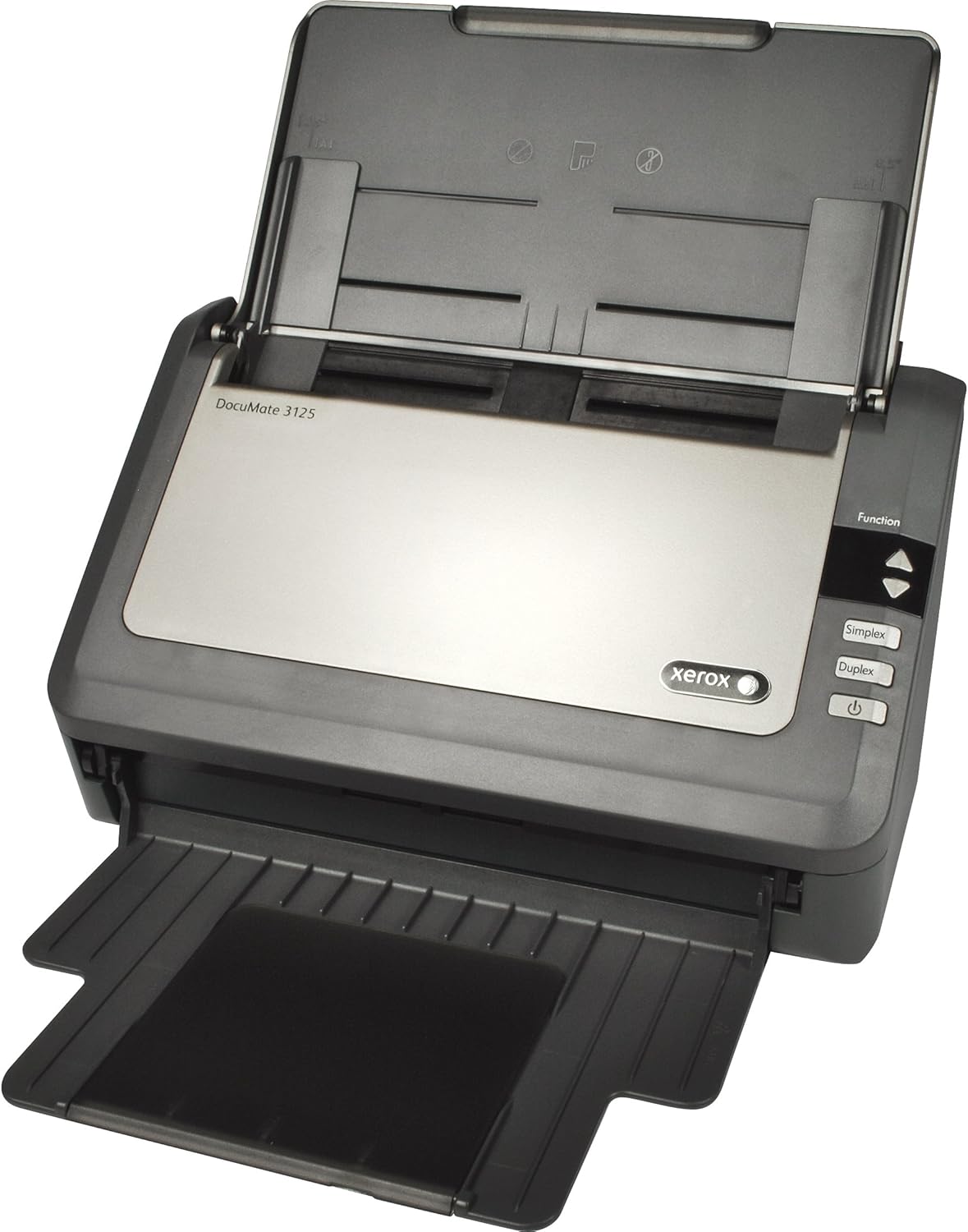
Figure 1: Xerox DocuMate 3125 Scanner with open lid and extended trays.
Extend the input and output trays as shown in Figure 1 to prepare the scanner for operation.
3.2 Skaitytuvo prijungimas
- Connect the power adapter to the scanner's power input and then to an electrical outlet.
- Connect the USB cable to the scanner's USB port and then to an available USB port on your computer (PC or Mac).
3.3 Programinės įrangos diegimas
Before using the scanner, install the necessary drivers and software. This typically includes the scanner driver, Visioneer OneTouch software, and other utility applications.
- Insert the provided installation disc into your computer's optical drive, or download the latest software package from the official Xerox support websvetainę.
- Vykdykite ekrane pateikiamus nurodymus, kad užbaigtumėte diegimą. Jei būsite paraginti, paleiskite kompiuterį iš naujo.

Figure 2: The scanner is compatible with both PC (Windows) and Mac operating systems.
4. Skenerio valdymas
4.1 Dokumentų įkėlimas
Open the Automatic Document Feeder (ADF) cover and extend the input tray. Fan the edges of your documents to prevent misfeeds. Place the documents face down in the ADF, ensuring they are aligned with the document guides. The ADF can hold up to 50 pages.
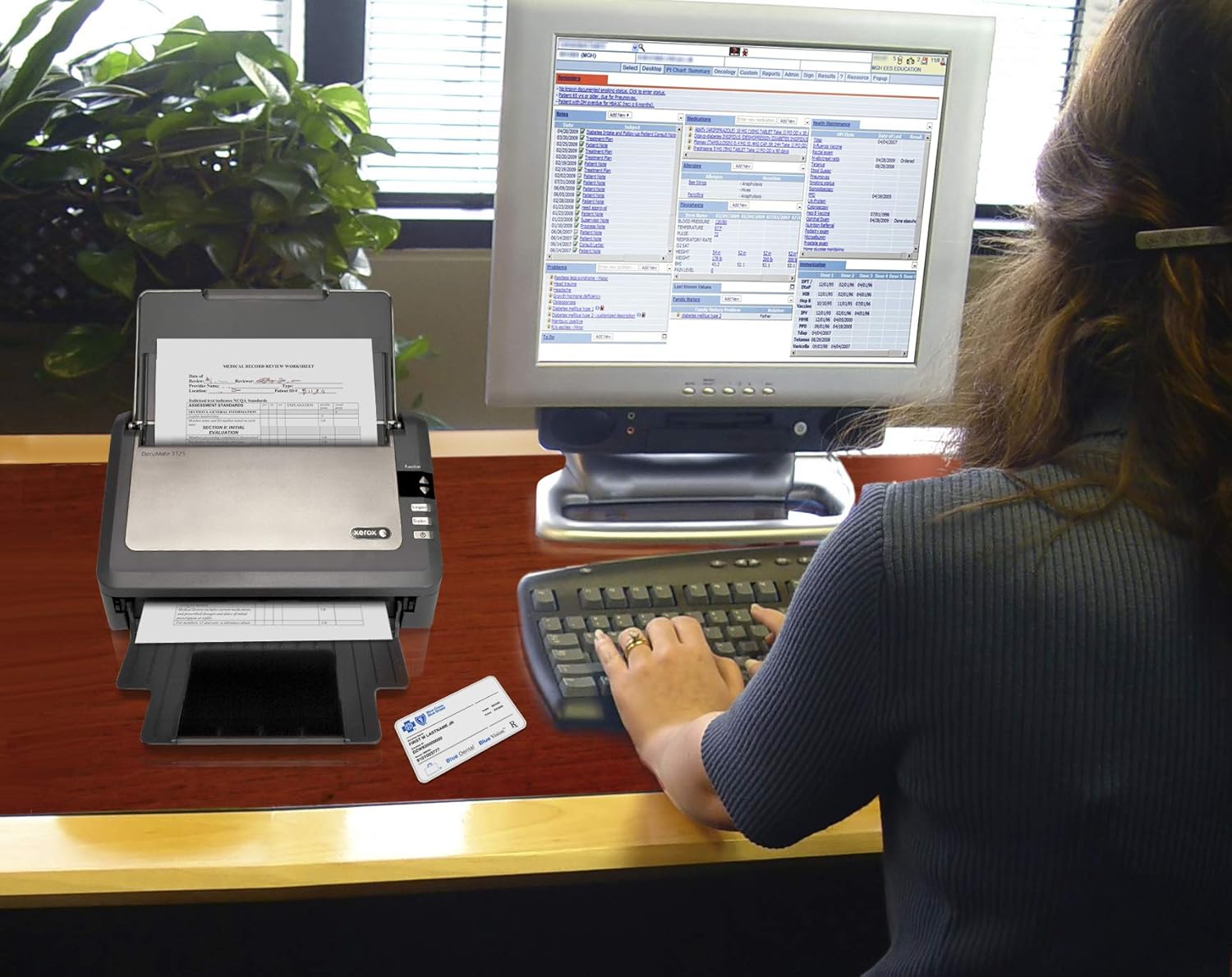
Figure 3: Document scanning in progress with the Xerox DocuMate 3125.
The scanner supports various media types, including standard documents, photos, receipts, and embossed plastic cards.
4.2 One Touch Scanning
The DocuMate 3125 features One Touch scanning, allowing you to initiate scans and send them to predefined destinations with a single button press. These destinations can include searchable PDF files, email attachments, or cloud storage services.
Figure 4: Control panel with Simplex and Duplex scan options.
- Simplex Scanning: Press the "Simplex" button to scan one side of a document.
- Dvipusis nuskaitymas: Press the "Duplex" button to scan both sides of a document simultaneously.
- Individualus profesionalasfiles can be configured via the Visioneer OneTouch software to specify scan settings (color, resolution, file format) and destinations.

Figure 5: Scanned documents can be saved to various cloud services.
5. Priežiūra
Reguliarus aptarnavimas užtikrina optimalų našumą ir pailgina skaitytuvo tarnavimo laiką.
5.1 Skaitytuvo valymas
- Išorė: Išorinius paviršius nuvalykite minkšta, damp audinys. Venkite abrazyvinių valiklių.
- ADF voleliai: Reguliariai valykite ADF volelius nepūkuota šluoste.ampened with isopropyl alcohol to prevent paper jams and improve feeding accuracy.
- Glass Strip: Clean the glass strip inside the scanner with a soft, lint-free cloth and a non-abrasive glass cleaner. Dust or smudges on the glass can appear as lines on scanned images.
Always power off and unplug the scanner before performing any cleaning procedures.
6. Problemų sprendimas
Šiame skyriuje aptariamos dažniausiai pasitaikančios problemos, su kuriomis galite susidurti naudodami skaitytuvą.
| Problema | Galima priežastis | Sprendimas |
|---|---|---|
| Kompiuteris neatpažino skaitytuvo | Loose USB cable, driver not installed, power off | Patikrinkite USB jungtį, įsitikinkite, kad skaitytuvas įjungtas, iš naujo įdiekite tvarkykles. |
| Paper jams in ADF | Misaligned documents, worn rollers, too many pages | Remove jammed paper, fan documents, clean rollers, reduce page count. |
| Scanned images have lines or streaks | Dust or smudges on glass strip or rollers | Clean the glass strip and ADF rollers. |
| Mažas nuskaitymo greitis | High resolution settings, computer performance | Reduce scan resolution, close other applications on your computer. |
If you encounter issues not covered here, refer to the comprehensive troubleshooting guide available on the Xerox support websvetainėje arba susisiekite su klientų aptarnavimo tarnyba.
7. Specifikacijos
| Funkcija | Detalė |
|---|---|
| Modelio pavadinimas | „Xerox DocuMate 3125“. |
| Skaitytuvo tipas | Document, Sheetfed, Duplex |
| Ryšys | USB |
| Nuskaitymo greitis | Up to 40 ppm / 70 ipm (at 200 dpi) |
| Automatinio dokumentų tiektuvo (ADT) talpa | 50 XNUMX lapų |
| Dienos darbo ciklas | 3,000 pages/day |
| Optinė skiriamoji geba | 600 dpi |
| Išvesties bitų gylis | 24-bit Color, 8-bit Grayscale, 1-bit Black & White |
| Gaminio matmenys | 6.5 x 11.2 x 6.7 colio |
| Prekės svoris | 5.41 svaro |
| Energijos suvartojimas | 30 vatų (veikiant) |
| Minimalūs sistemos reikalavimai | Windows 7 (or newer), Mac OS X (specific version may vary with driver updates) |
8. Garantija ir palaikymas
The Xerox DocuMate 3125 scanner typically comes with a manufacturer's warranty. Please refer to the warranty card included with your product or visit the official Xerox support websvetainėje, kurioje pateikiamos išsamios garantijos sąlygos.
For technical assistance, driver downloads, or further support, please visit the official Xerox support portal. Contact information for customer service is usually available on the support websvetainę.


