1. Įvadas
The ARRIS Touchstone DOCSIS 3.0 8x4 Embedded Multimedia Terminal Adaptor (E-MTA) TM822G is designed to deliver two lines of primary line Voice over IP (VoIP), ultra-high speed data access, and multiple battery pack options to support telephony service during power outages. This modem enables cable operators to offer data services at speeds greater than 300Mbps to their subscribers.
Pagrindinės funkcijos:
- DOCSIS 3.0 compliant PacketCable 1.0 and 1.5 compliant, with PacketCable 2.0 support via firmware upgrade.
- Flexible 8x4 downstream/upstream channel-bonding for superior throughput.
- Backwards compatible with DOCSIS 1.0, 1.1, and 2.0.
- Supports up to two lines of carrier-grade VoIP.
- Multiple Protocol Support: PacketCable (NCS) or Session Initiation Protocol (SIP).
- IPv4 or IPv6 addressing modes for DOCSIS CM layer.
2. Sąranka
2.1. Išpakavimas ir pirminė apžiūra
Carefully remove all components from the packaging. Ensure you have the ARRIS TM822G modem, power adapter, and any included cables. Inspect the modem for any visible damage.
2.2. Fiziniai ryšiai
Follow these steps to connect your modem:
- Coaxial Cable: Connect one end of the coaxial cable to the cable wall outlet and the other end to the 'Cable In' port on the back of the modem. Ensure the connection is finger-tight.
- Ethernet kabelis: Connect one end of an Ethernet cable to one of the LAN ports on the back of the modem and the other end to your computer or wireless router.
- Telephone Line (for VoIP): If you have telephone service, connect your telephone line to the TEL1 or TEL2 port on the modem.
- Maitinimo adapteris: Connect the power adapter to the 'Power' port on the modem and then plug it into an electrical outlet.
- Akumuliatorius (pasirinktinai): If your model includes a battery pack for telephony service during power outages, install it according to the instructions provided with the battery.
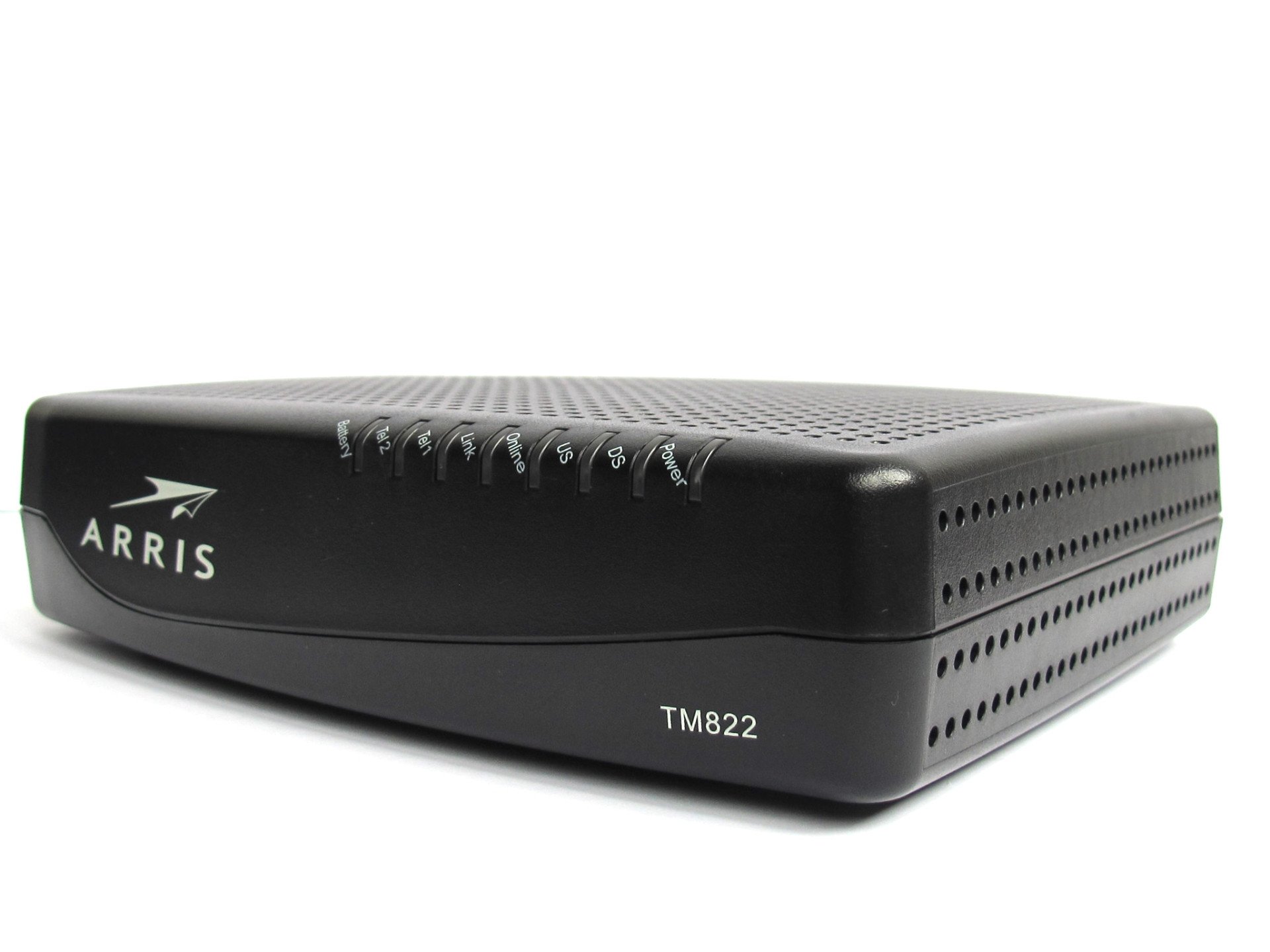
1 pav.: priekis view of the ARRIS Touchstone TM822G modem, showing its compact design and status indicator lights.
Video 1: This video demonstrates the physical connections for an ARRIS modem, including coaxial, Ethernet, and power. It provides a visual guide for proper setup.
2.3. Modemo aktyvinimas
After connecting the modem, allow a few minutes for it to power on and establish a connection. The status lights will indicate its progress. Once the modem is powered on, you will need to activate it with your Internet Service Provider (ISP).
- Patikrinkite suderinamumą: Prieš pirkimąasing, always verify with your cable company for modem compatibility. Some regions or providers (e.g., Optimum or Spectrum) may not activate this specific model.
- Susisiekite su interneto paslaugų teikėju: Call your ISP's activation line. You will likely need to provide the MAC ID (Media Access Control Identifier) and Serial Number, which are usually found on a sticker on the modem.
- Savęs aktyvavimas: Some ISPs offer an online self-activation portal. Connect a computer directly to the modem via Ethernet and open a web browser. You may be redirected to the activation page.
3. Operacinis
3.1. Status Indicator Lights
The LED lights on the front panel of your TM822G modem provide information about its operational status:
- Galia: Nurodo maitinimo būseną.
- DS (pasroviui): Indicates downstream channel connectivity. A solid light means a stable connection.
- JAV (aukštupys): Indicates upstream channel connectivity. A solid light means a stable connection.
- Prisijungę: Indicates successful registration and internet connectivity.
- Nuoroda: Rodo aktyvų Ethernet ryšį su įrenginiu.
- Tel1/Tel2: Indicate the status of the telephone lines.
- Baterija: Indicates the status of the optional battery backup.
3.2. Prieiga prie interneto
Once the 'Online' light is solid, your modem is connected to the internet. You can now connect your devices (computers, smartphones, tablets) to your wireless router (if used) or directly to the modem via Ethernet to access the internet.
3.3. VoIP Service
If you have subscribed to VoIP service, ensure the 'Tel1' and/or 'Tel2' lights are solid. This indicates that your telephone lines are active. You can then make and receive calls using your connected telephone.
4. Priežiūra
To ensure optimal performance and longevity of your ARRIS TM822G modem, consider the following maintenance tips:
- Vieta: Place the modem in a well-ventilated area, away from direct sunlight, heat sources, and moisture. Avoid placing it in enclosed spaces.
- Kabelio apžiūra: Periodically check all cable connections (coaxial, Ethernet, power, telephone) to ensure they are secure and undamaged. Loose connections can lead to intermittent service.
- Valymas: Gently clean the exterior of the modem with a soft, dry cloth. Do not use liquid cleaners or abrasive materials. Ensure ventilation holes are free from dust and obstructions.
- Perkrovimas: If you experience connectivity issues, a simple power cycle (reboot) can often resolve them. Unplug the power adapter from the modem, wait 30 seconds, then plug it back in. Allow a few minutes for the modem to re-establish its connection.
- Firmware atnaujinimai: Programinės įrangos atnaujinimus paprastai automatiškai tvarko jūsų interneto paslaugų teikėjas. Nebandykite atnaujinti programinės įrangos rankiniu būdu, nebent jūsų interneto paslaugų teikėjas nurodytų kitaip.
5. Problemų sprendimas
If you encounter issues with your ARRIS TM822G modem, refer to the following troubleshooting steps:
5.1. Nėra interneto ryšio
- Patikrinkite būsenos lemputes: Verify that the 'Power', 'DS', 'US', and 'Online' lights are solid. If any are blinking or off, check the corresponding connections.
- Reboot Modem: Perform a power cycle as described in the Maintenance section.
- Patikrinkite kabelius: Įsitikinkite, kad visi laidai yra tvirtai prijungti. Pabandykite juos atjungti ir vėl prijungti.
- Interneto paslaugų teikėjastage: Check with your ISP for any known service outages jūsų vietovėje.
- Susisiekite su interneto paslaugų teikėju: If the issue persists, contact your ISP's technical support for assistance. They can check your modem's signal levels and activation status remotely.
5.2. Slow Internet Speeds
- Verify Plan: Confirm that your internet plan supports the speeds you expect.
- Test Directly: Connect a computer directly to the modem via Ethernet and run a speed test. This helps determine if the issue is with the modem or your router/Wi-Fi.
- Check Signal Levels: Your ISP can check the modem's signal levels. Poor signal quality can lead to reduced speeds.
- Maršrutizatoriaus našumas: If using a separate router, ensure it is capable of handling your internet speeds and is properly configured.
5.3. VoIP Service Issues
- Patikrinkite telefono lemputes: Ensure the 'Tel1' and/or 'Tel2' lights are solid.
- Telefono jungtis: Verify that your telephone is correctly plugged into the modem's telephone port.
- Galia Outage: If there's a power outage, ensure your battery backup is installed and charged.
- Susisiekite su interneto paslaugų teikėju: For persistent telephone issues, contact your ISP.
6. Specifikacijos
| Funkcija | Detalė |
|---|---|
| Prekės ženklas | ARRIS |
| Modelio numeris | TM822G (FBA_822G) |
| DOCSIS versija | 3.0 |
| Kanalų klijavimas | 8x4 srovių tiekimas/tiekimas |
| VoIP Lines | Up to two carrier-grade lines |
| Ryšio technologija | DOCSIS |
| Suderinami įrenginiai | Laptop, Personal Computer, Router, Smartphone, Tablet |
| Matmenys (IxPxH) | 4 x 9 x 9 colio |
| Prekės svoris | 2 svaro |
| Spalva | Juoda |
| Reikalingos baterijos | 1 Lithium Polymer (for battery backup) |
7. Garantija ir palaikymas
7.1. Teisinis atsisakymas
SVARBU:
Please contact us before you place an order and ask for the MAC ID. We'll reserve a specific modem for you and provide you with the ID so that you may check with your ISP whether they would activate it. This way, we both can avoid hectic problems and resulting returns after purchase. Once you confirm the MAC with your ISP and place an order, returns with the reason "ISP didn't activate" will NOT be accepted.
7.2. Gamintojo garantija
While it is legal for third parties to sell ARRIS modems, a marketplace seller on Amazon may not be an authorized retailer. Therefore, there might be no manufacturer warranty for the ARRIS modem when purchased from certain sellers. Please check the seller's warranty policy.
7.3. Techninė pagalba
For any technical issues or questions not covered in this manual, please contact your Internet Service Provider (ISP) or refer to the official ARRIS support webSvetainė, kurioje rasite tolesnę pagalbą.


