Įvadas
The TP-Link Archer C7 AC1750 is a high-performance wireless router designed to provide fast and reliable Wi-Fi connectivity for your home or office network. Featuring dual-band technology and Gigabit Ethernet ports, it supports the 802.11ac Wi-Fi standard, offering a combined bandwidth of up to 1750 Mbps (450 Mbps on 2.4 GHz and 1300 Mbps on 5 GHz). This manual provides essential information for setting up, operating, maintaining, and troubleshooting your Archer C7 router.
Pakuotės turinys
- TP-Link Archer C7 AC1750 Wireless Dual Band Gigabit Router
- Maitinimo adapteris
- Ethernet kabelis
- Greito montavimo vadovas

Image: The retail packaging box for the TP-Link Archer C7 AC1750 router, showing the product features and design.
Sąranka
1. Fizinis ryšys
- Maitinimas: Connect the provided power adapter to the router's power port and plug it into a power outlet. Press the Power On/Off button if necessary.
- Prisijungimas prie modemo: Connect your modem's Ethernet cable to the blue WAN port on the back of the Archer C7 router.
- Prijungti įrenginius (nebūtina): For wired connections, connect your computers or other network devices to the yellow LAN ports (Ethernet 1-4) using Ethernet cables.
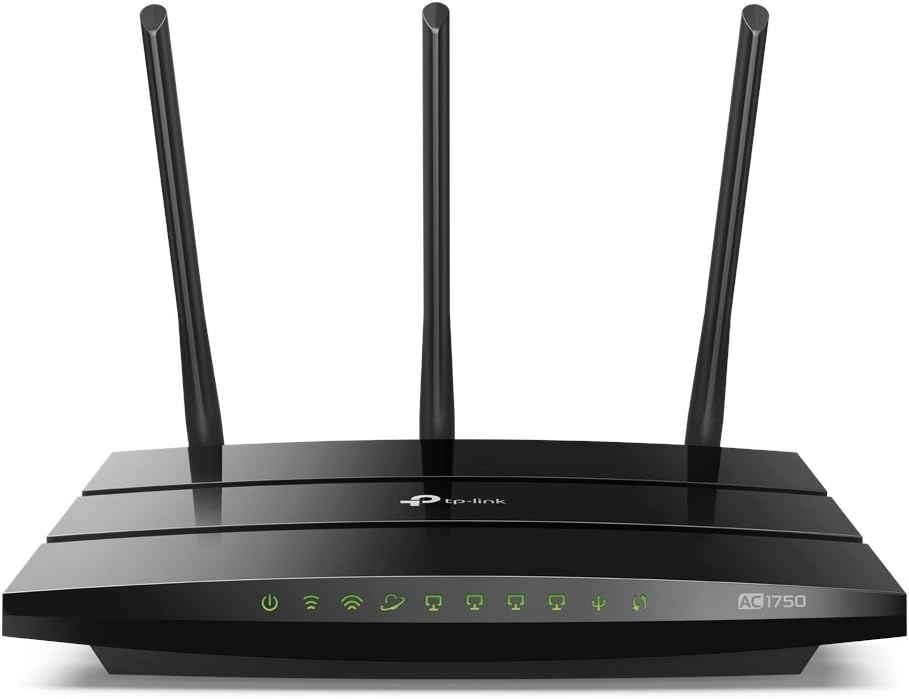
Image: The rear panel of the Archer C7 router, highlighting the power input, USB ports, blue WAN port, and four yellow LAN ports.
2. Pradinė konfigūracija
Maršrutizatorių galite konfigūruoti naudodami web naršyklėje arba „TP-Link Tether“ programėlėje.
- Naudojant a Web Naršyklė:
- Connect your computer to the router either wirelessly (using the default Wi-Fi name and password found on the router's label) or via an Ethernet cable to a LAN port.
- Atidarykite a web naršyklę ir įveskite
http://tplinkwifi.netorhttp://192.168.0.1į adreso juostą. - Prisijunkite naudodami numatytąjį vartotojo vardą ir slaptažodį (paprastai
adminabiem arba kaip nurodyta maršrutizatoriaus etiketėje). - Vykdykite ekrane pateikiamus greitojo nustatymo vedlio nurodymus, kad sukonfigūruotumėte interneto ryšį ir belaidžio ryšio nustatymus.
- Naudojant TP-Link Tether programėlę:
- Atsisiųskite „TP-Link Tether“ programėlę iš „App Store“ arba „Google Play“.
- Prijunkite mobilųjį įrenginį prie numatytojo maršrutizatoriaus „Wi-Fi“ tinklo.
- Open the Tether app and follow the instructions to set up your router.
Maršrutizatoriaus valdymas
Dviejų juostų „Wi-Fi“.
The Archer C7 operates on two separate Wi-Fi bands: 2.4 GHz and 5 GHz. This allows for greater flexibility and performance.
- 2.4 GHz dažnių juosta: Ideal for basic internet use like browsing and email, and for devices that are further away from the router.
- 5 GHz dažnių juosta: Provides faster speeds and less interference, suitable for bandwidth-intensive activities such as online gaming and HD video streaming.
Svečių tinklo prieiga
The router supports creating a separate guest network, providing secure Wi-Fi access for visitors without sharing your main network's password or resources. This enhances network security and privacy.
IP pagrįstas pralaidumo valdymas
Utilize the IP-based Bandwidth Control feature to manage the bandwidth allocated to individual devices connected to your network. This helps ensure fair bandwidth distribution and prevents a single device from monopolizing the connection.
USB Ports for Sharing
The dual USB ports allow you to share files, media, and even a printer across your network. You can access shared content locally or remotely via an FTP server, turning your router into a versatile media and file serveris.

Image: The front panel of the Archer C7 router, displaying the LED indicators for power, internet, 2.4 GHz Wi-Fi, 5 GHz Wi-Fi, LAN activity, and USB activity.
Priežiūra
- Firmware atnaujinimai: Reguliariai tikrinkite TP-Link website for firmware updates. Updating your router's firmware can improve performance, add new features, and enhance security. Follow the instructions provided with the firmware update carefully.
- Įprastas perkrovimas: Periodically restarting your router can help clear its memory and resolve minor connectivity issues, ensuring optimal performance.
- Fizinis valymas: Keep the router clean and free from dust to prevent overheating. Ensure proper ventilation around the device.
Trikčių šalinimas
- Nėra interneto prieigos:
- Check all cable connections, especially the Ethernet cable from your modem to the router's WAN port.
- Patikrinkite, ar jūsų modemas veikia tinkamai.
- Iš naujo paleiskite ir modemą, ir maršrutizatorių.
- Mažas „Wi-Fi“ greitis:
- Įsitikinkite, kad jūsų įrenginiai prijungti prie tinkamos „Wi-Fi“ juostos (5 GHz, jei norite didesnio greičio).
- Sumažinkite trukdžius perkeldami maršrutizatorių toliau nuo kitų elektroninių prietaisų.
- Patikrinkite, ar nėra programinės įrangos naujinių.
- Consider using IP-based Bandwidth Control to prioritize certain devices.
- Forgotten Wi-Fi Password or Router Login Password:
- Locate the label on the bottom of your router for default Wi-Fi credentials.
- If you changed the password and forgot it, you may need to perform a factory reset. Use a pin to press and hold the Reset button on the back of the router for about 10 seconds until the LEDs flash. This will restore the router to its factory default settings.
Specifikacijos
| Funkcija | Detalė |
|---|---|
| Modelio numeris | Šaulys C7 |
| Standartinis belaidis internetas | 802.11ac |
| Dažnių juostos klasė | Dviejų dažnių juosta (2.4 GHz ir 5 GHz) |
| Bendras pasiekiamas pralaidumas | 1750 Mbps (450 Mbps at 2.4GHz, 1300 Mbps at 5GHz) |
| Ethernet prievadai | 4 gigabito LAN prievadai, 1 gigabito WAN prievadas |
| USB prievadai | Dual USB Ports (for file, media, and printer sharing) |
| Matmenys | 9.57 x 6.32 x 1.28 colio |
| Prekės svoris | 1.12 svaro |
| Įtraukti komponentai | Maršrutizatorius, maitinimo adapteris, eterneto kabelis |
Garantija
TP-Link products typically come with a standard manufacturer's warranty. Please refer to the warranty card included in your product packaging or visit the official TP-Link website for detailed warranty terms and conditions specific to your region and product model. Keep your purchase receipt as proof of purchase for warranty claims.
Palaikymas
Dėl papildomos pagalbos, techninės pagalbos arba norėdami atsisiųsti naujausias tvarkykles ir programinę įrangą, apsilankykite oficialioje TP-Link palaikymo svetainėje. websvetainė. Taip pat galite rasti DUK ir bendruomenės forumus, kuriuose aptariamos dažniausiai kylančios problemos ir sprendimai.
- TP-Link palaikymas Websvetainė: https://www.tp-link.com/support
- „TP-Link Tether“ programėlė: Available on App Store and Google Play for easy management.


