1. Produktas baigtasview
The Gioteck EX-05S High Definition Headset is designed to deliver superior stereo game sound and crystal-clear voice communication. It is compatible with multiple platforms including PS4, PS3, Xbox 360, PC, and Mac. This headset features 40mm high-quality stereo drivers, a noise-isolating microphone, and breathable micro-fibre ear cups for extended comfort.
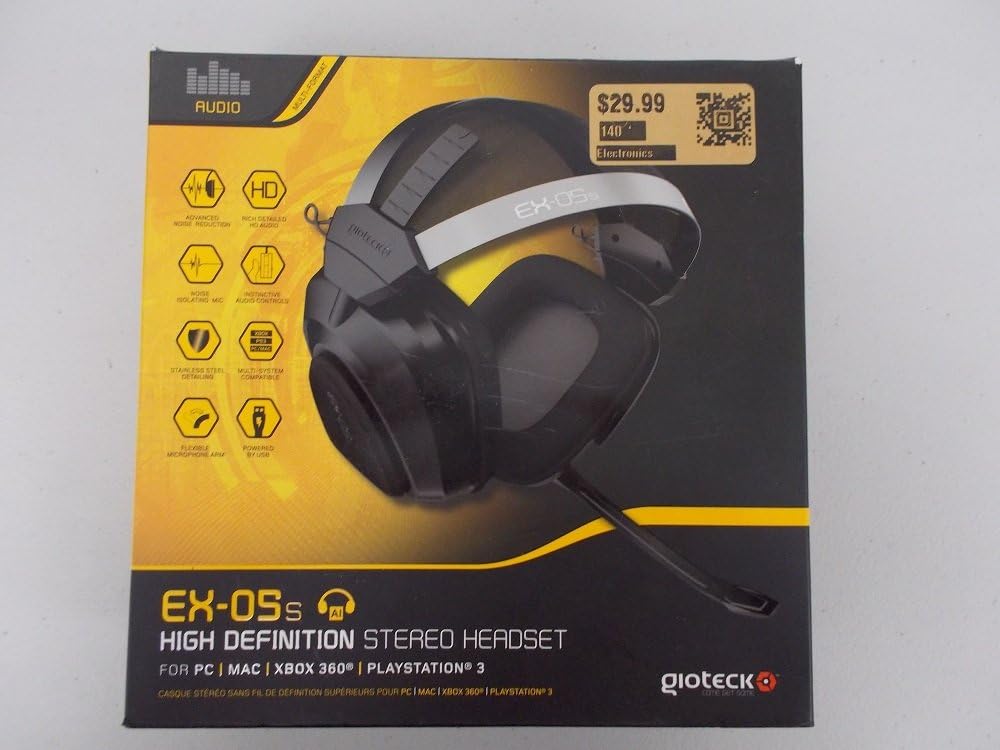
Figure 1.1: Gioteck EX-05S Headset packaging, highlighting key features and compatibility.

1.2 pav.: šonas view of the Gioteck EX-05S Headset, showing the ear cup and microphone arm.
2. Savybės
- 40mm High Quality Stereo Drivers: Delivering rich, detailed audio for an immersive gaming experience.
- Noise Isolating Microphone: Designed to eliminate echo and external noise for clear communication.
- Breathable Micro-Fibre Ear Cups: Ensures comfort during long gaming sessions.
- Pažangus triukšmo mažinimas: Minimizes game sound interference from external speakers.
- Flexible and 180-Degree Rotating Microphone Arm: Leidžia optimaliai išdėstyti mikrofoną.
- Instinctive and Accessible Controls: Conveniently located controls for voice and game sound adjustments.
- Stainless Steel Detailing: Provides durability and a premium finish.
- Kelių platformų suderinamumas: Works with PS4, PS3, Xbox 360, PC, and Mac.
3. Pakuotės turinys
Įsitikinkite, kad jūsų pakuotėje yra visi šie daiktai:
- Gioteck EX-05S Universal High Definition Stereo Headset
4. Sąrankos vadovas
4.1 Connecting to Gaming Consoles (PS4, PS3, Xbox 360)
- Locate the 3.5mm audio jack on your gaming controller or console.
- Insert the 3.5mm connector from the EX-05S headset firmly into the audio jack.
- Ensure your console's audio settings are configured to output game audio and chat through the connected headset. Refer to your console's system settings for specific audio output configurations.
4.2 Prijungimas prie kompiuterio / „Mac“
- For PCs with separate audio and microphone jacks, you may need a PC splitter cable (not included) to connect the single 3.5mm headset jack to your computer's audio output and microphone input ports.
- For devices with a combined 3.5mm audio/microphone jack, simply plug the headset's 3.5mm connector directly into the port.
- Adjust your computer's sound settings to select the EX-05S headset as the default playback and recording device.
5. Naudojimo instrukcijos
5.1 Garsumo valdymas
The EX-05S headset features an inline control box on the cable. Use the volume dial to adjust the overall audio level of your game and chat sound.
5.2 Mikrofono nutildymas
A switch or button on the inline control box allows you to quickly mute or unmute your microphone. Ensure the microphone is unmuted when you wish to communicate.
5.3 Mikrofono padėties nustatymas
The flexible microphone arm can be rotated 180 degrees. Position the microphone approximately 1-2 inches from your mouth for optimal voice clarity and to minimize background noise.
6. Priežiūra ir priežiūra
- Valymas: Use a soft, dry cloth to clean the headset. For ear cups, a slightly damp Galima naudoti šluostę, tačiau įsitikinkite, kad į garsiakalbių groteles nepatenka drėgmės. Nenaudokite stiprių cheminių medžiagų ar abrazyvinių valiklių.
- Saugykla: Laikykite ausines vėsioje, sausoje vietoje, toliau nuo tiesioginių saulės spindulių ir ekstremalių temperatūrų. Venkite susipainioti laido.
- Tvarkymas: Always grasp the plug when disconnecting the cable, rather than pulling on the cable itself, to prevent damage to the wiring.
- Ausų kaušeliai: The breathable micro-fibre ear cups can be gently wiped clean. Avoid excessive pressure or stretching.
7. Problemų sprendimas
7.1 Nėra garso iš ausinių
- Įsitikinkite, kad 3.5 mm lizdas yra visiškai įkištas į garso prievadą.
- Check the inline volume control on the headset cable and ensure it is turned up.
- Verify your device's (console, PC, Mac) audio output settings are configured to send sound to the headset.
- Išbandykite ausines su kitu įrenginiu, kad atmestumėte su įrenginiu susijusią problemą.
7.2 Mikrofonas neveikia
- Check the microphone mute switch on the inline control box and ensure it is unmuted.
- Verify your device's (console, PC, Mac) microphone input settings are configured to receive input from the headset.
- Ensure the microphone arm is positioned correctly and not obstructed.
- Test the microphone on another device or application to confirm functionality.
7.3 Static or Distorted Audio
- Ensure the connection is secure and free from debris.
- Try adjusting the volume levels on both the headset and the connected device.
- Move away from potential sources of electromagnetic interference (e.g., Wi-Fi routers, cordless phones).
- Išbandykite su kitu garso šaltiniu arba įrenginiu.
8. Specifikacijos
| Funkcija | Detalė |
|---|---|
| Modelio pavadinimas | E5SUNI-11-MU |
| Ryšio technologija | Laidinis |
| Įtraukti komponentai | Ausinės |
| Amžiaus diapazonas (aprašas) | Suaugęs |
| Medžiaga | Nerūdijantis plienas |
| Specifinis produkto naudojimas | Žaidimas |
| Suderinami įrenginiai | Gaming Consoles, Computers |
| Valdymo tipas | Garsumo valdymas |
| Kabelio funkcija | Ištraukiamas |
| Prekės svoris | 669 gramai (1.47 svaro) |
| Kontrolės metodas | Balsas |
| Garso tvarkyklės tipas | Dinaminis vairuotojas |
| Ausinės forma | Virš ausies |
| Ausinės Jack | 3.5 mm lizdas |
| Gaminio matmenys | 8.46 x 7.87 x 3.94 colio |
9. Garantija ir palaikymas
Gioteck products are manufactured to high standards and undergo rigorous testing. For information regarding warranty coverage, technical support, or service, please refer to the official Gioteck websvetainėje arba susisiekite tiesiogiai su jų klientų aptarnavimo tarnyba. Išsaugokite pirkimo įrodymą, jei prireiktų garantijos.
Norėdami gauti naujausią pagalbos informaciją, apsilankykite: www.gioteck.com/support


