Įvadas
The EDUP EP-B3511 is a compact wireless Bluetooth music receiver designed to add Bluetooth audio streaming capabilities to any device with a 3.5mm audio input. This device allows you to wirelessly connect your smartphone, laptop, or other Bluetooth-enabled devices to car stereos, home audio systems, headphones, and more. It also features an integrated microphone for hands-free calling.
Saugos informacija
- Nelaikykite prietaiso ekstremaliose temperatūrose, drėgmėje ar tiesioginiuose saulės spinduliuose.
- Stenkitės, kad prietaisas nenumestų ar nepatirtų stipraus smūgio.
- Laikyti vaikams nepasiekiamoje vietoje.
- Naudokite tik pridedamą įkrovimo laidą arba sertifikuotą lygiavertį laidą.
- Nebandykite ardyti ar modifikuoti įrenginio. Tai panaikins garantiją.
Pakuotės turinys
Patikrinkite pakuotę, ar joje yra šie daiktai:
- EDUP EP-B3511 Wireless Bluetooth Music Receiver
- USB į Mini-USB įkrovimo laidas
- 3.5mm Male-to-Male Audio Connector
- Vartotojo vadovas (šis dokumentas)
Produktas baigtasview
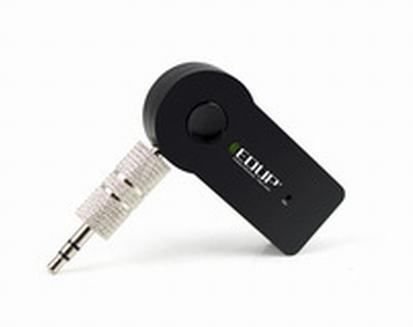
Image: The EDUP EP-B3511 Wireless Bluetooth Music Receiver, a small black rectangular device with a 3.5mm audio jack on one side and a mini-USB charging port on the other. It features a central multi-function button and an indicator light.
The EDUP EP-B3511 is designed for ease of use. It typically features:
- Daugiafunkcis mygtukas: For power on/off, pairing, play/pause, and call management.
- 3.5mm Audio Output Jack: Connects to your audio system's AUX input.
- Mini-USB Charging Port: Skirta vidinei baterijai įkrauti.
- LED indikatorius: Rodo maitinimo, susiejimo ir įkrovimo būseną.
- Integruotas mikrofonas: Laisvų rankų bendravimui.
Sąranka
1. Įrenginio įkrovimas
- Connect the Mini-USB end of the charging cable to the receiver's charging port.
- Connect the USB end of the cable to a USB power source (e.g., car charger, computer USB port, USB wall adapter).
- The LED indicator will typically glow red during charging and turn off or change color when fully charged.
- Pilnas įkrovimas paprastai trunka 1–2 valandas.
2. Prijungimas prie garso sistemos
- Ensure your audio system (car stereo, home theater, headphones) has a 3.5mm AUX input.
- Insert the 3.5mm male-to-male audio connector into the receiver's 3.5mm audio output jack.
- Connect the other end of the 3.5mm connector to the AUX input of your audio system.
- Set your audio system's input source to AUX.
3. Suporavimas su „Bluetooth“ įrenginiu
- Maitinimas: Press and hold the multi-function button on the receiver until the LED indicator flashes blue rapidly (or red and blue alternately), indicating it is in pairing mode.
- Įjungti Bluetooth: On your smartphone, tablet, or laptop, enable Bluetooth and search for new devices.
- Pasirinkite įrenginį: Look for "EP-B3511" or a similar name in the list of available Bluetooth devices and select it to pair.
- Patvirtinimas: Once successfully paired, the LED indicator will typically flash blue slowly or remain solid blue. A voice prompt might also confirm the connection.
- Įjungus įrenginį, jis automatiškai bandys prisijungti prie paskutinio suporuoto įrenginio.
Naudojimo instrukcijos
Maitinimo įjungimas/išjungimas
- Maitinimas: Paspauskite ir palaikykite daugiafunkcį mygtuką maždaug 3 sekundes, kol LED indikatorius pradės mirksėti mėlynai.
- Išjungti: Paspauskite ir palaikykite daugiafunkcį mygtuką maždaug 5 sekundes, kol užges LED indikatorius.
Muzikos atkūrimas
- Once paired, open your music player on your Bluetooth device.
- Music will stream wirelessly to your connected audio system.
- Use the controls on your Bluetooth device to play, pause, skip tracks, and adjust volume. The receiver's multi-function button may also act as a play/pause control (single press).
Skambinimas laisvų rankų įranga
- Atsiliepti į skambutį: Kai skambinate, vieną kartą paspauskite daugiafunkcį mygtuką, kad atsilieptumėte.
- Baigti skambutį: Skambučio metu vieną kartą paspauskite daugiafunkcį mygtuką, kad jį baigtumėte.
- Atmesti skambutį: Norėdami atmesti įeinantį skambutį, paspauskite ir maždaug 2 sekundes palaikykite nuspaudę daugiafunkcį mygtuką.
- Perrink paskutinį numerį: Norėdami perrinkti paskutinį numerį, dukart paspauskite daugiafunkcį mygtuką.
- The integrated microphone will pick up your voice for communication. Ensure you are within reasonable proximity to the receiver for clear audio.
Priežiūra
- Valymas: Įrenginį valykite minkštu, sausu skudurėliu. Nenaudokite skystų valiklių ar tirpiklių.
- Saugykla: Laikykite prietaisą vėsioje, sausoje vietoje, toliau nuo tiesioginių saulės spindulių ir ekstremalių temperatūrų, kai jo nenaudojate ilgesnį laiką.
- Akumuliatoriaus priežiūra: Norėdami pailginti baterijos veikimo laiką, venkite dažnai visiškai jos iškrauti. Reguliariai kraukite įrenginį, net jei jo nenaudojate nuolat.
Trikčių šalinimas
| Problema | Sprendimas |
|---|---|
| Įrenginys neįsijungia. | Įsitikinkite, kad įrenginys įkrautas. Prijunkite jį prie maitinimo šaltinio naudodami USB laidą. |
| Negalima susieti su Bluetooth įrenginiu. |
|
| Nėra garso arba garso kokybė prasta. |
|
| Mikrofonas neveikia skambučių metu. |
|
| Įrenginys automatiškai išsijungia. | The device may have an auto-off feature if not connected or active for a period (e.g., 5 minutes). Recharge the battery if it's low. |
Specifikacijos
- Modelis: EP-B3511
- Ryšio technologija: Bluetooth
- Belaidžio ryšio standartas: Bluetooth V4.1 (supports all Bluetooth versions of mobile/tablet)
- Maitinimo šaltinis: Battery Powered (inbuilt rechargeable battery)
- Suderinami įrenginiai: Headphone, Laptop, Smartphone, Car Audio Systems, Home Audio Systems
- Prekės svoris: Maždaug 60 g
- Pakuotės matmenys: Apytiksliai 13.6 x 11.4 x 2.6 cm
- Savybės: Integruotas mikrofonas skambučiams
Garantija ir palaikymas
This product comes with a standard manufacturer's warranty. For specific warranty terms, duration, and support inquiries, please refer to the documentation provided at the time of purchase or contact your retailer or the manufacturer directly. Keep your proof of purchase for warranty claims.


