Įvadas
This manual provides detailed instructions for the installation, operation, maintenance, and troubleshooting of your Clarion NX514 Car Navigation System. The NX514 is an advanced AV navigation unit featuring a 6.2-inch VGA display, SmartAccess Link for smartphone integration, Google Voice Search, Mapple Navi 5 for comprehensive navigation, and various media playback options including DVD, USB, SD, and Bluetooth.
Prieš naudodami gaminį, atidžiai perskaitykite šį vadovą, kad užtikrintumėte saugų ir optimalų veikimą.
Sąranka
Proper installation is crucial for the performance and safety of your navigation system. It is highly recommended that installation be performed by a qualified professional.
1. Išpakavimas ir komponentų patikrinimas
Patikrinkite, ar yra visi komponentai:
- Clarion NX514 Main Unit
- GPS antena
- Wiring Harnesses (Power, Speaker, etc.)
- Montavimo įranga
- Vartotojo vadovas (šis dokumentas)
2. Laidų jungtys
Connect the wiring harness to your vehicle's power supply, ground, and speaker outputs. Ensure all connections are secure to prevent malfunctions. The GPS antenna should be mounted in a location with a clear view dangaus optimaliam signalo priėmimui.
For SmartAccess Link functionality, connect your smartphone via the HDMI input. An appropriate adapter may be required for certain iPhone models (e.g., iPhone 5s/5c/5).
3. SD kortelės įdėjimas
Insert the provided 8GB SD card containing map data into the designated SD card slot on the unit. Ensure it is inserted correctly and securely.

1 pav.: priekis view of the Clarion NX514 unit. This image shows the main display and control buttons, illustrating the general appearance of the device during setup.
Naudojimo instrukcijos
1. Basic Interface and Touchscreen
The Clarion NX514 features a 6.2-inch VGA touchscreen for intuitive control. Tap icons and menus to navigate through functions. Physical buttons are also available for common operations like volume control and menu access.
2. Google Voice Search
The system integrates Google Voice Ieškokite hands-free operation. To activate, press the voice command button (if available on your steering wheel or unit) and speak your command. You can search for destinations, points of interest, or control navigation functions. A smartphone is required for full voice recognition capabilities.
- Example komandos: "Find a Japanese restaurant," "Navigate to [address]," "Change route."
- Gourmet Search: Access restaurant information from services like Gurunavi, Hot Pepper Gourmet, and Yahoo! JAPAN. You can narrow down destinations, view details, make calls (requires Bluetooth pairing with a smartphone), and set routes via voice.

Figure 2: Clarion NX514 demonstrating Google Voice Search. The image shows the navigation unit displaying a map, with speech bubbles illustrating voice commands for searching for Japanese food and filtering by price.
3. SmartAccess Link (Smartphone Integration)
Connect your iPhone or Android smartphone to the NX514 via the HDMI input to access various popular apps directly on the navigation screen. This allows for playback of music, videos, and other content from your smartphone. Ensure your smartphone is compatible and any necessary adapters are used.
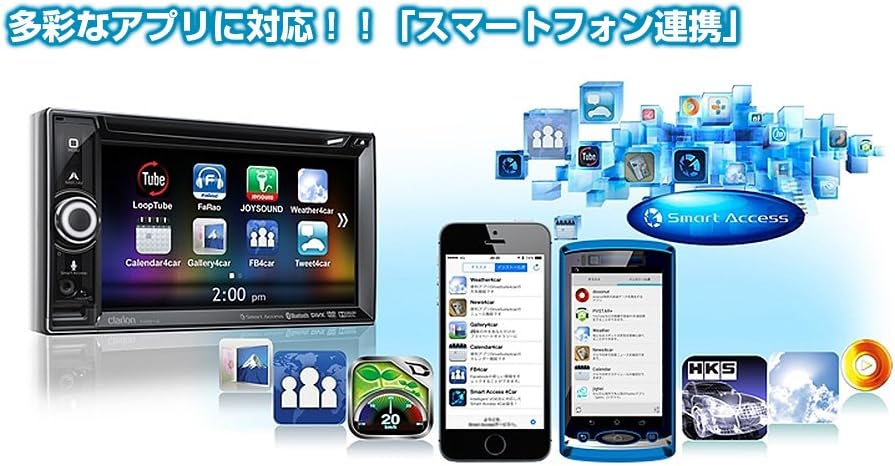
Figure 3: Clarion NX514 displaying various smartphone applications via SmartAccess Link. The image shows the unit's screen mirroring apps like YouTube, Calendar, and Weather, alongside two smartphones.
4. Navigation (Mapple Navi 5)
The Mapple Navi 5 system provides comprehensive navigation features designed to enhance your driving experience.
- Paskirties vietos paieška: Ieškokite destinations by address, name, or category.
- Tourism Navigation: Access a vast database of tourist spots, including recommended drive courses, seasonal attractions (flowers, seasonal fish, fruit picking), and local gourmet information.
- SA/PA & Roadside Stations: Find information on service areas, parking areas, and roadside stations across Japan.
- Maršruto gairės: Follow clear visual and voice prompts for turn-by-turn directions.

Figure 4: Clarion NX514 showcasing Mapple Navi 5 features. This image highlights various tourism-related functions such as recommended drive courses, spot search, and information on SA/PA and local gourmet.
5. Medijos atkūrimas
The NX514 supports various media formats:
- DVD atkūrimas: Insert a DVD into the disc slot for video and audio playback.
- USB/SD kortelė: Leisti garso ir vaizdo įrašus files stored on USB devices or SD cards.
- „Bluetooth“ garsas: Stream music wirelessly from your Bluetooth-enabled smartphone or other devices.
- One-Seg TV: Watch digital terrestrial television broadcasts (where available).

Figure 5: Clarion NX514 demonstrating Bluetooth phone and audio functions. The image shows the unit's screen displaying a phone dialer and a music playback interface, along with a smartphone connected via NaviCon and Bluetooth.
6. Steering Wheel Remote Control
If your vehicle is equipped with steering wheel controls, the NX514 can be integrated to allow safe and convenient operation of audio and navigation functions without taking your hands off the wheel. This includes volume adjustment, track skipping, and activating voice commands.
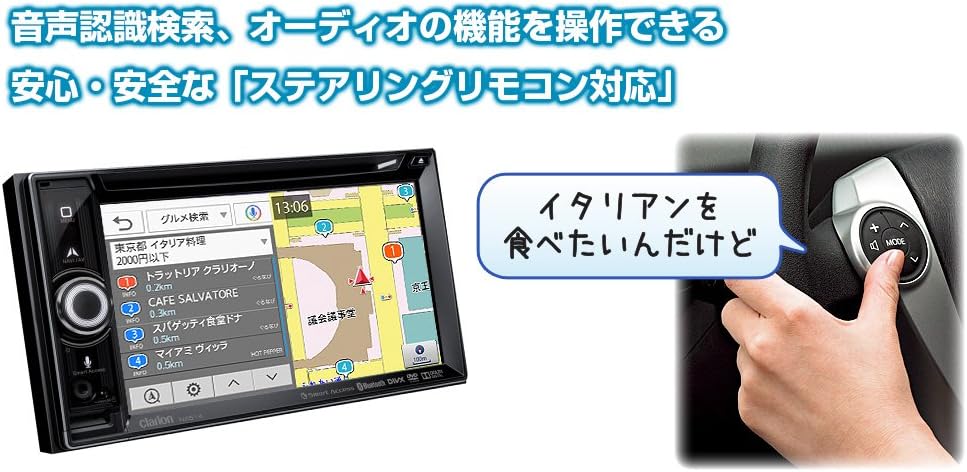
Figure 6: Clarion NX514 unit shown alongside a steering wheel with integrated remote controls. This illustrates the convenience of operating the navigation system using steering wheel buttons, including voice recognition activation.
Priežiūra
To ensure the longevity and optimal performance of your Clarion NX514, follow these maintenance guidelines:
- Ekrano valymas: Gently wipe the touchscreen with a soft, dry cloth. For stubborn smudges, use a cloth lightly dampened with a screen cleaner specifically designed for electronic displays. Avoid abrasive materials or harsh chemicals.
- Bendras valymas: Keep the unit free from dust and debris. Use a soft brush or compressed air to clean around buttons and crevices.
- SD kortelės priežiūra: Handle the SD card carefully. Avoid exposing it to extreme temperatures, moisture, or static electricity. Always ensure the unit is powered off or in a safe state before inserting or removing the SD card to prevent data corruption.
- Firmware atnaujinimai: Periodically check the official Clarion websvetainėje, kurioje pateikiami visi galimi programinės įrangos atnaujinimai, kad jūsų sistemoje būtų naujausios funkcijos ir ištaisytos klaidos.
Trikčių šalinimas
If you encounter issues with your Clarion NX514, refer to the following common problems and solutions:
Nėra maitinimo / Įrenginys neįsijungia
- Check all power connections to ensure they are securely attached.
- Verify the vehicle's fuse related to the car audio system.
- Įsitikinkite, kad automobilio uždegimo jungiklis yra ACC arba ON padėtyje.
No GPS Signal / Incorrect Position
- Įsitikinkite, kad GPS antena sumontuota vietoje, kurioje nėra jokių kliūčių view dangaus.
- Avoid placing objects near the antenna that could block the signal.
- Allow a few minutes for the system to acquire satellites after starting the vehicle.
SD Card Errors / Map Data Not Loading
- Įsitikinkite, kad SD kortelė yra visiškai ir teisingai įdėta į lizdą.
- The SD card contains critical map data. Avoid removing it while the unit is operating or during power fluctuations.
- If data corruption is suspected, contact Clarion support for assistance. Do not attempt to modify the SD card contents yourself, as this may void the warranty.
„Bluetooth“ ryšio problemos
- Ensure Bluetooth is enabled on both the NX514 and your smartphone.
- Ištrinkite ankstesnius suporavimus abiejuose įrenginiuose ir bandykite suporuoti iš naujo.
- Move your smartphone closer to the NX514 unit.
Jutiklinis ekranas nereaguoja
- Atlikite įrenginio minkštąjį paleidimą iš naujo (žr. konkretaus įrenginio paleidimo iš naujo procedūrą, paprastai tai yra mažas nustatymo iš naujo mygtukas).
- Įsitikinkite, kad ekranas yra švarus ir be šiukšlių.
Specifikacijos
| Funkcija | Specifikacija |
|---|---|
| Prekės ženklas | Clarion |
| Modelio pavadinimas | NX514 |
| Ekrano dydis | 6.2 colių |
| Ekrano tipas | LCD (VGA with high-brightness LED) |
| Savybės | Voice Operation, Touchscreen |
| Ryšys | Bluetooth, USB, HDMI |
| Žemėlapio tipas | City Tour (Mapple Navi 5) |
| Montavimo tipas | Prietaisų skydelio laikiklis |
| Atminties saugykla | 8 GB (SD kortelė) |
| Produkto svoris | 2000 gramų |
| Compatible Satellite System | GPS |
| Suderinamas transporto priemonės tipas | Lengvasis automobilis |
Garantija ir palaikymas
Your Clarion NX514 Car Navigation System is covered by a manufacturer's warranty. Please refer to the warranty card included with your product for specific terms and conditions, including the warranty period and coverage details.
For technical support, service, or further inquiries, please contact Clarion customer service or visit the official Clarion websvetainė:
Clarion Official Product Page (Japanese)
When contacting support, please have your product model number (NX514) and purchase information readily available.


