Įvadas
This manual provides detailed instructions for the installation, operation, and maintenance of your COMFAST CF-WP500M 500Mbps HomePlug AV Powerline Network Adapters. Please read this manual thoroughly before using the product to ensure proper setup and optimal performance. These adapters allow you to extend your internet connection using your home's existing electrical wiring, providing a stable and high-speed network connection without new cables.
Pakuotės turinys
Patikrinkite, ar pakuotėje yra visi reikalingi daiktai:
- 2 x COMFAST CF-WP500M Powerline Adapters
- 2 eterneto kabeliai
- 1 x Quick Installation Guide (This document serves as a comprehensive guide)
Produktas baigtasview
The COMFAST CF-WP500M is a compact HomePlug AV powerline adapter designed for easy network extension. Each adapter features LED indicators for status monitoring and an RJ45 Ethernet port for device connectivity.
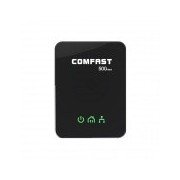
Vaizdas: priekis view of the COMFAST CF-WP500M Powerline Adapter, showing the COMFAST logo and three LED indicators for Power, Powerline, and Ethernet status.
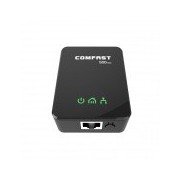
Vaizdas: Viršutinė priekinė dalis view of the COMFAST CF-WP500M Powerline Adapter, highlighting the RJ45 Ethernet port at the bottom and the three LED indicators on the front panel.
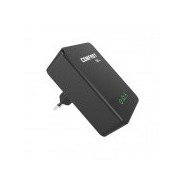
Vaizdas: Šoninė view of the COMFAST CF-WP500M Powerline Adapter, clearly showing the integrated EU type electrical plug for direct wall socket connection.
LED indikatoriai:
- Power LED (⚡):
- On: Device is powered on.
- Išjungta: Įrenginys išjungtas.
- Powerline LED (🏠):
- On: Connected to a powerline network.
- Flashing: Data transmission over the powerline network.
- Nešviečia: Neprijungta prie elektros tinklo.
- Ethernet LED (💻):
- On: Ethernet port is connected to a device.
- Flashing: Data transmission over the Ethernet port.
- Išjungta: nėra eterneto ryšio.
Sąranka
Follow these steps to set up your COMFAST CF-WP500M Powerline Network Adapters:
- Prijunkite pirmąjį adapterį: Plug one powerline adapter directly into a wall electrical outlet near your internet router. Avoid power strips or surge protectors as they can interfere with performance.
- Prisijunkite prie maršrutizatoriaus: Use one of the provided Ethernet cables to connect the powerline adapter's RJ45 port to an available LAN port on your internet router.
- Prijunkite antrąjį adapterį: Plug the second powerline adapter directly into a wall electrical outlet in the room where you need network access.
- Prisijunkite prie įrenginio: Use the second Ethernet cable to connect the second powerline adapter's RJ45 port to your computer, smart TV, game console, or other network-enabled device.
- Patikrinkite ryšį: Wait for the Powerline LED on both adapters to turn solid green. This indicates a successful powerline connection. The Ethernet LED should also be on or flashing if a device is connected and active.
- Pairing (Optional, for Security or New Devices): If the adapters do not connect automatically or if you wish to secure your network, press the 'Pair' button (if available, typically a small button on the side or bottom) on one adapter for 1-2 seconds, then within two minutes, press the 'Pair' button on the second adapter for 1-2 seconds. The Powerline LED will flash during pairing and become solid when successful.
Naudojimo instrukcijos
Once set up, your powerline network operates automatically. The adapters will establish a connection through your home's electrical wiring, extending your network.
- Prieiga prie tinklo: Any device connected via Ethernet to the second powerline adapter will have direct access to your internet and local network.
- Našumas: For optimal performance, ensure adapters are plugged directly into wall outlets. Avoid outlets controlled by a wall switch if continuous operation is desired.
- Adding More Adapters: To expand your powerline network, purchase additional COMFAST HomePlug AV compatible adapters and follow the pairing instructions.
Priežiūra
Proper maintenance ensures the longevity and performance of your powerline adapters:
- Valymas: Gently wipe the adapters with a dry, soft cloth. Do not use liquid cleaners or aerosols.
- Vieta: Keep adapters in well-ventilated areas. Avoid covering them or placing them near heat sources.
- Aplinkos sąlygos: Operate the adapters within their specified temperature and humidity ranges.
- Firmware atnaujinimai: Check the COMFAST official websvetainėje, ar nėra jūsų modeliui skirtų programinės įrangos atnaujinimų.
Trikčių šalinimas
Jei kyla problemų, žr. toliau pateiktas dažniausiai pasitaikančias problemas ir sprendimus:
- Nėra maitinimo šviesos diodo:
- Ensure the adapter is securely plugged into a working electrical outlet.
- Išbandykite lizdą su kitu įrenginiu.
- Powerline LED is Off:
- Ensure both adapters are plugged into wall outlets on the same electrical circuit.
- Avoid power strips, surge protectors, or extension cords.
- Pabandykite adapterius prijungti prie skirtingų lizdų.
- Perform the pairing process as described in the Setup section.
- Ethernet LED is Off:
- Check the Ethernet cable connection between the adapter and your device/router.
- Įsitikinkite, kad prijungtas įrenginys įjungtas ir veikia tinkamai.
- Išbandykite kitą Ethernet kabelį.
- Mažas tinklo greitis:
- Ensure adapters are plugged directly into wall outlets, not power strips.
- Large electrical appliances (e.g., washing machines, refrigerators) on the same circuit can cause interference. Try moving adapters to different outlets.
- Patikrinkite savo namų elektros instaliacijos kokybę. Senesnė arba sugedusi instaliacija gali turėti įtakos veikimui.
Specifikacijos
| Modelis | CF-WP500M |
| Standartinis | HomePlug AV |
| Duomenų perdavimo sparta | Iki 500 Mbps |
| Sąsaja | 1 x 10/100Mbps RJ45 Ethernet Port |
| Kištuko tipas | EU kištukas |
| LED indikatoriai | Power, Powerline, Ethernet |
| Energijos suvartojimas | Typically < 2W |
| Darbinė temperatūra | nuo 0 ℃ iki 40 ℃ (32 ℉ iki 104 ℉) |
| Darbinė drėgmė | Nuo 10% iki 90% nekondensuojantis |
Garantija ir palaikymas
COMFAST products are designed for reliability and performance. For specific warranty information, please refer to the warranty card included with your product or visit the official COMFAST website. For technical support, troubleshooting assistance, or further inquiries, please contact COMFAST customer service through the channels provided on their official websvetainę.


