1. Įvadas
Ačiū, kad pirkoteasing the ELECOM M-XGM10DBBK Wireless 5-Button BlueLED Mouse. This mouse is designed for comfort and precision, featuring an ergonomic shape that fits naturally in your hand and BlueLED technology for reliable tracking on various surfaces. This manual provides essential information for proper setup, operation, and maintenance of your device.
2. Produktas baigtasview
The M-XGM10DBBK mouse is part of the "EX-G" series, known for its ergonomic design and comfortable grip. It features five buttons, including dedicated back and forward buttons, to enhance productivity.
Pagrindinės funkcijos:
- Ergonomiškas dizainas: Shaped to fit the hand for ultimate grip comfort.
- BlueLED Sensor: Provides precise tracking on a wide range of surfaces, including glass and fabric.
- 5 mygtukų funkcionalumas: Includes left, right, scroll wheel, and dedicated back/forward buttons.
- 2.4 GHz belaidis ryšys: Offers a stable connection with a range of approximately 10 meters (3 meters on steel desks).
- Pritaikomi mygtukai: Button functions can be re-assigned using the free "ELECOM Mouse Assistant" software (Windows/Mac only).
- Baterijos indikatorius: A lamp indicates remaining battery life.
Komponentai:
Susipažinkite su pelės komponentais:

2.1 paveikslas: viršuje view of the mouse, highlighting the main buttons.
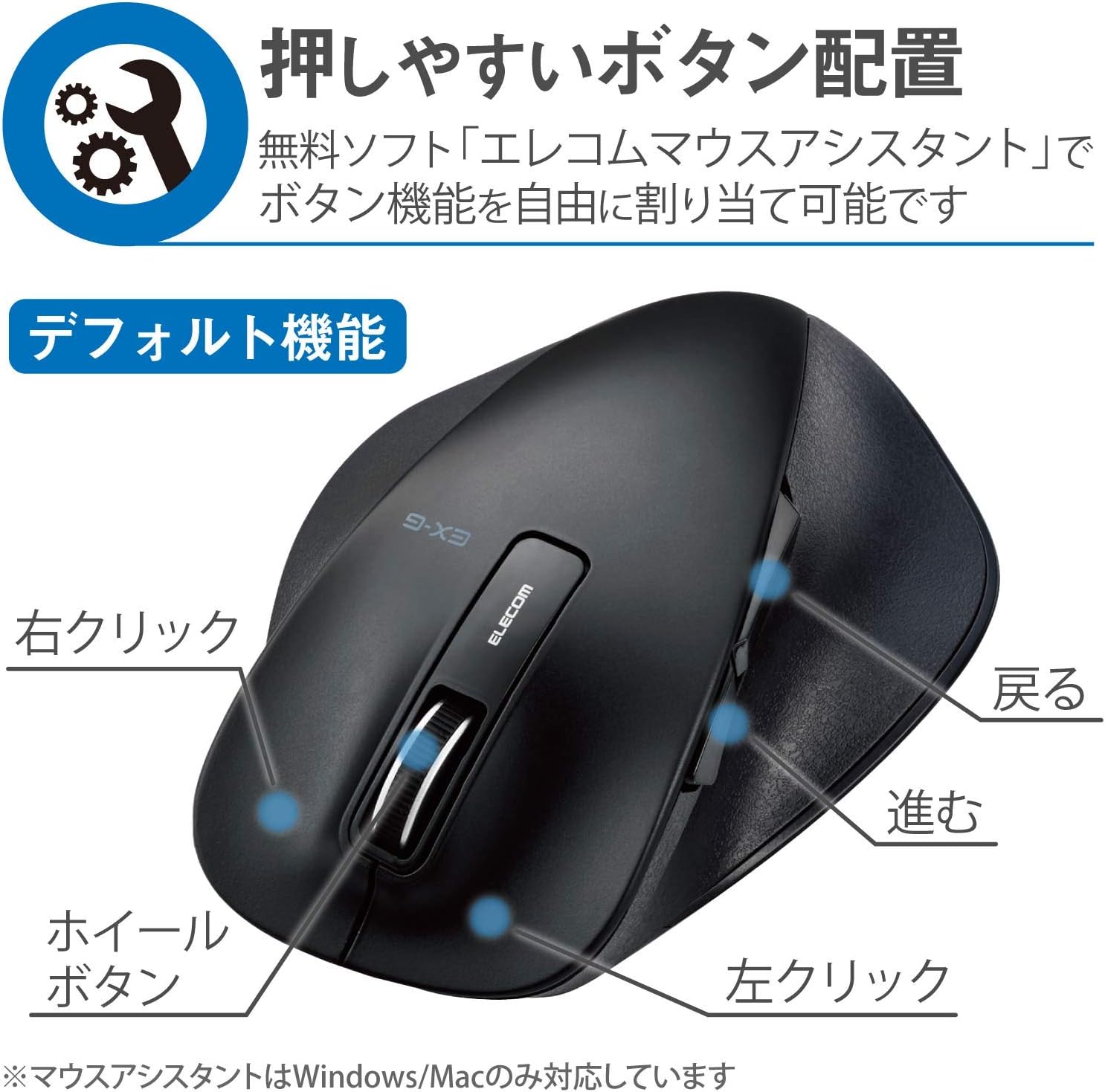
2.2 pav.: šonas view of the mouse, showing the back and forward buttons.
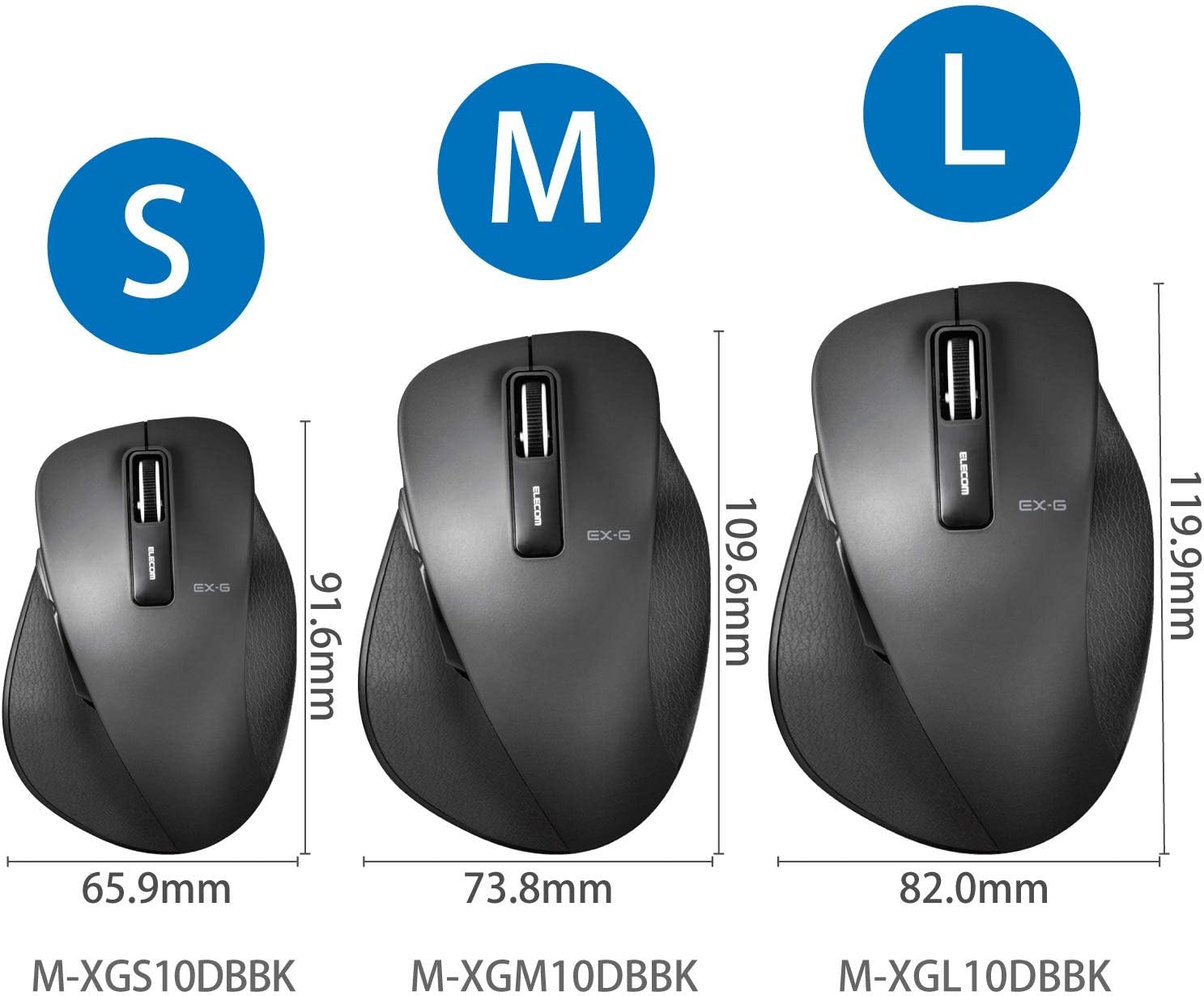
Figure 2.3: Size comparison of EX-G mice (S, M, L). The M-XGM10DBBK is the M size.

2.4 pav. Apačia view of the mouse, indicating the optical sensor, power switch, and receiver storage compartment.

Figure 2.5: Illustration of the durable Omron switches used for the left and right click buttons.
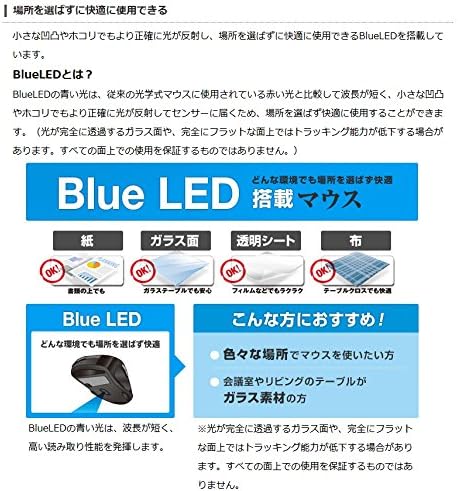
Figure 2.6: Explanation of BlueLED technology, demonstrating its versatility on different surfaces. Note: Tracking performance may decrease on completely transparent or perfectly flat surfaces.

Figure 2.7: Details on 2.4GHz wireless, battery indicator, and 2000 DPI resolution for smooth operation.

Figure 2.8: The ELECOM M-XGM10DBBK mouse is certified to work with Chromebooks.
3. Sąranka
3.1 Akumuliatoriaus įdėjimas
- Locate the battery cover on the bottom of the mouse.
- Atidarykite dangtelį.
- Insert one AA alkaline, manganese, or nickel-metal hydride battery, ensuring correct polarity (+/-).
- Saugiai uždarykite akumuliatoriaus dangtelį.
3.2 Imtuvo prijungimas
- Išimkite USB imtuvą iš jo laikymo skyriaus pelės apačioje.
- Prijunkite USB imtuvą prie laisvo kompiuterio USB-A prievado.
- Jūsų kompiuteris turėtų automatiškai aptikti ir įdiegti reikiamas tvarkykles. Tai gali užtrukti kelias akimirkas.
3.3 Įjungimas
- Pastumkite maitinimo jungiklį pelės apačioje į padėtį „ĮJUNGTA“.
- Dabar pelė paruošta naudoti.
4. Naudojimo instrukcijos
4.1 Pagrindinės funkcijos
- Kairysis spustelėjimas: Pirminė atranka ir aktyvavimas.
- Dešiniuoju pelės mygtuku spustelėkite: Atidaro kontekstinius meniu.
- Slinkties ratukas: Ritina dokumentus ir web pages vertically. Can also be clicked for middle-click functionality.
4.2 Back/Forward Buttons
The dedicated back and forward buttons located on the side of the mouse allow for quick navigation in web naršyklės ir file tyrinėtojai.
- Paspauskite Atgal button to go to the previous page or folder.
- Paspauskite Pirmyn button to go to the next page or folder.
4.3 Customizing Buttons (ELECOM Mouse Assistant)
For advanced customization, download the free "ELECOM Mouse Assistant" software from the official ELECOM website. This software allows you to re-assign functions to the mouse buttons according to your preferences. Please note that this software is compatible with Windows and macOS only.
5. Priežiūra
5.1 Valymas
Norėdami palaikyti optimalų našumą ir higieną, reguliariai valykite pelę:
- Išjunkite pelę naudodami maitinimo jungiklį.
- Pelės paviršiui nuvalyti naudokite minkštą, sausą šluostę.
- Įsisenėjusiam purvui šiek tiek pamirkykiteampNuvalykite šluostę vandeniu arba švelniu valymo tirpalu, tada nedelsdami nusausinkite.
- Venkite naudoti stiprias chemines medžiagas, abrazyvus ar tirpiklius.
- Gently clean the optical sensor area on the bottom of the mouse with a cotton swab if tracking issues occur.
5.2 Akumuliatoriaus keitimas
When the battery indicator lamp flashes or the mouse performance degrades, replace the battery:
- Išjunkite pelę.
- Atidarykite akumuliatoriaus dangtelį.
- Išimkite seną bateriją ir išmeskite ją pagal vietines taisykles.
- Insert a new AA battery, ensuring correct polarity.
- Close the battery cover and turn the mouse back on.
6. Problemų sprendimas
Jei kyla problemų dėl pelės, žr. šias dažniausiai pasitaikančias problemas ir sprendimus:
| Problema | Galima priežastis | Sprendimas |
|---|---|---|
| Pelė nereaguoja | Low battery; Power switch off; Receiver not connected; Receiver interference. | Replace battery; Turn power switch ON; Ensure receiver is firmly plugged in; Try a different USB port; Move closer to the receiver. |
| Nereguliarus žymeklio judėjimas | Nešvarus optinis jutiklis; Netinkamas paviršius; Trukdžiai. | Clean optical sensor; Use on a suitable mouse pad or surface; Reduce interference from other wireless devices. |
| Neveikia mygtukai | Programinės įrangos konfliktas; tvarkyklės problema. | Restart computer; Reinstall mouse drivers; Check for conflicting software. |
| Belaidžio ryšio problemos | Distance too far; Obstructions; Interference. | Ensure mouse is within range (10m); Remove obstructions between mouse and receiver; Avoid using near other 2.4GHz devices. |
7. Specifikacijos
| Funkcija | Detalė |
|---|---|
| Modelio numeris | M-XGM10DBBK |
| Prisijungimo būdas | 2.4 GHz belaidis ryšys (USB-A imtuvas) |
| Jutiklio tipas | BlueLED Optical |
| Mygtukai | 5 buttons (Left, Right, Scroll Wheel, Back, Forward) |
| Rezoliucija | 2000 DPI |
| Matmenys (P x G x A) | 73.8 x 109.6 x 40.8 mm (M Size) |
| Svoris | Maždaug 151.95 g (įskaitant bateriją) |
| Maitinimo šaltinis | 1 x AA battery (Alkaline, Manganese, or Ni-MH) |
| Numatomas akumuliatoriaus veikimo laikas | Approx. 722 days (based on typical usage) |
| Suderinama OS | Windows 11, 10, RT8.1, 8.1, 7, Vista; macOS High Sierra 10.13, OS X 10.10; Chrome OS |
| Spalva | Juoda |
8. Garantija ir palaikymas
8.1 Informacija apie garantiją
Šis produktas tiekiamas su a 6 mėnesių garantija nuo pirkimo datos. Išsaugokite pirkimo įrodymą garantiniams reikalavimams. Garantija taikoma gamybos defektams, atsiradusiems įprasto naudojimo metu. Ji netaikoma žalai, atsiradusiai dėl netinkamo naudojimo, nelaimingų atsitikimų, neleistinų modifikacijų ar įprasto nusidėvėjimo.
8.2 Pagalba klientams
For technical assistance, troubleshooting, or warranty inquiries, please visit the official ELECOM website or contact ELECOM customer support. Contact details can typically be found on the ELECOM website under the 'Support' or 'Contact Us' section.


