1. Įvadas
This manual provides comprehensive instructions for the setup, operation, and maintenance of your Humax FVP-4000T Freeview Play HD TV Recorder. Please read this manual carefully before using the product to ensure proper functionality and to avoid damage.
The Humax FVP-4000T is a Freeview Play HD TV Recorder designed to enhance your television viewing experience. It features multiple HD tuners, allowing you to record several programmes simultaneously while watching another. With its integrated hard drive, you can store a significant amount of recorded content. The device also offers Wi-Fi connectivity for access to catch-up services and other online features.
2. Dėžutės turinys
Upon opening the packaging, please verify that all the following items are included:
- Humax FVP-4000T/1TB Set-top Box
- Nuotolinio valdymo pultas
- HDMI kabelis
- Power adapter (not explicitly listed but implied for operation)
- Vartotojo vadovas (šis dokumentas)

2.1 paveikslas: Priekyje view of the Humax FVP-4000T recorder. This image shows the main unit in a cappuccino colour with a textured top surface and the Humax logo on the front left. A small red light is visible on the front right, indicating power status.
3. Sąrankos vadovas
3.1. Connecting Your FVP-4000T
Follow these steps to connect your Humax FVP-4000T to your television and antenna.
- Prijunkite anteną: Connect your TV aerial cable to the "RF IN" port on the back of the FVP-4000T. If you wish to loop the signal through to your TV's internal tuner, connect a second aerial cable from the "RF OUT" port on the FVP-4000T to the aerial input on your TV.
- Prijungimas prie televizoriaus (HDMI): Use the supplied HDMI cable to connect the "HDMI" port on the FVP-4000T to an available HDMI input on your television. Note the HDMI input number (e.g., HDMI 1, HDMI 2) for later selection on your TV.
- Connect to Network (Optional - Ethernet): For wired internet access, connect an Ethernet cable from the "ETHERNET" port on the FVP-4000T to your home router. The device also supports Wi-Fi for wireless connectivity.
- Prijunkite maitinimą: Connect the power adapter to the "POWER" input on the FVP-4000T, then plug the adapter into a wall socket.

3.1 paveikslas: Rear panel connections of the Humax FVP-4000T. This image displays the various input and output ports including RF IN/OUT, Audio/Video (RCA), SPDIF (optical), HDMI, Ethernet, USB, and Power input.
3.2 paveikslas: Illustration indicating the requirement for a TV antenna. The image shows an antenna icon with an arrow pointing down to the Humax FVP-4000T unit, emphasizing that an external antenna is needed for Freeview priėmimas.
3.2. Pradinės sąrankos vedlys
Upon first power-on, the FVP-4000T will guide you through an initial setup wizard. This process includes:
- Kalbos pasirinkimas: Pasirinkite pageidaujamą kalbą.
- Regiono pasirinkimas: Pasirinkite savo šalį/regioną.
- Kanalo nuskaitymas: The device will automatically scan for available Freeview channels. This may take several minutes.
- Tinklo sąranka: Configure your internet connection. If using Wi-Fi, you will be prompted to select your network and enter the password.
- Time Zone and Parental Control: Set your local time zone and configure any desired parental control settings.
Ensure your TV is set to the correct HDMI input to view sąrankos vedlį.
4. Naudojimo instrukcijos
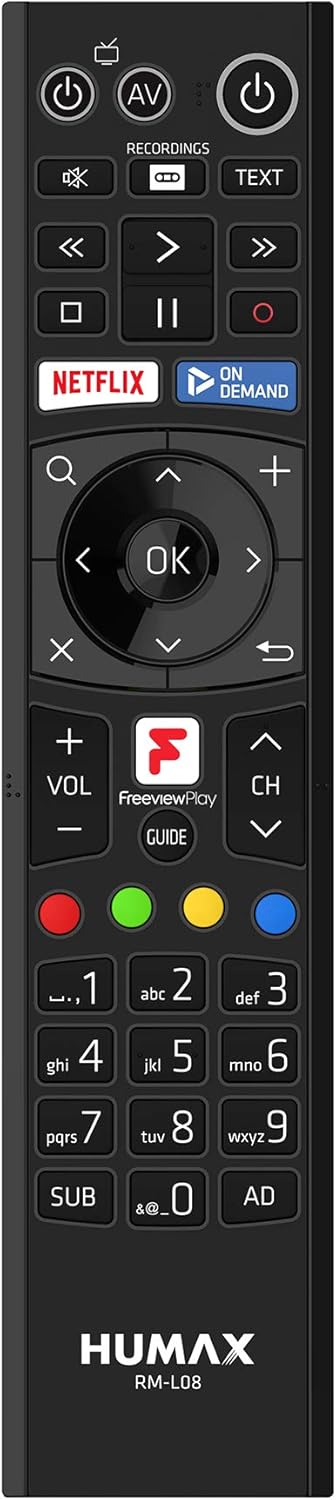
4.1. Nuotolinio valdymo pultasview
The supplied remote control provides full functionality for navigating the FVP-4000T. Familiarize yourself with its layout:

4.1 paveikslas: Humax RM-L08 Remote Control. This image displays the full layout of the remote control, including power buttons, navigation keys, playback controls, numerical keypad, and dedicated buttons for Netflix, On Demand, and Freeview Play Guide.
- Maitinimo mygtukas: Įjungia arba išjungia įrenginį.
- Navigacijos skydelis (Gerai, aukštyn, žemyn, kairėn, dešinėn): Naudojamas naršyti meniu ir pasirinkti parinktis.
- Kanalas aukštyn/žemyn: Keičia televizijos kanalą.
- Garsumo didinimas / sumažinimas: Reguliuoja garsumą.
- Įrašas (raudonas apskritimas): Initiates recording of the current programme.
- Atkūrimo valdikliai (leisti, pristabdyti, sustabdyti, persukti pirmyn, atsukti atgal): Valdo medijos atkūrimą.
- Vadovas: Opens the Electronic Programme Guide (EPG).
- Netflix / On Demand: Dedicated buttons for quick access to these services.
4.2. Tiesioginės televizijos žiūrėjimas
After setup, you can start watching live Freeview kanalai:
- Ensure the FVP-4000T is powered on.
- Select the correct HDMI input on your television.
- Naudokite Kanalas aukštyn/žemyn buttons or the numerical keypad on the remote to change channels.
4.3. Recording Programmes
The FVP-4000T allows you to record up to three programmes simultaneously while watching a fourth live, thanks to its triple tuners.
- Instant Record: While watching a programme, press the Įrašas button (red circle) on the remote control. The programme will begin recording immediately.
- Scheduled Record (EPG): Paspauskite Vadovas button to open the Electronic Programme Guide. Navigate to the desired programme and press the Įrašas button. You can set single recordings or series recordings.
- Managing Recordings: Access your recorded programmes by pressing the Įrašai button on the remote. From here, you can play, delete, or manage your stored content.
4.4. Nemokamaview Play and Catch-up Services
Nemokamaview Play integrates live TV with catch-up and on-demand services from BBC iPlayer, ITV Hub, All 4, My5, and UKTV Play.
- Catch-up TV: Scroll back through the EPG (Electronic Programme Guide) to find programmes you've missed from the last seven days. Select a programme and press OK to launch the relevant catch-up app.
- On-Demand Apps: Access dedicated apps like Netflix, BBC iPlayer, ITV Hub, All 4, and My5 directly from the main menu or via dedicated remote buttons.

4.2 paveikslas: Humax FVP-4000T showcasing integrated Freeview Play and streaming services. This image features the Humax unit in the foreground with a collage of logos for various streaming and catch-up services such as BBC One, BBC iPlayer, ITV, All 4, Netflix, and YouTube, illustrating the device's capabilities.
4.5. Wi-Fi ryšys
The FVP-4000T features built-in Wi-Fi for convenient wireless connection to your home network. This enables access to Freeview Play services, software updates, and media sharing.
- Eikite į Settings > Network > Wi-Fi Setup.
- Sąraše pasirinkite savo namų „Wi-Fi“ tinklą.
- Įveskite „Wi-Fi“ slaptažodį naudodami ekrano klaviatūrą.
- Patvirtinkite ryšį.
5. Priežiūra
5.1. Valymas
To maintain the appearance and functionality of your FVP-4000T:
- Prieš valydami visada atjunkite maitinimo laidą.
- Įrenginio išorę nuvalykite minkšta, sausa šluoste.
- Įsisenėjusioms dėmėms šiek tiek pamirkykiteampNuvalykite šluostę vandeniu. Nenaudokite abrazyvinių valiklių, tirpiklių ar cheminių purškalų.
- Laikykite ventiliacijos angas švarias nuo dulkių ir šiukšlių.
5.2. Programinės įrangos atnaujinimai
Humax periodically releases software updates to improve performance, add features, or fix bugs. Ensure your FVP-4000T is connected to the internet to receive these updates.
- Updates are typically downloaded and installed automatically in standby mode.
- Galite rankiniu būdu patikrinti, ar yra atnaujinimų, naudodami Nustatymai > Sistema > Programinės įrangos naujinimas.
6. Problemų sprendimas
This section addresses common issues you might encounter with your Humax FVP-4000T.
| Problema | Galima priežastis | Sprendimas |
|---|---|---|
| Nėra vaizdo ar garso | Incorrect HDMI input selected on TV; Loose cable connections; Unit not powered on. | Ensure TV is on the correct HDMI input. Check all cable connections (HDMI, power, antenna). Press the power button on the remote or unit. |
| No channels found during scan | Antenna not connected or faulty; Weak signal. | Check antenna connection to "RF IN". Ensure your antenna is properly aligned and functioning. Try a manual scan in settings. |
| Nuotolinio valdymo pultas nereaguoja | Batteries are flat or inserted incorrectly; Obstruction between remote and unit. | Replace batteries. Ensure line of sight to the FVP-4000T. |
| Nepavyksta prisijungti prie „Wi-Fi“. | Neteisingas slaptažodis; maršrutizatoriaus problemos; signalo trukdžiai. | Double-check Wi-Fi password. Restart your router. Ensure the unit is within range of your Wi-Fi router. |
| Recordings failing or poor quality | Insufficient hard drive space; Signal issues; Recording conflicts. | Delete old recordings to free up space. Check signal strength. Adjust recording padding in settings to avoid conflicts. |
If the problem persists after trying these solutions, please contact Humax customer support.
7. Specifikacijos
| Funkcija | Detalė |
|---|---|
| Modelio numeris | FVP-4000T 1TB Cappuccino |
| Sandėliavimo talpa | 1 TB (terabaitas) |
| Derintuvai | 3 x Freeview HD Tuners |
| Įrašymo talpa | Up to 600 hours (SD) |
| Ryšys | HDMI, Ethernet, USB, Wi-Fi (Built-in) |
| Matmenys (apytiksliai) | 2 x 2 x 2 cm (gaminio matmenys) |
| Svoris (apytiksliai) | 360 g |
| Spalva | Cappuccino |
| Įtraukti komponentai | Receiver box, Remote control, HDMI cable |
| Suderinami įrenginiai | Televizija |
8. Garantija ir palaikymas
8.1. Informacija apie garantiją
Your Humax FVP-4000T comes with a standard manufacturer's warranty. Please refer to the warranty card included in your product packaging for specific terms and conditions, including the warranty period and coverage details. Keep your proof of purchase for warranty claims.
8.2. Pagalba klientams
For technical assistance, troubleshooting beyond this manual, or warranty inquiries, please contact Humax customer support:
- Websvetainė: Visit the official Humax UK websvetainė, kurioje rasite DUK, programinės įrangos atsisiuntimus ir palaikymo kontaktinę informaciją.
- Telefonas: Refer to the contact details provided in your product documentation or on the Humax UK websvetainę.
When contacting support, please have your product model number (FVP-4000T) and serial number ready.


