1. Įvadas
This manual provides essential information for the safe and efficient use of your InFocus IF195a Touch Pad. Please read this manual thoroughly before operating the device and retain it for future reference.
2. Saugos informacija
- Nelaikykite prietaiso ekstremaliose temperatūrose, tiesioginiuose saulės spinduliuose ar didelėje drėgmėje.
- Stenkitės, kad prietaisas nenumestų ar nepatirtų stipraus smūgio.
- Use only the charger provided or approved by InFocus.
- Nebandykite patys ardyti ar taisyti įrenginio. Visus techninės priežiūros darbus patikėkite kvalifikuotiems specialistams.
- Saugokite prietaisą nuo vandens ir kitų skysčių.
- Atsakingai utilizuokite įrenginį ir jo bateriją laikydamiesi vietinių taisyklių.
3. Produktas baigtasview
The InFocus IF195a is a 20-inch Android-powered touch pad designed for interactive use. Familiarize yourself with its components.
3.1 Priekis View

1 paveikslas: Priekyje view of the InFocus IF195a Touch Pad. This image shows the large 20-inch display with the Android operating system interface, including various app icons and the Google search bar. The device features a sleek bezel around the screen.
- Ekranas: 20-inch multi-touch screen.
- Priekinė kamera: Located at the top center bezel.
- Mikrofonas: Integruota balso įvedimui.
3.2 pusė View ir uostai
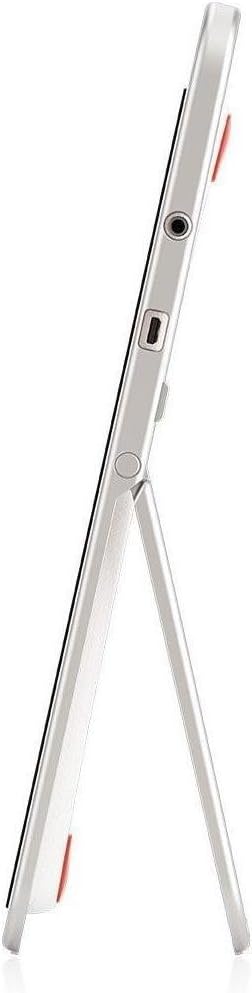
2 paveikslas: Šoninė view of the InFocus IF195a Touch Pad. This image highlights the device's slim profile and the integrated kickstand, which allows for upright positioning. Visible ports include a headphone jack and a USB port.
- Maitinimo mygtukas: Used to turn the device on/off or put it to sleep.
- Garsumo mygtukai: Sureguliuokite įrenginio garso išvestį.
- Ausinių lizdas (3.5 mm): Skirtas prijungti išorinius garso įrenginius.
- Mikro-USB prievadas: Įkrovimui ir duomenų perdavimui.
- Integruota atraminė kojelė: Allows the device to stand upright.
4. Sąranka
4.1 Išpakavimas ir pradinis įkrovimas
- Carefully remove the InFocus IF195a Touch Pad and all accessories from the packaging.
- Connect the provided power adapter to the Micro-USB port on the device and plug it into a power outlet. Allow the device to charge fully before first use. The charging indicator will typically show a full battery when complete.
4.2 Įjungimas / išjungimas
- Norėdami įjungti: Press and hold the Power button until the InFocus logo appears on the screen.
- Norėdami išjungti: Press and hold the Power button until a power-off menu appears. Select "Power off" and confirm.
- Miegui / pabudimui: Trumpai paspauskite maitinimo mygtuką, kad perjungtumėte įrenginį į miego režimą arba jį pažadintumėte.
4.3 Pradinio nustatymo vedlys
Pirmą kartą įjungus įrenginį, jis atliks pradinį nustatymo procesą:
- Kalbos pasirinkimas: Pasirinkite pageidaujamą kalbą.
- „Wi-Fi“ ryšys: Select your Wi-Fi network from the list and enter the password. A stable internet connection is required for many features.
- Google paskyra: Sign in with an existing Google account or create a new one. This is necessary to download apps from the Google Play Store and access Google services.
- Data ir laikas: Set the correct date and time or allow the device to set it automatically via the network.
- Privatumo nustatymai: Review ir pakoreguokite privatumo nustatymus pagal pageidavimą.
5. Prietaiso valdymas
5.1 Lietimo gestai
- Bakstelėkite: Norėdami pasirinkti elementą arba atidaryti programą, palieskite ekraną vieną kartą.
- Palieskite ir palaikykite: Paspauskite ir palaikykite elementą, kad pasiektumėte kontekstinius meniu arba vilktumėte elementus.
- Perbraukimas: Norėdami slinkti sąrašais arba perjungti pagrindinius ekranus, braukite pirštu per ekraną.
- Žiupsnelis, norint priartinti: Norėdami priartinti arba atitolinti vaizdus, žemėlapius ar web puslapių.
5.2 Pradinis ekranas ir naršymas
- Namų mygtukas: Grąžina jus į pagrindinį pradinį ekraną.
- Atgal mygtukas: Returns to the previous screen or closes the current application.
- Naujausių programų mygtukas: Displays a list of recently used applications for quick switching.
- Pranešimų skydelis: Braukite žemyn nuo ekrano viršaus, kad pasiektumėte pranešimus ir greituosius nustatymus.
5.3 Installing and Managing Applications
- „Google Play“ parduotuvė: Open the "Play Store" app to browse and download applications. A Google account is required.
- Programų diegimas: Select an app and tap "Install." Follow on-screen prompts for permissions.
- Programėlių pašalinimas: Eikite į Nustatymai > Programos, select the desired app, and tap "Uninstall." Alternatively, touch and hold an app icon on the home screen and drag it to the "Uninstall" option (if available).
5.4 Prijungimas prie išorinių įrenginių
- Ausinės: Įkiškite 3.5 mm ausines į ausinių lizdą.
- USB įrenginiai: Connect compatible USB devices (e.g., flash drives, keyboards) to the Micro-USB port using an appropriate adapter if necessary. The device supports USB On-The-Go (OTG).
6. Priežiūra
6.1 Prietaiso valymas
- Prietaiso ekranui ir korpusui valyti naudokite minkštą, nepūkuotą šluostę.
- Įsisenėjusioms dėmėms šiek tiek pamirkykiteampNuvalykite šluostę vandeniu arba ekrano valikliu, skirtu specialiai elektronikai.
- Venkite naudoti stiprias chemines medžiagas, abrazyvinius valiklius ar aerozolinius purškalus.
6.2 Akumuliatoriaus priežiūra
- Norėdami pailginti akumuliatoriaus veikimo laiką, venkite dažnai visiškai jį iškrauti.
- Nepalikite įrenginio prijungto prie įkroviklio ilgam laikui po to, kai jis visiškai įkrautas.
- Store the device in a cool, dry place if not used for a long time, with the battery charged to about 50%.
6.3 Programinės įrangos naujiniai
Reguliariai tikrinkite, ar yra programinės įrangos atnaujinimų, kad užtikrintumėte optimalų našumą ir saugumą. Eikite į Nustatymai > Apie planšetinį kompiuterį > Sistemos naujiniai to check for and install available updates. Ensure your device is connected to Wi-Fi and has sufficient battery charge before starting an update.
7. Problemų sprendimas
| Problema | Galimas sprendimas |
|---|---|
| Įrenginys neįsijungia. | Ensure the device is charged. Connect the charger and wait a few minutes before attempting to power on again. If unresponsive, perform a hard reset by holding the power button for 10-15 seconds. |
| „Wi-Fi“ ryšio problemos. | Patikrinkite, ar nustatymuose įjungtas „Wi-Fi“. Paleiskite „Wi-Fi“ maršrutizatorių iš naujo. Pamirškite tinklą ir prijunkite iš naujo. Įsitikinkite, kad esate „Wi-Fi“ signalo diapazone. |
| Programos stringa arba užstringa. | Close and restart the application. Clear the app's cache (Nustatymai > Programos > [Programos pavadinimas] > Atmintis > Išvalyti talpyklą). Jei problema išlieka, pašalinkite programėlę ir įdiekite ją iš naujo. |
| Ekranas nereaguoja. | Restart the device. Ensure the screen is clean and free of debris. If the issue continues, contact support. |
| Lėtas veikimas. | Close unnecessary background applications. Clear cache for frequently used apps. Check available storage (Nustatymai > Saugykla) and free up space if needed. Consider a factory reset as a last resort. |
7.1 Gamyklinių parametrų atkūrimas
Gamyklinių parametrų atkūrimas ištrins visus duomenis iš jūsų įrenginio ir atkurs pradinius gamyklinius nustatymus. Prieš tęsdami sukurkite visų svarbių duomenų atsargines kopijas.
- Eikite į Nustatymai > Atsarginė kopija ir nustatymas iš naujo > Gamyklinių duomenų atkūrimas.
- Read the warning message carefully.
- Tap "Reset tablet" and then "Erase everything" to confirm.
- Įrenginys bus paleistas iš naujo ir prasidės atstatymo procesas.
8. Techninės specifikacijos
| Funkcija | Specifikacija |
|---|---|
| Modelis | IF195a |
| Prekės ženklas | InFocus |
| Ekrano dydis | 20 colių |
| Didžiausia raiška | 1600 x 900 |
| Procesorius | ARM Cortex-A15 Quad-Core 1.8 GHz |
| RAM talpa | 2 GB |
| Sandėliavimo talpa | 16 GB |
| Operacinė sistema | „Android 4.4 KitKat“ |
| Galinės kameros skiriamoji geba | 5 MP |
| Matmenys (I x P x A) | 61.6 x 47 x 8.6 cm |
| Svoris | 3.7 kg |
| Spalva | Pilka |
9. Garantija ir palaikymas
For warranty information, please refer to the warranty card included with your product or visit the official InFocus website. For technical support, product registration, or service inquiries, please contact InFocus customer service through their official channels.
Please note that warranty terms may vary by region and retailer. Keep your proof of purchase for warranty claims.


