Įvadas
This manual provides essential information for the proper setup, operation, and maintenance of your RCA Cambio 10.1 W101 V2 Windows 10 2-in-1 Tablet PC. Please read these instructions thoroughly before using your device to ensure optimal performance and longevity.
The RCA Cambio 10.1 W101 V2 is a versatile 10-inch tablet powered by an Intel quad-core processor and preloaded with Windows 10. It features a detachable keyboard, allowing for flexible use as both a tablet and a laptop. Key features include Bluetooth connectivity, front and rear 2MP cameras, and 32GB of internal storage.
Sąranka
1. Išpakavimas ir pirminė apžiūra
Atsargiai išimkite visus komponentus iš pakuotės. Įsitikinkite, kad yra šie daiktai:
- RCA Cambio 10.1 W101 V2 Tablet
- Nuimama klaviatūra
- Maitinimo adapteris
Inspect the device for any visible damage. If any components are missing or damaged, contact customer support.
2. Įrenginio įkrovimas
Before first use, fully charge the tablet. Connect the power adapter to the charging port on the tablet and then to a power outlet. The charging indicator will illuminate. A full charge may take several hours.
3. Nuimamos klaviatūros pritvirtinimas
Align the tablet with the magnetic connector on the detachable keyboard. Gently push the tablet down until it securely clicks into place. The keyboard does not require separate power or pairing.

Vaizdas: Galinis view of the RCA Cambio 10.1 W101 V2 tablet with the detachable keyboard attached, illustrating the connection point and available ports.
4. Pradinis įjungimas ir „Windows 10“ sąranka
Press and hold the power button located on the side of the tablet until the screen illuminates. Follow the on-screen prompts to complete the initial Windows 10 setup, including language selection, network connection, and user account creation.
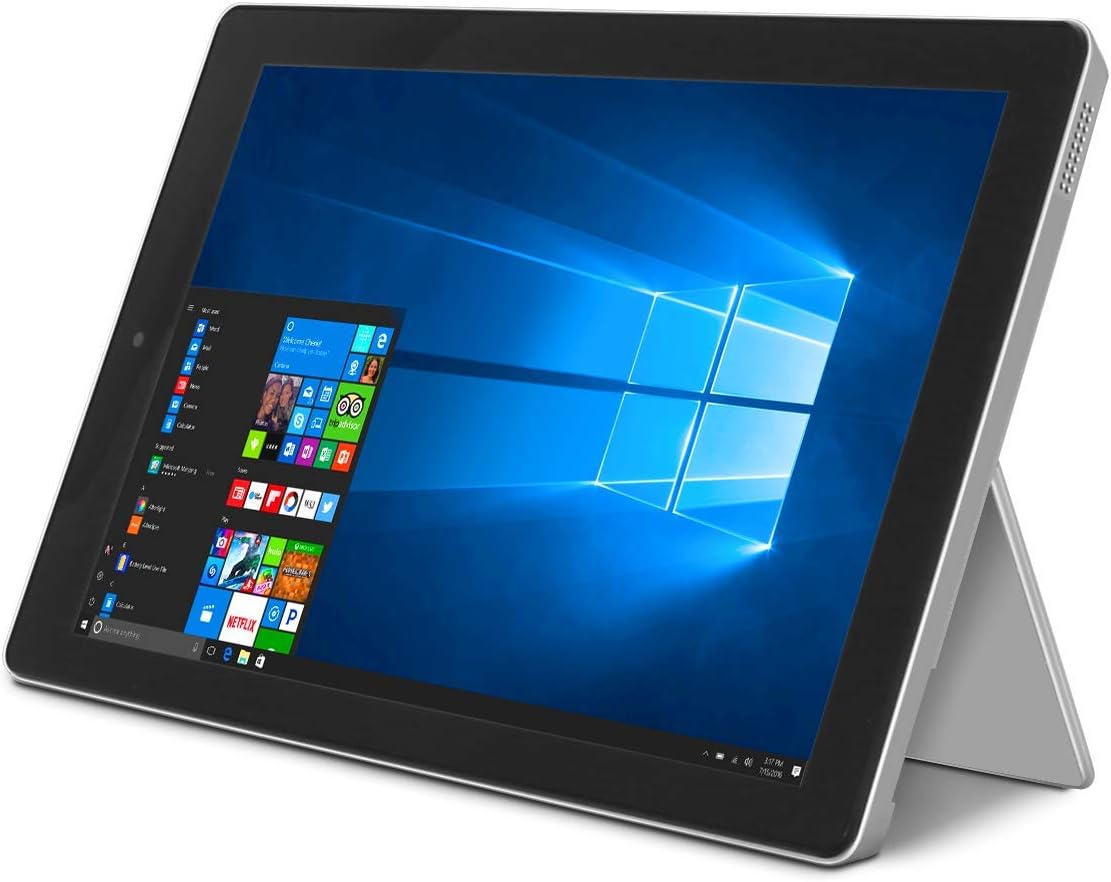
Image: The RCA Cambio 10.1 W101 V2 tablet in laptop mode, showcasing the Windows 10 operating system interface.
Naudojimo instrukcijos
1. Pagrindinė navigacija
Jutiklinis ekranas:
The tablet features a multi-touch display. Use gestures such as tap, swipe, pinch-to-zoom, and press-and-hold to interact with the interface.
Klaviatūra ir jutiklinė dalis:
When the detachable keyboard is connected, you can use the physical keys for typing and the integrated touchpad for cursor control. The touchpad supports multi-touch gestures similar to a laptop touchpad.

Image: The RCA Cambio 10.1 W101 V2 tablet in portrait orientation, showing the Windows 10 Start screen with application tiles.
2. Prisijungimas prie Wi-Fi
- Atidarykite Pradėti meniu ir spustelėkite Nustatymai.
- Pasirinkite Tinklas ir internetas.
- Pasirinkite Wi-Fi from the left-hand menu.
- Perjungti „Wi-Fi“ On jei jis išjungtas.
- Select your desired network from the list and click Prisijunkite.
- Jei būsite paraginti, įveskite tinklo slaptažodį.
3. „Bluetooth“ poravimas
- Atidarykite Pradėti meniu ir spustelėkite Nustatymai.
- Pasirinkite Prietaisai.
- Pasirinkite Bluetooth ir kiti įrenginiai from the left-hand menu.
- Perjungti Bluetooth On.
- Spustelėkite Pridėkite Bluetooth ar kitą įrenginį and follow the instructions to pair with your desired device.
4. Fotoaparatų naudojimas
The tablet is equipped with front and rear 2MP cameras. To access the camera, open the Fotoaparatas application from the Start Menu or search bar. You can switch between front and rear cameras within the application interface.
5. Productivity with Microsoft Office 365
The device comes preloaded with Windows 10, which supports Microsoft Office 365 applications. You can create and edit documents, spreadsheets, and presentations. An active subscription to Microsoft Office 365 may be required for full functionality.

Image: The RCA Cambio 10.1 W101 V2 tablet running Microsoft Office applications, highlighting its use for productivity tasks.
6. Sandėliavimo valdymas
The tablet includes 32GB of internal storage. To manage your storage, go to Nustatymai > Sistema > Saugykla. Jūs galite view storage usage, free up space, and change where new content is saved. Consider using cloud storage or an external microSD card (not included) for additional space.
Priežiūra
1. Prietaiso valymas
Use a soft, lint-free cloth to clean the screen and exterior surfaces. For stubborn smudges, slightly dampNuvalykite šluostę vandeniu arba ekrano valymo tirpalu. Venkite naudoti stiprias chemines medžiagas ar abrazyvines medžiagas.
2. Programinės įrangos atnaujinimai
Regularly check for and install Windows updates to ensure your system has the latest security patches and features. Go to Nustatymai > Naujinimas ir sauga > „Windows“ naujinimas norėdami patikrinti, ar nėra atnaujinimų.
3. Akumuliatoriaus priežiūra
Norėdami pailginti baterijos veikimo laiką:
- Venkite dažnai visiškai iškrauti akumuliatorių.
- Nelaikykite prietaiso ekstremaliose temperatūrose.
- Unplug the charger once the battery is fully charged, especially during extended periods of non-use.
4. Duomenų atsarginė kopija
Regularly back up important data to an external drive or cloud storage to prevent data loss in case of device malfunction.
Trikčių šalinimas
This section addresses common issues you might encounter with your RCA Cambio 10.1 W101 V2.
Įrenginys neįsijungia:
- Ensure the device is fully charged. Connect the power adapter and wait a few minutes before attempting to power on again.
- Press and hold the power button for at least 10-15 seconds to perform a hard reset.
Lėtas veikimas arba užstrigimas:
- Uždarykite nereikalingas programas, veikiančias fone.
- Patikrinkite, ar yra laukiančių „Windows“ naujinimų, ir įdiekite juos.
- Ensure sufficient free storage space. Delete unnecessary files or move them to external storage.
- Iš naujo paleiskite įrenginį.
„Wi-Fi“ ryšio problemos:
- Įsitikinkite, kad „Wi-Fi“ įjungtas Nustatymai > Tinklas ir internetas > „Wi-Fi“..
- Iš naujo paleiskite „Wi-Fi“ maršrutizatorių ir planšetinį kompiuterį.
- Pamirškite tinklą ir vėl prisijunkite dar kartą įvesdami slaptažodį.
- Įsitikinkite, kad esate „Wi-Fi“ signalo diapazone.
„Bluetooth“ poravimo problemos:
- Ensure Bluetooth is enabled on both the tablet and the device you are trying to pair.
- Make sure both devices are in pairing mode and within close proximity.
- Remove previously paired devices from the tablet's Bluetooth settings if you are experiencing conflicts.
Klaviatūra nereaguoja:
- Ensure the keyboard is securely attached to the tablet's magnetic connector.
- Atjunkite ir vėl prijunkite klaviatūrą.
- Iš naujo paleiskite planšetinį kompiuterį.
Greitai išsikrauna akumuliatorius:
- Sumažinkite ekrano ryškumą.
- Close background applications and disable unnecessary features like Bluetooth or Wi-Fi when not in use.
- Patikrinkite akumuliatoriaus naudojimą Settings > System > Battery to identify power-consuming applications.
Gamyklinių parametrų atkūrimas (paskutinė priemonė):
If issues persist, you may consider performing a factory reset. This will erase all data and reinstall Windows 10. Prieš tęsdami, sukurkite visų svarbių duomenų atsargines kopijas. Eikite į Settings > Update & Security > Recovery > Reset this PC ir vykdykite ekrane pateikiamas instrukcijas.
Specifikacijos
| Funkcija | Specifikacija |
|---|---|
| Modelio numeris | W101 V2 |
| Operacinė sistema | Windows 10 |
| Ekrano dydis | 10.1 colių |
| Ekrano raiška | 1280 x 800 |
| Procesorius | Intel Quad-Core (1.83 GHz) |
| RAM | 2 GB DDR3 SDRAM |
| Vidinė saugykla | 32 GB Flash atmintis |
| Belaidis ryšys | 802.11b Wi-Fi, Bluetooth |
| Kameros | Front and Rear (2 MP) |
| Baterija | 1 ličio jonų baterija (pridedama) |
| Matmenys (IxPxH) | 12.2 x 8.5 x 3.15 colio |
| Prekės svoris | 2.75 svaro |
Garantija ir palaikymas
Dėl garantijos informacijos ir techninės pagalbos žr. prie gaminio pridėtus dokumentus arba apsilankykite oficialioje RCA pagalbos svetainėje. websvetainėje. Išsaugokite pirkimo įrodymą garantiniams reikalavimams.
For further assistance, you may contact RCA customer service. Contact details are typically available on the manufacturer's websvetainę.


