1. Įvadas
This manual provides essential information for the setup, operation, and maintenance of your Samsung T3 Portable SSD. Designed for portability and high performance, the T3 SSD offers a reliable solution for external data storage.
- Nešiojamas dizainas: Kompaktiškas ir lengvas lengvam transportavimui.
- Didelis našumas: Features superfast read-write speeds of up to 450 MB/s.
- Durability & Security: Shock resistant with built-in secure encryption.
- Platus suderinamumas: Works with PC, Mac, and Android operating systems.
The Samsung T3 Portable SSD is engineered to provide fast, secure, and accessible data storage for users on the go.
2. Kas yra dėžutėje
Upon opening your Samsung T3 Portable SSD package, you should find the following items:
- Samsung Portable SSD T3 unit
- USB 3.1 laidas (nuo C iki A tipo)
- Quick start guide & warranty statement
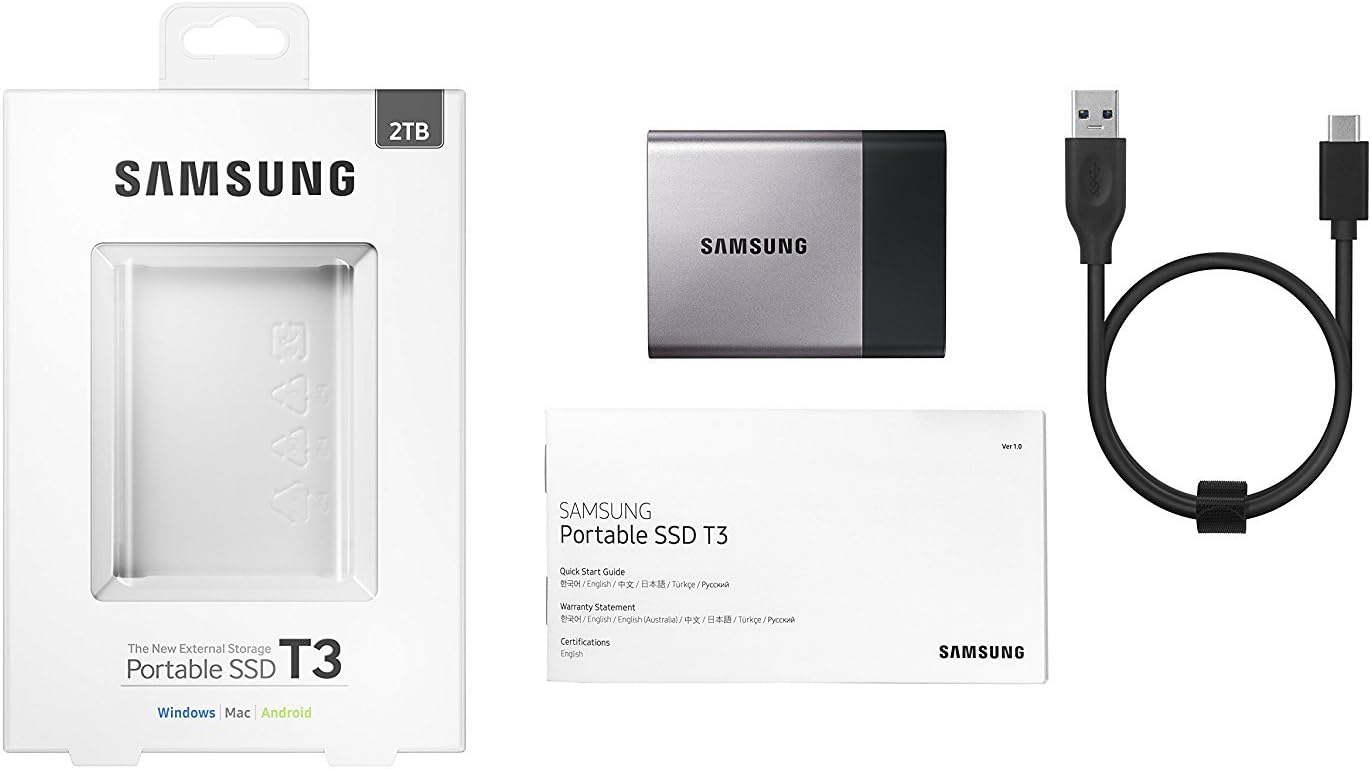
Image: Samsung T3 Portable SSD shown with its included USB-C to USB-A cable, ready for connection.

Image: The Samsung T3 Portable SSD displayed within its retail packaging, highlighting the product's presentation.
3. Sąrankos vadovas
Norėdami nustatyti nešiojamąjį „Samsung T3“ SSD diską, atlikite šiuos veiksmus:
- Prijunkite SSD diską:
Using the provided USB 3.1 Type-C to Type-A cable, connect the Type-C end to the port on the Samsung T3 SSD and the Type-A end to an available USB port on your computer (PC or Mac) or compatible Android device.

Paveikslėlis: stambus planas iš šono view of the Samsung T3 Portable SSD, clearly showing the USB-C port for cable connection.
- Pradinis pripažinimas:
Your operating system should automatically detect the SSD. On Windows, it may appear as a new drive letter. On Mac, it will appear on the desktop or in Finder. For Android devices, it will typically be accessible via a file tvarkyklės programėlė.
- Įdiekite „Samsung Portable SSD“ programinę įrangą (nebūtina, bet rekomenduojama):
The T3 SSD includes a pre-loaded partition with software for managing the drive, including setting up password protection and firmware updates. It is recommended to install this software for full functionality and security features. Follow the on-screen prompts after accessing the pre-loaded partition.
- Formatavimas (jei reikia):
The drive comes pre-formatted, usually in exFAT, for broad compatibility. If you wish to optimize performance or use a different file system (e.g., NTFS for Windows, HFS+ or APFS for Mac), you can reformat the drive using your operating system's disk utility. Warning: Formatting will erase all data on the drive. Back up any important data before proceeding.
4. Naudojimo instrukcijos
4.1 Duomenų perdavimas
Norėdami perkelti files to or from your Samsung T3 SSD, simply drag and drop files between your computer's storage and the T3 drive, or use copy/paste functions. The USB 3.1 interface ensures rapid data transfer speeds.

Paveikslėlis: kampuotas view „Samsung T3“ nešiojamojo SSD disko demonstravimasasindėl savo elegantiško dizaino ir kompaktiškos formos.
4.2 Security Features (Password Protection)
The Samsung T3 SSD supports AES 256-bit hardware encryption. To enable or manage password protection:
- Ensure the Samsung Portable SSD software is installed on your computer.
- Paleiskite programinę įrangą.
- Follow the on-screen instructions to set or change your password. Once set, the drive will require the password to access its contents on any compatible device.
When password protection is active, the drive will initially appear as a small partition containing only the Samsung Portable SSD software. After entering the correct password, the main data partition will become accessible.
4.3 Suderinamumas
The T3 SSD is compatible with:
- Windows PCs (Windows 7 or higher)
- Mac computers (OS X Yosemite 10.10 or higher)
- Android devices (Lollipop 5.0 or higher)
Ensure your device has a compatible USB port (USB 3.1, USB 3.0, or USB 2.0). Performance may vary with older USB standards.
5. Priežiūra
5.1 Saugus išmetimas
Always safely eject the Samsung T3 SSD before disconnecting it from your computer or device to prevent data corruption.
- „Windows“: Right-click the drive icon in 'This PC' or 'File Explorer' and select 'Eject'.
- Mac: Nuvilkite disko piktogramą į šiukšliadėžę arba spustelėkite mygtuką „Išstumti“, esantį šalia disko pavadinimo programoje „Finder“.
- Android: Use the 'Unmount' or 'Eject' option in your device's storage settings or file vadovas.
5.2 Fizinė priežiūra
- Keep the SSD clean and free from dust. Use a soft, dry cloth for cleaning.
- Venkite įrenginio laikymo ekstremaliose temperatūrose, tiesioginiuose saulės spinduliuose ar didelėje drėgmėje.
- While shock-resistant, avoid dropping or subjecting the drive to severe impacts.
5.3 Firmware atnaujinimai
Periodically check for firmware updates using the Samsung Portable SSD software. Updates can improve performance, stability, and security.
6. Problemų sprendimas
If you encounter issues with your Samsung T3 Portable SSD, consider the following:
- Diskas neatpažintas:
- Įsitikinkite, kad USB laidas yra tvirtai prijungtas prie SSD ir jūsų įrenginio.
- Išbandykite kitą kompiuterio USB prievadą.
- Jei įmanoma, išbandykite su kitu USB kabeliu.
- Paleiskite kompiuterį arba įrenginį iš naujo.
- Check your operating system's Disk Management (Windows) or Disk Utility (Mac) to see if the drive is detected but uninitialized or unformatted.
- Mažas perdavimo greitis:
- Ensure you are connected to a USB 3.0 or USB 3.1 port for optimal performance. USB 2.0 ports will result in significantly slower speeds.
- Patikrinkite, ar jūsų kompiuterio USB prievadų tvarkyklės yra atnaujintos.
- Uždarykite kitas programas, kurios gali naudoti sistemos išteklius arba atlikti foninį duomenų perkėlimą.
- Slaptažodžio problemos:
- Ensure the Samsung Portable SSD software is running and you are entering the correct password.
- If you forget your password, you may need to reset the drive, which will erase all data. Refer to the Samsung Portable SSD software's help section for password reset procedures.
Dėl išsamesnės pagalbos kreipkitės į oficialią „Samsung“ palaikymo tarnybą website or the detailed user manual available for download.
7. Specifikacijos

Vaizdas: Viršus view of the Samsung T3 Portable SSD, showing the 'Portable SSD T3' branding and capacity.
| Funkcija | Detalė |
|---|---|
| Prekės ženklas | Samsung |
| Serija | T3 |
| Modelio numeris | MU-PT2T0B/AM |
| Skaitmeninės atminties talpa | 2 TB |
| Kietojo disko sąsaja | USB 3.1 |
| Ryšio technologija | USB |
| Kietojo disko aprašymas | Kietojo kūno diskas |
| Suderinami įrenginiai | Desktop, Laptop, Android Devices |
| Operacinės sistemos suderinamumas | „Windows“, „Mac OS“, „Android“. |
| Prekės svoris | 1.8 uncijos (apie 51 gramų) |
| Gaminio matmenys (IxPxH) | 2.91 x 2.28 x 0.41 colio (apytiksliai 74 x 58 x 10.5 mm) |
| Spalva | Black/Titanium Gray |
| Ypatingos savybės | Portable, Shock Resistant, Secure Encryption (AES 256-bit hardware) |

Image: The back of the Samsung T3 Portable SSD, displaying the model number and other regulatory information.
8. Garantija ir palaikymas
The Samsung T3 Portable SSD typically comes with a 3-year limited warranty. Please refer to the warranty statement included in your product packaging for specific terms and conditions.
For technical support, additional documentation, or warranty claims, please visit the official Samsung support websvetainė:
Samsung palaikymas Websvetainę
Always ensure you are using official Samsung resources for support to guarantee accurate and reliable information.


