1. Įvadas
This manual provides comprehensive instructions for the GAMDIAS ZEUS E1 Optical Gaming Mouse and the accompanying NYX E1 Gaming Mouse Mat. Please read this manual carefully before using your new gaming mouse to ensure optimal performance and longevity.
Pakuotės turinys:
- Optinė žaidimų pelė GAMDIAS ZEUS E1
- GAMDIAS NYX E1 Gaming Mouse Mat
Pagrindinės funkcijos:
- Double Level Multi-Color Streaming Lighting: Dynamic lighting effects on both sides of the mouse.
- Textured Rubber Design: Provides enhanced grip and comfortable operation.
- 6 Smart Keys: Programmable buttons for macros, profiles, media controls, and Windows functions.
- Reguliuojamas DPI: Up to 3200 DPI for precise cursor control.
- Ergonomiškas dizainas: Engineered to prevent wrist strain and promote smoother movement.
2. Sąranka
2.1 Pelės prijungimas
- Unpack the GAMDIAS ZEUS E1 Optical Gaming Mouse and NYX E1 Gaming Mouse Mat from their packaging.
- Place the NYX E1 Gaming Mouse Mat on a flat, stable surface.
- Connect the USB cable of the ZEUS E1 mouse to an available USB port on your computer.
- Your operating system (Windows, macOS, Linux) should automatically detect and install the necessary basic drivers.
2.2 Programinės įrangos diegimas (neprivaloma)
For advanced customization of buttons, DPI settings, and lighting effects, it is recommended to download and install the GAMDIAS HERA software from the official GAMDIAS website. This software allows for comprehensive configuration of your mouse.
- Visit the official GAMDIAS websvetainę.
- Navigate to the support or downloads section for the ZEUS E1 mouse.
- Download and install the HERA software.
- Vykdykite ekrane pateikiamus nurodymus, kad užbaigtumėte diegimą.

Image: The GAMDIAS ZEUS E1 Optical Gaming Mouse resting on the NYX E1 Gaming Mouse Mat, showcasindėl savo ergonomiško dizaino ir mėlyno LED apšvietimo.
3. Pelės valdymas
3.1 Pagrindinės funkcijos
- Kairysis spustelėjimas: Pagrindinis veiksmo mygtukas.
- Dešiniuoju pelės mygtuku spustelėkite: Antrinis veiksmo mygtukas, paprastai naudojamas kontekstiniuose meniu.
- Slinkties ratukas: Slinkite aukštyn arba žemyn per dokumentus ir web puslapiai. Taip pat galima paspausti, kad būtų atlikta vidurinio pelės mygtuko paspaudimo funkcija.

Paveikslėlis: Iš viršaus į apačią view of the GAMDIAS ZEUS E1 mouse on its mat, highlighting the scroll wheel and DPI button.
3.2 DPI reguliavimas
The ZEUS E1 mouse features an adjustable DPI button, allowing you to change the cursor sensitivity on the fly. This is useful for switching between tasks that require different levels of precision, such as general browsing and gaming.
- Paspauskite DPI mygtukas (located behind the scroll wheel) to cycle through available DPI settings.
- The maximum DPI supported is 3200.
- Specific DPI levels can be configured and assigned via the HERA software.
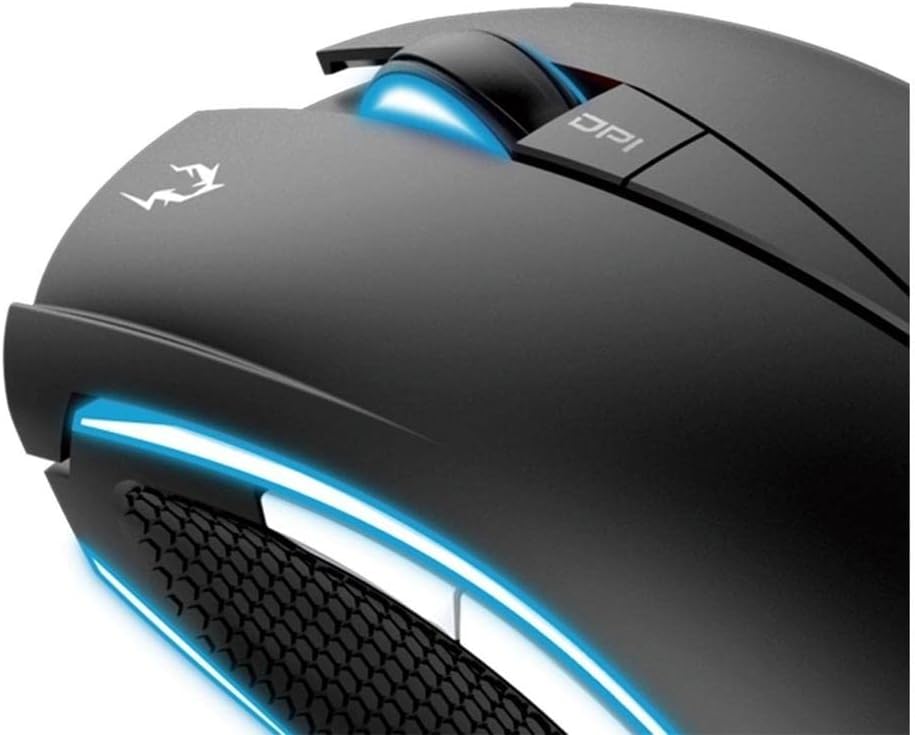
Vaizdas: Stambus planas view of the DPI button and the illuminated scroll wheel on the GAMDIAS ZEUS E1 mouse.
3.3 Programmable Smart Keys
The ZEUS E1 mouse is equipped with 6 smart keys that can be customized for various functions. These keys provide quick access to macros, profile switching, media controls, and Windows functions, enhancing your efficiency in games and applications.
- Utilize the GAMDIAS HERA software to assign specific functions to each of the 6 smart keys.
- Sukurkite ir išsaugokite kelis profesionalusfiles skirtingiems žaidimams ar programoms.

Paveikslėlis: detalus view of the side buttons and the textured rubber grip on the GAMDIAS ZEUS E1 mouse, designed for comfort and control.
3.4 apšvietimo efektai
The ZEUS E1 features double-level multi-color streaming lighting on both sides. These lighting effects can be customized through the HERA software to match your preferences or gaming setup.
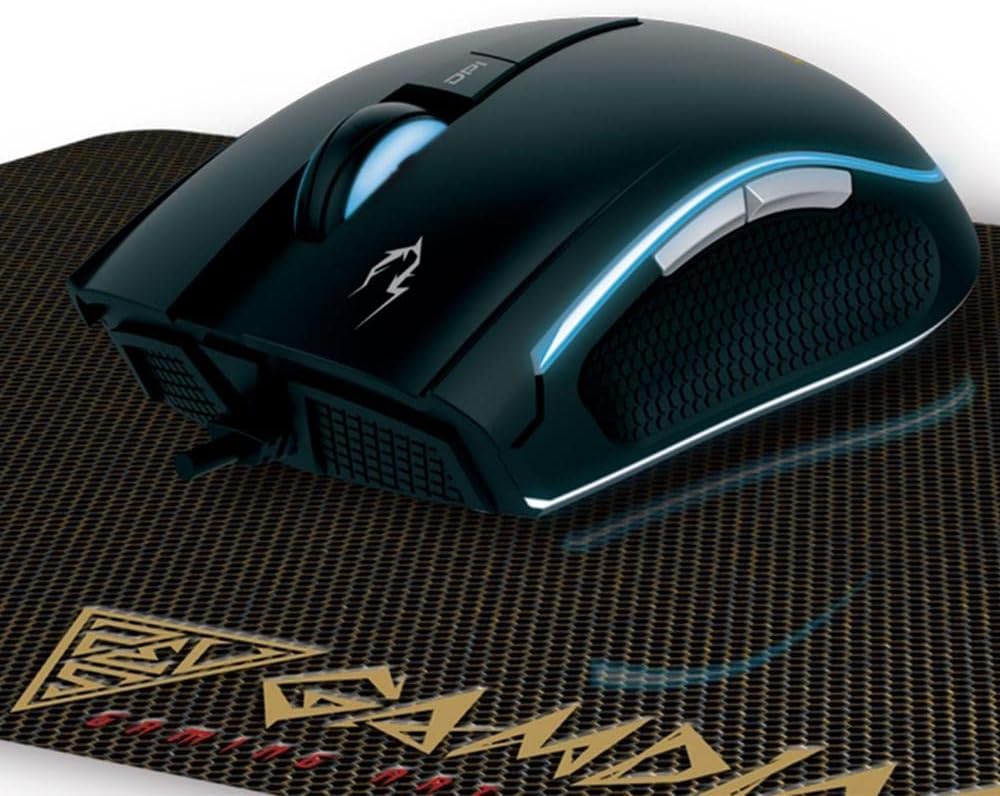
Paveikslėlis: kampuotas view of the GAMDIAS ZEUS E1 mouse on its mat, showcasing the vibrant blue streaming lighting along its sides.
4. Priežiūra
4.1 Pelės valymas
To maintain optimal performance and appearance, regularly clean your ZEUS E1 mouse.
- Prieš valydami atjunkite pelę nuo kompiuterio.
- Pelės paviršių nuvalykite minkštu, sausu, nepūkuotu skudurėliu.
- Įsisenėjusiam purvui šiek tiek pamirkykiteampNuvalykite šluostę vandeniu arba švelniu valymo tirpalu. Venkite stiprių cheminių medžiagų.
- Mygtukus ir optinį jutiklį valykite vatos tamponu arba suslėgtu oru.
4.2 Cleaning the Mouse Mat
The NYX E1 Gaming Mouse Mat can also be cleaned to ensure smooth mouse movement.
- Nuvalykite paviršių skelbimuamp jei reikia, skudurėliu ir švelniu muilu.
- Allow the mat to air dry completely before use.
5. Problemų sprendimas
5.1 Pelė nereaguoja
- Įsitikinkite, kad USB laidas tvirtai prijungtas prie kompiuterio.
- Pabandykite prijungti pelę prie kito USB prievado.
- Iš naujo paleiskite kompiuterį.
- Patikrinkite, ar pelė veikia kitame kompiuteryje, kad atmestumėte su sistema susijusią problemą.
5.2 Lighting Not Working or Incorrect
- Verify that the HERA software is installed and configured correctly.
- Check lighting settings within the HERA software.
- Ensure the mouse firmware is up to date. Firmware updates can often resolve unexpected behavior.
5.3 Buttons Not Functioning as Expected
- Open the GAMDIAS HERA software and check the button assignments for the active profile.
- Ensure no conflicting software or drivers are interfering with mouse functions.
- Jei įmanoma, atlikite programinės įrangos atnaujinimą.
6. Specifikacijos
| Prekės ženklas | GAMDIAS |
| Modelio numeris | GD-ZEUS E1 |
| Aparatinės įrangos platforma | PC |
| Operacinės sistemos suderinamumas | Windows, macOS, Linux |
| Prekės svoris | 6.9 uncijos |
| Gaminio matmenys (IxPxH) | 1.61 x 1.61 x 2.85 colio |
| Spalva | Juoda |
| Maitinimo šaltinis | Elektra su laidu (USB) |
| Ryšio technologija | USB |
| Ypatinga funkcija | Ergonomiškas dizainas |
| Judesio aptikimo technologija | Optinis |
| Maksimalus DPI | 3200 |

Paveikslėlis: aiškus vaizdas iš viršaus į apačią view of the GAMDIAS ZEUS E1 Optical Gaming Mouse, showcasindėl savo elegantiško dizaino ir prekės ženklo.
7. Garantija ir palaikymas
For warranty information, technical support, or to download the latest drivers and software, please visit the official GAMDIAS website or contact GAMDIAS customer service. Keep your purchase receipt as proof of purchase for warranty claims.
GAMDIAS oficialus Websvetainė: www.gamdias.com


