Įvadas
The Logitech MeetUp is a premier ConferenceCam designed for small conference rooms and huddle spaces. It features an Ultra HD 4K camera with a super-wide 120° field of view, ensuring every participant is clearly visible. Integrated audio with beamforming microphones and a custom-tuned speaker provides an exceptional sound experience. This manual provides detailed instructions for setting up, operating, and maintaining your MeetUp system.

Figure 1: Logitech MeetUp Video Conferencing System, front view.
Kas yra dėžutėje
Prieš tęsdami montavimą, patikrinkite, ar yra visi komponentai:
- Logitech® MeetUp Camera
- Table and wall mount
- RF nuotolinis valdymas
- 16 ft / 5 meter USB cable
- Vartotojo vadovas (šis dokumentas)
Sąranka ir diegimas
The MeetUp system is designed for easy plug-and-play setup. Follow these steps for optimal performance:
1. Įdėjimas ir montavimas
The MeetUp offers multiple mounting options to suit your room configuration:
- Stalviršio išdėstymas: Place the MeetUp on a credenza or table directly below or above your display.
- Montavimas ant sienos: Use the included wall mount to securely attach the MeetUp to a wall.
- TV Mount (Optional): An optional TV mount (sold separately) allows for secure placement directly above or below the in-room display.

Figure 2: Various mounting options including tabletop, wall, and display mounting.

Figure 3: MeetUp securely mounted below a display using an optional TV mount.
2. Sistemos prijungimas
Connect the MeetUp to your computer or room solution via the provided USB cable. For 4K video resolution, a high-speed internet connection and a special cable (not included) may be required.

4 pav.: galinis view of the MeetUp showing USB and power connections for simple plug-and-play setup.
The MeetUp is compatible with Windows 7, Windows 8.1, Windows 10, macOS 10.10 or higher, and Chrome OS Version 29.0.1547.70 and higher. A USB 2.0 port is required, with USB 3.0 recommended for 4K video.
Naudojimo instrukcijos
1. Video Conferencing
The MeetUp functions as a USB conference camera, compatible with any video conferencing software application and cloud service. Its Ultra HD 4K sensor, wide 120° field of view, and 5x HD zoom provide clear video. Motorized pan/tilt extends the field of view iki 170°.

Figure 5: The MeetUp system enabling video conferencing in a small room, highlighting its all-in-one design for easy setup.

Figure 6: The MeetUp serving as a versatile USB-based conference camera for dedicated meeting rooms or bring-your-own-device (BYOD) setups.
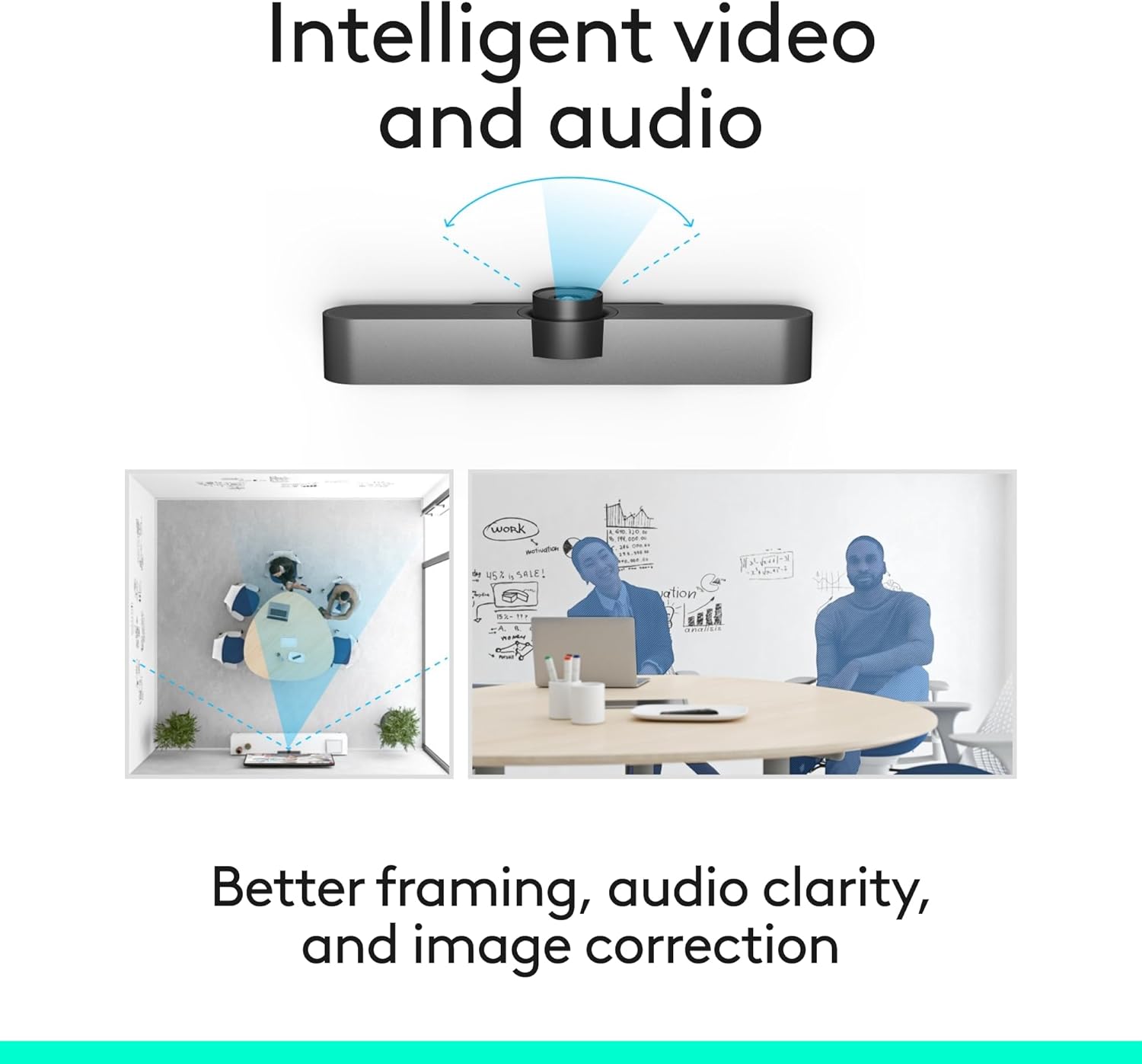
7 pav.: Diagramaasing the intelligent video and audio capabilities, including better framing, audio clarity, and image correction.
2. Garso funkcijos
MeetUp's integrated audio is optimized for huddle room acoustics. Three horizontally-aimed beamforming microphones capture voices up to 4 meters away. A custom-tuned speaker ensures clear audio output.
- Expansion Microphone: For larger conference rooms, an optional expansion microphone (sold separately) can extend the voice pickup range up to 5 meters.

Figure 8: The MeetUp system with an optional expansion microphone, allowing for extended voice capture in larger spaces.
3. Nuotolinio valdymo pultas
The included RF remote allows for convenient control of camera pan/tilt/zoom (PTZ) functions and volume adjustments from a distance.

Figure 9: The MeetUp system shown with its included remote control, enabling easy PTZ and volume adjustments.
Priežiūra
To ensure the longevity and optimal performance of your Logitech MeetUp system, follow these simple maintenance guidelines:
- Valymas: Use a soft, dry cloth to clean the camera lens and the body of the unit. Avoid abrasive cleaners or solvents.
- Kabelių valdymas: Įsitikinkite, kad visi kabeliai yra tvarkingai išdėstyti ir neįtempti, kad nepažeistumėte jų.
- Programinės įrangos atnaujinimai: Regularly check for and install firmware and software updates using Logitech Sync to ensure the best performance and access to new features.
Trikčių šalinimas
If you encounter issues with your MeetUp system, refer to the following common troubleshooting steps:
| Problema | Galima priežastis | Sprendimas |
|---|---|---|
| Nėra vaizdo išvesties / Juodas ekranas | Loose USB connection, incorrect input selected on display, driver issue. |
|
| Nėra garso / Prasta garso kokybė | Microphone/speaker not selected as default, volume too low, environmental noise. |
|
| Nuotolinio valdymo pultas nereaguoja | Low battery, line of sight blocked, remote not paired. |
|
Specifikacijos
| Funkcija | Detalė |
|---|---|
| Gaminio matmenys | 3.82 x 6.1 x 6.1 colio |
| Prekės svoris | 2.29 svaro |
| Modelio numeris | 960-001101 |
| Prekės ženklas | Logitech |
| Nuotraukų jutiklių technologija | BSI CMOS |
| Vaizdo įrašymo raiška | 1080p, 4K |
| Didžiausia diafragma | 4 f |
| Vaizdo įrašymo formatas | HDMI |
| Palaikomas garso formatas | AAC, MP3 |
| Ryšio technologija | Bluetooth, USB |
| Spalva | Juoda |
Garantija ir palaikymas
Dėl garantijos informacijos ir techninės pagalbos kreipkitės į oficialią „Logitech“ svetainę. website or contact Logitech customer service. You can also find additional resources and FAQs on the product support page.
Naudotojo vadovo PDF versiją galima atsisiųsti: Vartotojo vadovas (PDF)


