1. Įvadas
This manual provides detailed instructions for the ILEBYGO H18 2.4Ghz Mini Wireless Keyboard Touchpad Combo. This device combines a QWERTY keyboard with a multi-touch touchpad, offering versatile control for various smart devices. Please read this manual thoroughly before use to ensure proper operation and longevity of your device.
2. Kas yra dėžutėje
- 1 x ILEBYGO H18 2.4G Mini Wireless Keyboard (Batteries included)
- 1 x USB imtuvas
- 1x USB įkrovimo laidas
- 1 x Vartotojo vadovas
3. Produktas baigtasview
The ILEBYGO H18 features a compact design with a large touchpad area that doubles as a keyboard. Key indicators and control buttons are strategically placed for ease of use.
3.1 Įrenginio išdėstymas

Figure 1: ILEBYGO H18 device dimensions and top view.
3.2 Indikatoriai ir mygtukai
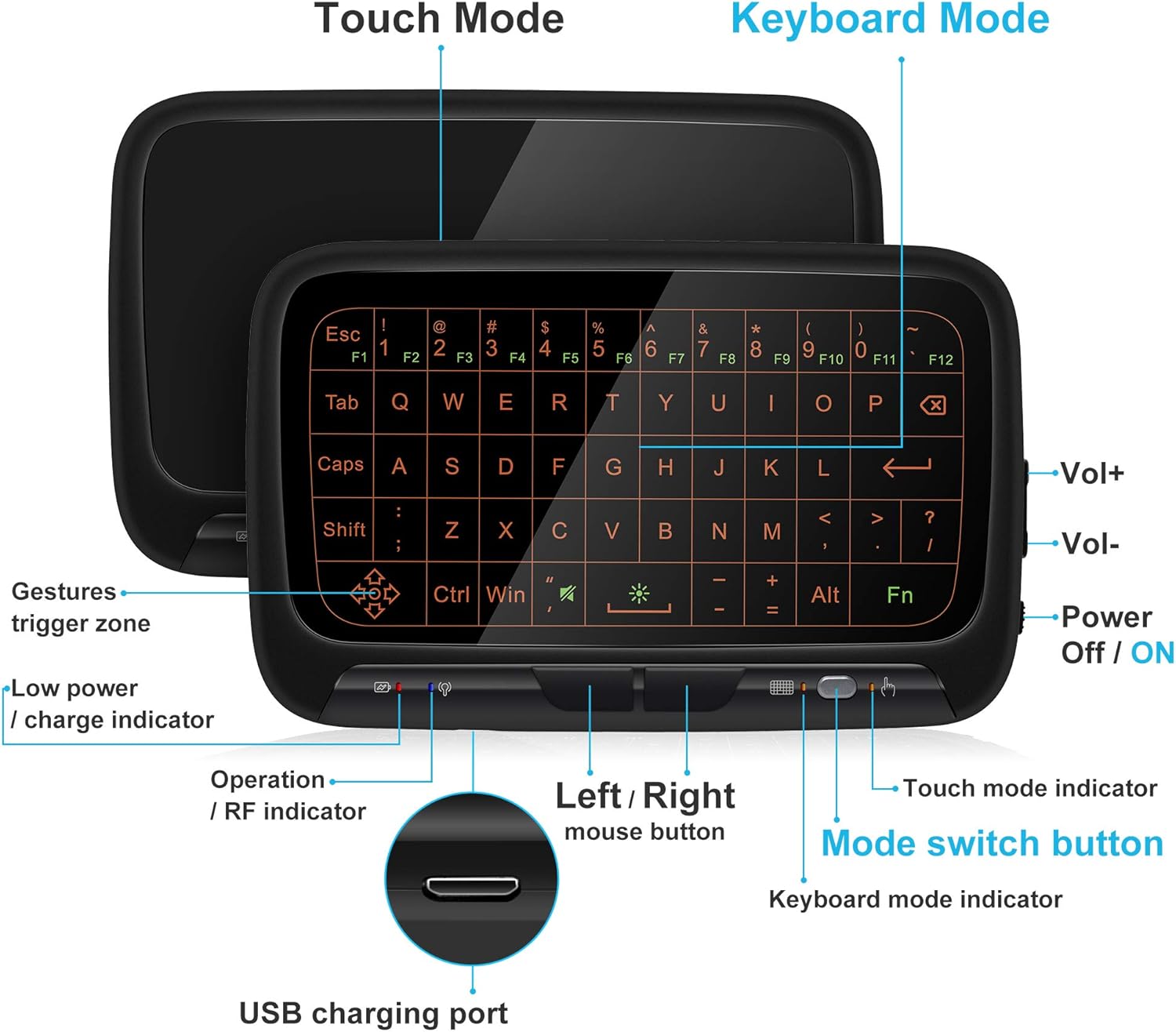
2 pav.: priekis view of the ILEBYGO H18 with labeled indicators and buttons.
- USB įkrovimo prievadas: Prietaiso įkrovimui.
- Low Power / Charge Indicator: Rodo akumuliatoriaus būseną.
- Operation / RF Indicator: Nurodo ryšio būseną.
- Left / Right Mouse Buttons: Physical buttons for mouse clicks.
- Režimo perjungimo mygtukas: Toggles between Touchpad Mode and Keyboard Mode.
- Touch Mode Indicator: Lights up when in Touchpad Mode.
- Keyboard Mode Indicator: Lights up when in Keyboard Mode.
- Volume Controls (Vol+ / Vol-): Reguliuoja garso išvestį.
- Power Off / ON Switch: Įjungia arba išjungia įrenginį.
4. Sąranka
4.1 Įrenginio įkrovimas
- Connect the provided USB charging cable to the micro USB port on the device.
- Kitą laido galą prijunkite prie USB maitinimo šaltinio (pvz., kompiuterio USB prievado, USB sieninio adapterio).
- The Low Power / Charge Indicator will illuminate during charging. It will change or turn off when fully charged.

Figure 3: Charging the ILEBYGO H18.
4.2 Prisijungimas prie įrenginio
- Locate the USB receiver included in the package.
- Insert the USB receiver into an available USB port on your target device (e.g., Android TV Box, Projector, HTPC, PC, Laptop).
- Turn on the ILEBYGO H18 by sliding the Power Off / ON switch to the "ON" position.
- The Operation / RF Indicator will blink, then turn solid blue once a connection is established.

Figure 4: Connecting the ILEBYGO H18 via USB receiver.
5. Naudojimo instrukcijos
5.1 Switching Between Touchpad and Keyboard Modes
Paspauskite Režimo perjungimo mygtukas (located near the right mouse button) to toggle between Touchpad Mode and Keyboard Mode. The corresponding indicator light will illuminate to show the active mode.

Figure 5: Switching between Keyboard and Touchpad Modes.
5.2 Touchpad Mode Gestures
The touchpad supports various multi-touch gestures for intuitive navigation:

Figure 6: Touchpad gesture guide.
- Vienas palietimas: Kairiuoju pelės mygtuku spustelėkite.
- Dviejų pirštų bakstelėjimas: Dešiniuoju pelės mygtuku spustelėkite.
- Vilkimas vienu pirštu: Mouse movement.
- Two-Finger Drag: Slinkite ekranu.
- Two-Finger Pinch: Priartinti / sumažinti.
- Trijų pirštų braukimas: Switch applications or access multitasking view.
5.3 Keyboard Mode
In Keyboard Mode, the touchpad area illuminates to display a full QWERTY keyboard layout. You can type by tapping on the virtual keys. The keyboard supports standard functions like Shift, Ctrl, Alt, and Windows key combinations.
5.4 Foninio apšvietimo reguliavimas
The keyboard features a 3-level adjustable backlight. To adjust the backlight brightness, press the Fn key and the backlight adjustment key (often indicated by a sun icon or similar) simultaneously or in sequence, depending on the specific model's implementation.

Figure 7: Adjusting keyboard backlight.
6. Priežiūra
- Laikykite prietaisą švarų, nuvalydami jį minkšta, sausa šluoste.
- Saugokite, kad prietaisas nepatektų į ekstremalią temperatūrą, drėgmę ar tiesioginius saulės spindulius.
- Nebandykite ardyti įrenginio, nes tai panaikins garantiją.
- Charge the device regularly to maintain battery health, even if not in frequent use.
7. Problemų sprendimas
7.1 Įrenginys nereaguoja
- Įsitikinkite, kad įrenginys įjungtas.
- Check if the USB receiver is securely plugged into the host device.
- Verify the device battery is charged. Recharge if the low power indicator is active.
- Try plugging the USB receiver into a different USB port on the host device.
7.2 Neveikia foninis apšvietimas
- Ensure the device is in Keyboard Mode.
- Press the Fn key and the backlight adjustment key to cycle through brightness levels or turn it on.
7.3 Touchpad Sensitivity Issues
- Ensure the device is in Touchpad Mode.
- Clean the touchpad surface to remove any dirt or oils that might affect sensitivity.
8. Specifikacijos
| Funkcija | Detalė |
|---|---|
| Prekės ženklas | ILEBYGO |
| Modelio numeris | H18 |
| Ryšio technologija | 2.4 GHz belaidis ryšys (USB imtuvas) |
| Klaviatūros išdėstymas | QWERTY |
| Ypatingos savybės | 3-Level Backlit, Rechargeable, Touchpad Mode, Keyboard Mode |
| Baterija | Integruota 300 mAh ličio jonų baterija |
| Gaminio matmenys | 5.6 colio ilgio x 3.6 colių pločio x 0.7 colio aukščio |
| Prekės svoris | 0.13 svaro |
| Suderinami įrenginiai | Laptop, PC, Projector, Android TV Box, IPTV, HTPC |
9. Garantija ir palaikymas
ILEBYGO provides a 12-month warranty for this product. For any issues, questions, or support needs, please contact our customer service. Refer to the contact information provided with your purchase or visit the official ILEBYGO websvetainę.
Note: The warranty does not cover damage caused by misuse, accidents, or unauthorized modifications.
10. Produktų vaizdo įrašai
1 vaizdo įrašas: Oficialus pasirodymas baigtasview of the ILEBYGO 2.4Ghz Mini Wireless Keyboard Touchpad Combo, demonstrating its features and functionality.


