1. Sąranka
1.1 Monitoriaus išpakavimas
Atsargiai išimkite visus komponentus iš pakuotės. Įsitikinkite, kad yra visi toliau išvardyti daiktai:
- BenQ EX3501R Monitor
- Monitoriaus stovas (pagrindas ir kaklelis)
- Maitinimo adapteris
- Maitinimo laidas
- HDMI kabelis
- „DisplayPort“ laidas
- USB-C kabelis
- Vartotojo vadovas (šis dokumentas)
1.2 Stovo surinkimas
Norėdami pritvirtinti stovą prie monitoriaus, atlikite šiuos veiksmus:
- Padėkite monitorių ekranu žemyn ant minkšto, švaraus audinio, kad nesubraižytumėte.
- Attach the stand neck to the back of the monitor. Ensure it clicks securely into place.
- Connect the stand base to the neck, tightening any screws as indicated in the quick start guide.

1 pav.: priekis view of the BenQ EX3501R monitor with its stand.
1.3 Jungiamieji kabeliai
Connect the necessary cables to the monitor and your computer. The monitor supports various input options:
- Galia: Connect the power adapter to the monitor and then to a power outlet.
- Vaizdo įvestis: Use either the HDMI, DisplayPort, or USB-C cable to connect your computer to the monitor.
- USB-C: The USB-C port supports video, data transfer, and power delivery, allowing for a single-cable connection with compatible devices.
- USB 3.0 prievadai: Utilize the integrated USB 3.0 ports for connecting peripherals.
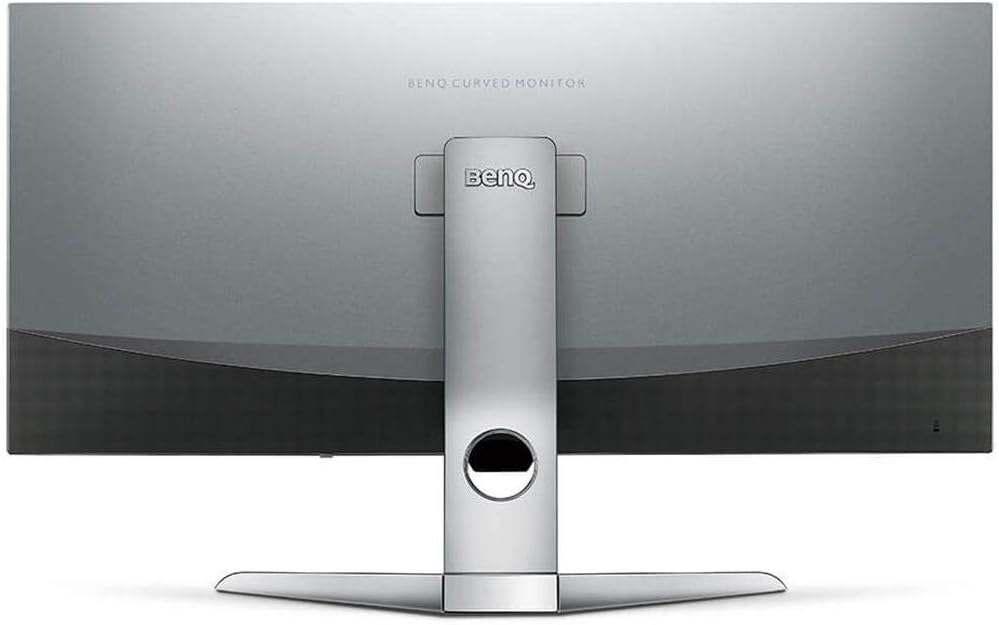
2 pav.: galinis view of the monitor displaying the connectivity ports.
2. Monitoriaus valdymas
2.1 Maitinimo įjungimas/išjungimas
Press the power button, usually located on the bottom right side of the monitor, to turn it on or off. The power indicator light will illuminate when the monitor is active.
2.2 Ekrano meniu (OSD) navigacija
Use the joystick or buttons located on the monitor's underside to navigate the On-Screen Display (OSD) menu. This menu allows you to adjust various settings such as brightness, contrast, color modes, and input sources.
2.3 Display Features and Eye-Care Technology
The BenQ EX3501R incorporates several technologies designed to enhance viewing experience and reduce eye strain:
- „Brightness Intelligence Plus“ (BI+): This patented technology automatically senses ambient lighting conditions and adjusts the screen's brightness and color temperature to provide optimal viewing comfort and protect your eyes during extended use.
- Žema mėlyna šviesa: Filters out harmful blue light emissions to reduce eye fatigue. Multiple levels of blue light reduction are available.
- ZeroFlicker™: Eliminates screen flickering at all brightness levels, further reducing eye strain and discomfort.
- HDR (didelis dinaminis diapazonas): Offers enhanced brightness and contrast, bringing greater detail and vibrancy to HDR video content.
1 vaizdo įrašas: metimas per sekundęview of BenQ's Eye-Care technology, including Low Blue Light, ZeroFlicker, and Brightness Intelligence Plus, demonstrating how these features work to reduce eye strain and adjust screen settings automatically based on ambient light.
2.4 Raiška ir atnaujinimo dažnis
The monitor features a QHD (3440x1440) resolution and a 100Hz refresh rate, providing a smooth and detailed visual experience. The 21:9 ultrawide aspect ratio offers ample screen space for multitasking, such as viewing multiple documents side-by-side without needing a second monitor.
2.5 AMD „FreeSync“
For a fluid gaming experience, the monitor supports AMD FreeSync technology, which synchronizes the monitor's refresh rate with your graphics card's frame rate to eliminate screen tearing and stuttering.
3. Priežiūra
3.1 Monitoriaus valymas
To maintain optimal performance and appearance, regularly clean your monitor:
- Ekranas: Gently wipe the screen with a soft, lint-free cloth. For stubborn smudges, use a monitor-specific cleaning solution applied to the cloth, not directly to the screen.
- Išorė: Use a soft, dry cloth to wipe dust and debris from the monitor casing and stand.
Avoid using abrasive cleaners, waxes, or solvents as they can damage the monitor's surface.
3.2 Bendrieji priežiūros patarimai
- Neužblokuokite monitoriaus ventiliacijos angų.
- Stenkitės nestatyti monitoriaus tiesioginiuose saulės spinduliuose arba šalia šilumos šaltinių.
- Su monitoriumi elkitės atsargiai, kad išvengtumėte fizinės žalos.
4. Problemų sprendimas
If you encounter issues with your BenQ EX3501R monitor, refer to the following common troubleshooting steps:
4.1 Nėra vaizdo arba ekranas juodas
- Įsitikinkite, kad maitinimo laidas yra tvirtai prijungtas tiek prie monitoriaus, tiek prie maitinimo lizdo.
- Verify that the video cable (HDMI, DisplayPort, or USB-C) is firmly connected to both the monitor and your computer.
- Patikrinkite, ar monitoriaus OSD meniu pasirinktas teisingas įvesties šaltinis.
- Iš naujo paleiskite kompiuterį.
4.2 Mirgantis arba nestabilus vaizdas
- Ensure the ZeroFlicker™ feature is enabled in the OSD menu.
- Check for loose video cable connections.
- Atnaujinkite savo vaizdo plokštės tvarkykles į naujausią versiją.
- If using AMD FreeSync, ensure it is properly configured in your graphics card settings.
4.3 Color or Brightness Issues
- Reguliuokite ryškumo, kontrasto ir spalvų nustatymus per OSD meniu.
- Enable or disable Brightness Intelligence Plus (B.I.+) to see if it resolves the issue.
- Atlikite gamyklinių parametrų atkūrimą per OSD meniu.
5. Specifikacijos
Key technical specifications for the BenQ EX3501R monitor:
| Funkcija | Specifikacija |
|---|---|
| Ekrano dydis | 35 colių |
| Maksimali ekrano skiriamoji geba | 3440 x 1440 Pixels (QHD Ultrawide) |
| Krašto santykis | 21:9 |
| Atnaujinimo dažnis | 100 Hz |
| Kreivumas | 1800R |
| Skydelio tipas | VA (vertikalus lygiavimas) |
| Ryšys | USB-C, HDMI, DisplayPort |
| Ypatingos savybės | AMD FreeSync, Brightness Intelligence Plus, Low Blue Light, ZeroFlicker |
| Prekės svoris | 21.3 svaro |
| Gaminio matmenys | 6.88 x 3.47 x 12.93 colio |
6. Garantija ir palaikymas
6.1 Gaminio garantija
The BenQ EX3501R monitor typically comes with a 3-year manufacturer's warranty. Please refer to the warranty card included in your product packaging for specific terms and conditions, or visit the official BenQ websvetainėje rasite išsamią informaciją apie garantiją.
6.2 Pagalba klientams
For further assistance, technical support, or warranty claims, please contact BenQ customer service. You can find contact information and support resources on the official BenQ websvetainė: www.benq.com/en-us/support.html


