1. Įvadas
This user manual provides comprehensive instructions for the installation, operation, maintenance, and troubleshooting of the IP-COM G3224P 24-Port Managed PoE Switch. Please read this manual thoroughly before using the device to ensure proper and safe operation.
The IP-COM G3224P is a high-performance managed Power over Ethernet (PoE) switch designed for small to medium-sized businesses and enterprise networks. It offers 24 Gigabit Ethernet ports with PoE+ capabilities and additional SFP ports for fiber uplinks, providing flexible and scalable network solutions.
2. Produktas baigtasview
2.1 Pakuotės turinys
- IP-COM G3224P 24-Port Managed PoE Switch
- Maitinimo laidas
- Rack montavimo rinkinys (laikikliai ir varžtai)
- Guminės kojelės (skirtos pastatyti ant stalo)
- Greito montavimo vadovas
2.2 Priekinio skydelio aprašymas
The front panel of the IP-COM G3224P switch features various ports and LED indicators for status monitoring.
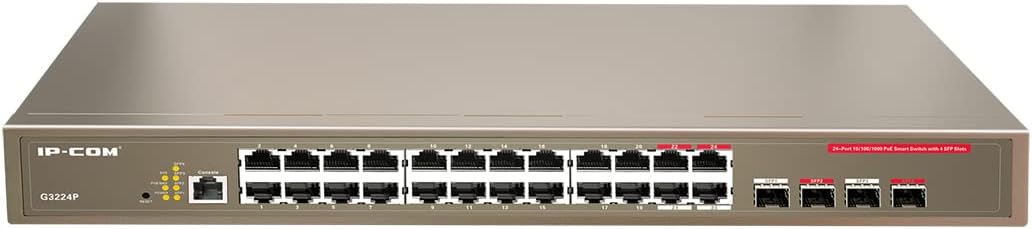
Figure 2.1: IP-COM G3224P Front Panel Layout
This image displays the front panel of the IP-COM G3224P switch. On the left, the IP-COM logo and model number G3224P are visible. To the right, there are LED indicators for SYS, PoE MAX, and individual port status. A console port is also present. The main section features 24 Gigabit Ethernet RJ45 ports, arranged in two rows, with port numbers 1 through 24. On the far right, there are four SFP ports labeled SFP1, SFP2, SFP3, and SFP4, which are used for fiber optic uplinks.
2.3 LED indikatoriai
| LED indikatorius | Būsena | Aprašymas |
|---|---|---|
| SYS | Žalia (kieta) | Sistema veikia normaliai. |
| SYS | Žalia (mirksi) | System is booting up or firmware is being upgraded. |
| „PoE MAX“ | Raudona (kieta) | PoE power budget is nearing or exceeding its limit. |
| Nuoroda/Veiksmas (kiekvienam prievadui) | Žalia (kieta) | Uostas yra susietas. |
| Nuoroda/Veiksmas (kiekvienam prievadui) | Žalia (mirksi) | Port is transmitting or receiving data. |
| PoE (vienam prievadui) | Geltona (vientisa) | PoE power is being supplied to the connected device. |
3. Sąranka ir diegimas
3.1 Saugos priemonės
- Užtikrinkite maitinimo šaltinio ttage matches the switch's requirements (240V as per specifications).
- Neuždenkite vėdinimo angų.
- Laikykite prietaisą atokiau nuo vandens, ugnies ir aukštos temperatūros.
- Nemėginkite patys atidaryti ar taisyti įrenginio.
3.2 Montavimas ant stovo
- Attach the provided rackmount brackets to the sides of the switch using the included screws.
- Pritvirtinkite jungiklį prie standartinio 19 colių įrangos stovo naudodami tinkamus stovo varžtus (nepridedami).
- Užtikrinkite tinkamą oro srautą aplink jungiklį, kad jis tinkamai aušintų.
3.3 Darbalaukio diegimas
- Pritvirtinkite pateiktas gumines kojeles prie jungiklio apačios.
- Place the switch on a flat, stable surface with sufficient ventilation.
3.4 Jungiklio prijungimas
- Maitinimo jungtis: Connect the power cord to the power inlet on the rear panel of the switch and then to a grounded power outlet.
- Tinklo įrenginiai: Connect network devices (e.g., computers, servers, IP cameras, VoIP phones) to the RJ45 ports (1-24) on the front panel using standard Ethernet cables.
- PoE įrenginiai: For PoE-powered devices, simply connect them to any of the RJ45 ports. The switch will automatically detect and provide power if the device is PoE compliant.
- Uplink jungtys: Use the SFP ports (SFP1-SFP4) for fiber optic uplinks to other network devices or the core network. Insert compatible SFP transceivers into the SFP slots before connecting fiber optic cables.
- Konsolės prijungimas (neprivaloma): For initial configuration or advanced management, connect a console cable from your computer to the console port on the switch.
4. Naudojimo instrukcijos
4.1 Pradinis įjungimas
After connecting the power cord, the switch will automatically power on. Observe the SYS LED indicator. It will blink during boot-up and turn solid green once the system is ready.
4.2 Pagrindinis tinklo ryšys
Once powered on, the switch will automatically detect connected devices. The Link/Act LED for each connected port will illuminate solid green, indicating a successful link. It will blink when data is being transmitted or received.
4.3 PoE Operation
When a PoE-compatible device is connected to a port, the switch will negotiate power delivery. The PoE LED for that port will turn yellow, indicating that power is being supplied. Monitor the PoE MAX LED; if it turns red, the total PoE power budget is being approached or exceeded, and you may need to reduce the number of PoE devices or use a higher-capacity power source.
4.4 Valdymo prieiga
The IP-COM G3224P is a managed switch, offering various configuration options via a web-based GUI, CLI (Command Line Interface) via the console port, or SNMP. Refer to the detailed management guide (usually available on the manufacturer's website) for advanced configuration, including VLANs, QoS, port mirroring, and security settings.
- Web GUI: Pasiekite jungiklio web interface by typing its default IP address (check the Quick Installation Guide or manufacturer's documentation) into a web naršyklė.
- CLI: Connect via the console port using a terminal emulator (e.g., PuTTY) with appropriate serial port settings.
5. Priežiūra
5.1 Valymas
- Regularly clean the exterior of the switch with a soft, dry cloth.
- Nenaudokite skystų ar aerozolinių valiklių.
- Įsitikinkite, kad ventiliacijos angos nėra užkimštos dulkėmis ir nėra jokių kliūčių.
5.2 Firmware atnaujinimai
Periodically check the IP-COM official website for firmware updates. Keeping the firmware up-to-date ensures optimal performance, security, and access to new features. Follow the instructions provided with the firmware update package carefully.
5.3 Aplinkosaugos aspektai
Ensure the switch operates within its specified environmental conditions (temperature, humidity) to prevent damage and ensure longevity.
6. Problemų sprendimas
| Problema | Galima priežastis | Sprendimas |
|---|---|---|
| No power / SYS LED off | Neprijungtas maitinimo laidas arba sugedęs maitinimo lizdas. | Patikrinkite maitinimo laido jungtį. Išbandykite kitą maitinimo lizdą. |
| No link on a port (Link/Act LED off) | Cable issue, device off, or incorrect port. | Check Ethernet cable. Ensure connected device is powered on. Try a different port or cable. |
| PoE device not powering on (PoE LED off) | Device not PoE compliant, cable issue, or power budget exceeded. | Verify device is PoE compliant. Check cable. Check PoE MAX LED; if red, reduce PoE load. |
| Network performance issues | Cable quality, network congestion, or incorrect configuration. | Use high-quality Ethernet cables. Check for network loops. Review switch configuration (VLANs, QoS). |
| Negaliu prieiti web valdymo sąsaja | Neteisingas IP adresas, tinklo nustatymai arba užkarda. | Verify the switch's IP address. Ensure your computer is on the same subnet. Disable temporary firewalls. |
If problems persist, consult the full product documentation or contact IP-COM technical support.
7. Specifikacijos
| Funkcija | Detalė |
|---|---|
| Modelis | G3224P |
| Uostai | 24 x 10/100/1000Base-T (RJ45) with PoE+, 4 x 1000Base-X (SFP) |
| Perjungimo talpa | 56 Gbps |
| Persiuntimo norma | 41.66 Mps |
| „PoE“ standartas | IEEE 802.3af / at |
| Įvesties tomastage | 240 voltų |
| Matmenys (I x P x A) | 29 x 44 x 44 cm |
| Svoris | 15 kilogramo |
| Rackmount | Taip |
| Valdymas | Tvarkoma (Web GUI, CLI, SNMP) |
Pastaba: specifikacijos gali būti keičiamos be išankstinio įspėjimo.
8. Garantija ir techninė pagalba
8.1 Informacija apie garantiją
IP-COM products typically come with a limited warranty. Please refer to the warranty card included with your product or visit the official IP-COM websvetainėje rasite išsamias garantijos sąlygas, taikomas jūsų regionui ir pirkimo datai.
8.2 Techninė pagalba
For technical assistance, product inquiries, or troubleshooting beyond the scope of this manual, please contact IP-COM technical support. Support contact information can usually be found on the official IP-COM websvetainėje arba produkto pakuotėje.
IP-COM Official Websvetainė: www.ip-com.com.cn


