Įvadas
This manual provides detailed instructions for the setup, operation, maintenance, and troubleshooting of your Logitech HD Pro Webcam C922. Please read this manual thoroughly before using the product to ensure optimal performance and longevity.
„Logitech C922 HD Pro“ Webcam is designed for high-definition video calls and streaming, offering clear 1080p video capture and reliable performance.
Produktas baigtasview
Familiarize yourself with the components of your Logitech C922 Webkumštelis.

1 paveikslas: Priekyje view of the Logitech C922 HD Pro Webcam, showing the lens and "HD 1080p" branding.

2 paveikslas: „Logitech C922 HD Pro“ Webcam with its adjustable clip extended, suitable for mounting on monitors or laptops.
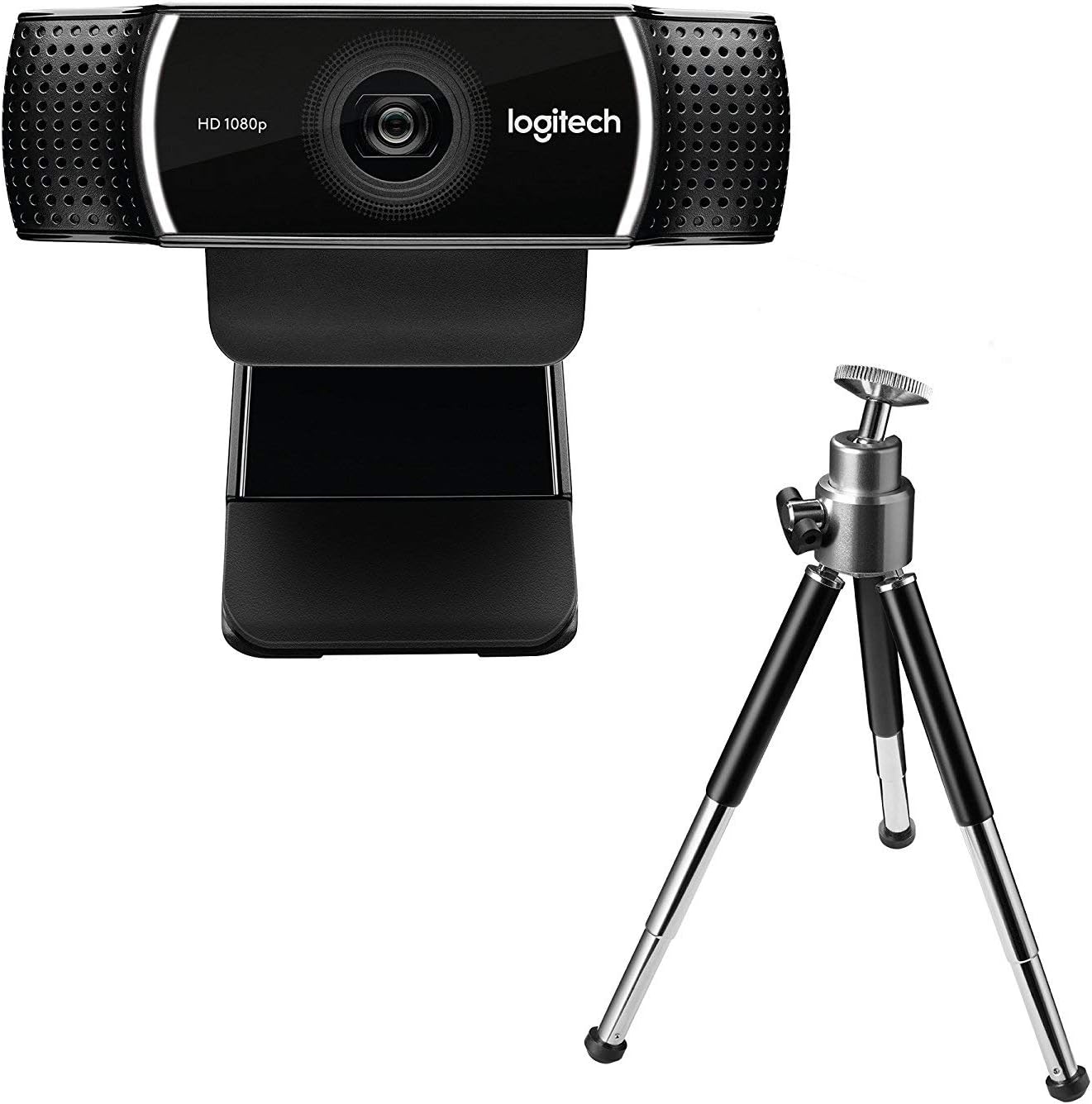
3 paveikslas: „Logitech C922 HD Pro“ Webcam shown with its included mini-tripod, offering alternative placement options.
Sąranka
Sistemos reikalavimai
- „Windows 7“ ar naujesnė versija
- macOS 10.10 arba naujesnė versija
- „Chrome“ OS
- USB 2.0 prievadas
- Interneto ryšys programinei įrangai atsisiųsti
Diegimo žingsniai
- Išpakuokite Webkumštelis: Carefully remove the C922 webcam and any accessories from its packaging.
- Prisijunkite prie kompiuterio: Plug the USB cable of the C922 webcam into an available USB 2.0 or 3.0 port on your computer.
- Padėkite vietą Webkumštelis:
- On a Monitor/Laptop: Open the flexible clip base and place it over the top edge of your monitor or laptop screen. Adjust the front part of the clip so the webcam sits securely.
- Ant trikojo: If using the included tripod, screw the webcam onto the tripod mount. Place the tripod on a stable, flat surface.
- Programinės įrangos diegimas: Your operating system should automatically detect and install basic drivers. For full functionality, including advanced settings and features, download and install the Logitech G HUB software from the official Logitech websvetainė (www.logitech.com/ghub).
- Išbandykite Webkumštelis: Open a video conferencing application (e.g., Zoom, Skype, Google Meet) or your computer's camera application to verify the webkamera veikia tinkamai.
Naudojimo instrukcijos
Pagrindinė operacija
- Once connected and drivers are installed, the C922 webcam is ready for use with most video applications.
- Select "Logitech C922 Pro Stream Webcam" as your video device within your chosen application's settings.
- The integrated dual microphones will automatically be selected as the audio input.
Using Logitech G HUB Software
The Logitech G HUB software provides advanced control over your C922 webkumštelis:
- Rezoliucija ir kadrų dažnis: Adjust video resolution (up to 1080p) and frame rate (up to 60fps at 720p, 30fps at 1080p).
- Laukas View: Tinkinkite lauką view.
- Automatinis fokusavimas: Enable or disable autofocus.
- Exposure and White Balance: Manually adjust exposure, white balance, and other image settings for optimal lighting conditions.
- ChromaCam (Background Replacement): Utilize the ChromaCam feature for virtual background replacement (requires compatible system).
- Profiles: Sukurkite ir išsaugokite pasirinktinį profesionaląfiles for different applications or lighting scenarios.
Priežiūra
- Objektyvo valymas: Švelniai nuvalykite specialią optikai skirtą minkštą, nepūkuotą šluostę webkameros lęšis. Venkite abrazyvinių medžiagų ar stiprių cheminių medžiagų.
- Kūno valymas: Nuvalykite korpusą webkamera su minkšta, damp audeklas. Nepanerkite į vandenį webkamera vandenyje arba naudokite per daug drėgmės.
- Saugykla: Kai nenaudojate, laikykite webkamerą švarioje, sausoje vietoje, toliau nuo ekstremalių temperatūrų ir tiesioginių saulės spindulių.
- Kabelio priežiūra: Kad nepažeistumėte USB kabelio, per daug jo nelenkite ir nespauskite.
Trikčių šalinimas
| Problema | Sprendimas |
|---|---|
| WebKompiuteris neaptiko kameros. |
|
| Nėra vaizdo arba ekranas juodas. |
|
| Prasta vaizdo kokybė (neryškus, tamsus, grūdėtas). |
|
| Nėra garso arba garso kokybė prasta. |
|
Specifikacijos
| Funkcija | Detalė |
|---|---|
| Modelio numeris | 960-001088 |
| Prekės ženklas | Logitech |
| Vaizdo įrašymo raiška | 1080p (Full HD) at 30fps, 720p (HD) at 60fps |
| Vaizdo jutiklių technologija | CMOS |
| Didžiausia diafragma | 1.8 F |
| Maksimalus židinio nuotolis | 52 milimetrai |
| Ryšio technologija | USB 2.0 |
| Palaikomas garso formatas | AAC |
| Vaizdo įrašymo formatas | MP4 |
| Spalva | Juoda |
| Siuntimo matmenys | 12.8 x 8.6 x 5.2 cm; 162 gramų |
| Pirmoji laisva data | 11 m. vasario 2019 d |
Note: Some specifications from the source data (e.g., "Removable Memory Type: SD", "Connectivity Technology: Wi-Fi") appear to be generic or incorrect for this specific webcam model and have been omitted or corrected for accuracy. The C922 is a wired USB webkumštelis.
Garantija ir palaikymas
Logitech products typically come with a limited hardware warranty. For specific warranty details, registration, and technical support, please visit the official Logitech support websvetainė:
„Logitech“ palaikymas Websvetainę
You can also find FAQs, driver downloads, and community forums on their support page.


