Įvadas
This manual provides essential information for the installation, operation, and maintenance of your ZOTAC Gaming GeForce RTX 2080 Ti Blower graphics card. Please read this guide thoroughly before proceeding with installation to ensure proper setup and optimal performance.
Produktas baigtasview
The ZOTAC Gaming GeForce RTX 2080 Ti Blower is a high-performance graphics card designed for demanding gaming and professional applications. It features NVIDIA's Turing architecture, 11GB of GDDR6 memory, and a blower-style cooling solution.
- New Turing architecture for advanced graphics processing.
- 11GB 352-bit GDDR6 memory for high-bandwidth performance.
- Virtual Reality Ready for immersive experiences.
- 4K ready for ultra-high-definition gaming.
- Boost Clock 1545 MHz for enhanced speed.

Vaizdas: priekis view of the ZOTAC Gaming GeForce RTX 2080 Ti Blower graphics card, showcasing its black shroud and single blower fan.

Image: Backplate view of the ZOTAC Gaming GeForce RTX 2080 Ti Blower graphics card, featuring a metal backplate for structural rigidity and heat dissipation.
Kas yra dėžutėje
Patikrinkite, ar pakuotėje yra visi komponentai:
- ZOTAC GAMING GeForce RTX 2080 Ti Blower Graphics Card
- 2 x Dual 6-pin to 8-pin power cables
- User Manual (Quick Installation Guide)
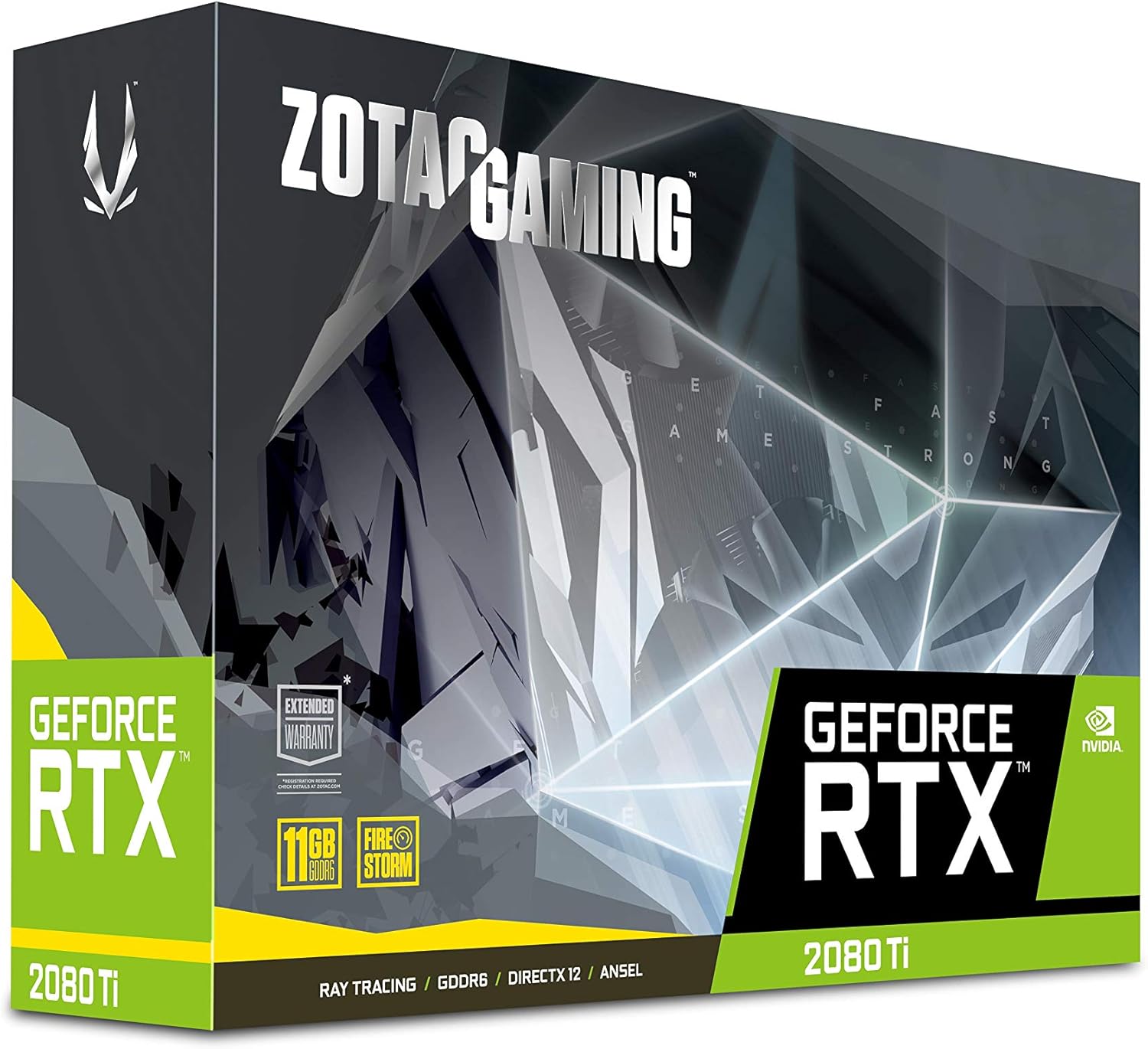
Image: The retail packaging for the ZOTAC Gaming GeForce RTX 2080 Ti Blower graphics card.

Image: The ZOTAC Quick Installation Guide, providing initial setup instructions.
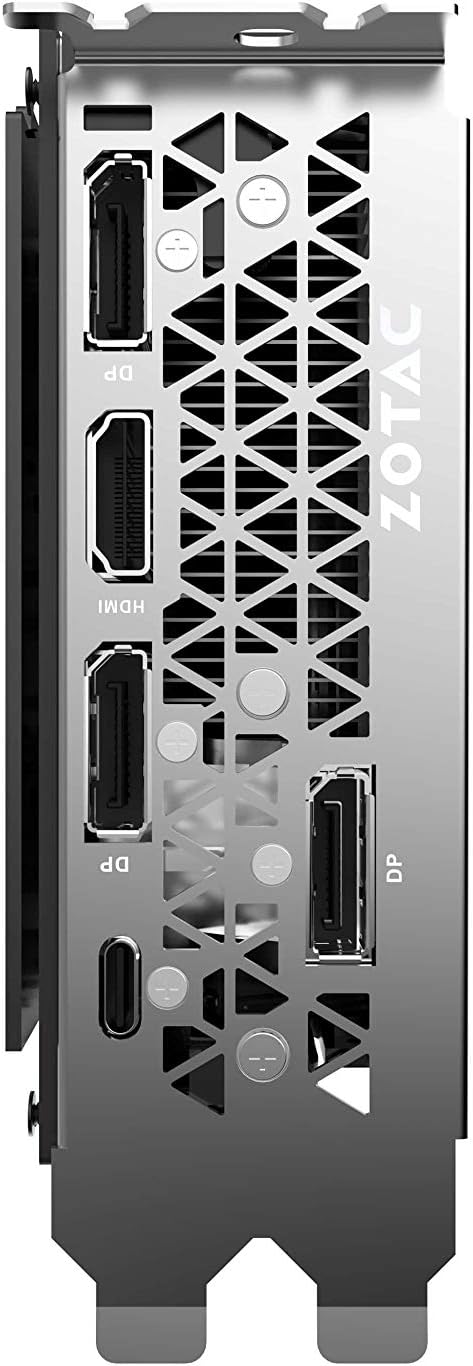
Image: The included 2 x Dual 6-pin to 8-pin power cables for connecting the graphics card to the power supply.
Sąranka ir diegimas
Norėdami įdiegti vaizdo plokštę, atlikite šiuos veiksmus:
- Paruoškite savo sistemą: Turn off your computer and disconnect the power cable. Open your computer case.
- Raskite PCIe lizdą: Raskite laisvą PCI Express 3.0 x16 lizdą savo pagrindinėje plokštėje.
- Įdiekite kortelę: Carefully align the graphics card with the PCIe slot and press down firmly until it is securely seated. Secure the card with the case's retention mechanism or screws.
- Prijunkite maitinimą: Connect the required 8-pin power connectors from your power supply to the graphics card. Use the provided 6-pin to 8-pin adapters if necessary.
- Uždaryti dėklą ir prijungti ekraną: Close your computer case, reconnect the power cable, and connect your display cable(s) to the graphics card's output ports.
- Įdiegti tvarkykles: Power on your computer. Once the operating system loads, install the latest NVIDIA drivers from the official NVIDIA websvetainę.

Paveikslėlis: kampuotas view of the graphics card, illustrating its form factor for installation into a PCIe slot.
Galios reikalavimai
To ensure stable operation, your system must meet the following power specifications:
- Rekomenduojamas maitinimo šaltinis: 650-watt power supply or greater.
- Didžiausias energijos suvartojimas: 250 vatų.
Note: Insufficient power supply can lead to system instability or damage.
Jungtys
The graphics card provides multiple display output options:
- 3 x DisplayPort 1.4
- 1 x HDMI 2.0B
- 1 x USB Type-C
The card is capable of supporting quad simultaneous displays.
Image: The rear I/O panel of the graphics card, showing the DisplayPort, HDMI, and USB Type-C outputs.
Programinės įrangos suderinamumas
Ensure your system meets the following software requirements for optimal performance:
- Operacinė sistema: Microsoft Windows 10/7 x64
- Vairuotojai: Game Ready Drivers (available from NVIDIA's official websvetainė)
- API: Microsoft DirectX 12 API, Vulkan API, OpenGL 4.5
Naudojimo instrukcijos
After successful installation and driver setup, your ZOTAC Gaming GeForce RTX 2080 Ti Blower graphics card will automatically enhance your system's graphical capabilities. For best performance, ensure your drivers are always up-to-date. You can monitor card performance and temperatures using ZOTAC's FireStorm utility or other compatible third-party software.
Priežiūra
Regular maintenance helps prolong the lifespan and performance of your graphics card:
- Dulkių šalinimas: Periodically clean dust from the fan and heatsink using compressed air. Ensure the system is powered off and unplugged before cleaning.
- Oro srautas: Maintain good airflow within your PC case to prevent overheating. Ensure no cables or other components obstruct the graphics card's fan.
- Tvarkyklės atnaujinimai: Nuolat atnaujinkite grafikos tvarkykles, kad galėtumėte pasinaudoti našumo patobulinimais ir klaidų ištaisymais.
Trikčių šalinimas
Jei kyla problemų, apsvarstykite šiuos įprastus sprendimus:
- Nėra ekrano: Ensure the display cable is securely connected to the graphics card and the monitor. Verify the monitor is set to the correct input.
- Sistemos nestabilumas / gedimai: Check power connections to the graphics card. Ensure your power supply meets the recommended wattage. Update or reinstall graphics drivers.
- Perkaitimas: Verify that the graphics card fan is spinning. Clean any dust buildup from the heatsink and fan. Ensure adequate case airflow.
- Vairuotojo problemos: Perform a clean installation of the latest graphics drivers from NVIDIA's websvetainę.
If problems persist, consult the ZOTAC support websvetainėje arba susisiekite su jų klientų aptarnavimo tarnyba.
Specifikacijos
| Funkcija | Specifikacija |
|---|---|
| GPU | NVIDIA GeForce RTX 2080 Ti |
| CUDA šerdys | 4352 |
| Vaizdo įrašų atmintis | 11 GB GDDR6 |
| Atminties magistralė | 352 bitų |
| Variklio padidinimo laikrodis | 1545 MHz |
| Atminties laikrodis | 14.0 Gbps |
| PCI Express | 3.0 |
| Ekrano išėjimai | 3 x DisplayPort 1.4, 1 x HDMI 2.0B, 1 x USB Type-C |
| Kelių ekranų palaikymas | Quad Simultaneous Display Capable |
| Rekomenduojamas maitinimo šaltinis | 650W |
| Energijos suvartojimas | 250W |
| Matmenys (IxPxH) | 10.55 x 4.45 x 1.5 colio |
| Operacinės sistemos palaikymas | Windows 10/7 x64 |
Garantija ir palaikymas
Your ZOTAC Gaming GeForce RTX 2080 Ti Blower graphics card may be eligible for an extended warranty. Registration is typically required to activate the full warranty period. Please refer to the official ZOTAC website for detailed warranty terms and conditions, and for information on how to register your product.
For technical support, driver downloads, and further assistance, visit the official ZOTAC support page:

Image: Information regarding ZOTAC's 5-year warranty, which typically requires product registration.


