1. Įvadas
The ENHANCE Infiltrate USB Gaming Mouse is designed for an enhanced gaming experience, featuring customizable controls and dynamic lighting. This manual provides instructions for setting up, operating, and maintaining your gaming mouse.

Image: The ENHANCE Infiltrate USB Gaming Mouse, showcasing its ergonomic design and sleek black finish.
2. Pagrindinės savybės
- Multi-Color LED Light: Dynamic rainbow lighting pattern illuminates the mouse accents, slowly fading between colors.
- DPI reguliavimas skrydžio metu: Quickly select from 4 DPI intervals (800, 1200, 1600, 2400) using the dedicated DPI button.
- Ergonomic Design with Smooth Rubber Grip: The top features a sleek rubber coating, while the side includes two extra thumb buttons with a textured grip for comfort.
- 6 programuojami mygtukai: Customize your gaming experience with additional buttons for macros or specific functions.
- Plug & Play dizainas: Connects easily to your PC via a gold-plated USB connector for immediate use.
- Patvarus pintas kabelis: Designed for longevity and resistance to tangles.
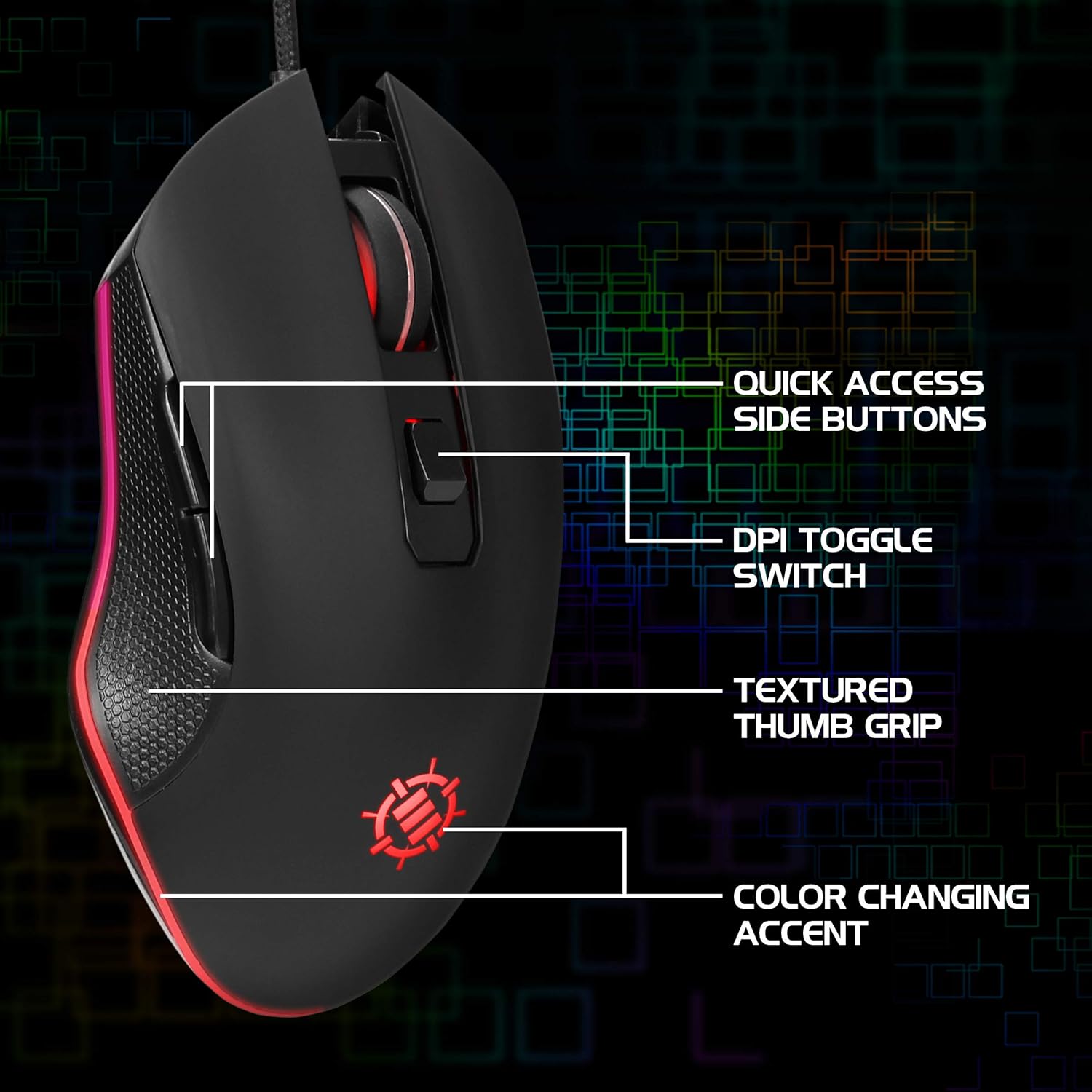
Image: Diagram highlighting key features of the ENHANCE Infiltrate mouse, including quick access side buttons, DPI toggle switch, textured thumb grip, and color-changing accent.
3. Sąrankos vadovas
- Išpakuokite pelę: Carefully remove the ENHANCE Infiltrate USB Gaming Mouse from its packaging.
- Prisijunkite prie kompiuterio: Locate an available USB port on your computer. Insert the gold-plated USB connector of the mouse into the USB port. The mouse is plug-and-play, so no additional drivers are typically required for basic functionality.
- Pradinis pripažinimas: Jūsų operacinė sistema turėtų automatiškai aptikti ir įdiegti reikiamas tvarkykles. Šis procesas gali užtrukti kelias akimirkas.
- Patikrinkite funkcionalumą: Once installed, the mouse's LED lighting should activate, and you should be able to move the cursor on your screen.

Vaizdas: Stambus planas view of the heavy-duty braided cable and gold-plated USB connector, ready for connection.
For a visual guide on connecting and using the mouse, please watch the official product video below.
Video: Official product video demonstrating the ENHANCE Infiltrate USB Gaming Mouse, including connection and feature highlights.
4. Naudojimo instrukcijos
4.1 Pagrindinės pelės funkcijos
The ENHANCE Infiltrate mouse functions like a standard USB mouse. It includes left-click, right-click, and a scroll wheel with a clickable middle button.

Image: A hand demonstrating the ergonomic grip of the ENHANCE Infiltrate Gaming Mouse on a gaming mouse pad.
4.2 DPI reguliavimas
The mouse features a dedicated DPI button located behind the scroll wheel. Press this button to cycle through four preset DPI (Dots Per Inch) sensitivity levels:
- 800 DPI
- 1200 DPI
- 1600 DPI
- 2400 DPI
Each DPI setting may correspond to a different LED color on the mouse, providing visual feedback for the current sensitivity level.
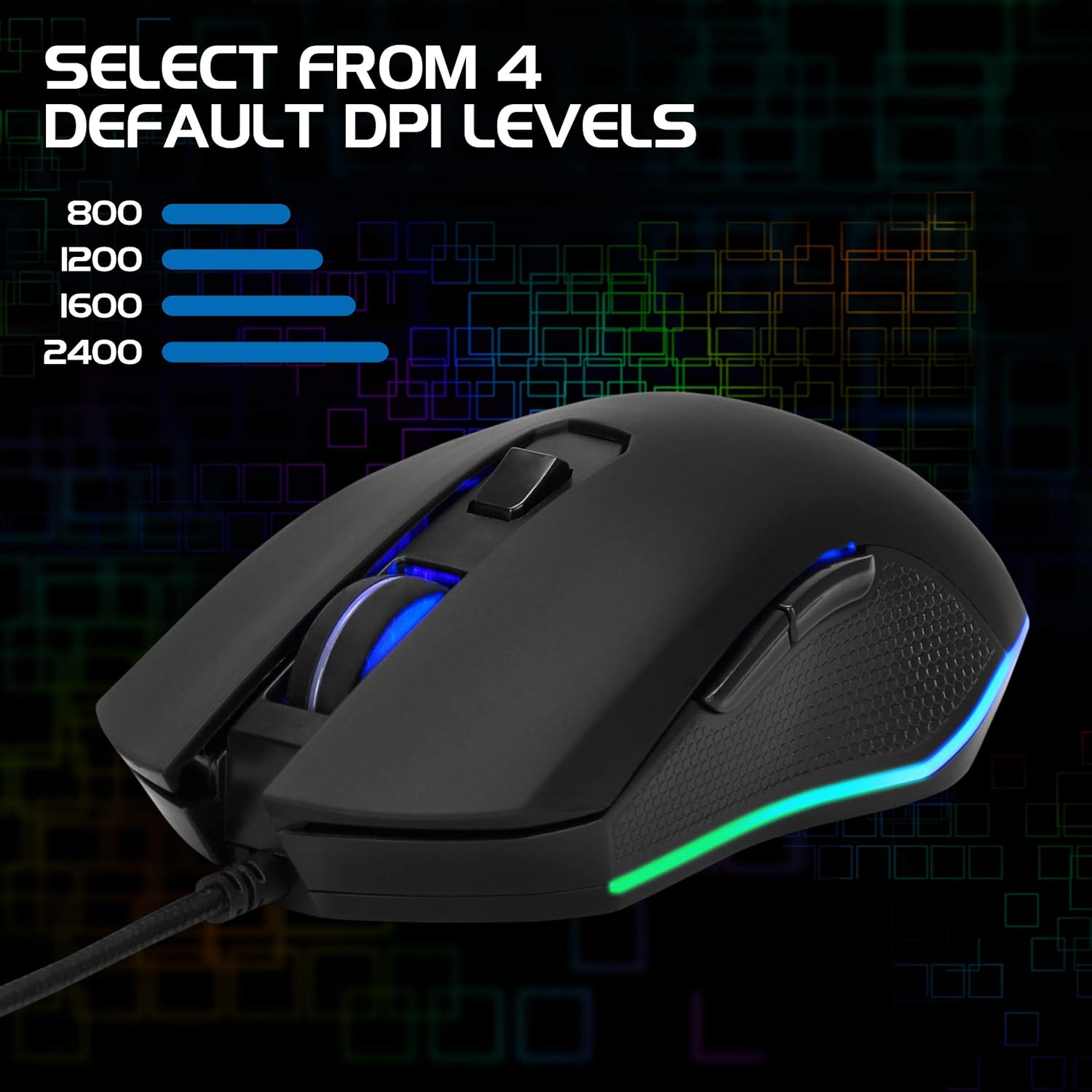
Image: The ENHANCE Infiltrate Gaming Mouse illustrating the four selectable DPI levels (800, 1200, 1600, 2400) and their corresponding LED indicators.
4.3 Multi-Color LED Lighting
The Infiltrate mouse features dynamic multi-color LED lighting that cycles through a rainbow pattern. This lighting is automatic and provides an aesthetic enhancement to your gaming setup.

Image: The ENHANCE Infiltrate Gaming Mouse displaying its sleek color-changing lighting accents.

Paveikslėlis: Šoninis profesionalasfile of the ENHANCE Infiltrate Gaming Mouse, showcasing its blue LED lighting.
4.4 programuojami mygtukai
The mouse includes 6 programmable buttons. For advanced customization and programming of these buttons, please refer to your operating system's mouse settings or any third-party software compatible with generic gaming mice. Specific software for this model is not provided by the manufacturer.
5. Priežiūra
- Valymas: Pelės paviršiui nuvalyti naudokite minkštą, sausą šluostę. Įsisenėjusiam purvui šiek tiek nuvalykiteamp galima naudoti šluostę, užtikrinant, kad į vidinius komponentus nepatektų drėgmės.
- Optinis jutiklis: Periodically clean the optical sensor area on the underside of the mouse with a cotton swab to ensure optimal tracking performance.
- Kabelio priežiūra: Kad nepažeistumėte USB kabelio, venkite staigių lenkimų ir per didelio tempimo.
- Saugykla: Kai nenaudojate, laikykite pelę švarioje, sausoje vietoje, toliau nuo ekstremalių temperatūrų.
6. Problemų sprendimas
- Pelė nereaguoja:
- Įsitikinkite, kad USB laidas yra tvirtai prijungtas prie veikiančio kompiuterio USB prievado.
- Pabandykite prijungti pelę prie kito USB prievado.
- Iš naujo paleiskite kompiuterį.
- Išbandykite pelę kitame kompiuteryje, kad nustatytumėte, ar problema susijusi su pele, ar su jūsų sistema.
- Žymeklio judėjimas yra netolygus arba trūkčiojantis:
- Nuvalykite optinį jutiklį pelės apačioje.
- Įsitikinkite, kad pelę naudojate ant švaraus, neatspindinčio paviršiaus. Rekomenduojama naudoti pelės kilimėlį.
- Check for any software conflicts or outdated drivers on your computer.
- LED lemputės neveikia:
- Patikrinkite, ar pelė tinkamai prijungta prie kompiuterio.
- The LED lighting is automatic and should activate upon connection. If not, try a different USB port or computer.
- DPI Button Not Changing Sensitivity:
- Ensure the mouse is fully recognized by your computer.
- Tvirtai paspauskite DPI mygtuką.
7. Specifikacijos
| Prekės ženklas | PAGERINTI |
| Modelio numeris | ENINMNU100BOEW |
| Aparatinės įrangos platforma | „Mac“, asmeninis kompiuteris |
| Prekės svoris | 4.4 uncijos |
| Gaminio matmenys (IxPxH) | 4.92 x 2.68 x 1.56 colio |
| Spalva | Juoda |
| Maitinimo šaltinis | Elektra su laidu (USB) |
| Ryšio technologija | USB |
| Ypatinga funkcija | Ergonomiškas dizainas |
| Judesio aptikimo technologija | Optinis |
| DPI lygiai | 800, 1200, 1600, 2400 |
8. Garantija ir palaikymas
The ENHANCE Infiltrate USB Gaming Mouse is backed by a 3 metų gamintojo garantija. Ši garantija apima medžiagų ir gamybos defektus normaliai naudojant.
For warranty claims or technical support, please contact ENHANCE customer service. Keep your proof of purchase for warranty validation.
For further assistance, visit the official ENHANCE Gaming websvetainėje arba susisiekite su jų palaikymo kanalais.


