Įvadas
This manual provides essential instructions for setting up, operating, maintaining, and troubleshooting your Microsoft Surface Pro 2017. The Surface Pro 2017 is a versatile 2-in-1 device designed to function as both a powerful laptop and a portable tablet, offering a seamless computing experience.
Atidžiai perskaitykite šį vadovą, kad užtikrintumėte tinkamą naudojimą ir pailgintumėte savo įrenginio tarnavimo laiką. Išsaugokite šį vadovą ateičiai.
Kas yra dėžutėje
Upon unboxing your Microsoft Surface Pro 2017, verify that all components are present:
- Microsoft Surface Pro 2017 device
- Kintamos srovės adapteris
Note: Additional accessories such as the Surface Pen, Type Cover, or Surface Dial are sold separately and may not be included with your device.
Sąranka
1. Pradinis įjungimas ir įkrovimas
- Prijunkite maitinimo adapterį: Plug the AC power adapter into a wall outlet and then connect the magnetic charging connector to the charging port on your Surface Pro. The LED indicator on the connector will illuminate when charging.
- Maitinimas: Press and hold the power button located on the top edge of the device for a few seconds until the Microsoft logo appears on the screen.
2. „Windows“ sąranka
Follow the on-screen prompts to complete the initial Windows setup. This process typically includes:
- Regiono ir kalbos pasirinkimas.
- Prisijungimas prie „Wi-Fi“ tinklo.
- Licencijos sutarties priėmimas.
- „Microsoft“ paskyros kūrimas arba prisijungimas naudojant ją.
- Setting up security features like Windows Hello (facial recognition) or a PIN.
3. Prisijungimas prie Wi-Fi
- During Windows setup, you will be prompted to connect to a network. Select your desired Wi-Fi network from the list and enter the password if required.
- If you need to connect later, go to Pradėti > Nustatymai > Tinklas ir internetas > Wi-Fi. Turn Wi-Fi on, select your network, and click Prisijunkite.
Naudojimo instrukcijos
Basic Device Orientation and Controls
The Surface Pro 2017 features a 12.3-inch PixelSense display with multi-touch support. Key physical controls include:
- Maitinimo mygtukas: Located on the top edge, used to turn the device on/off, sleep, or wake.
- Garsumo mygtukai: Įsikūręs šone, naudojamas garso garsumui reguliuoti.
- Stovas: Integrated on the back, allows for multiple viewkampų.
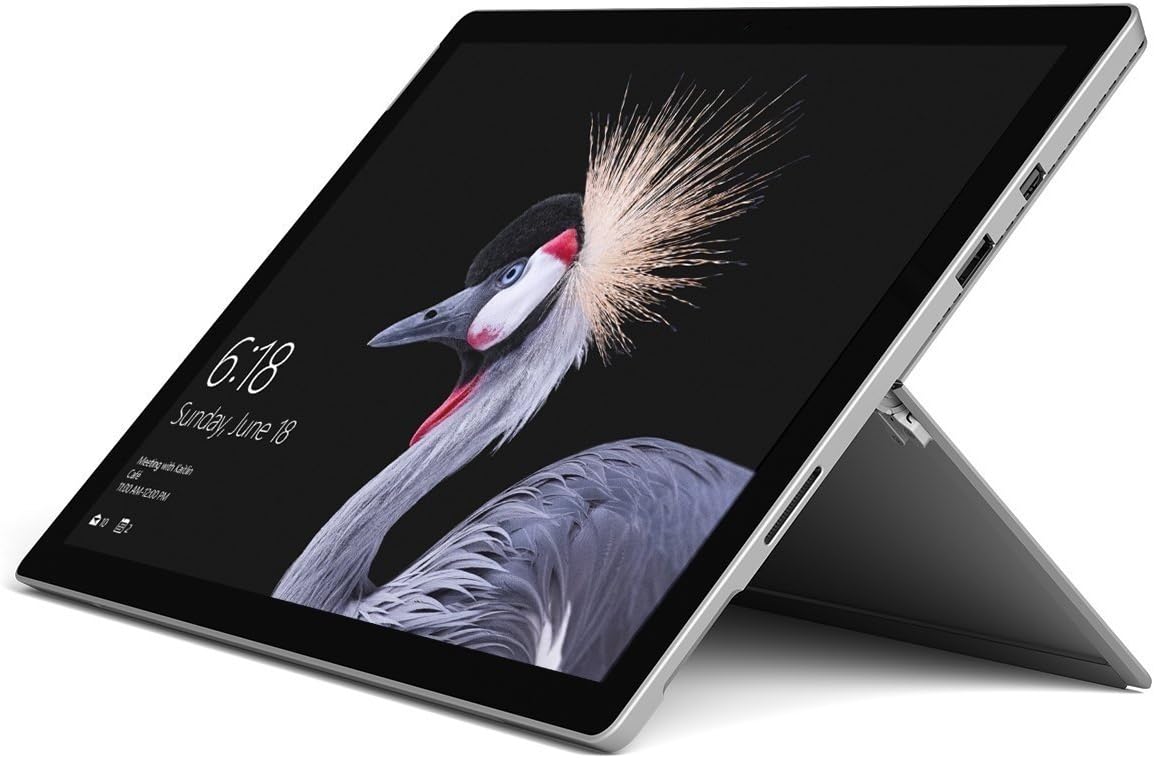
Image: Microsoft Surface Pro 2017 in laptop mode with its kickstand extended, showcasing the device's display.
Stovo naudojimas
The integrated kickstand allows you to position your Surface Pro at various angles for comfortable viewing, typing, or drawing. Gently pull the kickstand out from the back of the device until it reaches your desired angle.
Energijos valdymas
- Miegojimo rezimas: Briefly press the power button to put the Surface Pro into sleep mode. Press it again to wake the device.
- Išjungti: Eikite į Pradėti > Galia > Išsijungti.
- Paleisti iš naujo: Eikite į Pradėti > Galia > Paleisti iš naujo.
Periferinių įrenginių prijungimas
The Surface Pro 2017 includes various ports for connecting external devices:
- USB 3.0 prievadas: For connecting USB drives, keyboards, mice, and other compatible accessories.
- Mini DisplayPort: Skirta prijungti išorinius monitorius arba projektorius.
- „microSD“ kortelių skaitytuvas: Dėl saugyklos išplėtimo arba perkėlimo files iš atminties kortelių.
- „Surface Connect“ prievadas: For power and connecting to Surface Dock accessories.
- 3.5 mm ausinių lizdas: Dėl garso išvesties.
Bluetooth: To connect Bluetooth devices (e.g., headphones, mice), go to Pradėti > Nustatymai > Prietaisai > Bluetooth ir kiti įrenginiai. Ensure Bluetooth is turned on, then select "Add Bluetooth or other device" and follow the pairing instructions.

Paveikslėlis: Šoninis profesionalasfile of the Microsoft Surface Pro 2017, highlighting the various ports available for connectivity.
Priežiūra
Cleaning Your Surface Pro
- Ekranas: Šiek tiek naudokite minkštą, be pūkelių šluostę dampened with water or an approved screen cleaner. Avoid harsh chemicals or abrasive materials.
- Korpusas: Wipe the exterior with a soft, dry cloth. Do not allow liquids to enter openings.
- Prievadai: Keep ports free of dust and debris. Use compressed air carefully if needed, holding the can upright.
Akumuliatoriaus priežiūra
- Venkite ekstremalių temperatūrų, nes jos gali pabloginti akumuliatoriaus veikimo laiką.
- Siekiant optimalios akumuliatoriaus būklės, venkite nuolat visiškai iškrauti akumuliatorių arba ilgai laikyti jį įkrautą 100 %.
- Use only the official Microsoft AC power adapter or a compatible charger.
Programinės įrangos atnaujinimai
Regularly update your Windows operating system and device drivers to ensure optimal performance, security, and compatibility. Go to Pradėti > Nustatymai > Atnaujinimas ir sauga > Windows naujinimas kad patikrintumėte, ar yra atnaujinimų, ir juos įdiegtumėte.
Trikčių šalinimas
This section addresses common issues you might encounter with your Surface Pro 2017.
Device Will Not Turn On
- Įsitikinkite, kad įrenginys įkrautas. Prijunkite maitinimo adapterį ir palaukite kelias minutes prieš bandydami įjungti.
- Perform a two-button shutdown: Press and hold the volume-up button and the power button simultaneously for at least 15 seconds, then release both. Wait 10 seconds, then press the power button again to turn on the Surface.
Screen Not Responding to Touch
- Iš naujo paleiskite įrenginį.
- Įsitikinkite, kad ekranas yra švarus ir be šiukšlių.
- Check for available Windows updates, as driver updates can resolve touch issues.
„Wi-Fi“ ryšio problemos
- Įsitikinkite, kad „Wi-Fi“ įjungtas Nustatymai > Tinklas ir internetas > Wi-Fi.
- Restart your Surface Pro and your Wi-Fi router.
- Pamirškite tinklą ir prisijunkite iš naujo: eikite į Nustatymai > Tinklas ir internetas > Wi-Fi, click on your network, then Pamiršk. Reconnect and enter the password.
Specifikacijos
| Funkcija | Specifikacija |
|---|---|
| Modelio pavadinimas | „Surface Pro 2017“. |
| Prekės modelio numeris | 7Y30 |
| Ekrano dydis | 12.3 colių |
| Ekrano raiška | 2736 x 1824 pikselių |
| Procesorius | Intel Core m3-7Y30 (1 GHz Intel_Mobile_CPU) |
| RAM | 4 GB DDR4 SDRAM |
| Sandėliavimas | 128 GB SSD |
| Vaizdo plokštė | Integrated (Intel) |
| Operacinė sistema | Windows |
| Belaidis tipas | 802.11abg |
| Prekės svoris | 1.89 svaro |
| Gaminio matmenys | 11.5 x 7.9 x 0.3 colio |
| Spalva | Sidabras |
Garantija ir palaikymas
For detailed warranty information, please refer to the warranty card included with your purchase or visit the official Microsoft support websvetainėje. Garantijos sąlygos gali skirtis priklausomai nuo regiono ir mažmenininko.
For technical support, driver downloads, and additional resources, please visit the official Microsoft Support websvetainė: support.microsoft.com/surface


