1. Įvadas
This manual provides detailed instructions for the setup, operation, and maintenance of your Tera Wireless Barcode Scanner, Model 8541733886. Please read this manual thoroughly before using the device to ensure proper functionality and to prevent damage.
The Tera Wireless Barcode Scanner offers versatile connectivity and efficient scanning capabilities for various barcode types, both printed and digital.
2. Produktas baigtasview
2.1 Komponentai
Į paketą paprastai įeina:
- Tera Wireless Barcode Scanner
- Hands-Free Stand
- 2.4 GHz belaidis USB adapteris
- USB įkrovimo/duomenų laidas
- Instrukcijų vadovas (šis dokumentas)

Image: Tera Wireless Barcode Scanner, showing the scanner unit, flexible stand, 2.4GHz USB dongle, and USB cable.
2.2 Pagrindinės savybės
- 3 ryšio režimai: Supports Bluetooth, 2.4GHz wireless, and USB 2.0 wired connections.
- Platus suderinamumas: Works with POS systems, iOS, Android, Windows, Mac OS, and Linux. Supports Bluetooth HID, SPP, and BLE protocols.
- Greitas ir tikslus nuskaitymas: Equipped with an ARM32Bit Cortex CPU and a Japan-manufactured scanner head, achieving decoding speeds up to 500 scans per second.
- Dvigubi įkėlimo režimai:
- Momentinio įkėlimo režimas: Barcodes are transmitted to your device immediately upon scanning.
- Neprisijungus pasiekiamo saugojimo režimas: Stores up to 50,000 barcodes internally when out of range, allowing for later upload.
- Multi-Language Barcode Support: Capable of scanning barcodes in English, Spanish, German, French, Italian, and Japanese. Ensure your keyboard language matches the selected language for correct input.
- Versatile Barcode Symbologies:
- 1D: UPC-A, UPC-E, EAN-8, EAN-13, Code 128, Code 39, Code 93, Code 11, Interleaved 2 of 5, Matrix 2 of 5, Standard 2 of 5, Coda bar, MSI Plessey, RSS, etc.
- 2D: QR kodas, duomenų matrica, PDF417, actekų kodas, maksikodas ir kt.
- Patvarumas: Designed to withstand impacts from drops of up to 1.5 meters (5 feet) onto concrete.
- Ilgas baterijos veikimo laikas: Built-in 2200mAh battery supports approximately 57,000 scans on a full charge, with up to 15 days of standby time.
3. Sąranka
3.1 Skaitytuvo įkrovimas
Prieš pirmą kartą naudodami, visiškai įkraukite skaitytuvą. Prijunkite USB įkrovimo laidą prie skaitytuvo įkrovimo prievado ir prie USB maitinimo šaltinio (pvz., kompiuterio USB prievado, USB sieninio adapterio). Indikatoriaus lemputė rodys įkrovimo būseną.

Image: Illustration showing the scanner's 2200mAh battery capacity and its ability to withstand a 1.5-meter drop.
3.2 Ryšio režimai
Skaitytuvas palaiko tris prijungimo būdus:

Image: Visual representation of the three connection modes: Bluetooth, 2.4G Wireless via USB dongle, and USB Wired connection.
3.2.1 USB Wired Mode (Plug & Play)
- Prijunkite skaitytuvą tiesiai prie kompiuterio naudodami pateiktą USB laidą.
- The computer will typically recognize the device automatically without requiring driver installation.
- Skaitytuvas paruoštas naudoti.

Image: The scanner connected to a laptop, illustrating its plug-and-play functionality and compatibility with various operating systems including Windows, Mac OS, Linux, and Android.
3.2.2 2.4 GHz belaidis režimas
- Insert the 2.4GHz USB dongle into an available USB port on your computer or device.
- Įjunkite brūkšninių kodų skaitytuvą. Jis turėtų automatiškai susijungti su adapteriu.
- Sėkmingą ryšį paprastai rodo konkretus garsas arba lemputė skaitytuve.
3.2.3 „Bluetooth“ režimas
- Ensure your device (smartphone, tablet, computer) has Bluetooth enabled.
- Put the scanner into Bluetooth pairing mode (refer to the scanner's quick start guide for specific instructions, usually by scanning a special barcode).
- On your device, search for available Bluetooth devices and select "Tera Barcode Scanner" (or similar name).
- Jei būsite paraginti, patvirtinkite susiejimą.
Pastaba: Wireless range varies. Indoors with obstacles, Bluetooth range is approximately 33ft, and 2.4GHz wireless is approximately 98ft. Outdoors in barrier-free environments, Bluetooth range is approximately 65ft, and 2.4GHz wireless is approximately 328ft.
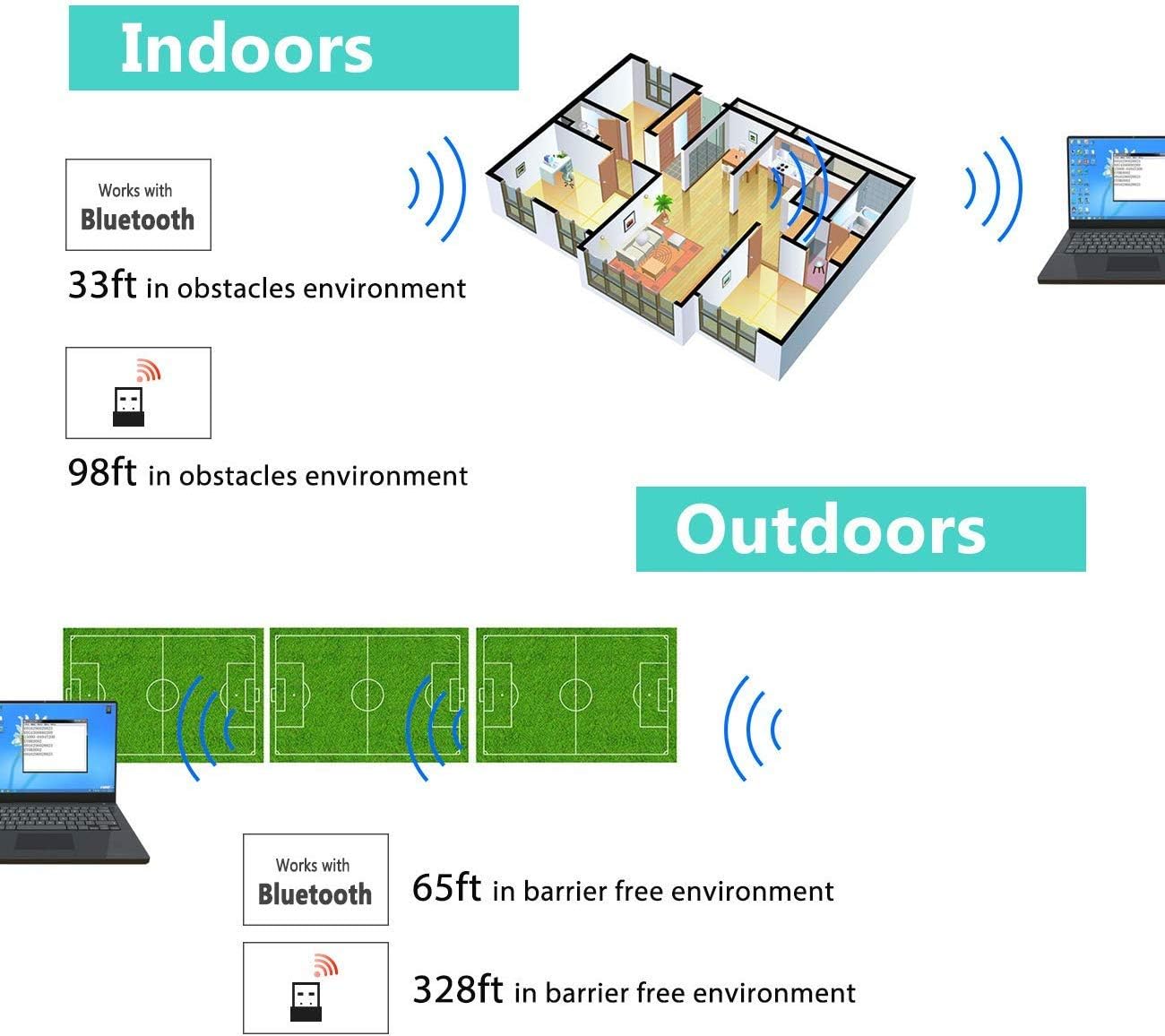
Image: Diagram illustrating the effective wireless range of the scanner in both indoor (with obstacles) and outdoor (barrier-free) environments for Bluetooth and 2.4GHz connections.
4. Naudojimo instrukcijos
4.1 Brūkšninių kodų nuskaitymas
The scanner can read both 1D and 2D barcodes, including QR codes, from printed materials and digital screens.
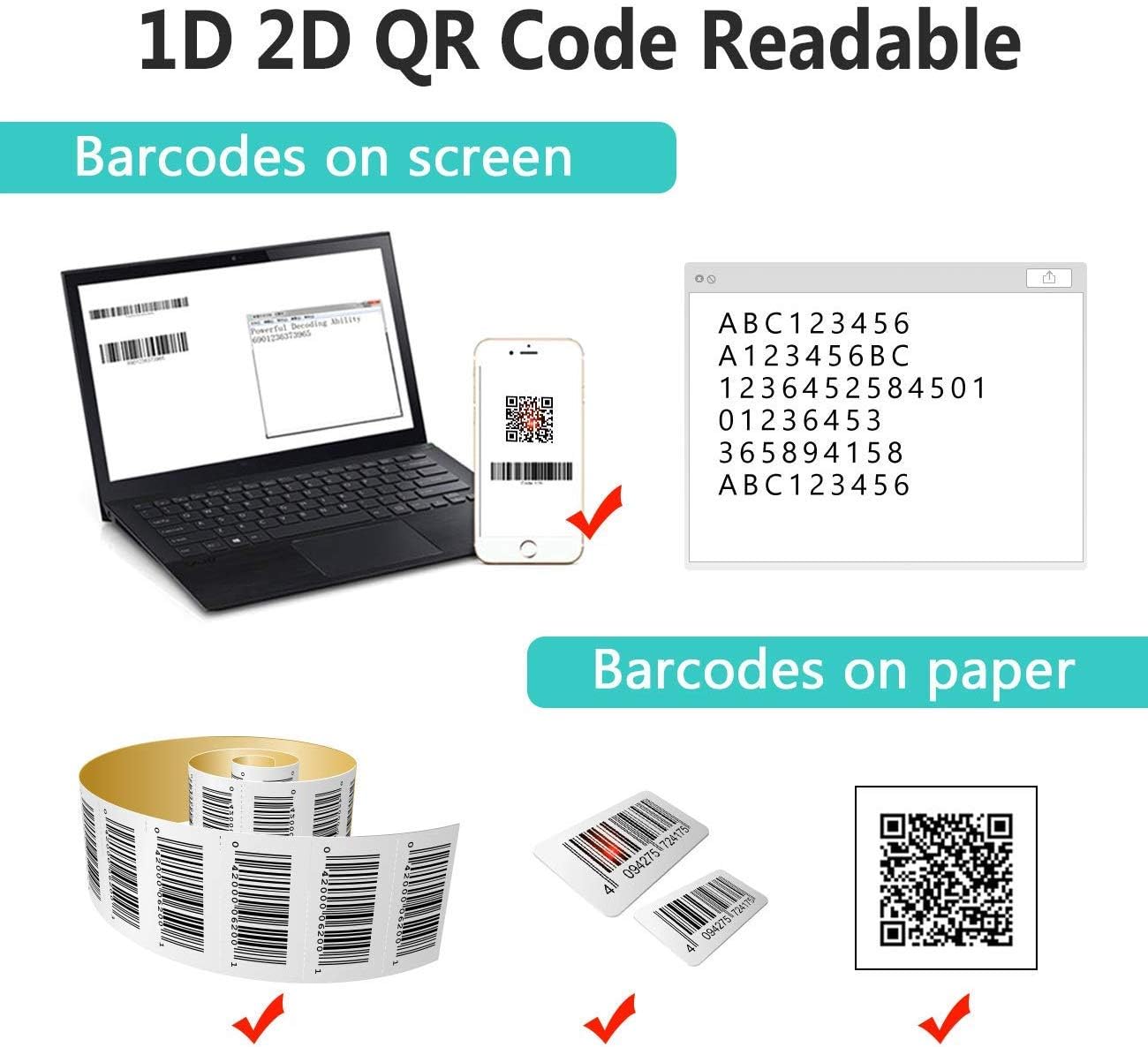
Image: The scanner demonstrating its ability to read 1D and 2D barcodes from both digital screens (laptop, smartphone) and physical printed labels.
Norėdami nuskaityti brūkšninį kodą:
- Point the scanner's window at the barcode.
- Press the trigger button (or allow the sensor to activate in automatic modes).
- A successful scan is indicated by a beep and/or a green light.
4.2 Skenavimo režimai
The scanner supports three primary scanning modes:

Image: The barcode scanner mounted on its stand, highlighting its 360-degree rotation capability and the three available scanning modes: Key Trigger Mode, Sensor Activated Mode, and Continuous Scan Mode.
- Klavišo paleidimo režimas: Scan by manually pressing the trigger button for each barcode.
- Sensor Activated Mode: The scanner automatically activates when a barcode is detected in its field of view.
- Nepertraukiamo nuskaitymo režimas: The scanner continuously emits a scan beam, reading any barcode that passes through it.
Refer to the quick start guide or programming barcodes for instructions on how to switch between these modes.
4.3 Duomenų įkėlimo režimai
The scanner offers two methods for uploading scanned data:
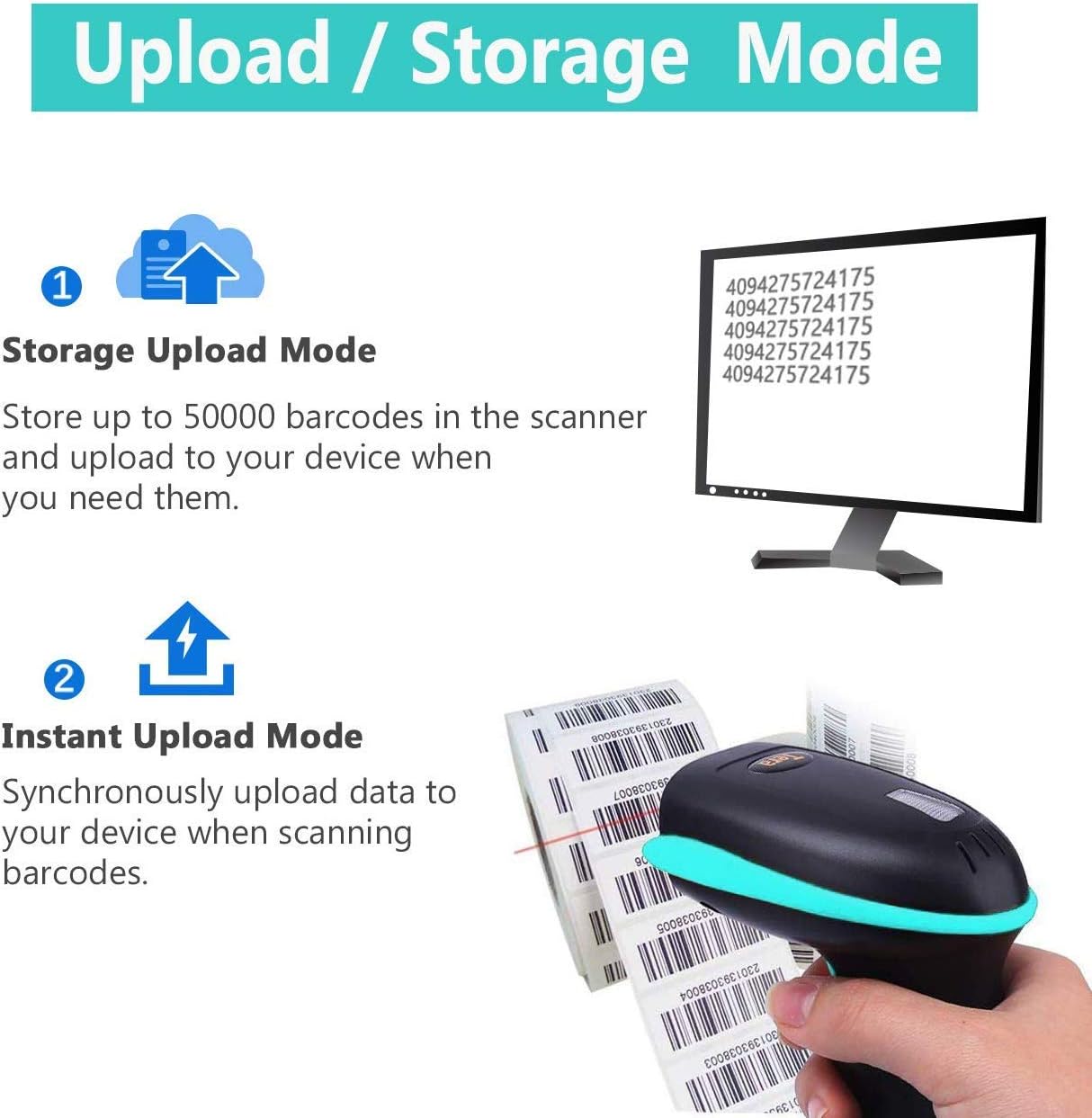
Image: Illustration of the two data upload modes: Storage Upload Mode, where barcodes are stored internally and uploaded later, and Instant Upload Mode, where data is transmitted immediately.
- Momentinio įkėlimo režimas: Barcodes are sent to your connected device immediately after scanning. This is suitable for real-time data entry.
- Neprisijungus pasiekiamo saugojimo režimas: If the scanner is out of range or not connected, it will store scanned barcodes internally. Up to 50,000 barcodes can be stored. Once reconnected, you can upload the stored data to your device.
To switch between upload modes, scan the appropriate programming barcode found in the quick start guide.
5. Priežiūra
5.1 Valymas
- Use a soft, clean cloth slightly dampened with water or a mild cleaning solution to wipe the scanner's exterior.
- Do not use abrasive cleaners, solvents, or excessive liquid, as these can damage the device.
- Keep the scanning window clean and free of dust or smudges to ensure optimal reading performance.
5.2 Akumuliatoriaus priežiūra
- Reguliariai įkraukite skaitytuvą, ypač jei jis bus ilgesnį laiką nenaudojamas.
- Venkite dažnai visiškai iškrauti akumuliatorių, nes tai gali sutrumpinti jo tarnavimo laiką.
- Kai nenaudojate, skaitytuvą laikykite vėsioje, sausoje vietoje.
5.3 Saugykla
When not in use, store the scanner in a safe place to prevent physical damage. The included stand can be used for convenient storage and hands-free operation.
6. Problemų sprendimas
| Problema | Galima priežastis | Sprendimas |
|---|---|---|
| Skaitytuvas neįsijungia. | Senka baterija. | Kraukite skaitytuvą bent 2–3 valandas. |
| Skaitytuvas neskaito brūkšninių kodų. |
|
|
| No data transmitted to device. |
|
|
| Scanner beeps continuously or behaves erratically. | Configuration error or internal issue. | Perform a factory reset (refer to the quick start guide for the reset barcode). If the issue persists, contact support. |
7. Specifikacijos
- Modelio numeris: 8541733886
- Gaminio matmenys: 6.1 x 2.55 x 3.54 colio
- Prekės svoris: 1.05 svaro
- Baterija: 1 Lithium Ion battery (2200mAh)
- Ryšys: Bluetooth, 2.4GHz Wireless, USB 2.0 Wired
- Suderinami įrenginiai: Desktop, Laptop, Smartphone (POS, iOS, Android, Windows, Mac OS, Linux)
- Maitinimo šaltinis: Laidinis elektrinis (įkrovimui)
- Gamintojas: Tera
- Pirmas prieinamas: 7 m. gegužės 2019 d
8. Garantija ir palaikymas
8.1 Informacija apie garantiją
For specific warranty details, please refer to the warranty card included with your product or visit the official Tera websvetainėje. Išsaugokite pirkimo kvitą kaip pirkimo įrodymą garantiniams reikalavimams.
8.2 Pagalba klientams
If you encounter any issues not covered in this manual or require further assistance, please contact Tera customer support. Contact information can typically be found on the product packaging, the official Tera websvetainėje arba per savo mažmenininką.
Kreipdamiesi į palaikymo tarnybą, turėkite paruoštą savo produkto modelio numerį (8541733886) ir pirkimo informaciją.


Image: Illustrations representing customer service and technical support teams available to assist users.


