Įvadas
Šiame vadove pateikiamos išsamios instrukcijos, kaip nustatyti, naudoti, prižiūrėti ir šalinti triktis. ViewSonic ViewBoard IFP6550 Interactive Flat Panel Display. Please read this manual thoroughly before using the product to ensure proper and safe operation.
The ViewBoard IFP6550 is a 65-inch 4K UHD (3840 x 2160) interactive display designed for collaborative environments, offering multi-touch capabilities and optional slot-in PC integration.
Saugos informacija
Visada laikykitės šių saugos priemonių, kad nesugadintumėte gaminio ir užtikrintumėte naudotojo saugumą:
- Saugokite ekraną nuo lietaus ar drėgmės.
- Neuždenkite vėdinimo angų.
- Naudokite tik su įrenginiu pateiktą maitinimo laidą.
- Visus techninės priežiūros darbus patikėkite kvalifikuotam techninės priežiūros personalui.
- Užtikrinkite tinkamą įžeminimą elektros saugumui užtikrinti.
Pakuotės turinys
Patikrinkite, ar pakuotėje yra visi reikalingi daiktai:
- ViewSonic ViewBoard IFP6550 Interactive Flat Panel Display
- Maitinimo laidas
- Nuotolinio valdymo pultas su baterijomis
- USB kabelis (nuo A iki B tipo)
- HDMI kabelis
- Touch Pens (x2)
- Sieninis laikiklis (pasirinktinai, patikrinkite konkretų modelio variantą)
- Greitos pradžios vadovas
Sąranka
Fizinis montavimas
The ViewBoard IFP6550 can be installed on a wall mount or a mobile cart (sold separately). Ensure the mounting surface or cart can support the display's weight of approximately 103 pounds (46.7 kg).
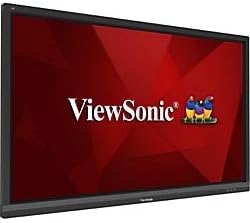
1 pav.: priekis view iš ViewSonic ViewBoard IFP6550. This image shows the large 65-inch display with a dark bezel, featuring the ViewSonic logo prominently at the bottom center. The screen displays a red background with the ViewSonic brand name and colorful bird logo.
- Montavimas ant sienos: Attach the VESA-compatible wall mount bracket (400x400mm or 600x400mm, refer to bracket instructions) securely to a sturdy wall. Carefully lift and attach the display to the bracket with at least two people.
- Mobile Cart Installation: Secure the display to a compatible mobile cart following the cart manufacturer's instructions.
Periferinių įrenginių prijungimas
The IFP6550 offers various ports for connectivity:
- Galia: Connect the supplied power cord to the AC IN port on the display and then to a grounded power outlet.
- HDMI: Connect an HDMI cable from your source device (e.g., PC, media player) to one of the HDMI IN ports on the display.
- USB for Touch: Connect the USB Type A to Type B cable from your PC to the USB TOUCH port on the display to enable touch functionality.
- USB for Media: Use the USB 2.0 or USB 3.0 ports for connecting USB drives or other peripherals.
- LAN: Connect an Ethernet cable for network connectivity.
- Garsas: Use the Audio In/Out ports for external audio devices if needed.
Naudojimo instrukcijos
Maitinimo įjungimas/išjungimas
- Maitinimas: Press the power button on the display's side panel or on the remote control. The power indicator light will turn blue.
- Išjungti: Press the power button again. The power indicator light will turn red.
Šaltinio pasirinkimas
To switch between input sources (HDMI, VGA, internal PC, etc.):
- Paspauskite ŠALTINIS button on the remote control or the display's side panel.
- Navigate through the available sources using the arrow keys and press OK pasirinkti.
Palieskite Funkcionalumas
The IFP6550 supports multi-touch input. Ensure the USB TOUCH cable is connected to your PC.
- Use your finger or the provided touch pens to interact with the screen.
- Standard gestures like tap, drag, pinch-to-zoom are supported.
Ekrano ekrano (OSD) meniu
Norėdami reguliuoti ekrano nustatymus, eikite į OSD meniu:
- Paspauskite MENIU nuotolinio valdymo pulto mygtuką.
- Use the arrow keys to navigate through options like Picture, Audio, Display, System, and Network.
- Paspauskite OK to enter a sub-menu or confirm a selection.
- Paspauskite EXIT to close the OSD menu.
Priežiūra
Ekrano valymas
To maintain optimal display quality:
- Prieš valydami visada išjunkite ir atjunkite ekraną nuo elektros tinklo.
- Šiek tiek naudokite minkštą, be pūkelių šluostę dampnuplaukite vandeniu arba neabrazyviniu, be amoniako stiklo valikliu.
- Nepurkškite valiklio tiesiai ant ekrano.
- Wipe the screen gently to remove dust and fingerprints.
- Clean the bezel and back panel with a dry, soft cloth.
Sandėliavimas
If storing the display for an extended period, ensure it is:
- Laikyti vėsioje, sausoje vietoje.
- Protected from extreme temperatures and humidity.
- Covered to prevent dust accumulation.
Trikčių šalinimas
| Problema | Galima priežastis | Sprendimas |
|---|---|---|
| Nėra galios | Maitinimo laidas neprijungtas; Maitinimo lizdas sugedęs | Ensure power cord is securely connected; Test power outlet with another device. |
| Ekrane nėra vaizdo | Incorrect input source selected; Source device not powered on or connected | Press SOURCE button to select correct input; Check source device power and cable connections. |
| Jutiklinis režimas neveikia | USB TOUCH cable not connected; Driver issue on PC | Ensure USB TOUCH cable is connected between display and PC; Reinstall or update touch drivers on PC. |
| Vaizdas iškraipytas arba neryškus | Cable connection loose; Resolution mismatch | Check all video cable connections; Adjust display resolution on source device to 3840x2160. |
Specifikacijos
| Funkcija | Detalė |
|---|---|
| Modelio numeris | IFP6550 |
| Ekrano dydis | 65 colių (65 colio) viewgali) |
| Rezoliucija | 4K UHD (3840 2160 x XNUMX XNUMX) |
| Krašto santykis | 16:9 |
| Vaizdo ryškumas | 300 cd/m² |
| Palieskite „Technologija“ | Multi-touch |
| Ryšys | HDMI, USB (2 total), LAN, Audio In/Out |
| Prekės svoris | 103 svaro (apie 46.7 kg) |
| Pakuotės matmenys | 63.75 x 39.38 x 8.13 colio |
| Gamintojas | ViewSonic |
Informacija apie garantiją
ViewSonic products are manufactured to the highest standards of quality and performance, and we back them with a strong warranty. For detailed warranty terms and conditions specific to your region and product, please refer to the warranty card included with your product or visit the official ViewSonic websvetainę.
Typical warranty coverage includes defects in materials and workmanship under normal use. Proof of purchase is required for all warranty claims.
Pagalba klientams
Dėl techninės pagalbos, produkto registracijos ar paslaugų kreipkitės ViewSonic Customer Support. Have your product model number (IFP6550) and serial number ready when contacting support.
- Palaikymas internetu: Aplankykite pareigūną ViewGarso palaikymas website for FAQs, driver downloads, and online contact forms. www.viewsonic.com/us/support
- Pagalba telefonu: Žr ViewSonic webregioninių kontaktinių numerių svetainė.
You can also find additional support resources and product information on the View„Sonic“ parduotuvė „Amazon“ svetainėje.


