1. Įvadas
This manual provides detailed instructions for the installation, operation, and maintenance of your Aerocool Streak Mid-Tower ATX PC Gaming Case. Designed for both new and experienced PC builders, the Streak case offers a compact design with a polished aluminum front panel, vibrant RGB lighting, and a full tempered glass side panel to showcase your components. It supports various cooling configurations to ensure optimal performance for your system.
2. Saugos informacija
Please read and understand all safety instructions before installing or operating the PC case. Failure to do so may result in personal injury or damage to the product.
- Prieš atlikdami bet kokius montavimo ar priežiūros darbus, visada atjunkite maitinimo šaltinį nuo sieninio lizdo.
- Be aware of sharp edges inside the case. Handle components with care to avoid cuts.
- Laikykite smulkias dalis ir varžtus vaikams nepasiekiamoje vietoje.
- Užtikrinkite tinkamą įžeminimą, kad išvengtumėte elektros smūgio.
- Do not expose the case to water or excessive humidity.
3. Pakuotės turinys
Patikrinkite, ar pakuotėje yra visi reikalingi daiktai:
- Aerocool Streak Mid-Tower ATX PC Gaming Case
- Accessory box (screws, standoffs, cable ties, etc.)
- Vartotojo vadovas (šis dokumentas)
4. Case Components Overview
Familiarize yourself with the various parts of your Aerocool Streak case.

4.1 paveikslas: Kampuotas view of the Aerocool Streak PC case, showcasing RGB priekinį skydelį ir grūdinto stiklo šoninį skydelį.

4.2 paveikslas: Iš viršaus į apačią kampu view of the Aerocool Streak PC case, highlighting the top panel and front I/O ports.
4.1 Priekiniai įvesties / išvesties prievadai
The front I/O panel provides convenient access to essential connections.
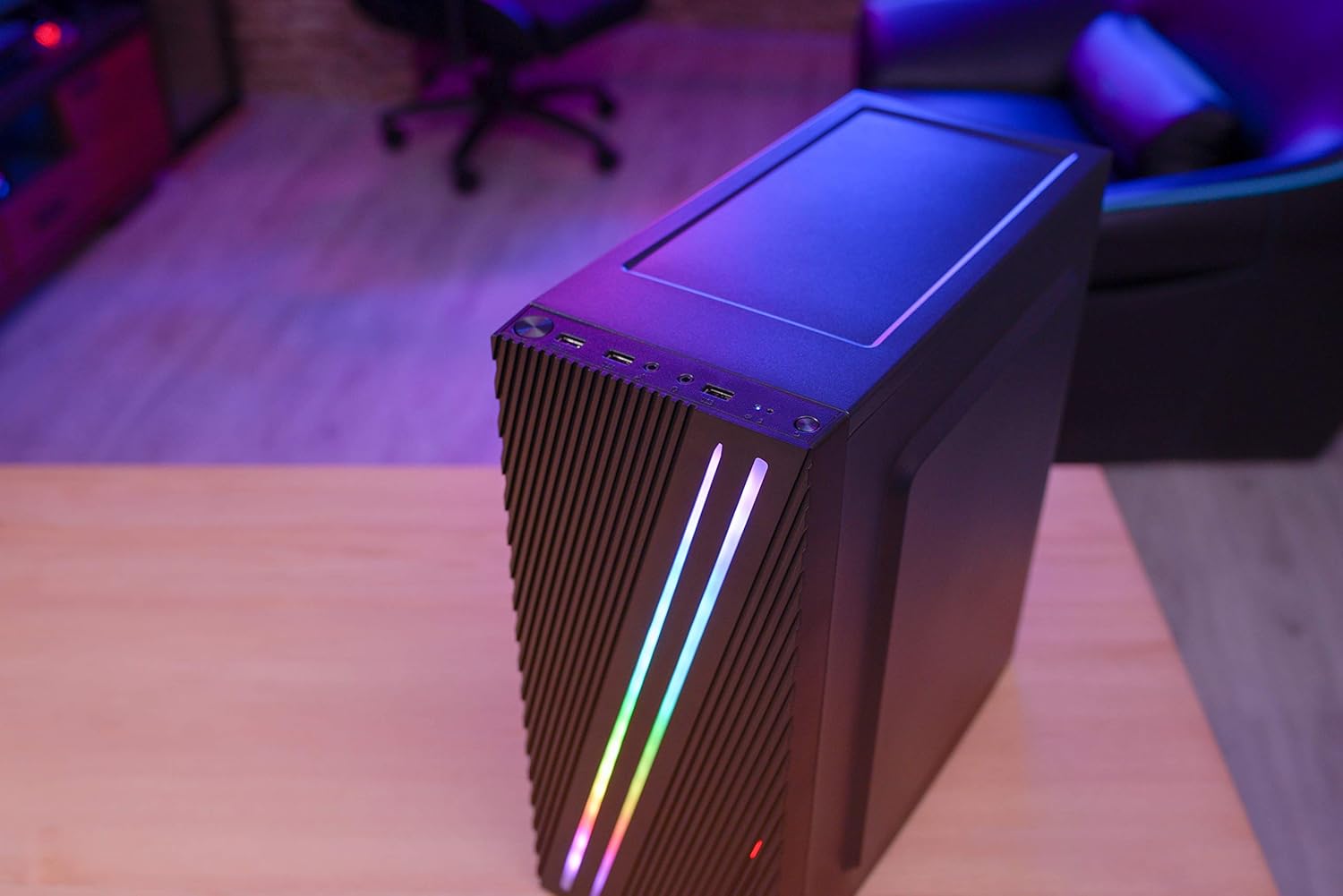
4.3 paveikslas: Close-up of the front I/O panel, showing the power button, LED control button, USB 3.0 port, two USB 2.0 ports, and HD audio/microphone jacks.
- Maitinimo mygtukas: Įjungti / išjungti sistemą.
- LED valdymo mygtukas: To cycle through RGB lighting modes.
- USB 3.0 prievadas (x1): Dėl didelės spartos duomenų perdavimo.
- USB 2.0 prievadai (x2): Standartiniams USB įrenginiams.
- HD Audio & Mic Jacks: Skirta ausinėms ir mikrofonams prijungti.
4.2 Vidaus išdėstymas
The interior is designed for efficient component installation and cable management.

4.4 paveikslas: Vidinis view of the Aerocool Streak PC case, showing the motherboard tray, drive bays, and cable routing cutouts.
5. Sąranka ir diegimas
Follow these steps to assemble your PC components within the Aerocool Streak case.
5.1 Paruošimas
- Išpakuokite dėklą ir nuimkite visas pakavimo medžiagas.
- Padėkite dėklą ant stabilaus, lygaus paviršiaus.
- Gather necessary tools: Phillips head screwdriver, cable ties (included in accessory box).
- Remove the tempered glass side panel by unscrewing the four thumb screws.
5.2 Pagrindinės plokštės montavimas
The Aerocool Streak supports ATX, Micro-ATX, and Mini-ITX motherboards.

5.1 paveikslas: Diagram illustrating the compatible motherboard sizes (Mini-ITX, Micro-ATX, ATX) within the case.
- Install the necessary motherboard standoffs into the motherboard tray according to your motherboard's form factor.
- Place your motherboard carefully onto the standoffs, aligning the screw holes.
- Pritvirtinkite pagrindinę plokštę pridėtais varžtais.
5.3 Maitinimo bloko (PSU) montavimas
The case features a bottom-mount PSU design.
- Įstumkite maitinimo bloką į jam skirtą skyrių korpuso apačioje, gale.
- Secure the PSU to the case rear with screws.
5.4 Atminties disko diegimas
Install your 2.5" SSDs and 3.5" HDDs.
- 2.5 colio SSD diskai: Mount SSDs to the designated 2.5" drive trays or mounting points on the motherboard tray.
- 3.5 colio kietieji diskai: Install HDDs into the drive cage located beneath the PSU shroud.
5.5 Expansion Card Installation (Graphics Card, etc.)
The case supports high-end graphics cards up to 335mm in length.
- Nuimkite reikiamus PCIe lizdų dangtelius nuo korpuso galo.
- Insert your expansion card into the corresponding PCIe slot on the motherboard.
- Pritvirtinkite kortelę varžtu.
5.6 Aušinimo sistemos įrengimas
The Aerocool Streak supports both air and liquid cooling solutions.

5.2 paveikslas: Diagram showing air cooling options, including front 120mm fans (optional) and a rear 80mm fan (included).

5.3 paveikslas: Diagram illustrating liquid cooling support, specifically a 240mm radiator at the front (optional).
- Oro aušinimas: The case supports up to two 120mm fans at the front (optional) and includes one 80mm fan at the rear.
- Aušinimas skysčiu: A 240mm radiator can be installed at the front of the case (optional).
- Install fans or radiators into their respective mounting points and secure them with screws.
5.7 Kabelių valdymas
Norėdami sutvarkyti laidus, kad pagerėtų oro srautas ir būtų estetiškiau, naudokite laidų išvedimo angas ir tvirtinimo taškus už pagrindinės plokštės dėklo.
- Route all power and data cables through the designated cutouts.
- Use cable ties to bundle and secure cables neatly.
6. Naudojimo instrukcijos
6.1 Sistemos įjungimas
- Ensure all components are correctly installed and all cables are securely connected.
- Connect the power cable to your PSU and then to a wall outlet.
- Pasukite maitinimo jungiklį ant maitinimo bloko į padėtį „ĮJUNGTA“.
- Press the power button on the front I/O panel of the case to start your system.
6.2 RGB apšvietimo valdymas
The Aerocool Streak features 18 distinct RGB lighting modes on its front panel.

6.1 paveikslas: The Aerocool Streak PC case with its vibrant RGB lighting illuminated on the front panel.
- Paspauskite LED valdymo mygtukas on the front I/O panel to cycle through the 18 available lighting modes.
- These modes include 11 RGB flow modes and 7 static color modes.
7. Priežiūra
Reguliarus techninis aptarnavimas padeda užtikrinti kompiuterio korpuso ir komponentų ilgaamžiškumą ir optimalų veikimą.
7.1 Korpuso valymas
- Išorė: Naudokite minkštą, damp šluoste išoriniams paviršiams valyti. Venkite abrazyvinių valiklių.
- Interjeras: Periodically use compressed air to remove dust buildup from inside the case, especially around fans and heatsinks.
7.2 Dust Filter Maintenance
The case may include removable dust filters to prevent dust ingress. Clean these filters regularly.
- Locate and carefully remove any dust filters (e.g., top, bottom, front).
- Clean the filters with water and mild soap, or use compressed air.
- Prieš vėl įdėdami filtrus, įsitikinkite, kad jie yra visiškai sausi.
8. Problemų sprendimas
If you encounter issues with your Aerocool Streak case, refer to the following common problems and solutions.
- Sistema neįsijungia:
- Check all power connections, including the PSU to the wall, PSU switch, and motherboard power cables.
- Ensure the front panel power switch cable is correctly connected to the motherboard.
- RGB lighting is not working:
- Verify that the RGB lighting cables are properly connected to the power supply or motherboard RGB header.
- Press the LED control button to cycle through modes, as it might be on a static black mode.
- Poor airflow/overheating:
- Įsitikinkite, kad visi korpuso ventiliatoriai sukasi tinkamai.
- Išvalykite visus dulkių filtrus ir vidinius komponentus.
- Verify proper fan orientation for optimal airflow (intake/exhaust).
9. Specifikacijos
| Funkcija | Specifikacija |
|---|---|
| Modelio pavadinimas | Juosta |
| Modelio numeris | ACCM-PV19012.11 |
| Atvejo tipas | Vidurio bokštas |
| Pagrindinės plokštės suderinamumas | ATX, Micro ATX, Mini ITX |
| Medžiaga | Grūdintas stiklas (šoninė panelė) |
| Spalva | Juoda |
| Priekinės įvesties / išvesties prievadai | 1x USB 3.0, 2x USB 2.0, HD Audio, Mic, LED Control Button, Power Button |
| RGB apšvietimas | 18 Lighting Modes (11 flow, 7 static) |
| CPU aušintuvo atstumas | Iki 151 mm |
| Vaizdo plokštės ilgis | Iki 335 mm |
| Maitinimo bloko tvirtinimas | Apatinis kalnas |
| Aušinimo būdas | Oras, vanduo |
| Įtraukti gerbėjai | 1 x 80 mm galinis ventiliatorius |
| Optional Fan Support | Priekyje: 2x 120mm |
| Radiatoriaus palaikymas | Front: 1x 240mm (optional) |
10. Garantija ir palaikymas
The Aerocool Streak PC Gaming Case comes with a 2-year warranty on parts. For technical support, warranty claims, or further assistance, please contact your retailer or the official Aerocool support channels. Keep your proof of purchase for warranty validation.


