Įvadas
This manual provides comprehensive instructions for the PONYBRO Mini Wireless Backlit Keyboard (Model T2). This versatile 3-in-1 device combines a full QWERTY keyboard, a multi-finger touchpad, and a remote control, making it ideal for various smart devices. Please read this manual carefully before use to ensure proper operation and to maximize your product experience.

Image: The PONYBRO Mini Wireless Backlit Keyboard, showcasindėl kompaktiško dizaino ir pridedamo USB imtuvo.
Pakuotės turinys
Prašome patikrinti, ar pakuotėje yra visi reikalingi daiktai:
- 1 x PONYBRO Mini Keyboard
- 1 x USB Receiver (located under the battery cover)
- 1 x Micro USB įkrovimo laidas
- 1 x Naudotojo vadovas
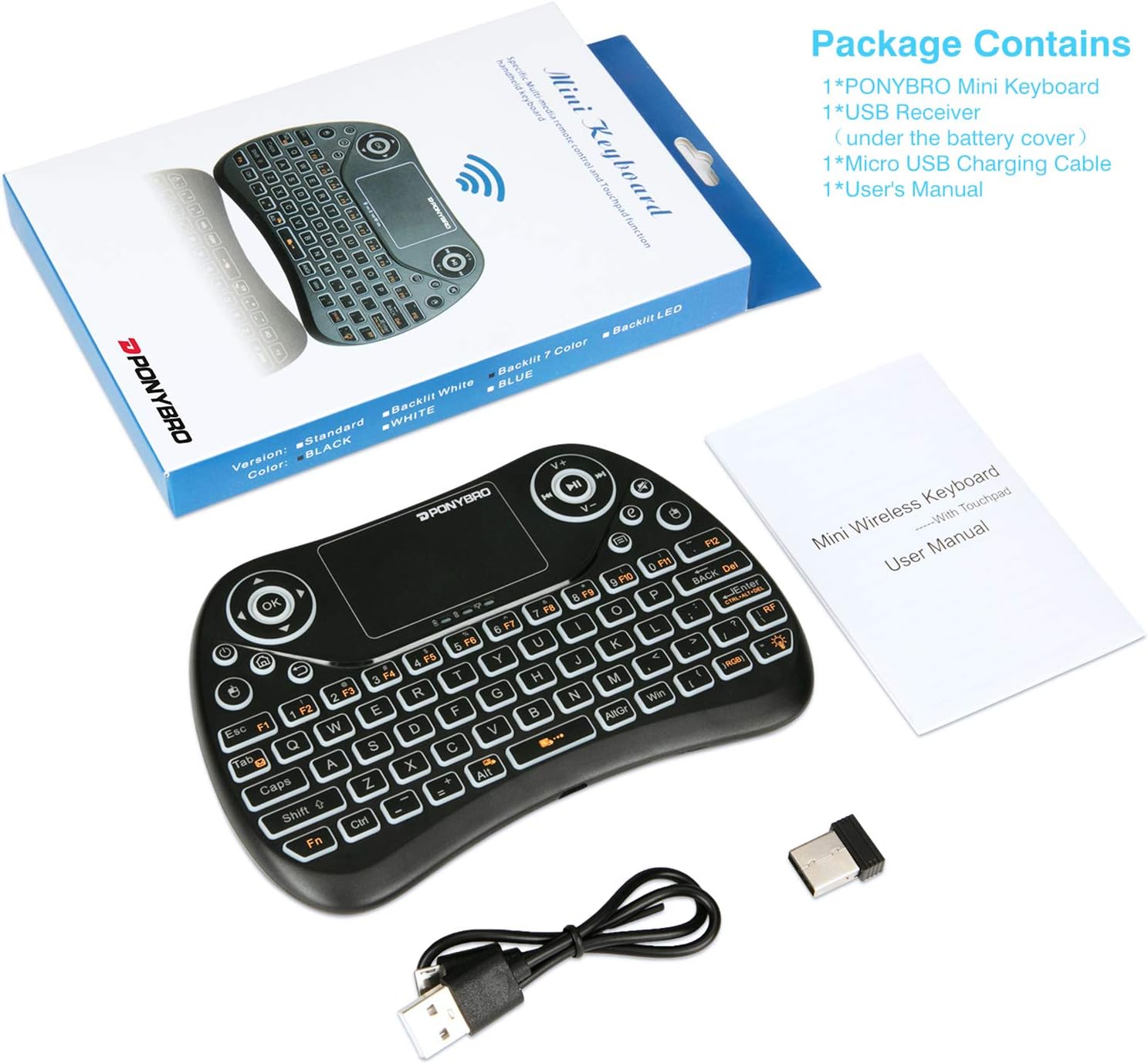
Image: Contents of the PONYBRO Mini Keyboard package, showing the keyboard, USB receiver, charging cable, and user manual.
Sąranka
- Klaviatūros įkrovimas: Before first use, fully charge the keyboard using the provided Micro USB charging cable. Connect the cable to the keyboard's charging port and the other end to a USB power source (e.g., computer USB port, USB wall adapter). The LED indicator will show charging status.
- Raskite USB imtuvą: The 2.4 GHz USB dongle is stored conveniently inside the battery compartment of the keyboard. Open the battery cover to retrieve it.

Image: Step-by-step guide for initial setup, illustrating how to remove the USB receiver, plug it into a device, and turn on the keyboard.
- Prijunkite USB imtuvą: Plug the USB receiver into an available USB port on your target device (e.g., Smart TV, Android TV Box, PC, Raspberry Pi, Xbox 360, PS3). The device should automatically recognize the keyboard (Plug and Play, no drivers required).
- Įjunkite klaviatūrą: Locate the power switch on the keyboard and slide it to the "ON" position. The keyboard is now ready for use.
Naudojimo instrukcijos
Jutiklinės dalies funkcijos
The integrated multi-finger touchpad supports various gestures for intuitive navigation:
- Single Finger Click: Veikia kaip kairysis pelės paspaudimas.
- Two Finger Click: Functions as a right mouse click.
- Two Finger Drag (Up/Down): Scrolls the page up or down.
- Two Finger Drag (Pinch In/Out): Zooms in or out (application dependent).
The touchpad also allows for cursor speed adjustment with three grades.

Image: Visual guide to touchpad gestures, including single-finger click for left mouse, two-finger click for right mouse, and two-finger drag for scrolling/zooming.
Keyboard and Multimedia Keys
The keyboard features a full QWERTY layout with additional multimedia and function keys:
- Funkcijų (Fn) klavišas: Press and hold the Fn key to access the secondary functions of certain keys (e.g., F1-F12, multimedia controls).
- Multimedijos valdikliai: Dedicated keys for volume up/down, mute, play/pause, rewind, and fast forward are located on the top right.
- Naršymo mygtukai: Arrow keys and an "OK" button are provided for easy navigation, especially useful for Smart TVs and media boxes.
- Browser/Home/Return: Dedicated buttons for quick access to browser, home screen, and return functions.
Foninio apšvietimo valdymas
The keyboard features a 7-color rainbow LED backlight for improved visibility in low-light conditions:
- FN + 💡 (Lightbulb icon): Turns the backlight on/off or cycles through 7 colors/white.
- CTRL + 💡 (Lightbulb icon): Turns on/off the backlight fade mode.
- FN + RGB: Slide finger on the touchpad to change backlight color.
- CTRL + RGB: Press CTRL + RGB to change color one by one.

Image: The PONYBRO Mini Keyboard held in hand, demonstrating its vibrant colorful backlight feature.
Suderinamumas
The PONYBRO Mini Wireless Keyboard offers wide compatibility with various operating systems and devices:
- Operacinės sistemos: ROKU, Raspberry Pi, Linux, All Windows Server Versions 2000, KODI, iOS, Android.
- Suderinami įrenginiai: Laptop/PC/PAD/Notebooks/Tablet, Raspberry Pi/HTPC/Projector/PS3, Android TV Box/Google TV Box/Smart TV, Xbox 360, smartphones (with USB adapter if no USB port).

Image: Illustration of the keyboard's wide compatibility with devices such as laptops, HTPCs, projectors, Smart TVs, notebooks, and TV boxes.

Vaizdas: pvzamples of the keyboard's wide application, including use with a Smart TV, for business presentations, and for general typing on a laptop.
Priežiūra
- Valymas: Use a soft, dry cloth to clean the keyboard surface. For stubborn dirt, a slightly damp cloth can be used, but ensure no liquid enters the device. Do not use harsh chemicals or abrasive cleaners.
- Akumuliatoriaus priežiūra: To prolong battery life, avoid fully discharging the battery frequently. Charge the keyboard regularly, especially if it will not be used for an extended period. Store in a cool, dry place.
- Saugykla: When not in use, store the USB receiver inside the keyboard's battery compartment to prevent loss.
Trikčių šalinimas
| Problema | Galima priežastis | Sprendimas |
|---|---|---|
| Klaviatūra nereaguoja. | Low battery; USB receiver not connected; Keyboard not powered on; Out of range. | Charge the keyboard. Ensure the USB receiver is securely plugged into the device. Turn on the keyboard. Move closer to the device (operating range is 10 meters). |
| Touchpad erratic or unresponsive. | Interference; Low battery; Dirty touchpad surface. | Recharge the keyboard. Clean the touchpad surface. Try restarting the keyboard (turn off, then on). |
| Neveikia foninis apšvietimas. | Foninis apšvietimas išjungtas; Išsikrovusi baterija. | Press FN + Lightbulb icon to toggle backlight. Charge the keyboard. |
| Keys not typing correctly. | Incorrect layout setting on host device; Interference. | Check keyboard language/layout settings on your connected device. Try moving the receiver to a different USB port. |
Specifikacijos
| Funkcija | Detalė |
|---|---|
| Prekės ženklas | PONYBRO |
| Modelio numeris | T2 |
| Ryšio technologija | 2.4 GHz Wireless (USB Dongle) |
| Klaviatūros aprašymas | Multi-functional QWERTY with Touchpad |
| Ypatingos savybės | Rechargeable, Backlit (7-color RGB) |
| Baterijos tipas | Ličio polimeras (į komplektą įeina) |
| Palaikomos operacinės sistemos | ROKU, Raspberry Pi, Linux, Windows (2000+), KODI, iOS, Android |
| Suderinami įrenginiai | Laptop/PC/PAD/Notebooks/Tablet, Raspberry Pi/HTPC/Projector/PS3, Android TV Box/Google TV Box/Smart TV |
| Gaminio matmenys | 16L x 10.9W x 1.5H centimeters (approx. 6.3L x 4.3W x 0.6H inches) |
| Raktų skaičius | 77 |
| Spalva | Juoda |

Image: Dimensions of the PONYBRO Mini Keyboard, showing its compact size for portability.
Garantija ir palaikymas
PONYBRO is committed to providing excellent customer satisfaction. This product comes with:
- Lifetime PONYBRO Customer Service: For any inquiries or assistance, please contact PONYBRO customer service.
- Two-Year Manufacturer's Warranty: This product is covered by a two-year manufacturer's warranty from the date of purchase.
If any problems arise during future use, please do not hesitate to contact PONYBRO customer service for support.


