1. Įvadas
Welcome to the user manual for your Fujitsu FMV LIFEBOOK A574 laptop. This guide provides essential information to help you set up, operate, maintain, and troubleshoot your device. Please read this manual thoroughly to ensure proper use and to maximize the performance and longevity of your laptop.
2. Sąranka
2.1 Išpakavimas ir pirminė apžiūra
Carefully remove the laptop and all accessories from the packaging. Verify that all components are present: the Fujitsu FMV LIFEBOOK A574 laptop, AC adapter, and power cord. Inspect the laptop for any physical damage. If any damage is found or components are missing, contact your vendor immediately.
2.2 Maitinimo prijungimas
- Connect the AC adapter to the power input port on the side of the laptop.
- Prijunkite maitinimo laidą prie kintamosios srovės adapterio.
- Kitą maitinimo laido galą įkiškite į įžemintą elektros lizdą.
The laptop battery will begin charging automatically. It is recommended to fully charge the battery before initial use.
2.3 Pradinis paleidimas ir „Windows 10“ sąranka
Press the power button to turn on the laptop. The system will guide you through the initial setup process for Windows 10. Follow the on-screen instructions to configure language, region, user accounts, and privacy settings.
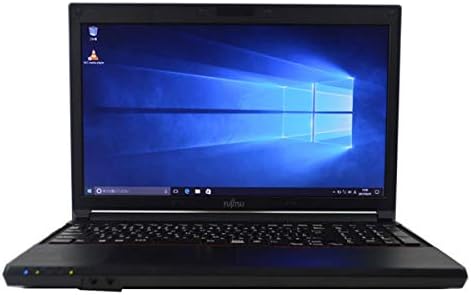
Figure 2.3.1: Fujitsu FMV LIFEBOOK A574 laptop powered on, displaying the Windows 10 desktop.
2.4 Prisijungimas prie „Wi-Fi“.
- After Windows 10 setup, click the Wi-Fi icon in the taskbar (usually in the bottom-right corner).
- Select your desired wireless network from the list of available networks.
- Spustelėkite „Prisijungti“ ir, jei būsite paraginti, įveskite tinklo saugos raktą (slaptažodį).
- Prisijungus, „Wi-Fi“ piktograma rodys aktyvų ryšį.
2.5 Bluetooth poravimas
- Eikite į Nustatymai > Prietaisai > Bluetooth ir kiti įrenginiai.
- Įsitikinkite, kad „Bluetooth“ įjungtas On.
- Įjunkite „Bluetooth“ įrenginį į poravimo režimą.
- Spustelėkite Pridėkite Bluetooth ar kitą įrenginį ir pasirinkite Bluetooth.
- Pasirinkite savo įrenginį iš sąrašo ir vykdykite visus ekrane pateikiamus nurodymus, kad užbaigtumėte susiejimą.
3. Naudojimo instrukcijos
3.1 Klaviatūra ir jutiklinė planšetė
The Fujitsu FMV LIFEBOOK A574 features a full-size keyboard with a dedicated numeric keypad for efficient data entry. The integrated touchpad allows for precise cursor control and supports multi-touch gestures.

3.1.1 pav. Išsamus view of the laptop's keyboard and touchpad area.
Klaviatūros funkcijos:
- Funkciniai klavišai (F1–F12): Often combined with the 'Fn' key for special functions like brightness control, volume adjustment, Wi-Fi toggle, etc.
- Skaitmeninė klaviatūra: Provides a convenient layout for number input, similar to a desktop keyboard.
Jutiklinės dalies gestai:
- Vienas palietimas: Kairysis spustelėjimas.
- Dviejų pirštų bakstelėjimas: Dešiniuoju pelės mygtuku spustelėkite.
- Dviejų pirštų slinkimas: Slinkite aukštyn arba žemyn.
- Žiupsnelis, norint priartinti: Priartinkite arba atitolinkite turinį.
3.2 Optical Drive (DVDROM)
Your laptop is equipped with a DVDROM drive, allowing you to read CDs and DVDs.

Figure 3.2.1: The optical drive tray extended from the side of the laptop.
Optinio disko naudojimas:
- Press the eject button on the drive or right-click the drive icon in 'This PC' and select 'Eject'.
- Carefully place a CD or DVD onto the tray with the label side facing up.
- Švelniai stumkite dėklą atgal į nešiojamąjį kompiuterį, kol jis spragtelėdamas užsifiksuos.
- The disc content should automatically appear or can be accessed via 'This PC'.
3.3 USB Ports and Audio Output
The laptop includes multiple USB ports for connecting peripherals such as external hard drives, mice, and keyboards. A 3.5mm audio jack is provided for connecting headphones or external speakers.
3.4 Pre-installed Office Software
This laptop comes with office software pre-installed, enabling you to perform productivity tasks such as word processing, spreadsheets, and presentations immediately.
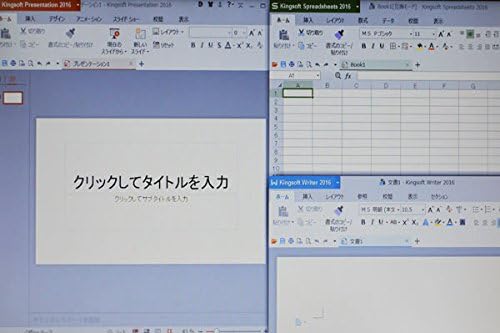
Figure 3.4.1: The laptop display showing multiple office applications running simultaneously.
4. Priežiūra
4.1 Valymo instrukcijos
- Ekranas: Šiek tiek naudokite minkštą, be pūkelių šluostę dampnuplaukite vandeniu arba ekrano valikliu. Venkite stiprių cheminių medžiagų.
- Klaviatūra ir Casing: Naudokite minkštą, sausą šluostę. Įsisenėjusius nešvarumus lengvai nuvalykite.amp Galima naudoti šluostę su švelniu muilo tirpalu, užtikrinant, kad į įrenginį nepatektų skysčio.
- Prievadai: Naudokite suslėgtą orą, kad pašalintumėte dulkes iš prievadų.
4.2 Programinės įrangos naujiniai
Regularly update your Windows 10 operating system and drivers to ensure optimal performance, security, and compatibility. Go to Nustatymai > Atnaujinimas ir sauga > Windows naujinimas kad patikrintumėte, ar yra atnaujinimų, ir juos įdiegtumėte.
4.3 Akumuliatoriaus priežiūra
- Venkite dažnai visiškai iškrauti akumuliatorių.
- Laikykite nešiojamąjį kompiuterį vėsioje, sausoje vietoje, kai jo ilgesnį laiką nenaudojate.
- Jei akumuliatorių ketinate laikyti ilgą laiką, įsitikinkite, kad jis įkrautas iki maždaug 50–60 %.
5. Problemų sprendimas
This section addresses common issues you might encounter with your Fujitsu FMV LIFEBOOK A574.
5.1 Nėra galios
- Įsitikinkite, kad kintamosios srovės adapteris yra tvirtai prijungtas tiek prie nešiojamojo kompiuterio, tiek prie veikiančio maitinimo lizdo.
- Patikrinkite, ar maitinimo lizdas veikia, prijungdami prie jo kitą įrenginį.
- Išbandykite kitą maitinimo lizdą.
5.2 Wi-Fi Not Connecting
- Patikrinkite, ar „Windows“ nustatymuose įjungtas „Wi-Fi“.
- Iš naujo paleiskite belaidį maršrutizatorių ir modemą.
- Įsitikinkite, kad įvedėte teisingą „Wi-Fi“ slaptažodį.
- Try connecting to a different Wi-Fi network if available.
5.3 Lėtas veikimas
- Uždarykite nereikalingas programas, veikiančias fone.
- Patikrinkite, ar yra laukiančių „Windows“ naujinimų, ir įdiekite juos.
- Paleiskite disko valymą ir defragmentavimą (kietajam standžiajam diskui).
- Nuskaitykite, ar nėra kenkėjiškų programų ar virusų, naudodami patikimą antivirusinę programinę įrangą.
If you continue to experience issues, please refer to the official Fujitsu support websvetainėje arba susisiekite su jų klientų aptarnavimo tarnyba, jei reikia daugiau pagalbos.
6. Specifikacijos
Below are the key technical specifications for the Fujitsu FMV LIFEBOOK A574 laptop:
| Funkcija | Specifikacija |
|---|---|
| Prekės ženklas | Fujitsu |
| Modelio pavadinimas | A574 |
| Formos faktorius | Nešiojamasis kompiuteris |
| Operacinė sistema | Windows 10 |
| CPU tipas | Intel Core i3 4000M (4th Gen) |
| RAM talpa | 8 GB DDR3 |
| Sandėliavimas | 500 GB HDD |
| Ekrano dydis | 15.6 colių |
| Rezoliucija | 1366 x 768 pikselių |
| Grafikos procesorius | „Intel“ integruota grafika |
| Optinis diskas | DVDROM |
| Belaidis ryšys | Wi-Fi, Bluetooth |
| Uostai | USB, Headphone Jack |
7. Garantija ir palaikymas
Your Fujitsu FMV LIFEBOOK A574 laptop is covered by a manufacturer's warranty. Please refer to the warranty card included with your product for specific terms and conditions, including warranty duration and coverage details.
For technical support, driver downloads, or service inquiries, please visit the official Fujitsu support website or contact their customer service department. Keep your product's serial number handy when seeking support.
Fujitsu palaikymas Websvetainė: https://www.fujitsu.com/global/support/