„Microsoft Surface Pro“ klaviatūros naudotojo vadovas
Model: QJW-00001
Įvadas
This manual provides essential information for the setup, operation, maintenance, and troubleshooting of your Microsoft Surface Pro Keyboard. Designed for seamless integration with Surface Pro X and Surface Pro 8 devices, this keyboard offers a full mechanical keyset, backlit keys, and a large trackpad for an optimal typing experience.
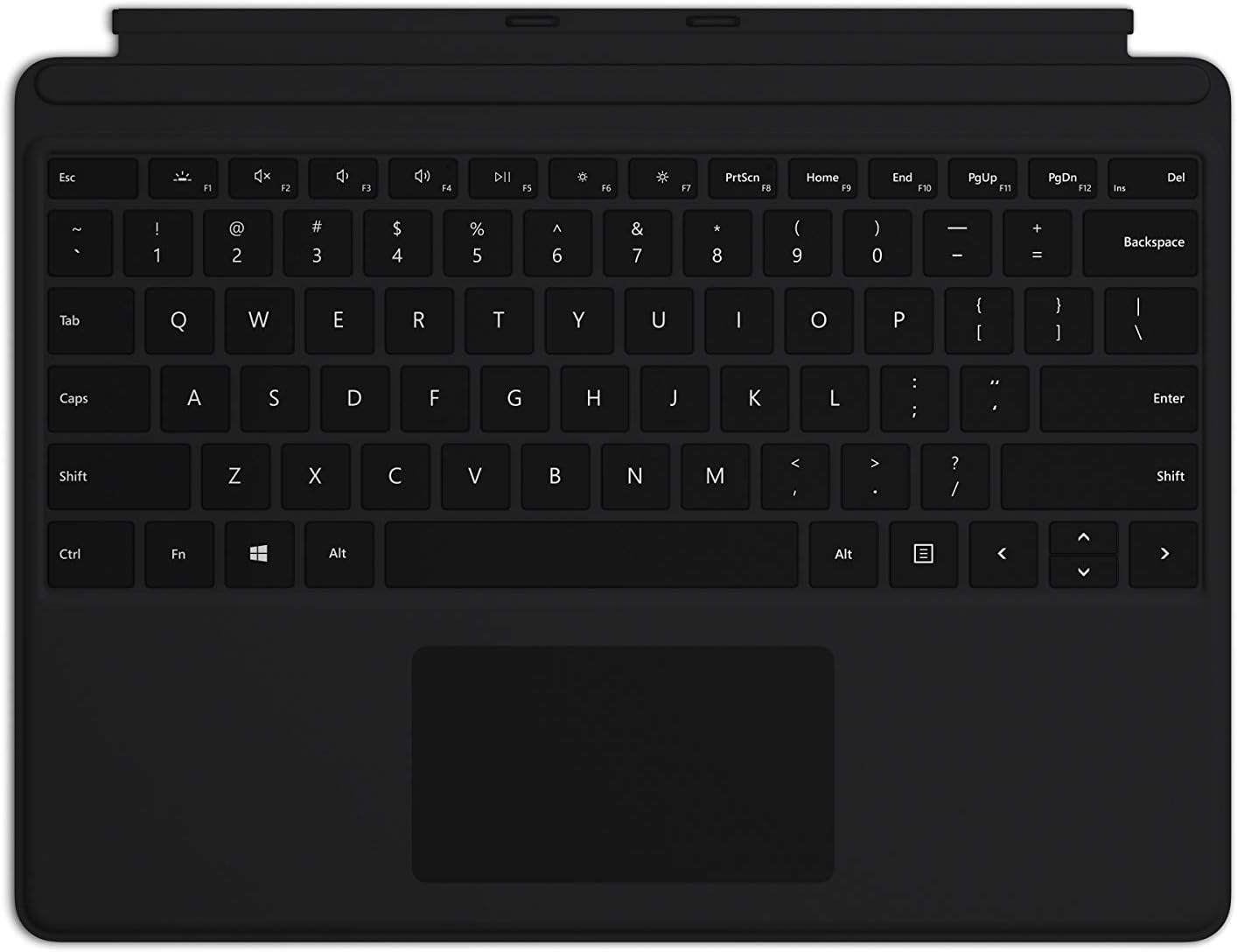
Image: The Microsoft Surface Pro Keyboard in black, showcasing its full QWERTY layout and integrated trackpad.
Sąranka
Pakuotės turinys
- „Surface Pro“ klaviatūra
Klaviatūros prijungimas
The Microsoft Surface Pro Keyboard connects instantly to your compatible Surface device via magnetic stability. Ensure your Surface Pro X or Surface Pro 8 device is powered on.
- Align the magnetic connector edge of the keyboard with the corresponding port at the bottom edge of your Surface Pro X or Surface Pro 8 device.
- Gently push the keyboard towards the device until it clicks securely into place. The magnetic connection will guide it.
- Once connected, the keyboard will be recognized automatically by your Surface device.
The keyboard is designed to adjust to almost any angle, providing a stable typing experience. It also serves as a protective cover for your screen when closed, helping to conserve battery life.

Paveikslėlis: Iš viršaus į apačią view of the Microsoft Surface Pro Keyboard, illustrating its compact design and how it integrates with a Surface device.
Klaviatūros valdymas
Typing and Navigation
The keyboard features a full mechanical keyset with optimal key spacing for fast and fluid typing. The large trackpad provides precise navigation and control, supporting multi-touch gestures as configured in your Surface device's settings.
Foninio apšvietimo klavišai
The keys are backlit, allowing for comfortable use in low-light conditions. The backlight intensity can typically be adjusted through your Surface device's display settings or via dedicated function keys (if present on your specific model).
Protective and Power Saving Features
When not in use, fold the keyboard over the screen of your Surface device. This action protects the screen from scratches and helps conserve battery power by putting the device into a low-power state. To use your Surface as a tablet, fold the keyboard completely back behind the device.
Priežiūra
Valymas
To maintain the appearance and functionality of your keyboard, clean it regularly:
- Šiek tiek naudokite minkštą, be pūkelių šluostę dampened with water or a mild cleaning solution (e.g., isopropyl alcohol diluted with water) to wipe the surface of the keys and trackpad.
- Venkite purkšti skysčius tiesiai ant klaviatūros.
- Dulkėms ir šiukšlėms tarp klavišų pašalinti naudokite suslėgtą orą.
- Ensure the keyboard is completely dry before reattaching it to your Surface device.
Sandėliavimas
When storing the keyboard separately from your Surface device, keep it in a clean, dry environment away from extreme temperatures and direct sunlight.
Trikčių šalinimas
Klaviatūra nereaguoja
- Patikrinkite ryšį: Ensure the keyboard is securely attached to your Surface device. Detach and reattach it firmly.
- Iš naujo paleiskite įrenginį: Restart your Surface Pro X or Surface Pro 8. This can often resolve minor software glitches.
- Patikrinkite, ar nėra atnaujinimų: Ensure your Surface device's operating system and drivers are up to date. Go to Windows Update settings.
- Bandymas kitame įrenginyje: If possible, test the keyboard with another compatible Surface device to determine if the issue is with the keyboard or the device.
Foninis apšvietimas neveikia
- Sureguliuokite ryškumą: Try adjusting the backlight brightness using the function keys or through Windows display settings.
- Energijos taupymo rėžimas: Ensure your device is not in a power-saving mode that might disable the backlight.
Trackpad Issues
- Švarus jutiklinis skydelis: Įsitikinkite, kad jutiklinio skydelio paviršius yra švarus ir be šiukšlių.
- Patikrinkite nustatymus: Verify trackpad settings in Windows (Settings > Devices > Touchpad).
- Tvarkyklės diegimas iš naujo: In Device Manager, try uninstalling and reinstalling the trackpad driver.
Specifikacijos
| Funkcija | Detalė |
|---|---|
| Prekės ženklas | Microsoft |
| Modelio numeris | QJW-00001 |
| Suderinami įrenginiai | Surface Pro X, Surface Pro 8 |
| Ryšio technologija | Magnetic (Physical Connection) |
| Klaviatūros aprašymas | Full mechanical keyset, backlit keys, large trackpad |
| Spalva | Juoda |
| Prekės svoris | 11.8 uncijos (apie 334.5 gramų) |
| Gaminio matmenys (IxPxH) | 11.38 x 8.71 x 0.2 colio (apytiksliai 28.9 x 22.1 x 0.5 cm) |
| Raktų skaičius | 79 |
| Klaviatūros apšvietimas | Vienintelis spalvotas LED |
Garantija ir palaikymas
For warranty information and technical support, please refer to the documentation included with your Surface Pro X or Surface Pro 8 device, or visit the official Microsoft Support websvetainėje. Paprastai pagalbos išteklius, DUK ir kontaktines parinktis galite rasti adresu support.microsoft.com.
Išsaugokite pirkimo įrodymą, kad galėtumėte kreiptis dėl garantijos.


