1. Įvadas
This manual provides essential information for the proper setup, operation, and maintenance of your VIOTEK GNV34DB 34-inch Ultrawide Gaming Monitor. Please read this manual thoroughly before using the product to ensure optimal performance and longevity. Keep this manual for future reference.

Image: The VIOTEK GNV34DB monitor from a front-right angle, showcasing its curved display.
2. Pakuotės turinys
Verify that all items listed below are present and in good condition upon opening the package. If any items are missing or damaged, please contact customer support.
- VIOTEK GNV34DB 34-Inch Ultrawide Gaming Monitor
- Kintamosios srovės adapteris
- HDMI kabelis
- „DisplayPort“ laidas
- Vartotojo vadovas (šis dokumentas)
3. Sąranka
3.1 Stovo surinkimas
- Atsargiai išimkite monitoriaus ir stovo komponentus iš pakuotės.
- Pritvirtinkite stovo pagrindą prie stovo kaklelio naudodami pateiktus varžtus.
- Pritvirtinkite surinktą stovą prie monitoriaus galo. Įsitikinkite, kad visos jungtys yra tvirtos.
3.2 VESA montavimas
Monitorius palaiko VESA tvirtinimą (75 x 75 mm), jei reikia alternatyvių tvirtinimo sprendimų. Prieš tvirtindami su VESA suderinamą laikiklį, nuimkite stovą.
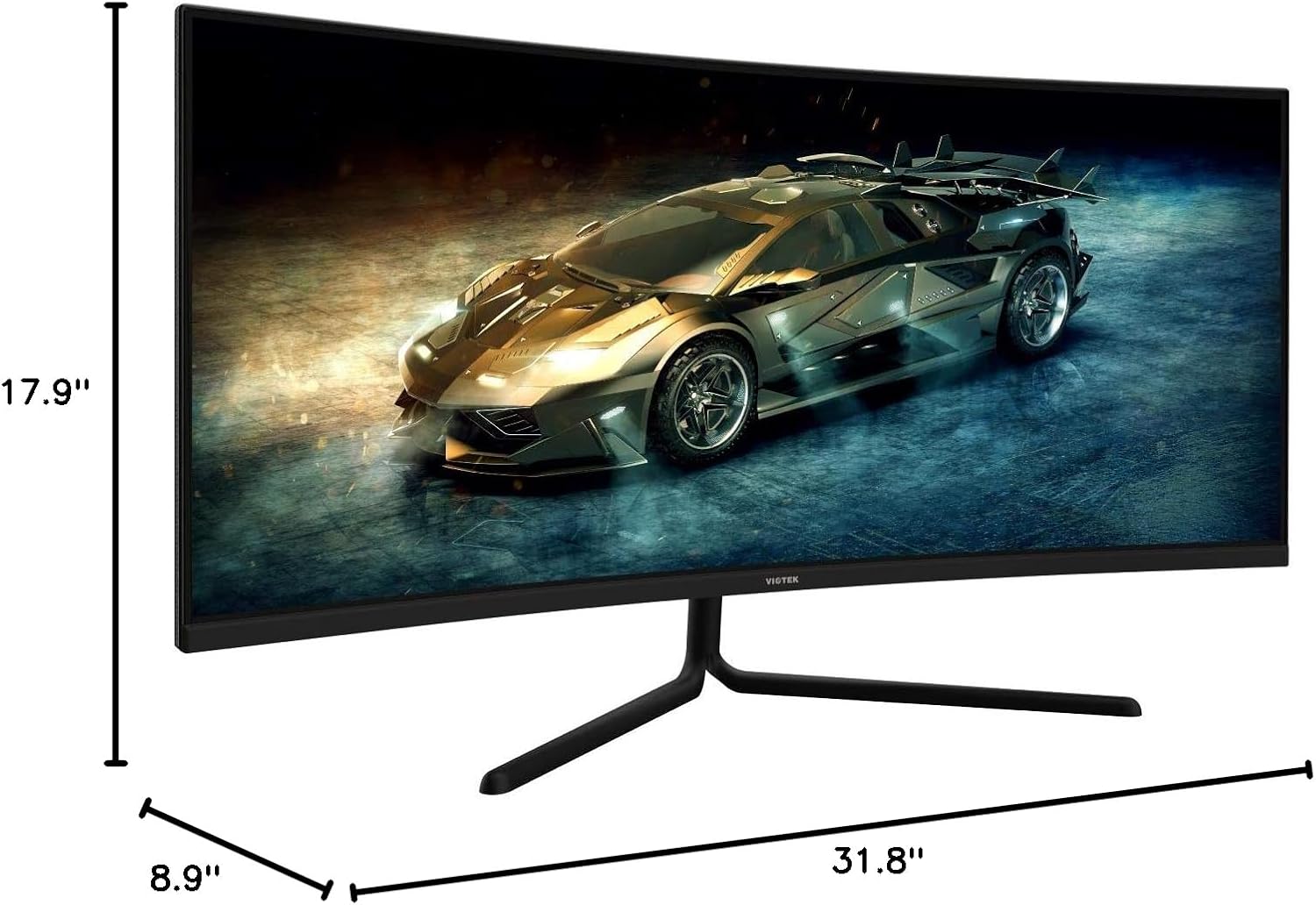
Image: Monitor dimensions are shown as 31.8 inches wide, 17.9 inches high, and 8.9 inches deep, indicating the physical size for placement and VESA compatibility.
3.3 Prisijungimas prie įrenginio
Connect your computer or other devices to the monitor using the appropriate ports. Ensure the monitor is powered off before making connections.
- DisplayPort (DP 1.2): For optimal performance, use the included DisplayPort cable to connect to your graphics card.
- HDMI (HDMI 1.4 / HDMI 2.0): Use an HDMI cable to connect to devices supporting HDMI output.
- 3.5 mm garso išvestis: Prijunkite išorinius garsiakalbius arba ausines prie šio prievado, kad būtų galima išvesti garsą.

Paveikslėlis: Galinė dalis view of the monitor highlighting the available input ports: DisplayPort 1.2, 3.5mm Audio Out, two HDMI 1.4 ports, and one HDMI 2.0 port.
4. Naudojimo instrukcijos
4.1 Maitinimo įjungimas/išjungimas
Norėdami įjungti arba išjungti monitorių, paspauskite ant jo esantį maitinimo mygtuką. Maitinimo indikatoriaus lemputė užsidegs, kai monitorius bus aktyvus.
4.2 Ekrano meniu (OSD)
OSD meniu leidžia reguliuoti įvairius monitoriaus nustatymus. Meniu naršymui naudokite valdymo mygtukus (paprastai esančius monitoriaus gale arba apačioje).
- Ryškumas / kontrastas: Reguliuokite ekrano šviesumo ir kontrasto lygius.
- Spalvų nustatymai: Keisti spalvų temperatūrą, gamą ir atskiras RGB vertes.
- Įvesties šaltinis: Manually select the active input (DP, HDMI 1, HDMI 2, HDMI 3).
- Vaizdo režimas: Select from preset display modes optimized for different content types (e.g., Standard, Movie, Game).
- Overdrive: Adjust response time for reduced motion blur.
4.3 Pagrindinės savybės
- AMD FreeSync: This technology synchronizes the monitor's refresh rate with your graphics card's frame rate to eliminate screen tearing and stuttering during gaming. Enable FreeSync in the OSD menu and in your graphics card's control panel.

Image: A visual comparison demonstrating the effect of AMD FreeSync, showing a distorted image when FreeSync is off and a smooth image when FreeSync is on.
- ŽAIDIMŲ PLUS: Activate on-screen crosshairs for enhanced aiming accuracy in games.

Image: A gaming scene on the monitor with three different GAMEPLUS crosshair options displayed at the bottom, indicating enhanced aiming features.
- FPS/RTS Optimization: Specific display modes designed to enhance visibility in First-Person Shooter (FPS) and Real-Time Strategy (RTS) games, often by adjusting gamma and contrast in dark areas.
- 1500R kreivumas: The monitor's 1500R curve provides a more immersive viewing experience by matching the natural curvature of the human eye, reducing eye strain and expanding the perceived field of view.

Paveikslėlis: Viršutinė dalis view of the curved monitor on a desk, illustrating the 1500R curvature and its benefit of providing full field of view aprėptis.
- UWQHD (3440x1440) Resolution & 21:9 Aspect Ratio: Offers a wide workspace and immersive cinematic experience.

Image: The monitor displaying a vibrant game scene, with an overlay highlighting its 34-inch size, 21:9 aspect ratio, and 3440x1440p UWQHD resolution.
5. Specifikacijos
| Funkcija | Specifikacija |
|---|---|
| Ekrano dydis | 34 colių |
| Skydelio tipas | VA skydelis |
| Kreivumas | 1500R |
| Rezoliucija | 3440x1440p (UWQHD) |
| Krašto santykis | 21:9 |
| Atnaujinimo dažnis | 100 Hz |
| Reagavimo laikas | 6ms GTG (5ms Overdrive) |
| Viewing kampas | H178° / V178° |
| Ekrano spalvos | 16.7 mln |
| Spalvų gama | sRGB: 99%, NTSC: 85% |
| Kontrasto santykis | 3000:1 (Static), 1M:1 (Dynamic) |
| Ryškumas | 300 cd/m² |
| VESA suderinamumas | 75x75mm |
| Uostai | 1x DP 1.2, 2x HDMI 1.4, 1x HDMI 2.0, 1x 3.5mm Audio Out |
| Pasvirimo reguliavimas | -5° ~ 15° |
| Matmenys (su stovu) | 31.8 x 17.9 x 8.9 colio (808.65 x 454.19 x 225.58 mm) |
| Svoris | 15.5 svarai (7.02 kg) |
6. Problemų sprendimas
Jei kyla problemų dėl monitoriaus, žr. šias dažniausiai pasitaikančias problemas ir sprendimus:
- Nėra galios:
- Įsitikinkite, kad maitinimo laidas yra tvirtai prijungtas prie monitoriaus ir veikiančio maitinimo lizdo.
- Patikrinkite, ar maitinimo adapteris veikia tinkamai.
- Nėra signalo:
- Check that the video cable (DP or HDMI) is firmly connected to both the monitor and your computer.
- Pasirinkite tinkamą įvesties šaltinį per OSD meniu.
- Ensure your computer's graphics card is properly installed and drivers are up to date.
- Mirgantis ekranas:
- Įsitikinkite, kad vaizdo kabelis nėra pažeistas ir tinkamai prijungtas.
- Kompiuterio ekrano nustatymuose reguliuokite atnaujinimo dažnį.
- Disable or enable FreeSync in the OSD menu and graphics card settings to see if it resolves the issue.
- Negyvi pikseliai:
- Refer to the warranty section for information on Viotek's Zero-Tolerance Dead Pixel Policy.
7. Priežiūra
Follow these guidelines to maintain your monitor's performance and appearance:
- Ekrano valymas: Švelniai nuvalykite ekraną minkštu, nepūkuotu skudurėliu. Įsisenėjusioms dėmėms valyti naudokite monitoriui skirtą valymo tirpalą, užteptą ant šluostės, o ne tiesiai ant ekrano.
- C valymasasing: Monitoriaus korpusą valykite minkštu, sausu skudurėliu.asing. Venkite abrazyvinių valiklių ar tirpiklių.
- Vėdinimas: Įsitikinkite, kad monitoriaus ventiliacijos angos nėra užblokuotos, kad jis neperkaistų.
- Saugykla: Kai monitorius ilgesnį laiką nenaudojamas, jį laikykite vėsioje, sausoje vietoje, geriausia – originalioje pakuotėje.
8. Garantija ir palaikymas
Your VIOTEK GNV34DB monitor is covered by a 3 metų ribota garantija. This warranty includes Viotek's Zero-Tolerance Dead Pixel Policy, ensuring that your display is free from dead pixels upon purchase.

Image: A graphic highlighting the 3-year warranty and Zero Dead Pixel policy for parts and labor.
For warranty claims, technical support, or any inquiries, please contact Viotek customer service. Details can typically be found on the official Viotek websvetainėje arba per pirkimo dokumentus.


