1. Įvadas ir pabaigaview
The AVMATRIX VS0601 is a compact, multi-format 6-channel video switcher designed for live production environments. It supports a variety of input signals, including 4 SDI and 2 HDMI inputs, and offers scaled outputs for both SDI and HDMI Program (PGM) feeds. The device also features HDMI and SDI multiview outputs for comprehensive monitoring, various transition effects (CUT, AUTO, T-BAR, FADE, WIPE, MIX), GPIO Tally, Picture-in-Picture (PIP), and Fade-to-Black (FTB) functionalities. Its portable design makes it suitable for diverse applications.
2. Produkto ypatybės
- Multi-format 6-Channel Input: Accepts 4 SDI and 2 HDMI input signals.
- Scaled Outputs: SDI and HDMI PGM outputs with scaling capabilities.
- Keliview Stebėjimas: Dedicated HDMI and SDI multiview outputs for monitoring all inputs simultaneously.
- Perėjimo efektai: Supports CUT, AUTO, T-BAR transitions, along with FADE, WIPE, and MIX effects.
- GPIO Tally Interface: For integration with live tally systems.
- Vaizdas vaizde (PIP): Allows for overlaying one video source onto another.
- Fade-to-Black (FTB): Smooth transition to a black screen.
- Kompaktiškas dizainas: Portable and easy to transport for on-location use.
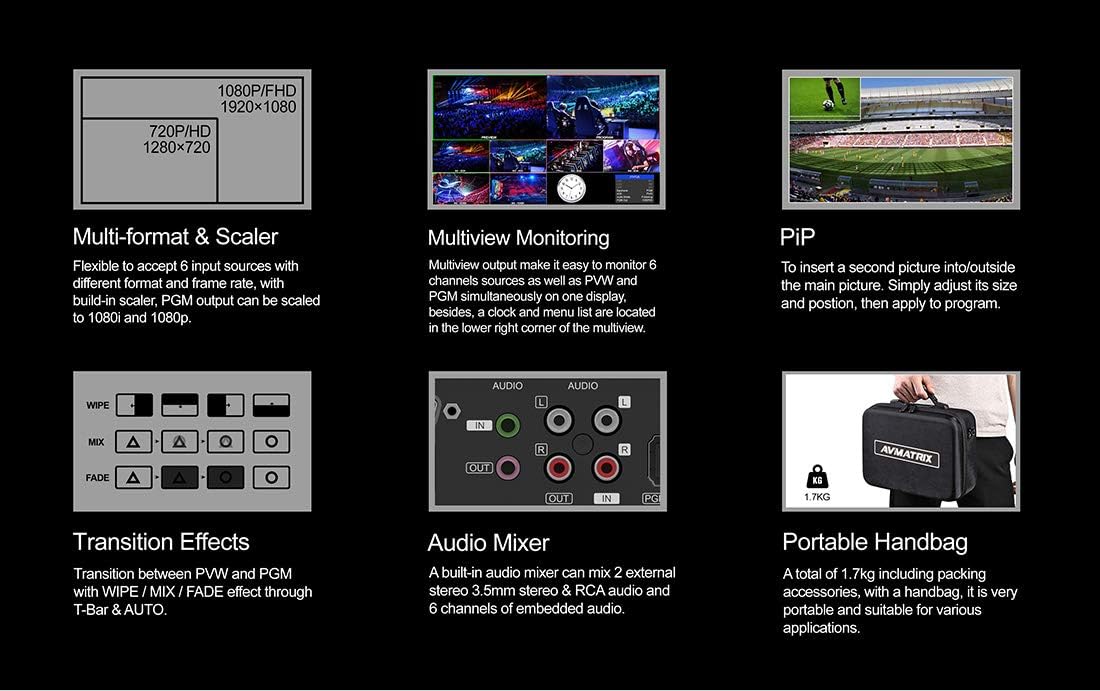
2.1 pav.: Pagrindinės funkcijosview
3. Sąranka
3.1 Išpakavimas ir patikrinimas
Carefully unpack the AVMATRIX VS0601 and all accessories. Inspect the unit for any signs of damage during transit. Retain the packaging materials for future transport or storage.
3.2 Maitinimo prijungimas
Connect the provided DC 12V power adapter to the 'DC 12V' input port on the rear panel of the switcher. Plug the adapter into a suitable power outlet. Ensure the power switch is in the 'OFF' position before connecting power.
3.3 Vaizdo įvesties jungtys
The VS0601 supports 4 SDI inputs and 2 HDMI inputs. Connect your video sources (cameras, media players, computers) to the corresponding input ports on the rear panel.
- SDI įėjimai: Connect up to four SDI sources to the 'SDI IN 1-4' ports.
- HDMI įėjimai: Connect up to two HDMI sources to the 'HDMI IN 5-6' ports.

3.1 pav.: Galinio skydelio jungtys
3.4 Vaizdo išvesties jungtys
Connect your display monitors or recording devices to the output ports.
- Program (PGM) Output: Connect your main program display or recorder to the 'PGM OUT' (SDI or HDMI) ports.
- Keliview Išvestis: Connect a monitor to the 'MULTIVIEW OUT' (HDMI or SDI) for simultaneous viewing of all inputs, program, and preview.
- USB išvestis: Connect to a computer via the 'USB OUT' port for streaming applications.
3.5 Garso jungtys
The switcher includes audio input and output options.
- Garso įvestis: Connect external audio sources to the 'AUDIO IN' (RCA L/R or 3.5mm stereo) ports.
- Garso išvestis: Connect to external audio monitoring or recording devices via the 'AUDIO OUT' (RCA L/R or 3.5mm stereo) ports.
3.6 Tally and LAN Connections
- Tally: Connect a Tally system to the 'TALLY' (DB-15) port for visual indication of program and preview šaltinių.
- LAN: Connect an Ethernet cable to the 'LAN' (RJ45) port for network control and firmware updates.
4. Naudojimo instrukcijos
4.1 Priekinio skydelio valdikliai
The front panel provides intuitive controls for selecting inputs, managing transitions, and adjusting audio.

4.1 pav. Priekinio skydelio išdėstymas
- PGM (Program) Buttons: Select the input currently live on the program output.
- PVW (Preview) Mygtukai: Select the input to be previewed before transitioning to program.
- T-baras: Manually control transitions between preview ir programa.
- CUT Button: Instantly switch from preview programuoti.
- AUTO mygtukas: Execute a transition with a pre-set speed.
- MENU Knob: Navigate and select options within the on-screen display (OSD) menu.
- AUDIO/EFFECTS Buttons: Access audio mixer controls, keying functions (Chroma, Luma, DSK), and Picture-in-Picture (PIP) settings.
4.2 Pagrindinis perjungimas
- Power on the unit using the switch on the rear panel.
- Ant Multiview monitor, observe all connected inputs.
- Press a button in the PVW row to select an input for preview. This input will appear on the preview section of your multiview stebėti.
- Press a button in the PGM row to select an input for program. This input will immediately go live.
- To transition from the previewed source to the program output, use the „T-Bar“, Pjaustyti button for an instant switch, or AUTO button for a timed transition.
4.3 Garso maišymas
The VS0601 features an integrated audio mixer. Access the audio controls via the front panel buttons and the OSD menu to adjust levels for embedded audio from HDMI/SDI inputs and external analog audio inputs.
- Naudokite AFV (Audio Follow Video) function to automatically switch audio with video transitions.
- Manually adjust individual audio channel levels using the menu and rotary knob.
4.4 Keying and PIP
The switcher supports various keying effects and Picture-in-Picture functionality.
- Chroma raktas: Use for green screen or blue screen effects.
- Luma raktas: Key based on brightness levels.
- DSK (Downstream Key): Overlay graphics or text onto the program output.
- PIP (vaizdas paveikslėlyje): Display a smaller video source within the main program video. Adjust size and position through the OSD menu.
5. Specifikacijos
| Kategorija | Detalė |
|---|---|
| Modelis | VS0601 |
| Įėjimai | 4x SDI (SD/HD/3G-SDI), 2x HDMI (Type-A) |
| Analoginiai garso įėjimai | 1x 3.5mm stereo audio, 1x RCA (L/R) audio |
| PGM išėjimai | 1x SDI (SD/HD/3G-SDI), 1x HDMI (Type-A) |
| AUX išėjimas | 1x SDI (SD/HD/3G-SDI) |
| Keliview Išėjimai | 1x SDI (SD/HD/3G-SDI), 1x HDMI (Type-A) |
| Analoginis garso išėjimas | 1x 3.5mm stereo audio, 1x RCA (L/R) audio |
| LAN sąsaja | RJ45 x1, Synchronize local time |
| Tally sąsaja | DB-15 x1 |
| SDI įvesties formato palaikymas | 1080p 60/50/30/25/24, 1080i 60/50, 720p 60/50, 576i, 480i |
| HDMI įvesties formato palaikymas | 1080p 60/50/30/25/24, 1080i 60/50, 720p 60/50, 576p, 576i, 480p, 480i |
| PGM išvesties formatas | 1080p 60/50/30/25/24, 1080i 60/50 |
| Keliview Išvesties formatas | 1080p 60 m |
| SDI atitiktis | SMPTE 292M/SMPTE 259M/SMPTE 424M |
| Matmenys (LWD) | 249.2 x 172.3 x 55 mm |
| Svoris | 1 kg (2.2 svaro) |
| Darbinė temperatūra | -20-60°C |
| Laikymo temperatūra | -30-70°C |
| Dabartinė | DC 12V, 1.2A |
| ttage | DC 6-17V |
| Maitinimo šaltinis | DC 12V, 2A |

5.1 pav.: Techninės specifikacijos
6. Priežiūra
- Valymas: Įrenginio išorę valykite minkšta, sausa šluoste. Nenaudokite skystų ar aerozolinių valiklių.
- Vėdinimas: Užtikrinkite tinkamą vėdinimą aplink įrenginį, kad jis neperkaistų. Neužblokuokite jokių ventiliacijos angų.
- Saugykla: When not in use for extended periods, store the switcher in a cool, dry place, preferably in its original packaging.
- Firmware atnaujinimai: Periodically check the AVMATRIX official website for firmware updates to ensure optimal performance and access to new features. Follow the instructions provided with the firmware update carefully.
7. Problemų sprendimas
7.1 Nėra vaizdo išvesties
- Verify that the power adapter is securely connected and the unit is powered on.
- Check all video cables (SDI, HDMI) for secure connections at both the switcher and the display/source.
- Įsitikinkite, kad PGM eilutėje pasirinkta teisinga įvestis.
- Confirm that the output resolution of the switcher is compatible with your display device.
- Test with different cables or display devices if possible.
7.2 Nėra garso išvesties
- Patikrinkite visus garso kabelius, ar jie tvirtai prijungti.
- Verify audio levels in the mixer settings via the OSD menu. Ensure no channels are muted.
- Confirm that the audio source is active and producing sound.
- If using embedded audio, ensure the video source is providing audio.
7.3 Controls Unresponsive
- Restart the unit by powering it off and then on again.
- Ensure no foreign objects are obstructing buttons or the T-Bar.
- If connected via LAN, check network connection and control software status.
8. Garantija ir palaikymas
For warranty information and technical support, please refer to the official AVMATRIX websvetainėje arba susisiekite su vietiniu platintoju. Išsaugokite pirkimo kvitą kaip pirkimo įrodymą garantijos pretenzijoms.
Internetiniai ištekliai:
- AVMATRIX Official Websvetainę
- LILLIPUT Store on Amazon (Manufacturer/Seller)


