1. Įvadas
This manual provides detailed instructions for the Amazon Basics Aluminum Type-C Docking Station. This device expands the connectivity of your USB-C enabled laptop or tablet, offering a wide range of ports for various peripherals and external displays. Please read this manual thoroughly before use to ensure proper operation and to maximize the product's functionality.
2. Produkto ypatybės
- 11-in-1 Multi-Port Design: Integrates Mini DisplayPort, HDMI, VGA, 3 USB-A ports, Ethernet, SD/TF card reader, 3.5mm audio jack, and a Type-C charging port (PD 100W).
- High-Resolution Video Output: Supports Ultra HD 4K output via Mini DisplayPort/HDMI and Full HD 1080P via VGA, allowing for mirroring or extending your display to HDTVs, monitors, or projectors. Note: 4K resolution is supported at 30Hz refresh rate.
- Greitas duomenų perdavimas: Three USB 3.0 A ports provide data transfer speeds up to 5Gbps, backward compatible with USB 2.0/1.0.
- Stable Network Connection: 1000Mbps RJ45 Ethernet port ensures a fast and reliable wired network connection.
- Universalus kortelių skaitytuvas: Integrated SD and TF slots allow simultaneous reading of universal SD and Micro SD memory cards.
- Maitinimo tiekimas: Type-C charging port supports Power Delivery (PD) up to 100 watts for charging your host device.
- Garso jungtis: 3.5 mm garso lizdas ausinėms arba garsiakalbiams.
- Patvari konstrukcija: Features an aluminum pedestal-style housing for enhanced durability and heat dissipation.
3. Pakuotės turinys
- Amazon Basics Aluminum Type-C Docking Station
- Vartotojo vadovas
4. Produktas baigtasview ir prievadų išdėstymas
Familiarize yourself with the various ports and their functions on your docking station.

Vaizdas: Stambus planas view of the Amazon Basics Type-C Docking Station's ports, including Ethernet, Mini DisplayPort, HDMI, VGA, and USB-C.
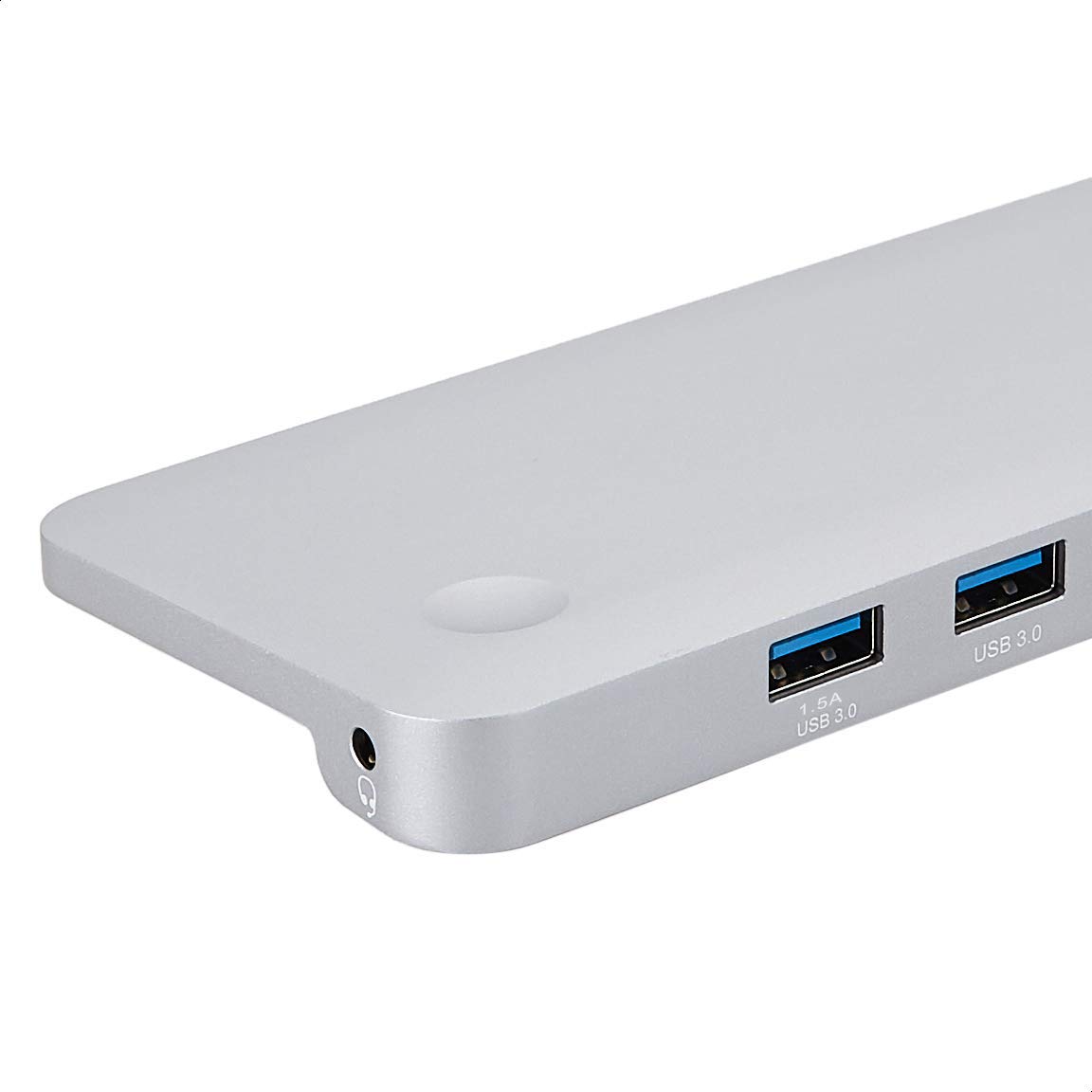
Vaizdas: Išsamus view of the USB 3.0 ports and 3.5mm audio jack on the Amazon Basics Type-C Docking Station.
- USB-C pagrindinio kompiuterio jungtis: Connects to your laptop or tablet's USB-C port.
- USB 3.0 prievadai (x3): For connecting USB devices such as external hard drives, keyboards, mice, or USB flash drives.
- SD kortelės lizdas: Skirta standartinėms SD atminties kortelėms skaityti.
- TF kortelės lizdas (Micro SD): Skirta „Micro SD“ atminties kortelių skaitymui.
- RJ45 eterneto prievadas: Laidinio tinklo ryšiui.
- Mini DisplayPort: Skirta prijungti prie išorinio ekrano.
- HDMI prievadas: Skirta prijungti prie išorinio ekrano.
- VGA prievadas: Skirta prijungti prie išorinio ekrano.
- 3.5 mm garso lizdas: Skirta ausinėms arba garsiakalbiams prijungti.
- USB-C PD įkrovimo prievadas: For connecting a USB-C power adapter to charge your host device and power the docking station.
5. Sąrankos instrukcijos
Norėdami nustatyti įkrovimo stotelę, atlikite šiuos veiksmus:
- Prijungti prie pagrindinio įrenginio: Plug the integrated USB-C host connector cable from the docking station into an available USB-C port on your laptop or tablet. Ensure your host device's USB-C port supports DisplayPort Alt Mode (DP Alt Mode) for video output functionality.
- Prijunkite maitinimą (nebūtina, bet rekomenduojama): If your host device requires charging or if you are connecting power-intensive peripherals, connect your USB-C power adapter (up to 100W) to the USB-C PD Charging Port on the docking station. This will charge your host device and provide stable power to the docking station and connected peripherals.
- Prijunkite išorinius įrenginius: Connect your desired peripherals (e.g., external monitors, USB devices, Ethernet cable, SD/TF cards, audio devices) to the corresponding ports on the docking station.

Image: Amazon Basics Type-C Docking Station connected to a laptop, with multiple peripherals like a USB drive and external display cables plugged in.
6. Naudojimo instrukcijos
6.1. Vaizdo išvestis
- Connect your monitor or projector to the HDMI, Mini DisplayPort, or VGA port.
- Your operating system should automatically detect the external display. You may need to adjust display settings (e.g., extend, duplicate) in your computer's display preferences.
- The docking station supports 4K resolution at 30Hz refresh rate via HDMI and Mini DisplayPort. For optimal performance, ensure your display and cables support the desired resolution and refresh rate.
- Dual video display is supported, allowing you to mirror or expand your screen across multiple monitors.
6.2. Duomenų perdavimas per USB
- Plug your USB devices into the USB 3.0 ports.
- The ports support data transfer speeds up to 5Gbps.
6.3. Ethernet jungtis
- Connect an Ethernet cable from your router or modem to the RJ45 Ethernet port on the docking station.
- Your computer should automatically establish a wired network connection.
6.4. SD/TF kortelių skaitytuvas
- Insert your SD or TF (Micro SD) card into the corresponding slot.
- The cards will appear as removable drives on your computer, allowing you to access and transfer files. Both slots can be used simultaneously.
6.5. Garso išvestis
- Connect your headphones or speakers to the 3.5mm audio jack.
- You may need to select the docking station as the default audio output device in your computer's sound settings.
6.6. Maitinimo tiekimas (PD)
- Connect your laptop's USB-C power adapter to the USB-C PD Charging Port on the docking station.
- This port supports up to 100W power delivery to charge your host device while using the docking station.
7. Suderinamumas
This docking station is compatible with a wide range of USB-C enabled devices, including but not limited to:
- MacBook Pro 2018/2017/2016
- iPad Pro 2018
- Mac mini 2018
- MacBook Air
- iMac 2017
- Samsung Note9
- HUAWEI MateBook X
- Dell XPS 13
- ThinkPad
- Chromebook
Svarbu: This product functions only with computers that support DisplayPort Alt Mode (DP Alt Mode) via their USB-C port. Please verify your computer's specifications for compatibility before use.
8. Problemų sprendimas
- Nėra ekrano išvesties:
- Įsitikinkite, kad jūsų pagrindinio įrenginio USB-C prievadas palaiko „DisplayPort Alt“ režimą.
- Check all cable connections (USB-C to host, video cable to monitor).
- Verify the external monitor is powered on and set to the correct input source.
- Pabandykite iš naujo paleisti kompiuterį.
- 4K Resolution Not Working at 60Hz:
- This docking station supports 4K resolution at a maximum refresh rate of 30Hz. If your monitor is set to 4K@60Hz, it will not display correctly. Adjust your display settings to 4K@30Hz or a lower resolution with a higher refresh rate if desired.
- USB Devices Not Recognized or Disconnecting:
- Ensure the docking station is receiving sufficient power. Connect a USB-C power adapter to the PD port if you are using multiple power-intensive USB devices.
- Pabandykite prijungti USB įrenginį tiesiai prie kompiuterio, kad įsitikintumėte, jog jis veikia.
- Reconnect the docking station to your computer.
- No Network Connection via Ethernet:
- Patikrinkite Ethernet kabelio jungtį su įkrovimo stotele ir maršrutizatoriumi / modemu.
- Patikrinkite tinklo nustatymus savo kompiuteryje.
- Įsitikinkite, kad jūsų maršrutizatorius / modemas veikia tinkamai.
- Nėra garso išvesties:
- Ensure your headphones or speakers are properly connected to the 3.5mm audio jack.
- Check your computer's sound settings and select the docking station as the default audio output device.
- Pagrindinis įrenginys neįkraunamas:
- Ensure a compatible USB-C power adapter is connected to the docking station's USB-C PD Charging Port.
- Patikrinkite, ar jūsų pagrindinis įrenginys palaiko USB-C maitinimo šaltinį.
- Patikrinkite, ar maitinimo adapterį ir laidą nėra pažeisti.
9. Specifikacijos
| Funkcija | Specifikacija |
|---|---|
| Prekės ženklas | „Amazon“ pagrindai |
| Modelio numeris | UTC-DOCK01-PRO |
| Spalva | Pilka |
| Matmenys (IxPxH) | 28 x 7.5 x 1.4 centimetro (11.02 x 2.95 x 0.55 colio) |
| Prekės svoris | 317 g (0.32 kilogramo) |
| Iš viso uostų | 11 |
| USB prievadai | 3 x USB 3.0 Type-A |
| Vaizdo išvesties prievadai | 1 x HDMI, 1 x Mini DisplayPort, 1 x VGA |
| HDMI raiška | Iki 4K@30Hz |
| Mini DisplayPort Resolution | Iki 4K@30Hz |
| Ethernet prievadas | RJ45 Gigabit Ethernet (10/100/1000Mbps) |
| Kortelių skaitytuvas | SD and TF (Micro SD) slots, simultaneous read |
| Garso prievadas | 3.5mm garso lizdas |
| USB-C PD įkrovimo prievadas | Iki 100 vatų |
| Techninės įrangos sąsaja | Ethernet, HDMI, Mini DisplayPort, VGA, USB-A, USB-C, SD/TF, Audio |
10. Priežiūra
- Valymas: Įkrovimo stotelę valykite minkšta, sausa šluoste. Venkite naudoti skystus valiklius ar aerozolius.
- Saugykla: Laikykite prietaisą vėsioje, sausoje vietoje, apsaugotoje nuo tiesioginių saulės spindulių ir ekstremalių temperatūrų.
- Tvarkymas: Saugokite įrenginį nuo kritimo ir stiprių smūgių. Nebandykite ardyti ar modifikuoti įkrovimo stotelės.
11. Saugos informacija
- Laikykite prietaisą atokiau nuo vandens, ugnies ir didelės drėgmės aplinkos.
- Nelaikykite prietaiso ekstremaliose temperatūrose.
- Naudokite tik suderinamus maitinimo adapterius ir laidus.
- Laikyti vaikams nepasiekiamoje vietoje.
- Jei prietaisas pažeistas arba sugenda, nedelsdami nutraukite jo naudojimą ir susisiekite su klientų aptarnavimo tarnyba.
12. Garantija ir palaikymas
This Amazon Basics product comes with a 1 metų ribota garantija from the date of purchase. This warranty covers manufacturing defects and workmanship under normal use. It does not cover damage caused by misuse, accident, modification, or unauthorized repair.
For warranty claims, technical support, or further assistance, please contact Amazon Basics customer service through your Amazon purchase history or the official Amazon Basics support channels.