1. Įvadas
This manual provides comprehensive instructions for the setup, operation, and maintenance of your Lorex N841A81 Series 8 Channel 4K Ultra HD Network Video Recorder (NVR). This NVR is designed to record and manage video surveillance from compatible cameras, offering advanced features for enhanced security monitoring.
2. Pakuotės turinys
Įsitikinkite, kad jūsų siuntinyje yra visi toliau išvardyti daiktai:
- Lorex N841A81 NVR Unit
- Kintamos srovės adapteris
- USB pelė
- Ethernet kabelis
- HDMI kabelis
- Quick Start Guide / Instruction Manual (this document)
3. Sąranka
3.1 NVR Overview
Familiarize yourself with the front and rear panels of your NVR unit.

Figure 1: Front panel of the Lorex N841A81 NVR, showing the 4K Ultra HD NVR label and a front USB port.
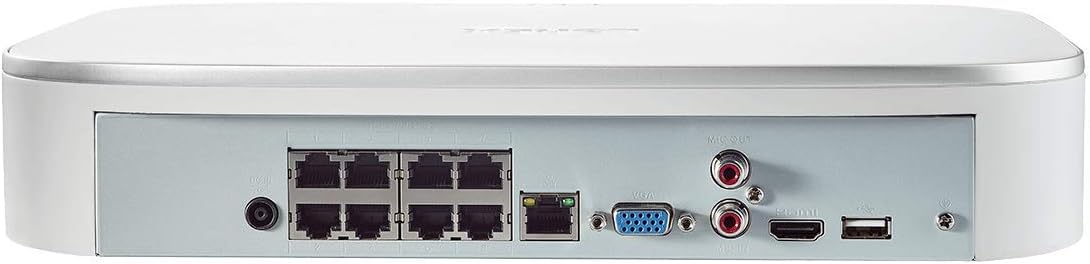
Figure 2: Rear panel of the Lorex N841A81 NVR, displaying multiple PoE ports, HDMI, VGA, USB, LAN, and audio output connections.
3.2 Pradinis prisijungimas
- Prijunkite prie ekrano: Connect the NVR to a monitor or TV using the provided HDMI cable. Alternatively, use a VGA cable (not included).
- Prijunkite USB pelę: Plug the USB mouse into one of the NVR's USB ports (front or rear).
- Prisijunkite prie tinklo: Connect the NVR to your router using the provided Ethernet cable. This enables remote viewing and network features.
- Prijungti kameras: Connect your compatible IP cameras to the PoE ports on the rear of the NVR. The NVR provides power and data connection through these ports.
- Maitinimas: Connect the AC power adapter to the NVR's power input and then plug it into a power outlet. The NVR will power on automatically.
3.3 Pirmojo nustatymo vedlys
Upon initial power-on, the NVR will guide you through a setup wizard to configure basic settings such as language, time zone, and password creation. Follow the on-screen prompts to complete the setup.
4. Naudojimo instrukcijos
4.1 Lorex Home Mobile App
The Lorex Home app allows you to remotely view your security system from your smartphone or tablet. It also provides control over active deterrence features and allows you to receive motion-activated push notifications and email alerts.
- Atsisiųskite programą: Download the free Lorex Home app from your device's app store.
- Pridėti įrenginį: Scan the QR code located on your NVR to add it to your account.
- Nuotolinis Viewing: Pridėjus, galite view live or recorded video streams from your cameras.
- Pranešimai: Configure push notifications and email alerts for motion detection events.
4.2 Išmanusis judesio aptikimas
The NVR features advanced smart motion detection to reduce false alarms. It can differentiate between motion caused by people or vehicles, sending only the most relevant alerts.
- Konfigūracija: Access the NVR's menu via a connected display to configure motion detection zones and sensitivity for each camera.
- Įspėjimai: Receive push notifications or email alerts when people or vehicles are detected in configured zones.
4.3 Išmanioji paieška
Use the Smart Search feature to quickly review footage by filtering motion events based on area, time/date, and the type of detection (person or vehicle).
- Prieiga: Navigate to the playback or search menu on your NVR.
- Filtras: Apply filters for specific events to efficiently locate relevant recordings.
4.4 Voice Control & Smart Home Compatibility
The NVR is compatible with Amazon Alexa, Google Assistant, Apple TV, and Chromecast, allowing for hands-free control and viewing.
- Integracija: Follow the instructions provided by your smart home assistant or streaming device to link your Lorex account.
- Balso komandos: Use simple voice commands to activate camera features or view live/recorded footage on your smart TV.
5. Priežiūra
5.1 Kietojo disko valdymas
The NVR includes a local built-in security-grade 1TB hard drive, expandable up to 10TB. Regular maintenance ensures optimal recording performance.
- Saugojimo talpa: Monitor the remaining storage space through the NVR's system settings.
- Perrašymas: The NVR is configured to overwrite the oldest footagkai kietasis diskas pilnas, užtikrinant nepertraukiamą įrašymą.
- Atsarginė kopija: Reguliariai kurkite svarbių duomenų atsargines kopijastagį išorinį USB diską arba tinklo saugyklą.
5.2 Bendroji priežiūra
- Laikykite NVR gerai vėdinamoje vietoje, kad neperkaistų.
- Clean the exterior of the NVR with a soft, dry cloth. Avoid using harsh chemicals.
- Įsitikinkite, kad visos kabelių jungtys yra saugios.
6. Problemų sprendimas
If you encounter issues with your Lorex NVR, consider the following:
- Nėra vaizdo rodymo: Check HDMI/VGA cable connections and ensure the display is set to the correct input source.
- Nėra tinklo ryšio: Verify the Ethernet cable is securely connected to both the NVR and your router. Check your router's internet connection.
- No Camera Footage: Ensure cameras are properly connected to the PoE ports and powered on. Check camera compatibility with the NVR.
- Judesio aptikimo problemos: Review motion detection zone settings and sensitivity levels in the NVR menu or Lorex Home app.
- Sistema užstringa / nereaguoja: Try rebooting the NVR. If the issue persists, consult the Lorex support website for firmware updates or further assistance.
7. Specifikacijos
| Funkcija | Specifikacija |
|---|---|
| Modelio numeris | N841A81 |
| Vaizdo raiška | Up to 4K (8MP) Ultra HD |
| Kanalai | 8 IP Channels with built-in PoE ports |
| Kietojo disko dydis | 1 TB (Preinstalled) |
| Atminties talpa (maks.) | 10 TB |
| Ryšio technologija | Laidinis |
| Suderinami įrenginiai | Smartphone, Tablet, Television, Smart Home Assistants |
| Pakuotės matmenys | 15.7 x 13.1 x 5.5 colio |
| Prekės svoris | 6.93 svaro |
8. Garantija ir palaikymas
For warranty information, technical support, or to access the latest firmware and documentation, please visit the official Lorex website or contact Lorex customer service. Keep your product's model number and serial number handy when seeking support.


