1. Įvadas
Thank you for choosing the alphatronics T-22 SBI+ LED display. This manual provides essential information for the safe and efficient use of your device. Please read it thoroughly before operating the product and keep it for future reference.
The alphatronics T-22 SBI+ is equipped with a Basic-Smart Function, allowing easy internet browsing via an integrated browser and access to a selection of applications. It features a Triple Tuner for versatile reception options.
2. Kas yra dėžutėje
Prašome patikrinti savo pakuotės turinį:
- alphatronics T-22 SBI+ LED Display
- DVB-T Antenna AN5
- Stovo pagrindas
- Nuotolinio valdymo pultas ir priedai
- Vartotojo vadovas (šis dokumentas)
Jei trūksta kokių nors prekių arba jos pažeistos, susisiekite su pardavėju.
3. Pagrindinės savybės
- Trigubas imtuvas: Integrated DVB-S2, DVB-T2 HD, and DVB-C Tuner for HDTV (MPEG2/4).
- 100% Pixel-Free Display: Ensures a perfect visual experience without pixel defects.
- "Bluetooth 4.2": For wireless audio connectivity with compatible devices.
- alphatronics Basic-Smart Function: Enables easy internet browsing and access to selected apps.
- Skystųjų kristalų ekranas: High-quality display technology for vibrant images.

Image: The alphatronics T-22 SBI+ display highlighting its Basic-Smart Functionality.
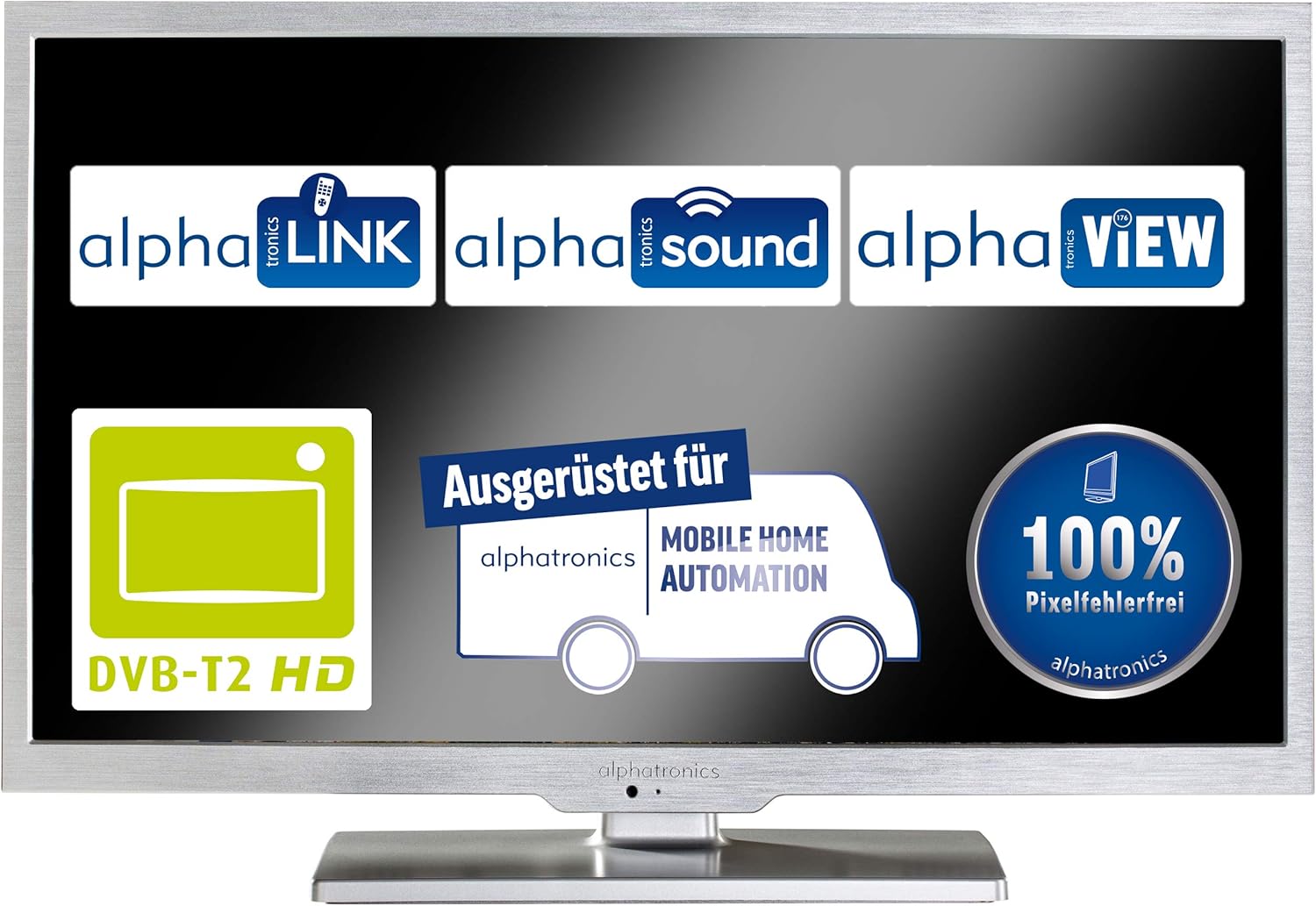
Image: Display showcasing key features such as DVB-T2 HD compatibility and 100% pixel-free guarantee.
4. Sąranka
4.1 Stovo surinkimas
- Atsargiai padėkite ekraną ekranu žemyn ant minkšto, švaraus paviršiaus, kad nesubraižytumėte.
- Attach the stand base to the bottom of the display using the provided screws. Ensure it is securely fastened.
- Gently lift the display and place it on a stable, flat surface.

Image: Dimensions of the alphatronics T-22 SBI+ including the stand, useful for placement.
4.2 Jungiamieji kabeliai
- Galia: Prijunkite maitinimo laidą prie ekrano, o tada – prie sieninio lizdo.
- Antena / Palydovas: Connect your DVB-T antenna (AN5 included) or satellite cable to the corresponding input on the display.
- Išoriniai įrenginiai: Use HDMI, USB, or other available ports to connect external devices such as media players or game consoles.
4.3 Pirmasis įjungimas ir pradinė sąranka
- Press the power button on the display or remote control to turn on the device.
- Follow the on-screen prompts to select your language, country, and perform an automatic channel scan for DVB-S2, DVB-T2 HD, or DVB-C.
- Connect to your Wi-Fi network to enable the Basic-Smart Function and access online features.

Image: The alphatronics T-22 SBI+ display, ready for use after setup.
5. Naudojimo instrukcijos
5.1 Pagrindinės operacijos
- Maitinimo įjungimas/išjungimas: Use the power button on the remote or display.
- Kanalo pasirinkimas: Use the CH+/- buttons or number pad on the remote.
- Garsumo valdymas: Naudokite nuotolinio valdymo pulto mygtukus VOL+/-.
- Įvesties šaltinis: Press the 'Source' or 'Input' button on the remote to switch between TV, HDMI, USB, etc.
5.2 Using the Basic-Smart Function
The integrated Basic-Smart Function allows you to access internet content directly on your display.
- Ensure the display is connected to a stable Wi-Fi network.
- Navigate to the 'Smart' or 'Apps' menu using your remote control.
- Select the integrated browser to surf the internet or choose from the pre-installed applications.
5.3 „Bluetooth“ ryšys
To connect Bluetooth audio devices (e.g., headphones, speakers):
- Eikite į meniu „Nustatymai“ ir pasirinkite „Bluetooth“.
- Enable Bluetooth on the display and put your audio device into pairing mode.
- Select your device from the list of available devices on the display to pair.
6. Priežiūra
6.1 Ekrano valymas
- Prieš valydami visada atjunkite ekraną nuo maitinimo lizdo.
- Minkšta, nepūkuota šluoste švelniai nuvalykite ekraną ir korpusą.
- Dėl sunkiai įveikiamų žymių, dampŠluostę lengvai sudrėkinkite vandeniu arba specializuotu ekrano valikliu. Niekada nepurkškite skysčio tiesiai ant ekrano.
- Nenaudokite abrazyvinių valiklių, vaškų ar tirpiklių.
6.2 Bendroji priežiūra
- Neuždenkite vėdinimo angų.
- Keep the display away from direct sunlight, heat sources, and excessive moisture.
- Venkite dėti sunkių daiktų ant ekrano viršaus.
7. Problemų sprendimas
If you encounter issues with your alphatronics T-22 SBI+, please refer to the following common problems and solutions:
| Problema | Galima priežastis | Sprendimas |
|---|---|---|
| Nėra maitinimo / Ekranas neįsijungia | Power cable not connected; Power outlet faulty; Remote control batteries low. | Check power cable connection; Try a different outlet; Replace remote control batteries. |
| Nėra signalo / Tuščias ekranas | Incorrect input source selected; Antenna/cable not connected; Channel scan not performed. | Press 'Source' button to select correct input; Check antenna/cable connections; Perform a channel scan. |
| No internet connection (Basic-Smart Function) | Wi-Fi not connected; Incorrect Wi-Fi password; Router issue. | Check Wi-Fi settings and password; Restart your Wi-Fi router; Ensure strong Wi-Fi signal. |
| Nuotolinio valdymo pultas neveikia | Batteries depleted; Obstruction between remote and display; Remote not paired (if applicable). | Replace batteries; Remove obstructions; Refer to remote control pairing instructions if necessary. |
If the problem persists after trying these solutions, please contact alphatronics customer support.
8. Specifikacijos
| Funkcija | Detalė |
|---|---|
| Modelio pavadinimas | T-22 Sbi+ |
| Gaminio matmenys (su stovu) | 50.3 x 34.2 x 15.3 cm |
| Prekės svoris | 3.3 kilogramo |
| Ekrano technologija | LED |
| Rezoliucija | HD |
| Ryšio technologija | Bluetooth |
| Palaikomos interneto paslaugos | Naršyklė |
| Montavimo tipas | Sieninis laikiklis |
| Spalva | Šlifuotas sidabras |
| Gamintojas | alfatronika |
| ASIN | B087B76663 |

Image: Dimensions of the alphatronics T-22 SBI+ without the stand, useful for wall mounting.
9. Garantija ir palaikymas
For information regarding warranty coverage, technical support, or service, please refer to the warranty card included with your product or visit the official alphatronics websvetainėje. Taip pat galite kreiptis pagalbos į savo pardavėją.
alphatronics Official Websvetainė: www.alphatronics.de


