1. Įvadas
This manual provides comprehensive instructions for the setup, operation, maintenance, and troubleshooting of your Zebra DS9208 2D/1D/QR Barcode Scanner. The DS9208 is a versatile, hands-free presentation imager designed for efficient scanning of 1D, 2D, and QR barcodes, including those displayed on mobile phone screens. Its touchless scanning capability enhances user convenience and workflow.
2. Sąranka
Follow these steps to set up your Zebra DS9208 scanner for first-time use.
2.1 Išpakavimas
- Atsargiai išimkite visus komponentus iš pakuotės.
- Verify that the package contains the Zebra DS9208 scanner unit and a USB cable.
- Išsaugokite pakuotę būsimam saugojimui ar transportavimui.
2.2 Skaitytuvo prijungimas
- Locate the USB port on the back of the DS9208 scanner.
- Connect the smaller end of the provided USB cable to the scanner's USB port.
- Prijunkite didesnį USB kabelio galą prie laisvo kompiuterio arba pagrindinės sistemos USB prievado.
- The scanner will typically power on automatically and emit a short beep, indicating successful connection.
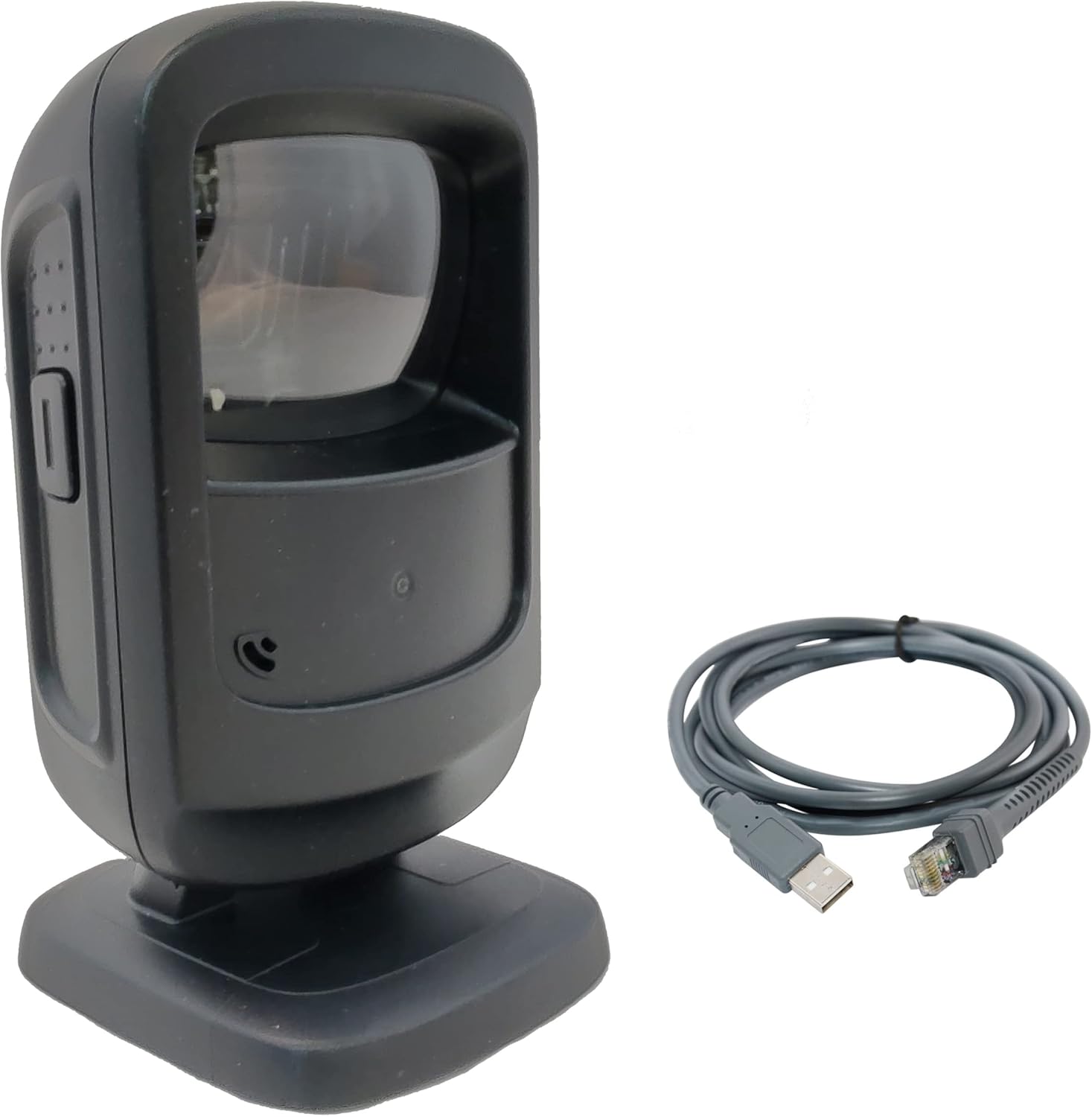
Figure 1: Zebra DS9208 scanner connected via USB cable. This image shows the black scanner unit alongside its grey USB connection cable, illustrating the components included for setup.
2.3 Driver Installation (Plug-and-Play)
The Zebra DS9208 scanner is designed for plug-and-play operation with most operating systems (Windows, macOS, Linux). Upon connecting the USB cable, your computer should automatically detect the device and install the necessary drivers. No manual driver installation is typically required.
- Wait for your operating system to confirm that the device is ready for use. This may take a few moments.
- Open a text editor or an application that accepts keyboard input (e.g., Notepad, Word, a POS application) to test the scanner.
3. Skenerio valdymas
The DS9208 offers intuitive hands-free scanning for various barcode types.
3.1 Brūkšninių kodų nuskaitymas
- Ensure the scanner is connected and powered on. The scanning window will emit an illumination pattern when ready.
- Padėkite brūkšninį kodą skaitytuvo matomumo lauke view, typically a few inches from the scanning window. The scanner is designed for presentation scanning, meaning you simply present the item to the scanner.
- The scanner will automatically detect and decode the barcode. A successful scan is indicated by an audible beep and a green LED illumination.
- The decoded data will be transmitted to your host system as if typed from a keyboard.

2 pav. Iš arti view of the Zebra DS9208's scanning window. This image highlights the area where barcodes should be presented for optimal reading.
3.2 Scanning from Phone Screens
The DS9208 is optimized to read barcodes directly from mobile phone screens, including digital coupons, loyalty cards, and event tickets.
- Ensure the phone screen brightness is set to a high level for best results.
- Present the barcode on the phone screen to the scanner's window, maintaining a similar distance as with printed barcodes.
- The scanner will capture and decode the digital barcode.
3.3 Feedback Indicators
- Garsinis pyptelėjimas: A short, high-pitched beep indicates a successful barcode decode.
- LED indikatorius: A green LED flash typically accompanies a successful scan.

3 pav.: šonas view of the Zebra DS9208 scanner, highlighting the ergonomic design and potential button for mode switching or advanced functions (if applicable).
4. Priežiūra
Tinkama priežiūra užtikrina jūsų skaitytuvo ilgaamžiškumą ir optimalų veikimą.
4.1 Skaitytuvo valymas
- Skenavimo langas: Naudokite minkštą, švarią, nepūkuotą šluostę dampened with a mild glass cleaner or water. Do not use abrasive cleaners or solvents, as these can damage the window.
- Išorė Casing: Išorę nuvalykite minkšta, damp audiniu. Venkite per didelės drėgmės.
- Prieš valydami įsitikinkite, kad skaitytuvas yra atjungtas nuo maitinimo šaltinio.
4.2 Bendroji priežiūra
- Venkite skaitytuvo numetimo ir stiprių smūgių.
- Do not expose the scanner to extreme temperatures, direct sunlight for prolonged periods, or high humidity.
- Keep the scanning window clear of obstructions and debris.
5. Problemų sprendimas
This section addresses common issues you might encounter with your DS9208 scanner.
| Problema | Galima priežastis | Sprendimas |
|---|---|---|
| Skaitytuvas neįsijungia. | Netinkamai prijungtas USB kabelis arba sugedęs USB prievadas. | Ensure the USB cable is securely connected to both the scanner and the host computer. Try a different USB port or a different USB cable if available. |
| Skaitytuvas neskaito brūkšninių kodų. | Barcode damaged, poor print quality, incorrect distance, or scanner window obstructed. | Ensure the barcode is clear and undamaged. Adjust the distance between the barcode and the scanner. Clean the scanning window. Verify the barcode type is supported (1D, 2D, QR). |
| No audible beep or LED flash on successful scan. | Feedback settings may be disabled or scanner malfunction. | Check the scanner's configuration settings (if accessible via programming barcodes). If the issue persists, contact support. |
| Nuskaityti duomenys rodomi neteisingai. | Keyboard layout mismatch or incorrect data formatting. | Ensure your computer's keyboard layout matches the scanner's configured output. Refer to the full programming guide for advanced data formatting options. |
6. Specifikacijos
Key technical specifications for the Zebra DS9208 Barcode Scanner.
- Modelis: DS9208
- Gamintojas: Simbolis (zebras)
- Scanning Capabilities: 1D, 2D, QR Codes
- Ryšio technologija: USB kabelis
- Maitinimo šaltinis: USB kabelis
- Suderinami įrenginiai: Stalinis kompiuteris, nešiojamas kompiuteris
- UPC: 753575424398
7. Informacija apie garantiją
This Zebra DS9208 scanner is a renewed product. Renewed products are typically covered by a specific warranty provided by the seller or platform.
- This product is covered by the „Amazon“ atnaujinta garantija, which provides a replacement or refund within 90 days of receipt if the product does not work as expected.
- For specific warranty details and claims, please refer to the documentation provided with your purchase or contact Amazon Renewed support directly.
8. Parama
If you encounter issues not covered in the troubleshooting section or require further assistance, please contact the seller or Amazon Renewed support.
- Pardavėjas: Info-Tech (as per product listing)
- Atnaujinta „Amazon“ parama: Visit the Amazon Renewed section on Amazon.com for support options.


