1. Įvadas
This manual provides detailed instructions for the installation, operation, and maintenance of the EnGenius Cloud Managed ECW160 11ac Wave 2 2x2 Outdoor Access Point. The ECW160 is designed for outdoor wireless connectivity, offering robust performance and cloud-based management capabilities.
Pagrindinės funkcijos:
- Built-in surge protection and overcurrent protection.
- Real-time power consumption information, alerts, and controls via EnGenius Cloud.
- 1.3-inch LCD display for local information and controls.
- Network self-healing when devices go offline.
- Flexible mounting capabilities for 1U, 0U, wall, or under-desk mounting.
- 15A circuit breaker for overload protection.
- Fireproof MOV for surge protection, certified with UL-1449.
2. Pakuotės turinys
Įsitikinkite, kad pakuotėje yra visi komponentai:
- EnGenius Cloud Managed ECW160 Outdoor Access Point
- Mounting Kit (brackets, screws)
- Greitos pradžios vadovas
Note: A Power over Ethernet (PoE) injector (e.g., EPA5006GR) is required for local power and is not included.
3. Sąranka
3.1 Fizinis įrengimas
The ECW160 is designed for outdoor deployment and offers flexible mounting options. Ensure the chosen location provides optimal Wi-Fi coverage and protection from extreme environmental conditions.

Vaizdas: priekis view of the ECW160 Access Point, showing its two antennas on top and two on the bottom, with the EnGenius logo centrally placed.

Paveikslėlis: Nugara view of the ECW160 Access Point, illustrating the integrated mounting brackets for wall or pole installation.
Use the provided mounting kit to securely attach the access point to a wall, pole, or other suitable surface. Ensure the antennas are oriented for optimal signal propagation.
3.2 Įrenginio maitinimas
The ECW160 is powered via Power over Ethernet (PoE). Connect an Ethernet cable from a PoE-enabled switch or a PoE injector (e.g., EnGenius EPA5006GR, sold separately) to the ECW160's Ethernet port. This single cable will provide both power and data connectivity.
3.3 Network Connection and Deployment
The ECW160 can be deployed in various network configurations:
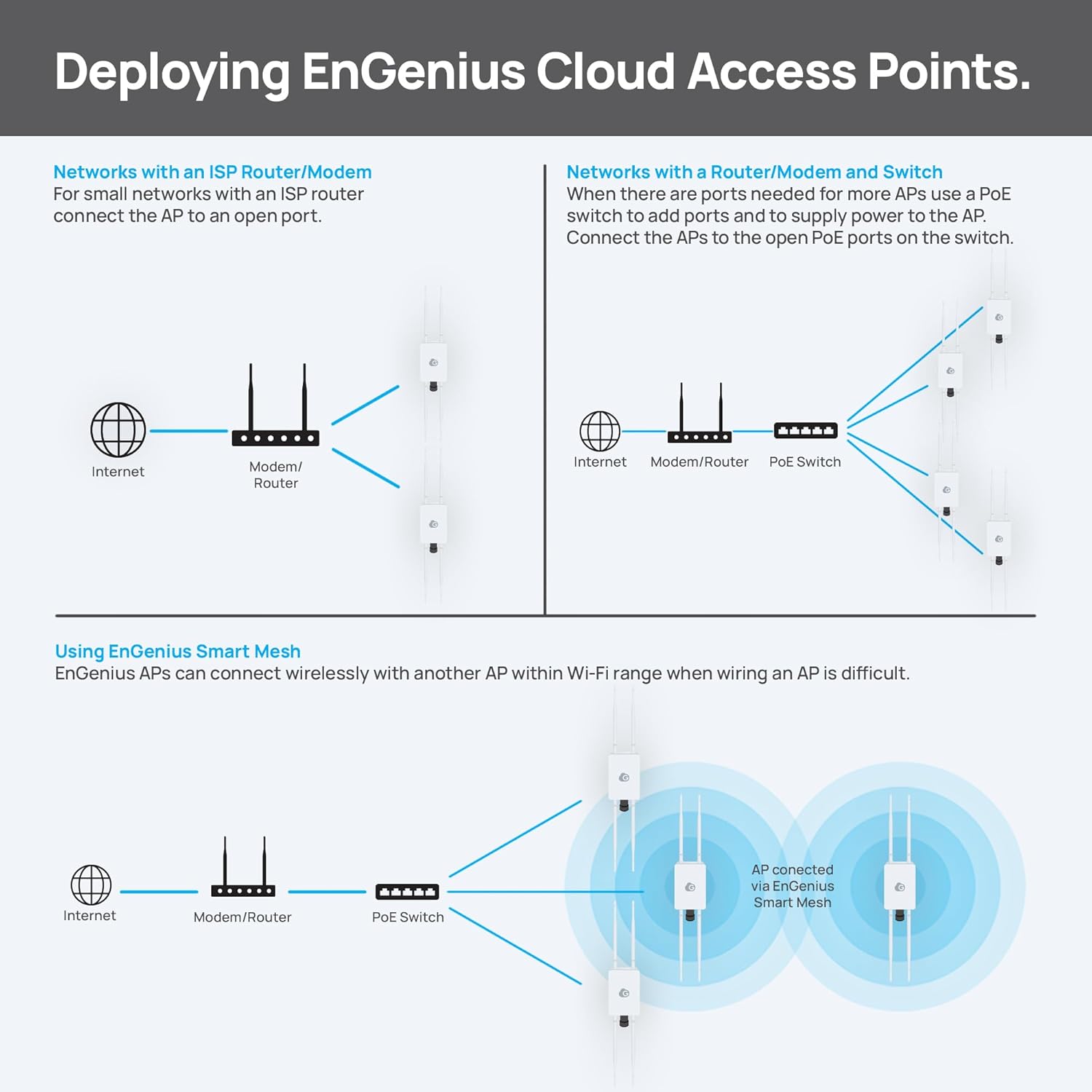
Image: Three diagrams showing deployment scenarios: 1) Connecting to an ISP Router/Modem, 2) Connecting to a Router/Modem and a PoE Switch for multiple APs, and 3) Using EnGenius Smart Mesh for wireless AP connections.
- Networks with an ISP Router/Modem: For smaller networks, connect the ECW160 directly to an open port on your ISP router/modem using an Ethernet cable.
- Networks with a Router/Modem and Switch: When multiple access points are needed, use a PoE switch to add ports and supply power. Connect the ECW160 to a PoE-enabled port on the switch.
- Using EnGenius Smart Mesh: ECW160 access points can connect wirelessly with another AP within Wi-Fi range, which is ideal when running Ethernet cables is difficult.

Image: An EnGenius access point mounted on a building, illustrating a mesh connection to another AP and highlighting flexible outdoor deployment options using meshing or PoE.
For outdoor deployments, consider the following:
- Power the access point using an adapter when connected to an ISP modem.
- Place the access point up to 300ft away from a power source using an Ethernet cable and PoE.
- Minimize installation costs by wirelessly connecting an AP using mesh technology.
4. Prietaiso valdymas
4.1 EnGenius Cloud Management
The ECW160 is managed through the EnGenius Cloud platform, providing a centralized interface for network oversight. This license-free cloud management allows you to monitor and control your network from anywhere, using a mobile device or web naršyklė.

Image: Screenshots of the EnGenius Cloud dashboard displayed on a tablet, desktop monitor, and smartphone, demonstrating unified network management.
The cloud platform offers:
- License-Free All-in-One Management.
- Full Remote Diagnostics and Control.
- Anywhere Access to your network.

Image: A diagram illustrating how AI-Driven EnGenius Cloud Management unifies access points (outdoor and indoor), switches, and security gateways under a single management platform.
4.2 LCD ekranas
The 1.3-inch LCD display on the ECW160 provides immediate, in-site information and controls, allowing for quick status checks and basic configurations without needing to access the cloud platform.
5. Priežiūra
To ensure optimal performance and longevity of your ECW160 access point, consider the following maintenance guidelines:
- Reguliarus patikrinimas: Periodically check the physical condition of the device, cables, and connections, especially in outdoor environments.
- Valymas: Keep the device free from dust and debris. Use a soft, dry cloth for cleaning. Do not use liquid cleaners.
- Firmware atnaujinimai: Ensure the device firmware is up-to-date through the EnGenius Cloud platform to benefit from the latest features and security enhancements.
- Network Self-Healing: The ECW160 features network self-healing capabilities, which automatically attempt to restore connectivity if a device goes offline.
6. Problemų sprendimas
If you encounter issues with your ECW160, refer to the following common troubleshooting steps:
- Nėra galios: Verify that the Ethernet cable is securely connected to both the ECW160 and the PoE source (PoE switch or injector). Ensure the PoE source is powered on.
- Nėra tinklo ryšio: Check the Ethernet cable for damage. Confirm that the upstream network devices (router, switch) are functioning correctly. Verify network settings in the EnGenius Cloud.
- Prastas „Wi-Fi“ našumas: Check for potential interference sources. Ensure the access point is optimally positioned. Review channel and power settings in the EnGenius Cloud.
- Cloud Management Issues: Ensure the ECW160 has an active internet connection. Verify your EnGenius Cloud account credentials.
For advanced troubleshooting or persistent issues, please consult the EnGenius support websvetainėje arba susisiekite su technine pagalba.
7. Specifikacijos
Detailed technical specifications for the EnGenius Cloud Managed ECW160 Outdoor Access Point:

Image: An infographic highlighting the ECW160 as a Cloud Outdoor Access Point, detailing its ideal deployment scenarios, Wi-Fi range, max data rates, radio specifications, and power requirements.
| Funkcija | Detalė |
|---|---|
| Modelio numeris | ECW160 |
| Gaminio matmenys | 6.83 x 4.38 x 1.19 colio |
| Prekės svoris | 1.83 svaro |
| Standartinis belaidis internetas | 802.11ac Wave 2 (Wi-Fi 5) |
| Radijas | 2x2 Removable Omni-Directional SMA-Type Antennas (6 dBi 5GHz & 6 dBi 2.4GHz) |
| Maksimalus duomenų perdavimo greitis | 1267 Mbps (867 Mbps on 5GHz, 400 Mbps on 2.4GHz) |
| „Wi-Fi“ diapazonas | Up to 2000 sq ft outdoor coverage |
| Galia | Power-over-Ethernet (PoE), IEEE 802.11e Compliant Source (EPA5006GR PoE Injector not included) |
| Apsauga nuo viršįtampių | Built-in, Fireproof MOV, UL-1449 certified |
| Grandinės pertraukiklis | 15A for overload protection |
| Valdymas | EnGenius Cloud (Local and Cloud management) |
8. Garantija ir palaikymas
EnGenius products are backed by a manufacturer's warranty. For specific warranty terms and conditions, please refer to the warranty card included with your product or visit the official EnGenius websvetainę.
For technical support, product registration, or to access additional resources such as FAQs and firmware downloads, please visit the EnGenius support portal:


