Įvadas
This manual provides comprehensive instructions for the setup, operation, and maintenance of your VIISAN 3120 A3 Flatbed Scanner. Designed for high-quality scanning of various large documents, photos, and books, this scanner offers efficient and precise digital conversion. Please read this manual thoroughly to ensure optimal performance and longevity of your device.
Pakuotės turinys
Before beginning the setup process, please verify that all items listed below are included in your package:
- VIISAN 3120 A3 Flatbed Scanner
- Maitinimo adapteris
- USB kabelis
- Installation Disc (containing ViiScan software and drivers)

Figure 1: Contents included in the VIISAN 3120 A3 Flatbed Scanner package.
Sąrankos vadovas
1. Fizinis ryšys
- Padėkite skaitytuvą ant stabilaus, lygaus paviršiaus šalia kompiuterio.
- Connect the power adapter to the scanner's power input and then to an electrical outlet.
- Prijunkite skaitytuvo USB laidą prie laisvo kompiuterio USB prievado.
2. Tvarkyklės ir programinės įrangos diegimas
It is recommended to install the drivers and software prieš turning on the scanner for the first time or connecting the USB cable. If you have already connected the scanner, disconnect it before proceeding with software installation.
- „Windows“ vartotojams: Insert the provided installation disc into your computer's DVD drive. Follow the on-screen instructions to install the ViiScan software and necessary drivers (TWAIN, WIA). If your computer does not have a DVD drive, or for the latest versions, download the software from the official VIISAN websvetainę.
- „MacOS“ naudotojams: The scanner supports macOS 10.15 or later via the Image Capture (ICA) driver only. Download the appropriate software from the official VIISAN website. Note that ViiScan software for macOS can achieve 1200 dpi for full-size A3 documents.
Įdiegę, jei būsite paraginti, paleiskite kompiuterį iš naujo.

Figure 2: Supported operating systems and drivers for the VIISAN 3120 scanner.
Naudojimo instrukcijos
1. Dokumentų padėjimas nuskaitymui
The VIISAN 3120 is designed for large format scanning, accommodating items up to 304 x 426 mm (11.98" x 16.8").
- Atidarykite skaitytuvo dangtį.
- Place the document, photo, or book face down on the scanner glass, aligning it with the corner guide.
- For thick items like books or magazines, the scanner features an adjustable lid design that allows it to accommodate items up to 2.4cm thick, ensuring even pressure during scanning.
- Švelniai uždarykite skaitytuvo dangtį.

Figure 3: Large format scanning area of the VIISAN 3120, capable of scanning A3 size documents.

Figure 4: The adjustable lid design allows for scanning of thick books and other items.
Svarbi pastaba: The A3 flatbed uses a CIS sensor that is optimized for flat paper images. Scanning three-dimensional items may result in unclear or blurred scanning results. It is not recommended to scan items like clothes or CDs.
2. Using One-Touch Scan Buttons
The scanner features four convenient one-touch buttons for quick operations:
- Spausdinimo mygtukas: Scans and sends the image directly to your printer.
- E-mail Button: Scans and attaches the image to a new email message.
- PDF Button: Scans and creates a single or multi-page PDF document.
- Nuskaitymo mygtukas: Scans the document and saves it to a specified folder on your computer.
The Auto-Scan function allows the scanner to automatically initiate a scan when the lid is closed, enhancing efficiency for continuous scanning tasks.

Figure 5: One-touch scan buttons and supported output formats.
3. Scanning Speed and Resolution
The VF3120 offers fast scanning speeds and high resolution for various needs:
- Didelės spartos nuskaitymas: Achieves an A3-size color scan at 200 dpi in approximately 8 seconds.
- Didelė raiška: Provides a maximum optical resolution of 1200 x 1200 dpi, delivering 48-bit color depth for vivid and detailed images.
- For scanning at 1200 dpi, use the supplied ViiScan software. WIA drivers currently support up to 600 dpi due to Microsoft limitations.

Figure 6: Scanning speed versus optical resolution capabilities.
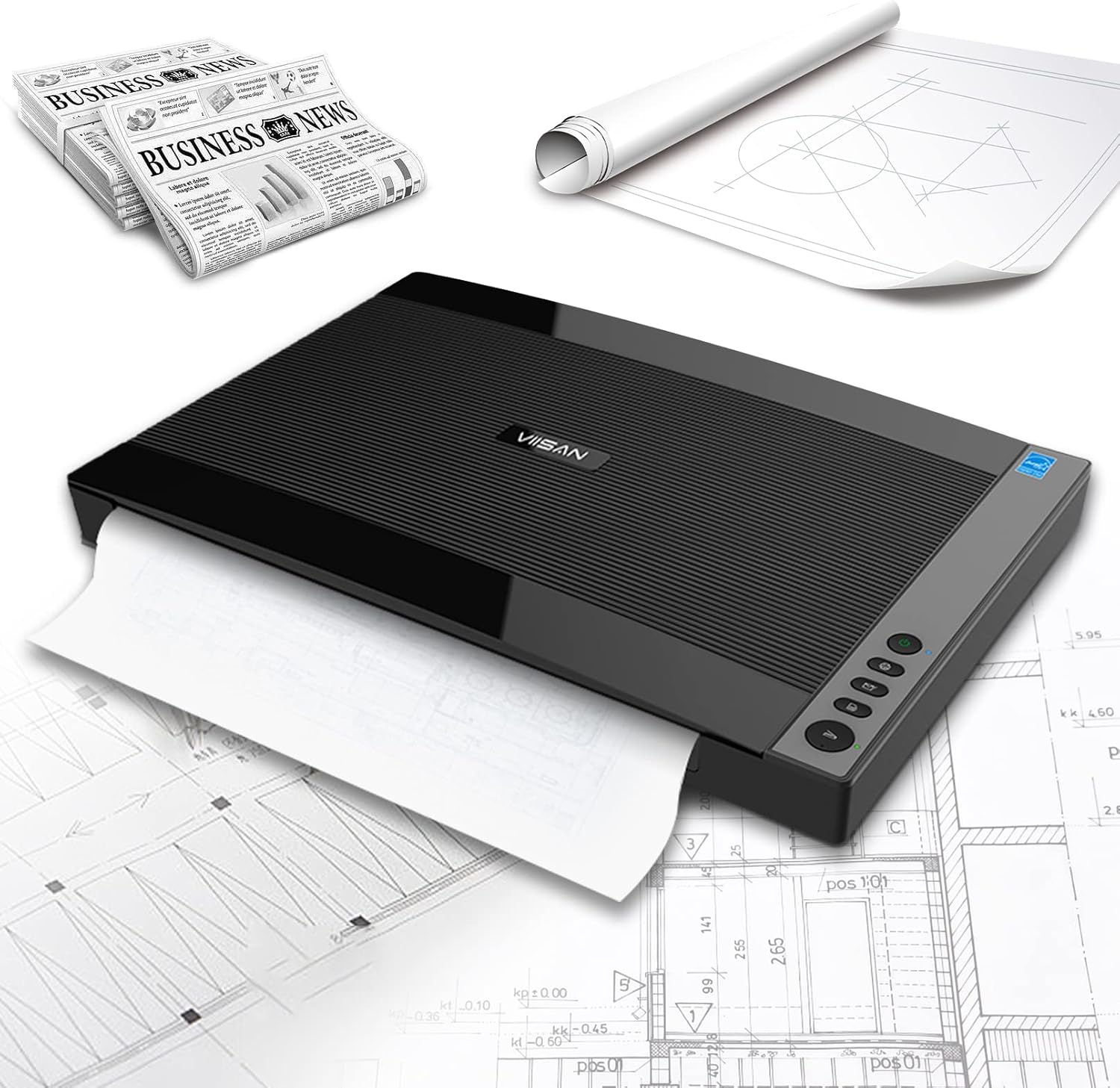
Figure 7: The scanner is suitable for various large documents, including newspapers and technical drawings.
4. Scanning Demonstration Video
Video 1: A demonstration of the VIISAN A3 Flatbed Scanner's high-speed scanning capabilities and adjustable lid for thick documents. This video illustrates the process of placing a document, initiating a scan, and the resulting digital output.
Priežiūra
Cleaning the Scanner Glass
To maintain optimal scan quality, it is important to keep the scanner glass clean. Dust, smudges, or debris on the glass can cause lines or imperfections in your scanned images.
- Turn off the scanner and disconnect the power cable.
- Atidarykite skaitytuvo dangtį.
- Gently wipe the scanner glass with a soft, lint-free cloth dampened with a mild, non-abrasive glass cleaner. Do not spray cleaner directly onto the glass.
- Wipe dry with another clean, dry, lint-free cloth.
- Ensure the glass is completely dry before closing the lid and reconnecting power.

Figure 8: Open scanner bed, ready for cleaning.
Trikčių šalinimas
This section addresses common issues you might encounter with your VIISAN 3120 scanner.
- White Lines on Scans: This is typically caused by dust or debris on the scanner glass or the calibration strip. Refer to the "Cleaning the Scanner Glass" section for instructions. If the issue persists after cleaning, please contact customer support.
- Unclear or Blurred Scans: Ensure the document is placed flat on the scanner glass. As the scanner uses a CIS sensor, it is not suitable for scanning three-dimensional objects.
- Scanner Not Detected / Software Issues:
- Verify that the USB cable is securely connected to both the scanner and the computer.
- Ensure the power adapter is properly connected and the scanner is powered on.
- Confirm that the correct drivers and ViiScan software are installed. Reinstalling the software may resolve persistent issues.
- For macOS users, ensure you are using the ICA driver and that your macOS version is 10.15 or later.
- Lėtas nuskaitymo greitis: Scanning at higher DPI settings (e.g., 1200 dpi) will naturally take longer. Reduce the resolution if speed is a priority.
For further assistance, please refer to the "Warranty and Support" section for contact information.
Specifikacijos
| Funkcija | Detalė |
|---|---|
| Modelio pavadinimas | VF3120 |
| Skaitytuvo tipas | Flatbed (Document, Photo, Book) |
| Optinė skiriamoji geba | 1200 dpi |
| Spalvos gylis | 48 bitų |
| Maximum Scan Size | A3 (304 x 426 mm / 11.98 colio x 16.8 colio) |
| Scanning Speed (A3, 200dpi, Color) | apytiksliai 8 sekundžių |
| Ryšys | USB |
| Gaminio matmenys | 24.8 x 21.65 x 5.12 colio |
| Prekės svoris | 14.62 svaro |
| Energijos suvartojimas | 24 vatų |
Garantija ir palaikymas
Informacija apie garantiją
The VIISAN 3120 A3 Flatbed Scanner comes with a 1-year limited warranty covering non-man-made damage. Please retain your proof of purchase for warranty claims.
Pagalba klientams
For technical support, usage guidance, software updates, or any other inquiries, please contact VIISAN customer service:
- El. paštas: info@viisan.com
- Importuotojo palaikymo el. pašto adresas: support@spedaltech.com
You can also visit the official VIISAN website for the latest drivers, software, and additional support resources.


