1. Įvadas
Welcome to the Surfans Kids Tablet T57 user manual. This guide provides detailed instructions on how to set up, operate, maintain, and troubleshoot your new 7-inch Android tablet. Designed specifically for children, this tablet features a durable kid-proof case, parental control functions, and pre-installed educational and entertainment applications.
2. Kas yra dėžutėje
Patikrinkite siuntos turinį, kad įsitikintumėte, jog yra visi reikalingi daiktai:
- 1x Surfans Kids Tablet
- 1x planšetinio kompiuterio stovas
- 1x USB laidas
- 1x Kids Tablet User Manual (this document)
3. Produktas baigtasview ir Savybės
The Surfans Kids Tablet T57 is built with a robust design and features tailored for young users. Below is an overview of its components and key functionalities.
3.1 Planšetinio kompiuterio komponentai
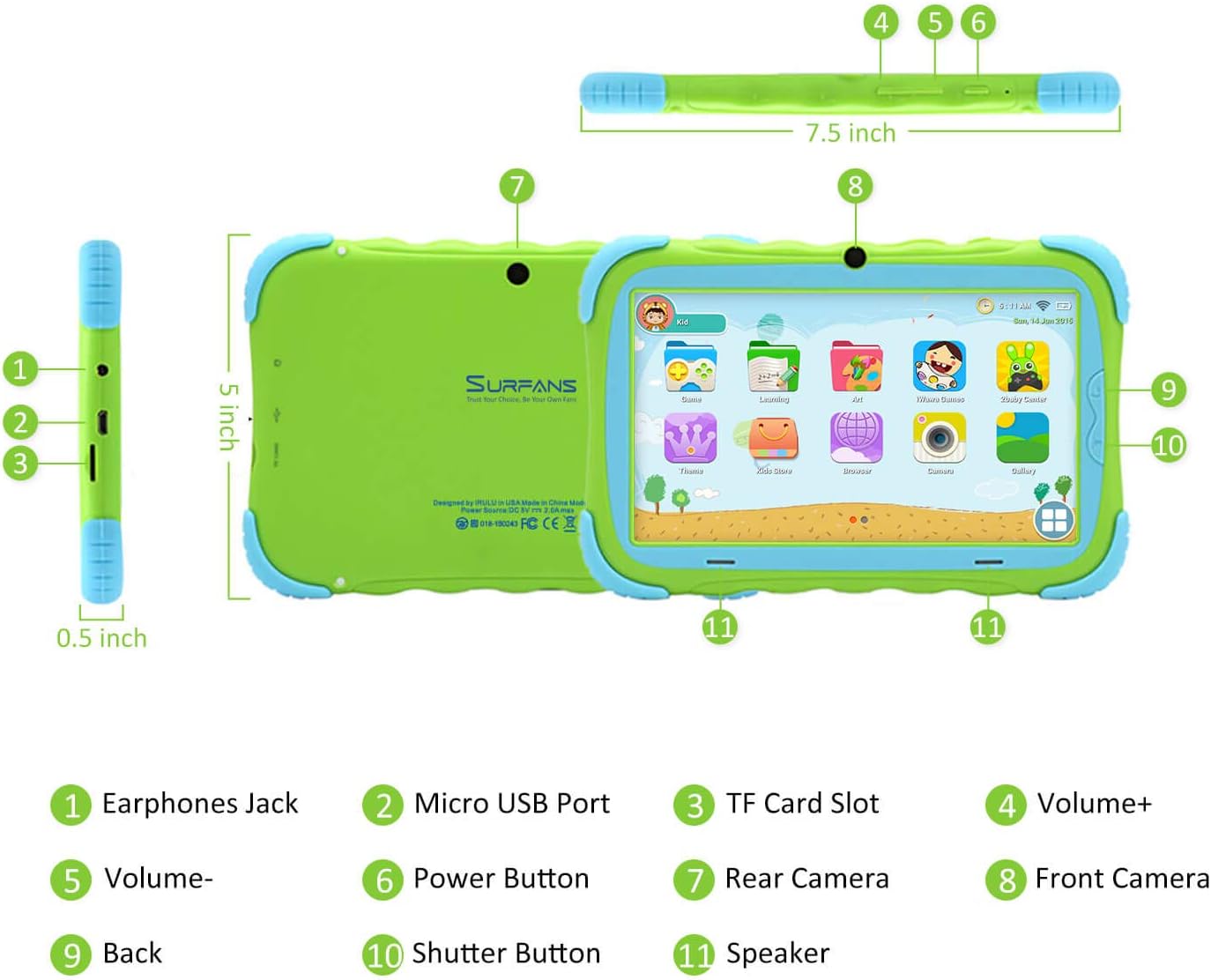
- Ausinių lizdas: Skirta ausinėms arba išoriniams garso įrenginiams prijungti.
- „Micro USB“ prievadas: Used for charging the tablet and connecting to a computer for data transfer.
- TF kortelės lizdas: For inserting a Micro SD card to expand storage capacity (up to 32GB).
- Garsumas+: Increases the tablet's audio volume.
- Apimtis: Decreases the tablet's audio volume.
- Maitinimo mygtukas: Press and hold to turn the tablet on/off or restart. Press briefly to turn the screen on/off.
- Galinė kamera: The primary camera located on the back of the tablet.
- Priekinė kamera: The camera located on the front, typically used for video calls or selfies.
- Atgal mygtukas: Navigates back to the previous screen or closes the current application.
- Užrakto mygtukas: Used to capture photos or start/stop video recording in the camera application.
- Pranešėjas: Provides audio output from the tablet.
3.2 Pagrindinės savybės
- Kid-Proof Design: Comes with a durable, lightweight, and skin-friendly case designed to protect against drops and bumps.
- 7-inch IPS HD Eye Protection Display: Provides clear visuals while minimizing eye strain.
- Android 9.0 OS: Runs on the latest Google Android 9.0 Pie operating system for smooth performance.
- Keturių branduolių procesorius: Ensures responsive performance for apps, games, and videos.
- 1 GB RAM ir 16 GB ROM: Sufficient memory for basic operations and storage, expandable up to 32GB via Micro SD card.
- Parental Control Mode: Allows parents to manage content, set time limits, and configure user settings for a safe digital environment.
- Pre-installed Kids Apps: Includes a variety of educational and entertaining apps, with access to the Google Play Store for more content.
- „Wi-Fi“ ryšys: Supports 802.11g for fast browsing, streaming, and video calls.
- Ilgas baterijos veikimo laikas: 3000mAh Li-ion Battery provides 3-5 hours of working time, or up to 8 hours of mixed use on a single charge.


4. Sąrankos vadovas
Follow these steps to set up your Surfans Kids Tablet for the first time.
4.1 Pradinis mokestis
Before first use, fully charge the tablet. Connect the included USB cable to the Micro USB Port (2) on the tablet and plug the other end into a compatible USB power adapter (not included) or a computer USB port. The charging indicator will show the charging status.
4.2 Maitinimo įjungimas/išjungimas
- Norėdami įjungti: Press and hold the Power Button (6) until the screen lights up.
- Norėdami išjungti: Press and hold the Power Button (6) until a power-off menu appears. Select "Power off" and confirm.
- Norėdami paleisti iš naujo: Press and hold the Power Button (6) until the power-off menu appears. Select "Restart" and confirm.
- Ekrano įjungimas/išjungimas: Briefly press the Power Button (6) to turn the screen on or off without powering down the tablet.
4.3 „Wi-Fi“ ryšys
To access online content and download apps, connect your tablet to a Wi-Fi network:
- Pradiniame ekrane braukite žemyn iš viršaus, kad atidarytumėte greitųjų nustatymų skydelį.
- Norėdami pereiti į „Wi-Fi“ nustatymus, palieskite ir palaikykite „Wi-Fi“ piktogramą.
- Toggle Wi-Fi ON if it's off.
- Iš sąrašo pasirinkite norimą „Wi-Fi“ tinklą.
- Jei būsite paraginti, įveskite tinklo slaptažodį ir palieskite „Prisijungti“.
4.4 Setting Up Parental Control
The Parental Control mode is a key feature for managing your child's tablet usage. This allows you to filter website content, set time limits, and control app access.

Specific steps for setting up parental controls will be available within the tablet's pre-installed Kids app or settings menu. Look for an icon or section labeled "Parental Control" or "Kids Mode" to configure user profiles, allowed applications, and usage schedules.
5. Planšetinio kompiuterio valdymas
This section covers basic operations and how to use the tablet's features.
5.1 Pagrindinė navigacija
- Touch and Tap: To open apps, select items, or type.
- Perbraukimas: Norėdami slinkti ekranais, meniu arba web puslapių.
- Žiupsnelis, norint priartinti: Norėdami priartinti arba atitolinti vaizdus arba web puslapių.
- Pagrindinis ekranas: Pagrindinis ekranas, kuriame galite pasiekti programas ir valdiklius.
- Naršymo juosta: Ekrano apačioje paprastai yra mygtukai „Atgal“, „Pagrindinis“ ir „Naujausios programos“.
5.2 Using Kids Mode and Apps
The tablet comes with a dedicated Kids Mode interface, providing a safe and engaging environment for children. This mode typically features a simplified layout and access to pre-approved content.

- Accessing Kids Mode: Usually, there's a specific app icon or a setting to switch to Kids Mode.
- Iš anksto įdiegtos programos: Explore the various educational games, books, music, and art learning applications.
- „Google Play“ parduotuvė: For additional apps, exit Kids Mode (if applicable) and access the Google Play Store. Ensure parental supervision for downloads.


5.3 Media Playback and Camera
- Videos and Music: Use pre-installed media players or download others from the Play Store to enjoy videos and music.
- Kamera: Open the Camera app to use the Front (8) or Rear (7) cameras. Tap the Shutter Button (10) to take photos or record videos.
5.4 Išplečiama saugykla
To expand the tablet's storage, insert a Micro SD card (up to 32GB, not included) into the TF Card Slot (3). This allows for more space for photos, music, movies, and apps.
6. Priežiūra
Tinkama priežiūra užtikrina planšetinio kompiuterio ilgaamžiškumą ir optimalų veikimą.
- Valymas: Use a soft, lint-free cloth to clean the screen and tablet body. Avoid abrasive cleaners or solvents.
- Akumuliatoriaus priežiūra:
- Venkite dažnai visiškai iškrauti akumuliatorių.
- Nelaikykite planšetinio kompiuterio ekstremaliose temperatūrose.
- Įkrovimui naudokite tik pateiktą USB laidą.
- Programinės įrangos atnaujinimai: Periodically check for system updates in the tablet's settings to ensure you have the latest features and security patches.
- Saugyklos valdymas: Reguliariai valykite nereikalingus fileir pašalinkite nenaudojamas programas, kad atlaisvintumėte vietos saugykloje ir išlaikytumėte našumą.
7. Problemų sprendimas
If you encounter issues with your tablet, refer to the following common problems and solutions.
| Problema | Galimas sprendimas |
|---|---|
| Planšetinis kompiuteris neįsijungia. | Ensure the battery is charged. Connect the charger and wait a few minutes before attempting to power on again. If unresponsive, press and hold the Power Button for 10-15 seconds to force a restart. |
| „Wi-Fi“ ryšio problemos. | Patikrinkite, ar nustatymuose įjungtas „Wi-Fi“. Paleiskite „Wi-Fi“ maršrutizatorių iš naujo. Pamirškite tinklą ir prijunkite iš naujo. Įsitikinkite, kad esate „Wi-Fi“ signalo diapazone. |
| Lėtas veikimas arba programų gedimai. | Close unused apps. Clear app caches. Free up storage space by deleting unnecessary files or uninstalling unused apps. Restart the tablet. |
| Ekranas nereaguoja. | Restart the tablet by holding the Power Button. Ensure the screen is clean and dry. |
| Cannot download apps from Google Play Store. | Check your Wi-Fi connection. Ensure sufficient storage space. Verify parental control settings are not blocking downloads. Clear cache and data for Google Play Store app. |
| Planšetinis kompiuteris neįkraunamas. | Check the USB cable and charger for damage. Try a different USB port or power adapter. Ensure the Micro USB Port is clean and free of debris. |
If the problem persists after trying these solutions, please contact Surfans customer support for further assistance.
8. Specifikacijos
Detailed technical specifications for the Surfans Kids Tablet T57:
| Funkcija | Detalė |
|---|---|
| Modelio pavadinimas | T57 |
| Operacinė sistema | Android 9 Pie |
| Ekrano dydis | 7 colių |
| Ekrano raiška | 1024x600 IPS HD raiška |
| Procesorius | 1.5 GHz Quad-core Cortex-X7 (ARM) |
| RAM | 1 GB |
| Vidinė atmintis (ROM) | 16 GB |
| Išplečiama saugykla | Palaiko Micro SD kortelę iki 32GB |
| Belaidis tipas | 802.11g belaidis internetas |
| Kameros | Front Camera, Rear Camera (2 MP) |
| Baterija | 3000 mAh ličio jonų baterija |
| Vidutinis baterijos veikimo laikas | 3-5 hours (working time), 8 hours (mixed use) |
| Matmenys (IxPxH) | 7.5 x 5 x 0.5 colio |
| Prekės svoris | 1.22 svaro |
| Spalva | Žalia |
9. Garantija ir palaikymas
For warranty information, technical support, or any inquiries regarding your Surfans Kids Tablet T57, please refer to the contact details provided on the product packaging or the official Surfans website. Surfans is committed to providing fast response and technical assistance for any issues encountered during use.


