1. Produktas baigtasview
The HUAWEI WiFi Mesh Router WS5800 (2-Pack) provides a seamless and robust Wi-Fi 5 Mesh system designed to deliver extensive and stable wireless coverage throughout your home or office. This system includes two mesh units that work together to eliminate Wi-Fi dead zones and ensure consistent performance across all connected devices.
Pagrindinės funkcijos:
- Maximum Wi-Fi coverage for large areas.
- One-touch connection for easy device pairing.
- Improved coverage and performance through mesh technology.
- AC2200 Tri-band Wi-Fi for high-speed data transfer.

Image 1.1: The HUAWEI WiFi Mesh Router WS5800 (2-Pack) units.
2. Saugos informacija
Please read and follow all safety instructions carefully to prevent accidents and ensure proper operation of your device.
- Nelaikykite prietaiso itin aukštose temperatūrose, tiesioginiuose saulės spinduliuose ar drėgnoje aplinkoje.
- Naudokite tik su įrenginiu pateiktus maitinimo adapterius.
- Avoid placing the device near water or flammable materials.
- Nebandykite patys ardyti ar taisyti įrenginio. Pagalbos kreipkitės į kvalifikuotus techninės priežiūros darbuotojus.
- Prietaisą laikykite vaikams ir naminiams gyvūnėliams nepasiekiamoje vietoje.
3. Sąrankos vadovas
Setting up your HUAWEI WiFi Mesh Router system is a straightforward process. Follow these steps for a quick and efficient installation.
3.1. Pakuotės turinys
Prieš pradėdami, įsitikinkite, kad yra visi komponentai:
- 2 x HUAWEI WiFi Mesh Routers (WS5800)
- 2 x maitinimo adapteriai
- 2x tinklo kabeliai
- 1 x Quick Start Guide (or similar manual)
3.2. Initial Setup (Main Router)
- Prijunkite pagrindinį maršrutizatorių: Connect one of the mesh routers to your existing modem or internet service provider's (ISP) device using one of the provided network cables. Plug one end into the WAN port of the mesh router and the other into a LAN port on your modem.
- Maitinimas: Connect the power adapter to the main router and plug it into a power outlet. Wait for the indicator light at the base of the router to turn steady blue, indicating it's ready.
- Download HUAWEI AI Life App: Scan the QR code on the router or search for 'HUAWEI AI Life' in your smartphone's app store (Android/iOS) and install the application.
- Konfigūruoti tinklą: Open the AI Life app, tap 'Add Device', and follow the on-screen instructions to set up your new Wi-Fi network name (SSID) and password.

Image 3.1: Rear ports of the HUAWEI WiFi Mesh Router WS5800.
3.3. Adding the Second Mesh Unit
Once the main router is configured, you can easily add the second unit to expand your mesh network.
- Vieta: Place the second mesh unit in an area where you want to extend Wi-Fi coverage, ideally within range of the main router.
- Maitinimas: Connect the power adapter to the second unit and plug it into a power outlet. Wait for the indicator light to turn on.
- Vieno paspaudimo susiejimas: Press the 'H' button on the main router, then within two minutes, press the 'H' button on the second mesh unit. The indicator light on the second unit will flash and then turn steady blue when successfully connected to the mesh network.
- Patikrinkite ryšį: Use the AI Life app to confirm that both units are part of the mesh network and are providing optimal signal strength.

Image 3.2: Illustration of whole-home Wi-Fi coverage with a mesh system.
4. Naudojimo instrukcijos
Your HUAWEI WiFi Mesh system is designed for ease of use and optimal performance.
4.1. Network Management with HUAWEI AI Life App
The HUAWEI AI Life app is your central hub for managing your mesh network. It allows you to:
- View prijungtus įrenginius ir valdyti jų prieigą.
- Monitor network status and signal strength.
- Enable parental controls and guest Wi-Fi.
- Utilize the 'Eliminate Interference' feature to optimize Wi-Fi channels.
- Adjust settings such as the indicator light (e.g., turn off the blue light for bedrooms).
4.2. Tri-Band Wi-Fi Performance
The WS5800 system operates on a tri-band configuration, providing dedicated bandwidth for various devices and ensuring high speeds.
- 2.4 GHz dažnių juosta: Offers wider coverage and better penetration through walls, suitable for older devices and general browsing.
- 5 GHz Low Band: Provides faster speeds and lower latency, ideal for streaming and gaming.
- 5 GHz High Band: Offers the highest speeds for demanding applications and devices.
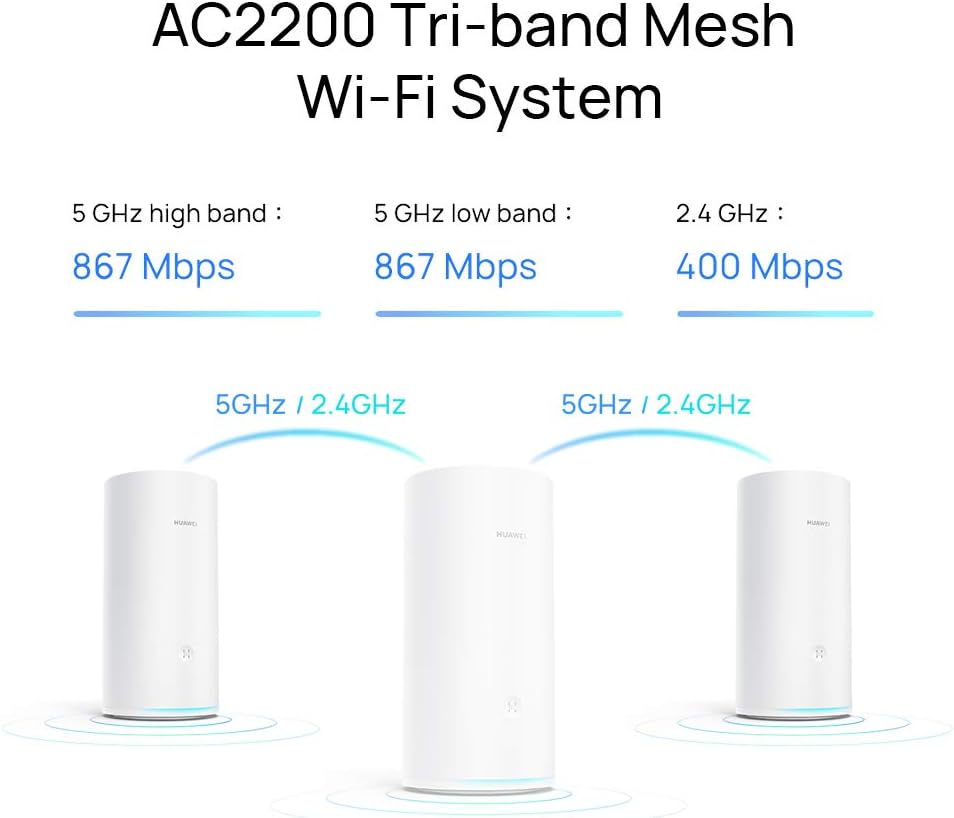
Image 4.1: Tri-band speed distribution of the AC2200 Mesh Wi-Fi System.
5. Priežiūra
Regular maintenance helps ensure the longevity and optimal performance of your HUAWEI WiFi Mesh Routers.
- Firmware atnaujinimai: Periodically check the HUAWEI AI Life app for available firmware updates. Keeping your firmware up-to-date ensures you have the latest features, security patches, and performance improvements.
- Valymas: Gently wipe the exterior of the routers with a soft, dry cloth. Do not use liquid cleaners or abrasive materials. Ensure ventilation openings are free from dust.
- Paleidimas iš naujo: If you experience minor network issues, try restarting your routers by unplugging them from the power outlet for 10 seconds and then plugging them back in.
- Gamykliniai nustatymai: In case of persistent issues or if you wish to reconfigure your network from scratch, you can perform a factory reset. Locate the 'RESET' button on the back of the router (refer to Image 3.1), and while the router is powered on, use a pin to press and hold the button for approximately 5-10 seconds until the indicator light changes. Įspėjimas: Gamyklinių parametrų atkūrimas ištrins visus jūsų pasirinktinius nustatymus.
6. Problemų sprendimas
This section addresses common issues you might encounter with your HUAWEI WiFi Mesh system.
6.1. Nėra interneto ryšio
- Patikrinkite kabelius: Ensure all network cables are securely connected to both the mesh router and your modem/ISP device.
- Modemo būsena: Patikrinkite, ar jūsų modemas veikia tinkamai ir ar jis turi aktyvų interneto ryšį.
- Router Indicator: Check the indicator light on the main router. If it's red or off, refer to the app for diagnostics or try restarting the router.
- Interneto paslaugų teikėjo problema: Contact your Internet Service Provider to check for service outages jūsų vietovėje.
6.2. Weak or Intermittent Wi-Fi Signal
- Maršrutizatoriaus išdėstymas: Ensure mesh units are placed optimally, avoiding obstructions like thick walls or large metal objects. Try repositioning them closer to each other or to the center of your coverage area.
- Trikdžiai: Use the 'Eliminate Interference' feature in the HUAWEI AI Life app to find the best Wi-Fi channel. Keep routers away from other electronic devices that might cause interference (e.g., microwaves, cordless phones).
- Įrenginio atstumas: Ensure your devices are within a reasonable range of a mesh unit.
6.3. Devices Not Connecting
- Teisingas slaptažodis: Dar kartą patikrinkite, ar įvedate teisingą „Wi-Fi“ slaptažodį.
- Iš naujo paleiskite įrenginį: Try restarting the device that is unable to connect.
- Maršrutizatoriaus paleidimas iš naujo: Restart your mesh routers.
- Firmware: Įsitikinkite, kad jūsų maršrutizatoriaus programinė įranga yra atnaujinta.
7. Specifikacijos
| Funkcija | Specifikacija |
|---|---|
| Prekės ženklas | HUAWEI |
| Modelio pavadinimas | WS5800 (HUAWEI WiFi Mesh) |
| Spalva | Baltas |
| Ryšio technologija | 802.11 ac/n/a 2X2 & 802.11 ac/n/a 2X2 & 802.11 b/g/n 2X2, MIMO, Ethernet, Wi-Fi |
| Belaidžio ryšio standartas | 802.11a, 802.11ac, 802.11n |
| Dažnių juostos klasė | Dual-band (Tri-band AC2200 system) |
| Ypatinga funkcija | Prieigos taško režimas |
| Suderinami įrenginiai | Mobilusis telefonas |
| Rekomenduojami naudojimo būdai | Namai, Profesionalus |
| Įtraukti komponentai | 2 routers, 2 power adapters, 2 network cables, 1 manual |
| Operacinė sistema | Android, Cisco IOS (Note: This may refer to compatibility or internal components, not the router's primary OS) |
8. Garantija ir palaikymas
For warranty information, technical support, and service, please refer to the official HUAWEI website or contact your local HUAWEI customer service center. Warranty terms and conditions may vary by region and retailer.
Svarbios pastabos:
- Informacija apie atsarginių dalių prieinamumą šiuo metu neprieinama.
- Information regarding guaranteed software updates is currently unavailable.
Visada išsaugokite pirkimo įrodymą garantiniams reikalavimams.


