Įvadas
This manual provides comprehensive instructions for the setup, operation, and maintenance of your Keychron K4 RGB Hot Swappable Mechanical Keyboard. Designed for productivity and a tactile typing experience, the K4 features a 96% layout with 100 keys, offering both Bluetooth wireless and USB wired connectivity. It is compatible with both Mac and Windows operating systems.
Pakuotės turinys
- Keychron K4 Mechanical Keyboard
- C tipo USB kabelis
- Klaviatūros traukiklis
- Jungiklio traukiklis
- Papildomi klavišų dangteliai „Windows“ ir „Mac“ operacinėms sistemoms
- Vartotojo vadovas (šis dokumentas)
Sąranka
1. Pradinis įkrovimas
Before first use, connect the keyboard to a USB power source using the provided USB Type-C cable. The keyboard features a 4000 mAh battery, providing up to 240 hours of usage with the backlight disabled.
2. Ryšio režimai
The Keychron K4 supports both Bluetooth wireless and USB wired connections.

Image: The Keychron K4 keyboard is designed for broad compatibility, supporting both Mac and Windows operating systems, and connecting seamlessly with various devices including desktops, laptops, and smartphones/tablets.
2.1. „Bluetooth“ ryšys
- Ensure the keyboard's mode switch (located on the side) is set to "BT" (Bluetooth).
- Paspauskite ir palaikykite fn+1 (arba fn+2 or fn+3) key combination for 4 seconds until the '1' (or '2' or '3') key flashes rapidly. This indicates the keyboard is in pairing mode.
- Savo įrenginyje (kompiuteryje, išmaniajame telefone, planšetiniame kompiuteryje) įjunkite „Bluetooth“ ir ieškokite „Keychron K4“.
- Select "Keychron K4" from the list of available devices to complete the pairing process. The corresponding number key will stop flashing and remain solid when connected.
- The keyboard can connect with up to 3 devices and switch between them easily using fn+1, fn+2, arba fn+3.
2.2. USB laidinis ryšys
- Įsitikinkite, kad klaviatūros režimo jungiklis yra nustatytas į „Kabelinė“ padėtį.
- Prijunkite USB C tipo laidą nuo klaviatūros prie kompiuterio USB prievado.
- Klaviatūra bus automatiškai atpažinta ir paruošta naudoti.
3. Operacinės sistemos perjungimas
The Keychron K4 has a dedicated switch for Mac and Windows layouts. Locate the OS switch on the side of the keyboard and set it to your desired operating system for optimal key mapping.

Image: The Keychron K4 keyboard seamlessly integrates with Apple devices, as shown here next to an iMac and Magic Mouse, highlighting its Mac compatibility.
Naudojimo instrukcijos
1. Pagrindinės funkcijos ir išdėstymas
The K4 features a 96% layout with 100 keys, including a number pad. It provides all necessary Mac function keys and is fully compatible with Windows. Extra keycaps for both operating systems are included for customization.

Paveikslėlis: išsamus view of the Keychron K4 keyboard, highlighting its compact 96% layout which includes a full numeric keypad, and its vibrant RGB backlighting.
2. Apšvietimo valdymas
The K4 features enchanting RGB backlighting with over 15 types of flashing light modes. All backlight controls are managed directly from the keyboard without the need for software.
- Fn + Light Bulb Key (F5): Perjunkite skirtingus RGB apšvietimo efektus.
- Fn + rodyklė kairėn: Sumažinkite foninio apšvietimo ryškumą.
- Fn + rodyklė dešinėn: Padidinkite foninio apšvietimo ryškumą.
- Fn + rodyklė aukštyn: Increase backlight speed/effect.
- Fn + rodyklė žemyn: Decrease backlight speed/effect.

Image: A detailed shot of the Keychron K4's RGB backlighting, showcasing the vibrant and customizable illumination beneath the keycaps.
3. N raktų perkėlimas (NKRO)
The K4 supports N-key rollover (NKRO) in wired mode, allowing all keys to be registered simultaneously. In wireless mode, it supports 6-key rollover (6KRO).
Priežiūra
1. Klaviatūros valymas
Norėdami išvalyti klaviatūrą, pirmiausia atjunkite ją nuo visų maitinimo šaltinių. Naudokite minkštą, nepūkuotą šluostę, šiek tiek sudrėkintąampnuplaukite vandeniu arba švelniu valymo tirpalu. Venkite purkšti skysčių tiesiai ant klaviatūros. Tarpus tarp klavišų dangtelių valykite suslėgtu oru arba mažu šepetėliu.
2. Karšto keitimo jungikliai
The K4 hot-swappable version allows you to personalize your typing experience by changing switches without soldering. This feature enables easy replacement of switches if they become faulty or if you wish to try different switch types (e.g., Gateron G Pro Brown, Red, Blue).
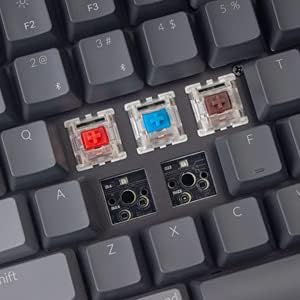
Image: This image demonstrates the hot-swappable capability of the Keychron K4, showing various Gateron switches detached from the keyboard's PCB, allowing for easy customization or replacement.
2.1. Jungiklių keitimas
- Norėdami švelniai nuimti norimą klavišo dangtelį, naudokite pateiktą klavišo dangtelio traukiklį.
- Use the provided switch puller to carefully grip the switch from its top and bottom clips. Pull straight up to remove the switch from the PCB.
- Suderinkite naujo jungiklio kaiščius su spausdintinės plokštės skylėmis. Įsitikinkite, kad kaiščiai yra tiesūs.
- Švelniai stumkite naują jungiklį į vietą, kol jis tvirtai spragtelės. Nespauskite jėgos.
- Uždėkite klavišo dangtelį.
3. Klaviatūros dangtelio keitimas
Keycaps can be removed and replaced using the keycap puller. This is useful for cleaning or for installing custom keycap sets. Ensure proper alignment when replacing keycaps.
Trikčių šalinimas
- Klaviatūra neprisijungia per „Bluetooth“:
- Ensure the keyboard's mode switch is set to "BT".
- Verify the keyboard is in pairing mode (Fn + 1/2/3 key flashing).
- Patikrinkite savo įrenginio „Bluetooth“ nustatymus ir įsitikinkite, kad „Bluetooth“ įjungtas.
- Try forgetting the device on your computer/phone and re-pairing.
- Įsitikinkite, kad klaviatūra yra pakankamai įkrauta.
- Bluetooth connection lag or disconnection:
- Move the keyboard closer to your device to reduce interference.
- Įsitikinkite, kad nėra jokių kitų stiprių belaidžių signalų, kurie trukdytų ryšiui.
- Patikrinkite akumuliatoriaus lygį; žemas akumuliatoriaus lygis gali turėti įtakos belaidžio ryšio veikimui.
- Consider using the wired USB connection for critical tasks or gaming if wireless performance is inconsistent.
- Foninis apšvietimas neveikia arba užstringa:
- Ensure the backlight is not turned off (Fn + Light Bulb key).
- Adjust brightness using Fn + Left/Right Arrow keys.
- A full charge might resolve minor power-related issues.
- Klavišai nereaguoja:
- If using wireless, check battery and connection.
- If using wired, ensure the USB cable is securely connected.
- For specific keys, consider the hot-swappable feature: remove the keycap and switch, inspect the switch pins for bending, straighten if necessary, and reinsert. If the switch is faulty, replace it.
- Keyboard not recognized by computer:
- Išbandykite kitą USB prievadą arba kabelį.
- Ensure the OS switch on the keyboard matches your computer's operating system.
- Iš naujo paleiskite kompiuterį.
Specifikacijos
| Funkcija | Detalė |
|---|---|
| Prekės ženklas | Keychron |
| Modelio numeris | Keychron K4J3 |
| Išdėstymas | 96 % (100 klavišai) |
| Ryšys | „Bluetooth 5.1“ (iki 3 įrenginių) ir USB C tipo laidinis ryšys |
| Jungikliai | Gateron G Pro Brown (Hot-Swappable) |
| Foninis apšvietimas | RGB (15+ types of flashing light mode) |
| Baterijos talpa | 4000 mAh |
| Baterijos veikimo laikas | Up to 240 hours (backlight disabled) |
| N-Key Rollover (NKRO) | Wired Mode: NKRO; Wireless Mode: 6KRO |
| Operacinės sistemos suderinamumas | macOS, Windows |
| Matmenys (IxPxH) | 14.8 x 5.08 x 1.5 colio |
| Prekės svoris | 2.05 svaro |
Garantija ir palaikymas
Keychron products are designed for durability and performance. For specific warranty terms and conditions, please refer to the warranty information provided with your purchase or visit the official Keychron website. For technical support, troubleshooting assistance, or inquiries regarding your Keychron K4 keyboard, please contact Keychron customer service directly.
Oficialus „Keychron“ Websvetainė: www.keychron.com


