1. Produktas baigtasview
The Peplink UBR LTE is a robust dual-cellular LTE router designed to provide an all-in-one WAN solution for various deployments, including industrial and mobile applications. It features multiple connectivity options and supports Peplink's SpeedFusion SD-WAN bonding technology for reliable and unbreakable internet access.
Pagrindinės funkcijos:
- 1x Gigabit Ethernet (GE) WAN port
- 4x Gigabit Ethernet (GE) LAN ports
- 2x LTE cellular modems for dual-cellular connectivity
- Router throughput: 120 Mbps
- Downlink/Uplink datarate: 150Mbps/50Mbps
- Wi-Fi standards: 2.4GHz (802.11b/g/n) or 5GHz (802.11a/n)
- Antenna connectors: 4x SMA cellular, 2x Wi-Fi, 1x SMA GPS
- Darbinė temperatūra: nuo -40°F iki 149°F (nuo -40°C iki 65°C)
- Supports SpeedFusion WAN SMOOTHING (requires PrimeCare Subscription)
2. Pakuotės turinys
Patikrinkite, ar pakuotėje yra visi reikalingi daiktai:
- 1 x Peplink UBR LTE device
- 1 x 12V2A maitinimo šaltinis
- 2 x Wi-Fi antenos
- 4 x 4G LTE Antennas
- 1x GPS antena
- 1 x 4-pin Terminal Block Connector
- 1 x Rubber Foot Pad Set

Figure 1: Peplink UBR LTE Package Contents
3. Sąrankos vadovas
3.1. SIM kortelės montavimas
The UBR LTE uses 2FF (Full-Size) SIM cards. It features redundant SIM slots for each cellular modem, allowing for failover or use with multiple carriers.
- Locate the Cellular SIM slots on the side of the device.
- Align the notch of your SIM card with the notch on the SIM icon.
- Įkiškite SIM kortelę į lizdą, kol ji spragtelės ir užsifiksuos vietoje.
- For optimal performance with T-Mobile Band 71, insert the T-Mobile SIM into Cellular Slot 2.
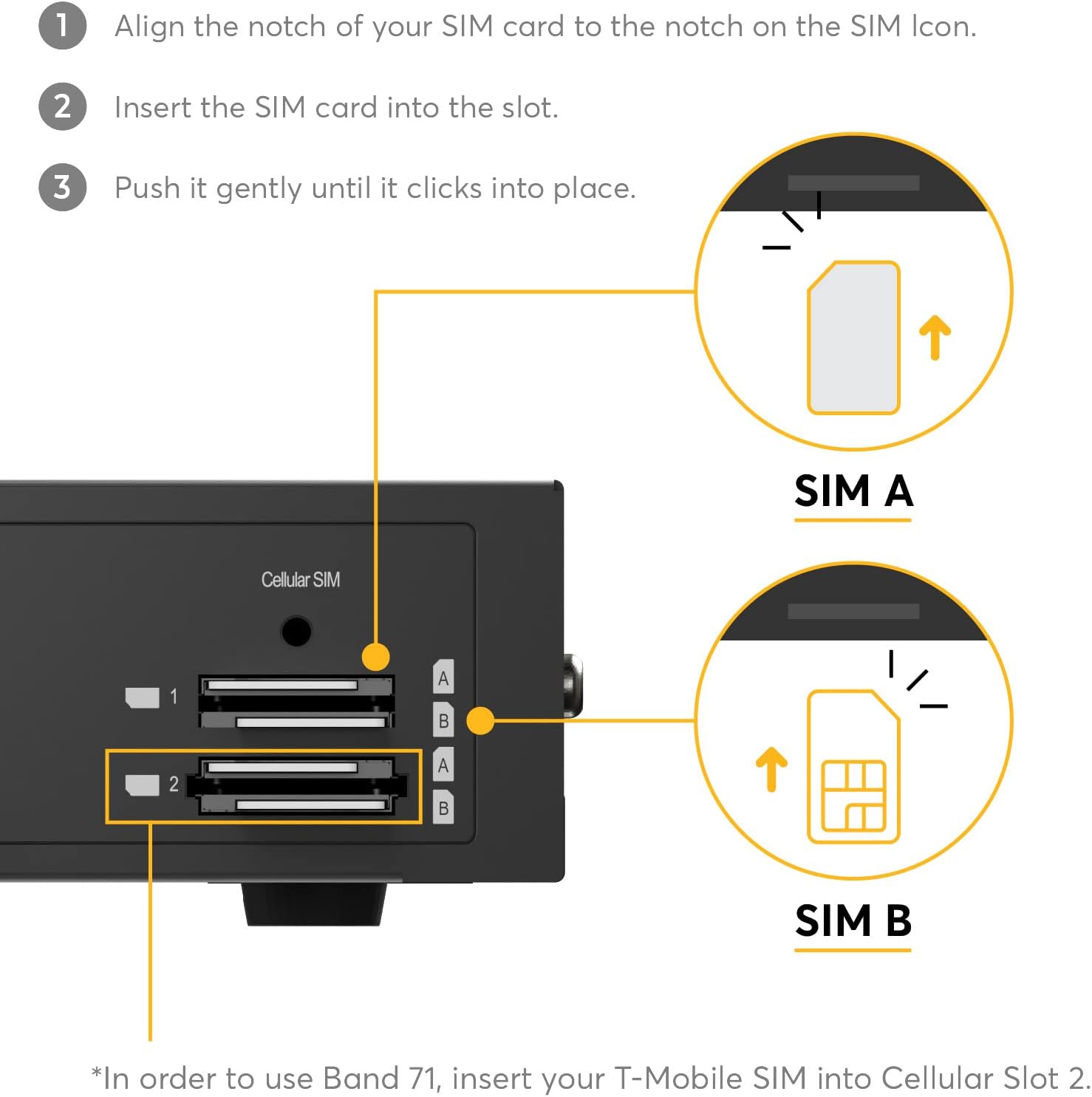
2 pav.: SIM kortelės įdėjimas
3.2. Antenos jungtis
Connect the provided antennas to their respective ports on the router. The Wi-Fi antennas are slightly larger than the cellular antennas.
- Connect the 2 Wi-Fi antennas to the 'Wi-Fi A' and 'Wi-Fi B' ports.
- Connect the 4 cellular antennas to the 'Cellular 1 Main', 'Cellular 1 Aux', 'Cellular 2 Main', and 'Cellular 2 Aux' ports.
- Connect the GPS antenna to the 'GPS' port.

Figure 3: Antenna Connections
3.3. Maitinimo prijungimas
Connect the 12V2A power supply to the DC IN port. Alternatively, for industrial or vehicle applications, use the 4-pin terminal block connector for 12-28V DC power input.

Figure 4: Power Terminal Block and SIM Slots
3.4. Initial Configuration (Video Guide)
For a visual guide on unboxing, connecting components, and initial setup, refer to the official Peplink UBR LTE Overview and Setup video:
Video 1: Peplink UBR LTE Overview and Setup. This video demonstrates the unboxing, component identification, and basic physical setup of the UBR LTE router, including antenna and power connections.
4. Naudojimo instrukcijos
4.1. Tinklo ryšys
The UBR LTE offers flexible WAN connectivity options:
- Ethernet WAN: Connect your primary internet source (e.g., DSL, Cable modem) to the GE WAN port.
- Cellular LTE: Utilize the dual LTE modems with installed SIM cards for cellular internet access.
- LAN prievadai: Connect local network devices to the 4 GE LAN ports.
4.2. SpeedFusion SD-WAN
The UBR LTE supports Peplink's SpeedFusion SD-WAN technology, which can combine multiple WAN links (Ethernet, Cellular) for increased bandwidth, reliability, and seamless failover. This feature requires an active PrimeCare subscription.
4.3. Web Administration Interface
Pasiekite maršrutizatoriaus web administration interface via a connected device to configure network settings, monitor status, and manage features. The default IP address is typically 192.168.50.1. Refer to the device's quick start guide for initial login credentials.

Figure 5: SpeedFusion Technology

Figure 6: InControl Network Management
5. Priežiūra
To ensure optimal performance and longevity of your Peplink UBR LTE router, follow these maintenance guidelines:
- Firmware atnaujinimai: Regularly check for and install the latest firmware updates from the Peplink website or via the InControl cloud management platform. Updates often include performance improvements, security patches, and new features.
- Fizinė apžiūra: Periodically inspect all cable and antenna connections to ensure they are secure and free from damage.
- Vėdinimas: Ensure the router is placed in a location with adequate airflow to prevent overheating. Do not block ventilation openings.
- Valymas: Keep the device clean and free of dust. Use a soft, dry cloth for cleaning.
6. Problemų sprendimas
6.1. Cellular Connection Issues (Obtaining IP Address)
If your AT&T SIM card (especially newer white and blue 5G SIMs) is stuck on "Obtaining IP Address" in the web administration interface, you may need to manually configure the Access Point Name (APN).
- Navigate to the WAN Connection Status section in the web administravimo sąsaja.
- Click 'Details' next to the problematic Cellular WAN connection.
- Scroll down to 'Cellular Settings' and locate 'Operator Settings'.
- Change the setting from 'Auto' to 'Custom'.
- In the 'APN' field, enter
broadband. - Click 'Save and Apply'. The connection should now establish.
6.2. Bendrosios ryšio problemos
- Patikrinkite fizinius ryšius: Ensure all Ethernet cables, power cables, and antennas are securely connected.
- Verify SIM Card Activation: Confirm that your cellular SIM cards are active with your service provider.
- Antenos vieta: Ensure antennas are positioned for optimal signal reception.
- Iš naujo paleiskite įrenginį: Power cycle the router by disconnecting and reconnecting the power supply.
6.3. Work From Home Connectivity (Video Guide)
This video illustrates how the UBR LTE can provide seamless failover between home Ethernet and cellular connections, ensuring uninterrupted remote work:
Video 2: Work From Home Case Study_UBR_LTE. This video demonstrates the UBR LTE's capability to maintain internet connectivity through automatic failover between wired and cellular WAN sources, crucial for remote work environments.
7. Specifikacijos
| Funkcija | Aprašymas |
|---|---|
| Gaminio matmenys | 5.1 x 4.3 x 1.6 colio |
| Prekės svoris | 1.19 svaro |
| Modelio pavadinimas | UBR-LTE-US-T-PRM |
| Maršrutizatoriaus pralaidumas | 120 Mbps |
| Downlink/Uplink Datarate | 150 Mbps / 50 Mbps |
| Standartinis belaidis internetas | 2.4GHz: 802.11b/g/n OR 5GHz: 802.11a/n |
| Antenos jungtys | 4x SMA cellular, 2x Wi-Fi, 1x SMA GPS |
| Darbinė temperatūra | -40°F – 149°F / -40°C – 65°C |
| 4G Bands (Cellular 1) | B2, B4, B5, B12, B13, B25, B26 |
| 4G Bands (Cellular 2) | B12, B14, B4, B2, B5, B13, B66, B71 |
| 3G Bands (Cellular 1) | WCDMA/HSPA+/DC-HSPA+: B2, B4, B5 |
| 3G Bands (Cellular 2) | B2, B4, B5 |
| SpeedFusion Bonding Throughput | 20Mbps (Encrypted), 40Mbps (Un-Encrypted) |
| Ypatingos savybės | QoS, WPS |
| Dažnių juostos klasė | Dviejų juostų |
| Ryšio technologija | LAN, WAN, Wi-Fi |
| Antenos tipas | Pataisyta |
8. Informacija apie garantiją
The Peplink UBR LTE includes a complimentary 1-year PrimeCare warranty. PrimeCare provides access to SpeedFusion features and hardware support.

Figure 7: PrimeCare Warranty Included
9. Parama
For further assistance, technical support, or warranty claims, please contact Peplink customer support through their official channels. Refer to the Peplink websvetainę, kurioje rasite naujausią palaikymo kontaktinę informaciją.

Figure 8: Hardware Support


