1. Įvadas
This manual provides essential information for the safe and efficient operation of your iProda 2 in 1 Laptop, Model M1169YM. Please read this manual thoroughly before using the device and retain it for future reference. This convertible laptop features an 11.6-inch touchscreen, powered by an Intel N4100 processor, and runs on Windows 10 Pro.

Image: The iProda 2 in 1 Laptop can be used in multiple configurations, including traditional laptop, tent, stand, and tablet modes, showcasing savo universalumu.
2. Saugos informacija
Kad nesugadintumėte savo įrenginio ar nesusižalotumėte, laikykitės šių saugos priemonių:
- Nelaikykite prietaiso ekstremaliose temperatūrose, tiesioginiuose saulės spinduliuose ar didelėje drėgmėje.
- Venkite numesti įrenginį ir stipriai jį sutrenkti.
- Use only the provided or approved power adapter for charging.
- Saugokite prietaisą nuo vandens ir kitų skysčių.
- Nebandykite patys ardyti ar taisyti įrenginio. Kreipkitės į kvalifikuotus techninės priežiūros darbuotojus.
3. Pakuotės turinys
Patikrinkite, ar pakuotėje yra visi reikalingi daiktai:
- iProda 2 in 1 Laptop (Model M1169YM)
- Maitinimo adapteris
- Vartotojo vadovas (šis dokumentas)
4. Produktas baigtasview
The iProda 2 in 1 Laptop is designed for versatility, offering multiple usage modes and essential connectivity options.
4.1. Pagrindinės savybės
- 11.6 colių IPS jutiklinis ekranas: A responsive 10-point precision touchscreen with 1920x1080 resolution for interactive use.
- Kabrioleto dizainas: 360-degree hinge allows seamless transition between laptop, tablet, tent, and stand modes.
- Intel N4100 Processor: Provides efficient performance for daily tasks.
- „Windows 10 Pro“: Pre-installed operating system for productivity and security.
- Išplečiama saugykla: Supports M.2 2242 SSD for additional storage capacity.

Image: Key features of the iProda laptop, including its touchscreen, operating system, display specifications, and camera resolution.

Image: The laptop's 360-degree hinge allows it to convert into a tablet, enabling direct interaction via its precision touchscreen.
4.2. Prievadai ir mygtukai
Familiarize yourself with the various ports and buttons on your laptop:
- C tipo prievadas: Used for power supply and data transfer.
- Mikro HDMI: Skirta prijungti išorinius ekranus.
- Mikro USB: Skirta USB įrenginiams prijungti.
- TF kortelės lizdas: For expanding storage with a TF (MicroSD) card.
- Maitinimo mygtukas: Įjungti / išjungti įrenginį arba užmigdyti.
- Garsumo mygtukai: To adjust audio output.
- Ausinių lizdas: Skirta ausinėms arba išoriniams garsiakalbiams prijungti.

Paveikslėlis: detalus view of the laptop's side panels, indicating the location and function of each port and button for easy identification.
5. Sąranka
5.1. Akumuliatoriaus įkrovimas
Before first use, fully charge the laptop's battery. Connect the provided power adapter to the Type-C port on the laptop and plug it into a power outlet. The charging indicator light will illuminate.
5.2. Pirmasis paleidimas ir „Windows“ sąranka
- Paspauskite ir palaikykite maitinimo mygtuką, kol ekranas įsijungs.
- Vykdykite ekrane pateikiamus nurodymus, kad atliktumėte pradinę „Windows 10 Pro“ sąranką, įskaitant kalbos pasirinkimą, tinklo ryšį ir vartotojo paskyros kūrimą.
6. Nešiojamojo kompiuterio valdymas
6.1. Jutiklinio ekrano naudojimas
The 10-point precision touchscreen allows for intuitive interaction with Windows 10 Pro. Use gestures such as tapping, swiping, pinching, and stretching to navigate, zoom, and interact with applications.
6.2. Klaviatūra ir jutiklinė planšetė
The integrated keyboard and touchpad provide traditional input methods. The touchpad supports multi-touch gestures for scrolling, zooming, and switching applications.

Image: The laptop's full-size American keyboard and responsive touchpad, designed for comfortable typing and navigation.
6.3. Konvertuojami režimai
The 360-degree hinge allows you to switch between various modes:
- Nešiojamojo kompiuterio režimas: Standartinė konfigūracija spausdinimui ir produktyvumui.
- Planšetinio kompiuterio režimas: Fold the screen back completely for a tablet experience, ideal for browsing or drawing.
- Palapinės režimas: Position the laptop like a tent for media consumption or presentations.
- Stovėjimo režimas: Flip the keyboard face down to use the screen as a display, suitable for watching videos.

Image: The laptop configured in tent mode, demonstrating its flexibility for viewturinio peržiūra be klaviatūros kliūčių.
7. Saugyklos išplėtimas
The laptop comes with 64GB eMMC storage. You can expand the storage capacity by installing an M.2 2242 SSD (128GB/256GB/512GB, not included).
7.1. Installing an M.2 2242 SSD
To install an M.2 2242 SSD:
- Power off the laptop and disconnect the power adapter.
- Carefully open the back cover of the laptop.
- Locate the M.2 slot.
- Insert the M.2 2242 SSD into the slot and secure it with the appropriate screw (if provided).
- Uždėkite galinį dangtelį.
- Upon booting, you may need to initialize and format the new SSD through Windows Disk Management.
Note: If you are unsure about this procedure, it is recommended to seek professional assistance.

Image: Visual representation of the M.2 SSD slot, illustrating how additional storage can be integrated into the laptop.
8. Ryšys
8.1. „Wi-Fi“ ryšys
The laptop supports dual-frequency 2.4GHz/5GHz Wi-Fi. To connect to a wireless network:
- Sistemos dėkle spustelėkite „Wi-Fi“ piktogramą.
- Iš sąrašo pasirinkite norimą tinklą.
- Jei būsite paraginti, įveskite tinklo slaptažodį ir spustelėkite „Prisijungti“.
8.2. External Display (Micro HDMI)
Connect an external monitor or TV using a Micro HDMI to HDMI cable. Once connected, you can configure display settings (duplicate, extend, second screen only) through Windows display settings.
8.3. USB įrenginiai
Use the Micro USB port or the Type-C port (with an appropriate adapter) to connect peripherals such as a mouse, keyboard, or external storage devices.
9. Priežiūra
9.1. Valymas
To clean the laptop, power it off and disconnect the power adapter. Use a soft, lint-free cloth slightly dampnuplaukite vandeniu arba ekrano valikliu. Venkite stiprių cheminių medžiagų ar abrazyvinių medžiagų.
9.2. Akumuliatoriaus priežiūra
Norėdami pailginti baterijos veikimo laiką:
- Venkite dažnai visiškai iškrauti akumuliatorių.
- Do not expose the laptop to high temperatures.
- Jei nešiojamąjį kompiuterį ketinate laikyti ilgą laiką, įsitikinkite, kad akumuliatorius įkrautas iki maždaug 50–70 %.
10. Problemų sprendimas
Čia pateikiami dažniausiai pasitaikančių problemų, su kuriomis galite susidurti, sprendimai:
| Problema | Sprendimas |
|---|---|
| Nešiojamasis kompiuteris neįsijungia. | Ensure the battery is charged. Connect the power adapter and try again. If still unresponsive, perform a hard reset by holding the power button for 10-15 seconds. |
| Ekranas tuščias arba mirga. | Restart the laptop. Check if an external display is connected and interfering. Update display drivers if possible. |
| „Wi-Fi“ ryšio problemos. | Įsitikinkite, kad įjungtas „Wi-Fi“. Paleiskite maršrutizatorių ir nešiojamąjį kompiuterį iš naujo. Patikrinkite tinklo nustatymus sistemoje „Windows“. |
| Jutiklinis ekranas nereaguoja. | Restart the laptop. Ensure the screen is clean. Check for any pending Windows updates or driver updates for the touchscreen. |
11. Specifikacijos
Technical specifications for the iProda 2 in 1 Laptop (Model M1169YM):
| Funkcija | Detalė |
|---|---|
| Prekės ženklas | iProda |
| Modelio numeris | M1169YM |
| Operacinė sistema | Windows 10 Pro |
| Ekrano dydis | 11.6 colių |
| Ekrano raiška | 1920 x 1080 pikselių (1080p) |
| Procesorius | Intel N4100 (up to 2.4 GHz Burst Frequency) |
| RAM | 4 GB DDR4 |
| Kietasis diskas | 64 GB eMMC |
| Vaizdo plokštė | Integrated (UHD 600 Graphics) |
| Belaidis tipas | 2.4 GHz / 5 GHz Dual-frequency Wi-Fi |
| Vidutinis baterijos veikimo laikas | 8 Hours (3500mAh, 27Wh) |
| Prekės svoris | 3.63 svaro |
| Gaminio matmenys | 11.99 x 11.6 x 0.5 colio |
| Ryšio technologija | HDMI, USB Type-C, Micro USB |
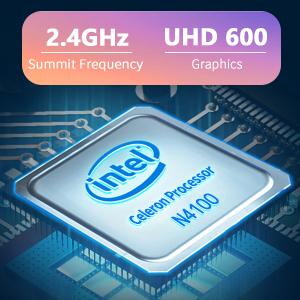
Image: The Intel Celeron N4100 processor, central to the laptop's performance, highlighting its clock speed and integrated graphics capabilities.

Image: The laptop's battery specifications, indicating its power capacity for extended use.
12. Garantija ir palaikymas
For warranty information and technical support, please refer to the documentation included with your purchase or visit the official iProda website. Contact information for customer service can typically be found on the manufacturer's support page.


