1. Įvadas
This manual provides detailed instructions for the proper installation, operation, and maintenance of your Xprinter XP-N160II thermal receipt printer. Please read this manual thoroughly before using the printer to ensure optimal performance and to prevent damage.
2. Produktas baigtasview
2.1 Pagrindinės savybės
- Prekės ženklas: Xprinter
- Spalva: juoda
- Printer Type: Receipt Thermal Printer
- Modelio numeris: N160
- Ryšio technologija: USB
- Printer Output: Monochrome
- Print Media: Labels
- Maximum Black and White Print Resolution: 203 dpi
2.2 Spausdintuvo komponentai
Familiarize yourself with the various parts of your Xprinter XP-N160II printer:
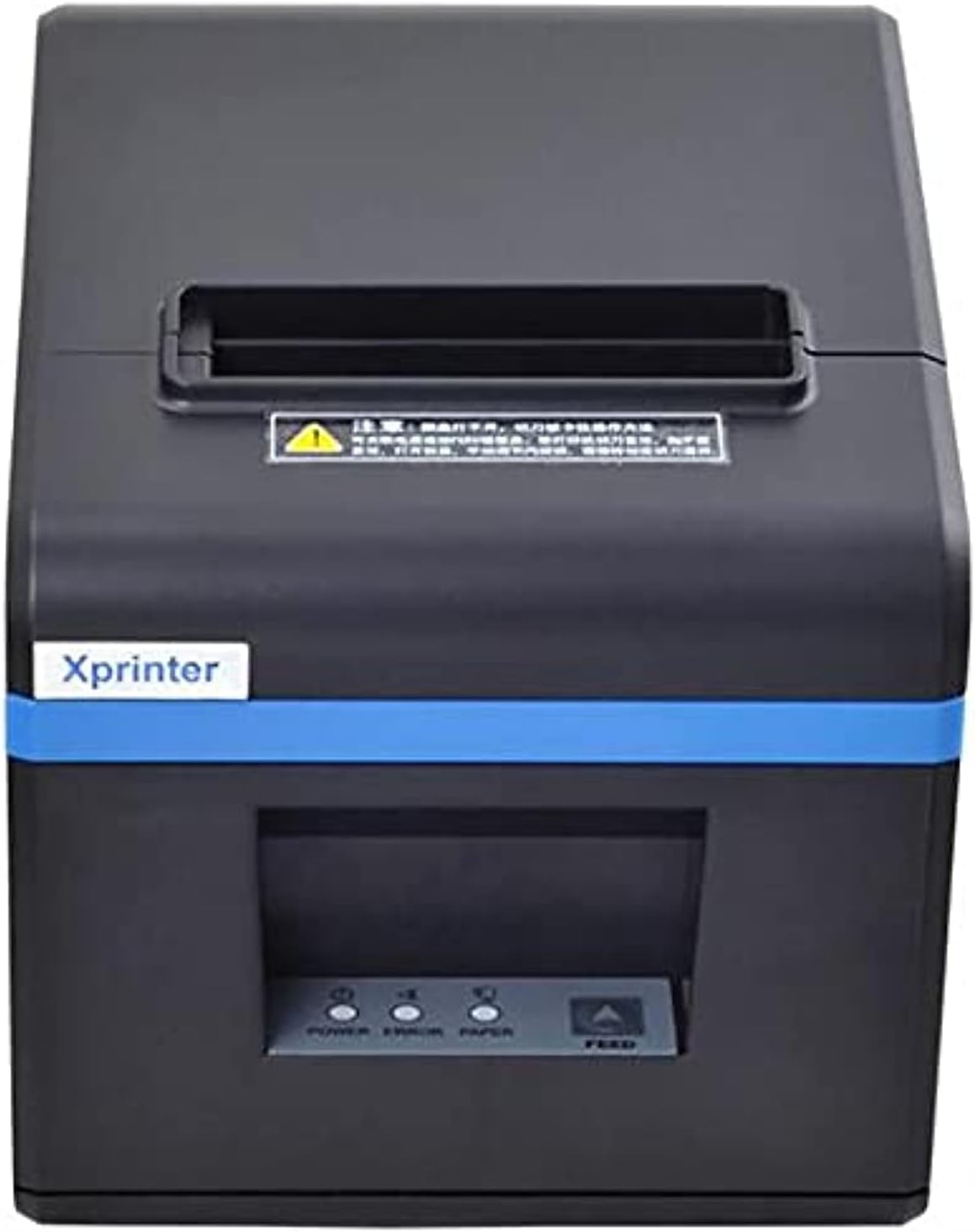
1 paveikslas: Priekyje view of the Xprinter XP-N160II thermal receipt printer, showing the paper output slot, control panel with indicator lights (POWER, ERROR, PAPER), and FEED button.
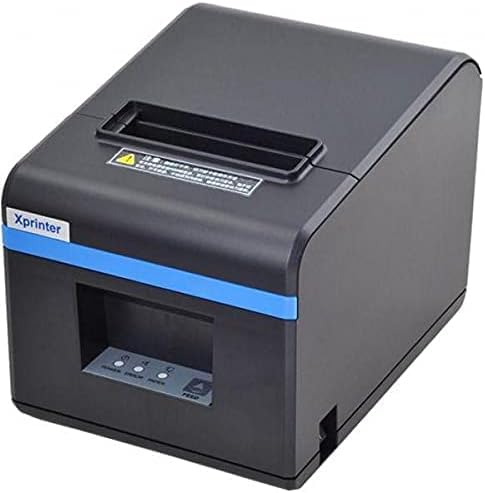
2 paveikslas: Kampinis priekis view of the Xprinter XP-N160II, highlighting its compact design and the Xprinter branding on the front.
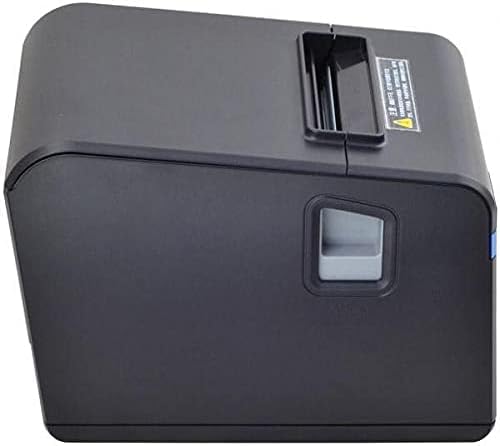
3 paveikslas: Šoninė view of the Xprinter XP-N160II, illustrating the paper cover release lever for easy paper roll replacement.

4 paveikslas: Galinis view of the Xprinter XP-N160II, displaying the power input port, USB port, and an additional port (likely for cash drawer connection).
3. Sąrankos instrukcijos
- Išpakavimas: Carefully remove the printer from its packaging. Retain all packaging materials for future transport or storage.
- Prijunkite maitinimą: Connect the power adapter to the printer's power input port (refer to Figure 4) and then plug the power cord into a suitable electrical outlet.
- Prijunkite duomenų kabelį: Connect the USB cable from the printer's USB port (refer to Figure 4) to your computer or point-of-sale system.
- Įdėkite popieriaus ritinį:
- Press the paper cover release lever (refer to Figure 3) to open the printer cover.
- Insert a new thermal paper roll into the compartment, ensuring the paper feeds from the bottom and the leading edge extends slightly out of the printer.
- Tvirtai uždarykite spausdintuvo dangtį, kol jis spragtelėdamas užsifiksuos.
- Įdiegti tvarkykles: Insert the driver CD (if included) into your computer or download the latest drivers from the official Xprinter websvebsaitą. Vykdykite ekrane pateikiamus nurodymus, kad užbaigtumėte tvarkyklės diegimą.
- Maitinimas: Press the power button on the printer. The POWER indicator light should illuminate.
4. Naudojimo instrukcijos
- Self-Test Print: To perform a self-test, turn off the printer. While holding down the FEED button, turn the printer back on. Release the FEED button once the printer starts printing. This will print a configuration page, confirming basic functionality.
- Printing from Application: Ensure the printer is connected and drivers are installed. In your application (e.g., POS software, word processor), select the Xprinter XP-N160II as your default printer and initiate the print command.
- Feeding Paper Manually: Press the FEED button on the front panel to advance the paper by a small amount. Hold the FEED button down to continuously feed paper.
5. Priežiūra
- Spausdinimo galvutės valymas: Regularly clean the thermal print head with an alcohol swab or a specialized print head cleaning pen. Ensure the printer is turned off and cooled down before cleaning.
- Veleno volelio valymas: Naudokite minkštą, damp cloth to wipe the platen roller (the rubber roller that feeds the paper) to remove any paper dust or debris.
- Popieriaus ritinio keitimas: Replace the paper roll when the PAPER indicator light illuminates or when the red line appears on the paper, indicating the end of the roll is near. Follow the steps outlined in Section 3.4.
- Bendras valymas: Keep the printer exterior clean by wiping it with a soft, dry cloth. Avoid using harsh chemicals or abrasive cleaners.
6. Problemų sprendimas
| Problema | Galima priežastis | Sprendimas |
|---|---|---|
| Spausdintuvas neįsijungia | No power supply; faulty power adapter | Patikrinkite maitinimo laido jungtį; įsitikinkite, kad lizdas veikia; jei yra, išbandykite kitą maitinimo adapterį. |
| No paper feeding / PAPER light on | Paper roll empty or incorrectly loaded | Replace paper roll or re-load correctly (refer to Section 3.4). |
| Print output is blank or faded | Paper loaded incorrectly (upside down); print head dirty or damaged | Ensure thermal paper is loaded with the thermal side facing the print head; clean the print head (refer to Section 5). |
| Kompiuteris neatpažįsta spausdintuvo | USB cable disconnected; drivers not installed or corrupted | Check USB cable connection; re-install printer drivers (refer to Section 3.5). |
| Šviečia KLAIDOS lemputė | Paper jam; print head overheating; cover open | Clear any paper jams; allow printer to cool down; ensure printer cover is closed properly. |
7. Specifikacijos
| Funkcija | Detalė |
|---|---|
| Prekės ženklo pavadinimas | Xprinteris |
| Modelio pavadinimas | N160 |
| Spalva | Juoda |
| Spausdintuvo technologija | Šiluminis |
| Ryšio technologija | USB |
| Spausdintuvo išvestis | Vienspalvis |
| Spausdinimo laikmena | Etiketės |
| Maksimali juodai balto spausdinimo skiriamoji geba | 203 dpi |
| Maksimali lapų talpa | 50 (referring to individual labels or a roll capacity equivalent) |
| Pakuotės matmenys | 33 x 21.4 x 18.3 cm |
| Prekės svoris | 1.62 kg |
| Gamintojas | Xprinteris |
| Pasiekiama pirmoji data | 1 m. birželio 2021 d |
8. Saugos informacija
- Saugokite spausdintuvą nuo vandens ar didelės drėgmės.
- Venkite spausdintuvo laikymo tiesioginiuose saulės spinduliuose arba šalia šilumos šaltinių.
- Naudokite tik prie spausdintuvo pridėtą maitinimo adapterį.
- Nebandykite patys ardyti ar taisyti spausdintuvo. Kreipkitės į kvalifikuotus techninės priežiūros darbuotojus.
- Laikyti vaikams nepasiekiamoje vietoje.
- Užtikrinkite tinkamą vėdinimą aplink spausdintuvą darbo metu.
9. Garantija ir palaikymas
The Xprinter XP-N160II thermal receipt printer comes with a standard manufacturer's warranty. For specific warranty terms and conditions, please refer to the documentation included with your purchase or contact Xprinter customer support directly. For technical assistance or service inquiries, please visit the official Xprinter websvetainėje arba kreipkitės į jų įgaliotuosius techninės priežiūros centrus.