Įvadas
This manual provides detailed instructions for the setup, operation, and maintenance of your IVIEW 3500STBA III ATSC Digital Converter Box. Please read this manual thoroughly before using the device to ensure proper functionality and to maximize your viewpatirtį.
Produktas baigtasview
IVIEW 3500STBA III is a versatile digital converter box designed to convert digital broadcast signals for analog TVs, act as a media player, and offer recording capabilities. It supports ATSC and ClearQAM signals, providing access to local over-the-air channels and unscrambled cable channels.
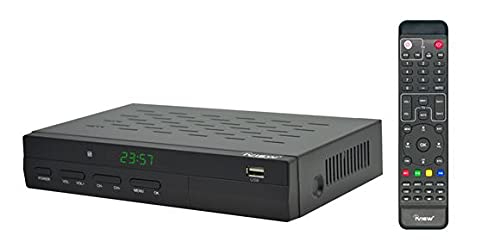
1 paveikslas: IVIEW 3500STBA III Digital Converter Box with included remote control.
Sąranka ir jungtys
Follow these steps to correctly set up your IVIEW 3500STBA III Digital Converter Box.
1. Unboxing Contents
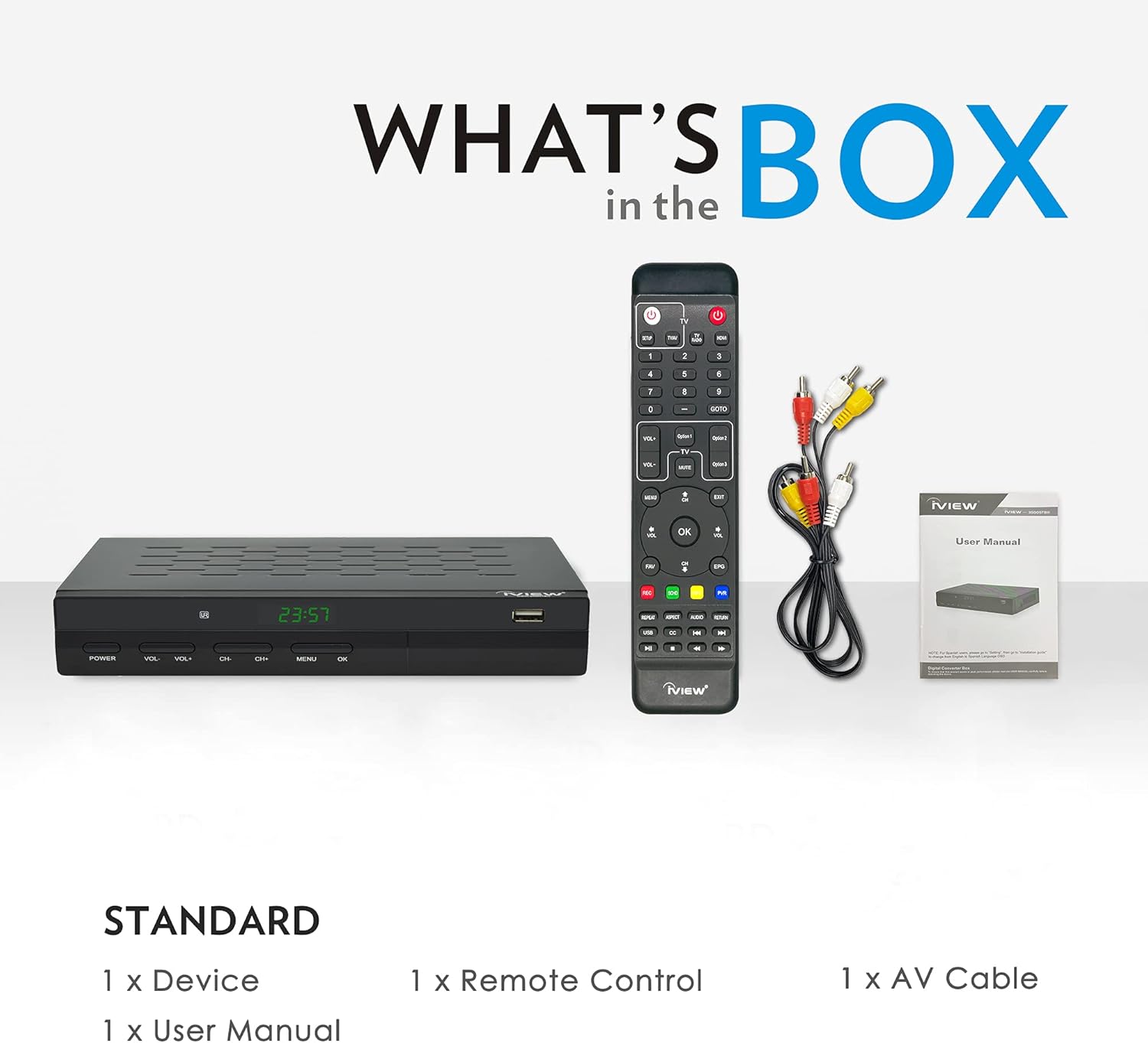
Figure 2: The box includes the converter device, remote control, and A/V cable.
2. Įrenginys baigtasview

Figure 3: Front panel of the converter box with control buttons and USB port.

Figure 4: Rear panel of the converter box with various input and output ports.
3. Prietaiso prijungimas
Connect the converter box to your TV and antenna using the appropriate cables.
- Prijunkite anteną prie SKRUZDZĖS ĮVYK prievadas keitiklio dėžutėje.
- Connect the converter box to your TV using either an HDMI cable (for HDTVs) or the A/V cable (for analog TVs).
- Plug in the power adapter to the converter box and then to a power outlet.
Video 1: This video demonstrates the basic wiring connections for the digital converter box, including power, IR cable, coaxial antenna, and HDMI/AV cables.
Naudojimo instrukcijos
Learn how to navigate the converter box and utilize its features.
1. Initial Setup and Channel Search
Upon first power-on, the device will guide you through an installation process. You will need to perform a channel search to find available TV channels.
- Automatinė paieška: This option automatically scans for all available digital channels in your area.
- Rankinė paieška: Use this to search for specific channels by entering their frequency. This is useful if you know the exact channel number or if auto-search misses some channels.
Video 2: This video demonstrates how to perform both manual and automated channel searches on the converter box.
2. TV Recording Functions
The converter box supports TV recording to an external USB drive (up to 4TB, not included).
- Įrašymas realiuoju laiku: Press the REC button on the remote to start recording the current program. You can watch another program on the same frequency while recording. Press the square stop button, then OK to stop and save.
- EPG Timed Recording: Use the Electronic Program Guide (EPG) to select a program and schedule a recording. Set the correct channel, time, and recording content.
- Timer Scheduled Recording: Press the TIMER button on the remote to manually set a recording schedule. You can set recordings for once, daily, or weekly.
- Recording Name Change: Access your recorded programs via the PVR button and use the blue timer button to rename files.
Video 3: This video demonstrates real-time recording, EPG timed recording, timer scheduled recording, and how to rename recorded files.
3. Media Player Function
Leiskite vaizdo įrašus, muziką ir view photos from a USB drive connected to the converter box's USB port.
4. Favorite Programs
Organize your preferred channels into a favorites list for quick access.
- Press the MENU button, navigate to 'Program Edit', and enter the password (default is '000000').
- Select a channel and press the FAV button to assign it to a favorite category (Movie, News, Sport, Music).
- Į view favorite programs, press the FAV button on the remote and use the arrow keys to browse by genre.
Video 4: This video demonstrates how to set up and access favorite programs.
5. Closed Captioning
Enable or disable closed captioning by pressing the CC button on the remote control.
6. Garsumo reguliavimas
Adjust the volume directly using the VOL+/- buttons on the remote control.
7. Kanalų perjungimas
Change channels using the CH+/- buttons, direct number input, or the RECALL button to switch between the last two viewed kanalai.
8. Signal Strength Check
To check the signal quality, press the INFO button twice on the remote. This will display a signal meter, which is helpful for optimizing antenna placement.
Priežiūra
To ensure the longevity and optimal performance of your converter box, keep it clean and free from dust. Use a soft, dry cloth for cleaning. Avoid using liquid cleaners or abrasive materials.
Trikčių šalinimas
Jei kyla problemų dėl įrenginio, išbandykite šiuos bendruosius trikčių šalinimo veiksmus:
- Nėra signalo: Check all cable connections, especially the antenna. Perform an auto channel search. Adjust antenna position.
- Prasta vaizdo kokybė: Check signal strength (INFO button). Adjust antenna. Ensure your TV input is correctly selected.
- Nuotolinio valdymo pultas nereaguoja: Check battery levels. Ensure there are no obstructions between the remote and the converter box.
- Garso / vaizdo sinchronizavimo problemos: Restart the converter box by unplugging it from power for a few seconds and plugging it back in.
Specifikacijos
- Gaminio matmenys: 8.66 x 1.79 x 7.95 colio
- Prekės svoris: 1.25 svaro
- Ryšio technologija: USB
- Valdiklio tipas: Nuotolinio valdymo pultas
- Suderinami įrenginiai: Asmeninis kompiuteris, televizija
- Iš viso HDMI prievadų: 1
- Jungties tipas: A/C cable, HDMI
- Garso išvesties režimas: Stereo
- Vaizdo kodavimas: MPEG-4
- Spalva: Juoda

Figure 5: Dimensions of the converter box.
Garantija ir palaikymas
For warranty information or technical support, please refer to the documentation included in your product packaging or visit the official IVIEW websvetainė. Apsaugos planai gali būti taikomi ilgesniam laikotarpiui.


