Įvadas
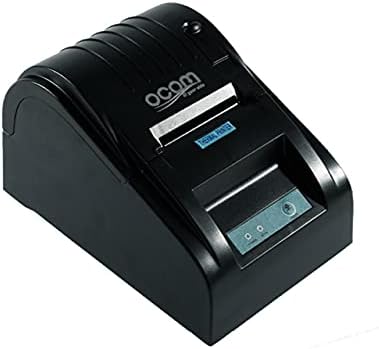
This image shows the OCOM OCPP-585A-U-B Thermal Receipt Printer from a slightly elevated front-right angle. The printer is black with a sleek, compact design. The paper output slot is visible at the top, and the control panel with 'POWER' and 'MODE' indicators is located on the front.
This manual provides detailed instructions for the OCOM OCPP-585A-U-B Thermal Receipt Printer. Please read this manual carefully before using the printer to ensure proper operation and longevity.
Sąrankos vadovas
1. Išpakavimas
Carefully remove the printer and all accessories from the packaging. Verify that all components are present: printer unit, power adapter, USB cable, and a roll of thermal paper.
2. Terminio popieriaus įdėjimas
- Atidarykite popieriaus dangtį paspausdami dangčio atidarymo mygtuką (paprastai esantį šone arba priekyje).
- Insert the thermal paper roll into the paper compartment, ensuring the printing side of the paper faces the print head. The paper should feed smoothly from the bottom of the roll.
- Pull out a small length of paper beyond the paper exit slot.
- Tvirtai uždarykite popieriaus dangtelį, kol jis spragtelės į vietą.
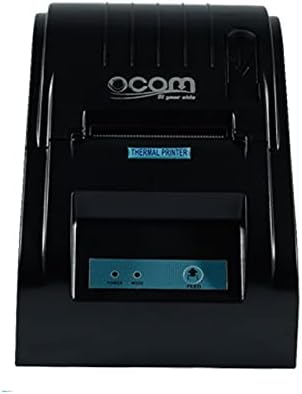
This image displays the OCOM OCPP-585A-U-B Thermal Receipt Printer from a direct top-down perspective. The paper compartment is visible, showing a thermal paper roll correctly inserted. The 'THERMAL PRINTER' label and the control panel with 'POWER' and 'MODE' indicators are clearly visible.
3. Spausdintuvo prijungimas
- Connect the power adapter to the printer's power input port and then plug it into a power outlet.
- Connect the USB cable to the printer's USB port and the other end to your computer or POS system.
- Paspauskite maitinimo mygtuką, kad įjungtumėte spausdintuvą. Maitinimo indikatoriaus lemputė turėtų užsidegti.
Naudojimo instrukcijos
Pagrindinis spausdinimas
Once connected and powered on, the printer is ready to receive print commands from your connected device. Ensure the correct printer driver is installed on your computer/POS system.
- Atidarykite dokumentą arba programą, iš kurios norite spausdinti.
- Pasirinkite „Spausdinti“ iš file meniu.
- Choose 'OCOM OCPP-585A-U-B' as your printer.
- Adjust print settings if necessary (e.g., paper size, print quality).
- Spustelėkite „Spausdinti“.
Self-Test Print
To perform a self-test print, ensure the printer is off. Hold down the 'FEED' button (if available, or a combination of buttons as per specific model) while turning on the printer. Release the button once printing begins. This will print a configuration page, confirming basic printer functionality.
Priežiūra
Spausdinimo galvutės valymas
Regular cleaning of the print head ensures optimal print quality and extends printer life.
- Išjunkite spausdintuvą ir atjunkite maitinimo laidą.
- Atidarykite popierinį dangtelį.
- Švelniai nuvalykite vatos tamponuampened with isopropyl alcohol to gently wipe the thermal print head (the dark strip inside the printer).
- Prieš uždarydami dangtį ir įjungdami spausdintuvą, leiskite spausdinimo galvutei visiškai išdžiūti.
Cleaning the Paper Path
Minkštu šepečiu arba suslėgtu oru pašalinkite popieriaus dulkes ar šiukšles iš popieriaus kelio.
Trikčių šalinimas
| Problema | Galima priežastis | Sprendimas |
|---|---|---|
| Spausdintuvas neįsijungia | Power cable loose; Power outlet faulty | Check power connections; Try a different outlet |
| Nėra spausdinimo išvesties | Paper loaded incorrectly; Out of paper; Driver not installed/selected | Reload paper correctly; Replace paper roll; Install/select correct printer driver |
| Faint or blank print | Thermal paper loaded upside down; Print head dirty; Paper quality issue | Flip paper roll; Clean print head; Try new thermal paper |
| Spausdintuvas neprisijungęs | USB cable disconnected; Printer driver issue | Reconnect USB cable; Reinstall printer driver |
Specifikacijos
| Funkcija | Detalė |
|---|---|
| Pirmoji laisva data | 2021 m. birželio 20 d |
| Gamintojas | OCOM |
| ASIN | B097LSGP62 |
| Prekės modelio numeris | OCPP-585-U-B |
| Prekės ženklo pavadinimas | OCOM |
| Ryšio technologija | USB |
| Spausdintuvo technologija | Šiluminis |
| Spalva | Juoda |
| Modelio pavadinimas | OCPP 585 U B |
| Spausdinimo laikmena | Etiketės |
| Skaitytuvo tipas | Kvitas |
Garantija ir palaikymas
This OCOM printer typically comes with a standard manufacturer's warranty. Please refer to the warranty card included with your product for specific terms and conditions, or visit the official OCOM websvetainėje rasite išsamią informaciją apie garantiją.
For technical support, driver downloads, or further assistance, please visit the OCOM official support website or contact their customer service. Keep your model number (OCPP-585A-U-B) and purchase details ready when seeking support.


