1. Produktas baigtasview
The Logitech Lift for Mac Wireless Vertical Ergonomic Mouse is designed to provide comfort and reduce wrist strain during extended use. Its unique 57-degree vertical angle promotes a natural handshake position, aligning the forearm and upper body for improved posture. This mouse features quiet clicks and a Silent Smartwheel for smooth, precise, or fast scrolling. It is compatible with macOS and iPadOS devices and offers customizable buttons for enhanced productivity.

Figure 1.1: The Logitech Lift for Mac Wireless Vertical Ergonomic Mouse in Off White, showcasing its ergonomic design and smooth finish.

Figure 1.2: A user comfortably operating the Logitech Lift mouse at a desk with a Mac computer, highlighting its design for Mac users and comfort.

Figure 1.3: A hand demonstrating the natural handshake position achieved when holding the Logitech Lift mouse, which helps reduce wrist strain.

1.4 pav.: Iš viršaus į apačią view of the Logitech Lift mouse, illustrating its soft rubber grip and comfortable thumb rest designed for enhanced user experience.

Figure 1.5: The Logitech Lift mouse highlighting its sustainable design, indicating it is made with recycled plastic and features responsible packaging.

Figure 1.6: A detailed diagram outlining the key features of the Logitech Lift mouse, such as quiet clicks, the Smartwheel, adjustable cursor speed, connectivity for up to 3 devices, and its 2-year battery life.

Figure 1.7: A hand holding the Logitech Lift mouse, illustrating its ergonomic fit specifically designed for small to medium-sized hands.

Figure 1.8: An image showing the contents of the product box: the Logitech Lift mouse and a single AA battery.

Figure 1.9: A diagram illustrating the dimensions of the Logitech Lift mouse: 108mm in length, 70mm in width, and 71mm in height, with a total weight of 125 grams.
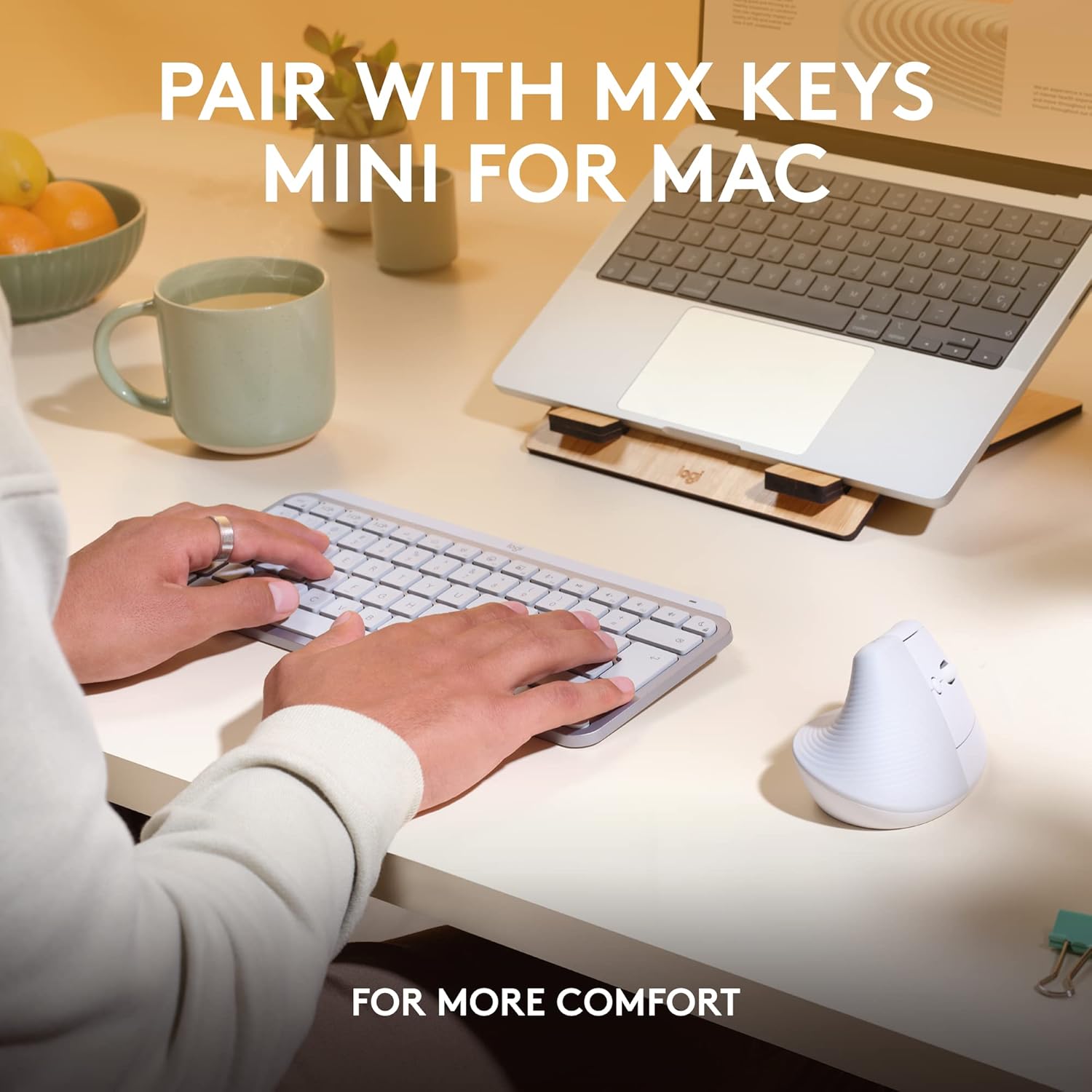
Figure 1.10: A user demonstrating the Logitech Lift mouse paired with an MX Keys Mini keyboard for Mac, suggesting a complete ergonomic setup for enhanced comfort.
2. Sąrankos vadovas
2.1. Išpakavimas ir pirminė apžiūra
Carefully remove the Logitech Lift mouse and the included AA battery from the packaging. Inspect all components for any signs of damage. Ensure all items listed in the "In the Box" section (Figure 1.8) are present.
2.2. Akumuliatoriaus įdėjimas
- Raskite akumuliatoriaus skyrių pelės apačioje.
- Atidarykite akumuliatoriaus dangtelį.
- Insert the single AA battery, ensuring the positive (+) and negative (-) terminals align correctly with the indicators inside the compartment.
- Saugiai uždarykite akumuliatoriaus dangtelį.
The mouse is designed for up to 2 years of battery life with a single AA battery, though actual life may vary based on usage.
2.3. Connecting to Your Device (Bluetooth Low Energy)
The Logitech Lift mouse connects via Bluetooth Low Energy. Follow these steps to pair it with your macOS or iPadOS device:
- Turn on the mouse using the power switch located on the underside. The LED indicator should begin to blink.
- On your Mac or iPad, navigate to Sistemos nustatymai (arba Sistemos nuostatos on older macOS versions) > Bluetooth.
- Įsitikinkite, kad „Bluetooth“ įjungtas On.
- The Logitech Lift mouse should appear in the list of discoverable devices. Select it to initiate the pairing process.
- Once connected, the LED indicator on the mouse will turn solid for a few seconds, then turn off.
The mouse can connect to up to 3 devices and switch between them using the Easy-Switch button on the underside (Figure 1.6).
2.4. Installing Logi Options+ Software (Recommended)
To unlock the full potential of your Logitech Lift mouse, including customizable buttons and advanced settings, it is recommended to install the Logi Options+ software. This software allows you to:
- Customize the function of the 4 easy-to-reach buttons.
- Adjust cursor speed (DPI).
- Enable app-specific shortcuts.
- Utilize Logitech Flow for seamless multi-computer control (requires Logi Options+ on all connected computers).
Download Logi Options+ from the official Logitech websvetainė: www.logitech.com/software/logi-options-plus.html
3. Pelės valdymas
3.1. Ergonomic Hand Position
The primary benefit of the Logitech Lift mouse is its ergonomic design. Place your hand on the mouse so that your wrist is elevated and your forearm is in a natural, relaxed handshake position. Avoid gripping the mouse too tightly; allow your hand to rest comfortably on its contoured shape.
3.2. Pagrindinės funkcijos
- Kairysis spustelėjimas: Standartinis pasirinkimas ir aktyvinimas.
- Dešiniuoju pelės mygtuku spustelėkite: Access contextual menus.
- Išmanusis ratas: Slinkite per dokumentus ir web pages. The Smartwheel automatically switches between line-by-line precision scrolling and hyper-fast free spinning for long documents.
- Nykščio mygtukai: By default, these buttons often control forward/back navigation in web browsers. Their functions can be customized via Logi Options+ software.
- Top Button (below scroll wheel): This button typically controls cursor speed (DPI) by default, allowing you to switch between different sensitivity levels. Customizable via Logi Options+ software.
3.3. Kelių įrenginių perjungimas („Easy-Switch“)
The Logitech Lift mouse can be paired with up to three different devices. To switch between connected devices:
- Įsitikinkite, kad pelė įjungta.
- Press the Easy-Switch button on the underside of the mouse. The LED indicators (1, 2, 3) will show which channel is currently active.
- Press the button repeatedly to cycle through the paired devices. The mouse will connect to the selected device automatically.
3.4. Customizing Buttons and Settings (Logi Options+ Software)
For advanced customization, use the Logi Options+ software. This allows you to:
- Assign specific actions to each of the four customizable buttons based on your workflow.
- Create application-specific settings, so buttons perform different actions in different programs (e.g., copy/paste in a word processor, brush size in a design application).
- Fine-tune the Smartwheel's scrolling behavior.
- Adjust the tracking speed (DPI) to your preference.
4. Priežiūra ir priežiūra
4.1. Pelės valymas
To maintain optimal performance and appearance, clean your Logitech Lift mouse regularly:
- Šiek tiek naudokite minkštą, be pūkelių šluostę dampnuplaukite vandeniu arba švelniu, neabrazyviniu valymo tirpalu.
- Wipe down the exterior surfaces, paying attention to areas that come into frequent contact with your hand.
- Nuo optinio jutiklio apačioje švelniai pašalinkite dulkes ar šiukšles sausu vatos tamponu arba suslėgtu oru.
- Venkite naudoti stiprias chemines medžiagas, abrazyvinius valiklius ir nemerti pelės į skystį.
Note: The Off White color may show dirt more easily on the rubberized grip. Regular cleaning is recommended.
4.2. Baterijos keitimas
When the battery life indicator (if available via software) shows low power, or if the mouse becomes unresponsive, it's time to replace the AA battery. Refer to Section 2.2 for battery installation instructions.
4.3. Sandėliavimas
When not in use for extended periods, turn off the mouse using the power switch to conserve battery life. Store the mouse in a clean, dry environment away from extreme temperatures and direct sunlight.
5. Problemų sprendimas
5.1. Pelė nereaguoja
- Patikrinkite galią: Ensure the mouse is turned on and the battery is correctly installed and charged. Replace the battery if necessary.
- Atkurti ryšį:
- Išjunkite ir vėl įjunkite pelę.
- Savo įrenginyje išjunkite ir vėl įjunkite „Bluetooth“.
- Go to Bluetooth settings and try to re-pair the mouse. You may need to "Forget This Device" and then pair it again.
- Patikrinkite paviršių: Ensure you are using the mouse on a suitable surface. Highly reflective or uneven surfaces can interfere with tracking.
- Trikdžiai: Move the mouse closer to your device. Other wireless devices or strong electromagnetic fields can cause interference.
5.2. Cursor Movement is Erratic or Jumpy
- Švarus jutiklis: Dust or debris on the optical sensor can cause erratic movement. Clean the sensor as described in Section 4.1.
- Surface Quality: Pabandykite naudoti pelę ant kito paviršiaus arba pelės kilimėlio.
- Baterijos lygis: Low battery can sometimes affect tracking performance. Replace the battery.
5.3. Buttons or Scroll Wheel Not Functioning Correctly
- Programinės įrangos patikrinimas: If you are using Logi Options+ software, ensure that the button assignments have not been inadvertently changed. Reset to default settings if unsure.
- Re-pair Mouse: Sometimes re-pairing the mouse can resolve minor communication issues affecting button functionality.
- Iš naujo paleiskite įrenginį: A simple restart of your Mac or iPad can often resolve temporary software glitches.
5.4. Difficulty Switching Between Devices
- Užtikrinkite susiejimą: Verify that the mouse has been successfully paired with all intended devices on their respective Easy-Switch channels.
- Tvirtai paspauskite: Ensure you are pressing the Easy-Switch button firmly and briefly.
- Device Bluetooth On: Confirm that Bluetooth is active on the target device you are trying to switch to.
6. Techninės specifikacijos
| Funkcija | Detalė |
|---|---|
| Modelio numeris | 910-006471 |
| Matmenys (IxPxH) | 108 x 70 x 71 mm (4.25 x 2.75 x 2.79 colio) |
| Svoris | 125 g (4.4 uncijos) |
| Spalva | Nespalvotas |
| Ryšys | Bluetooth Low Energy |
| belaidis diapazonas | Iki 10 metrų (33 pėdų) |
| Jutiklio technologija | Optinis sekimas |
| DPI diapazonas | 400 - 4000 DPI (fully adjustable) |
| Mygtukai | 4 customizable buttons (plus scroll wheel click) |
| Baterijos tipas | 1 x AA baterija (pridedama) |
| Baterijos veikimo laikas | Iki 24 mėnesių (gali skirtis priklausomai nuo naudojimo) |
| Suderinamumas | macOS, iPadOS |
| Perdirbto plastiko turinys | 54% certified post-consumer recycled plastic (excluding receiver, battery, PWA, FFC cable) |
7. Garantija ir palaikymas
7.1. Ribota aparatinės įrangos garantija
Logitech products are covered by a limited hardware warranty. For specific warranty terms and conditions applicable to your region and product, please refer to the official Logitech website or the warranty information included with your purchase. Typically, this covers defects in materials and workmanship under normal use.
7.2. Pagalba klientams
For technical assistance, product inquiries, or warranty claims, please contact Logitech Customer Support through their official channels:
- Palaikymas internetu: Visit the Logitech Support website for FAQs, troubleshooting guides, and software downloads: support.logi.com
- Naudotojo vadovas (PDF): A comprehensive PDF user manual is also available for download: Atsisiųskite PDF vadovą
When contacting support, please have your product model number (910-006471) and proof of purchase ready.


